Face Enhancer / Fixer
Fix weird, low-res, or melted AI faces. Enhance facial features with a reference photo. 20 credits per photo.
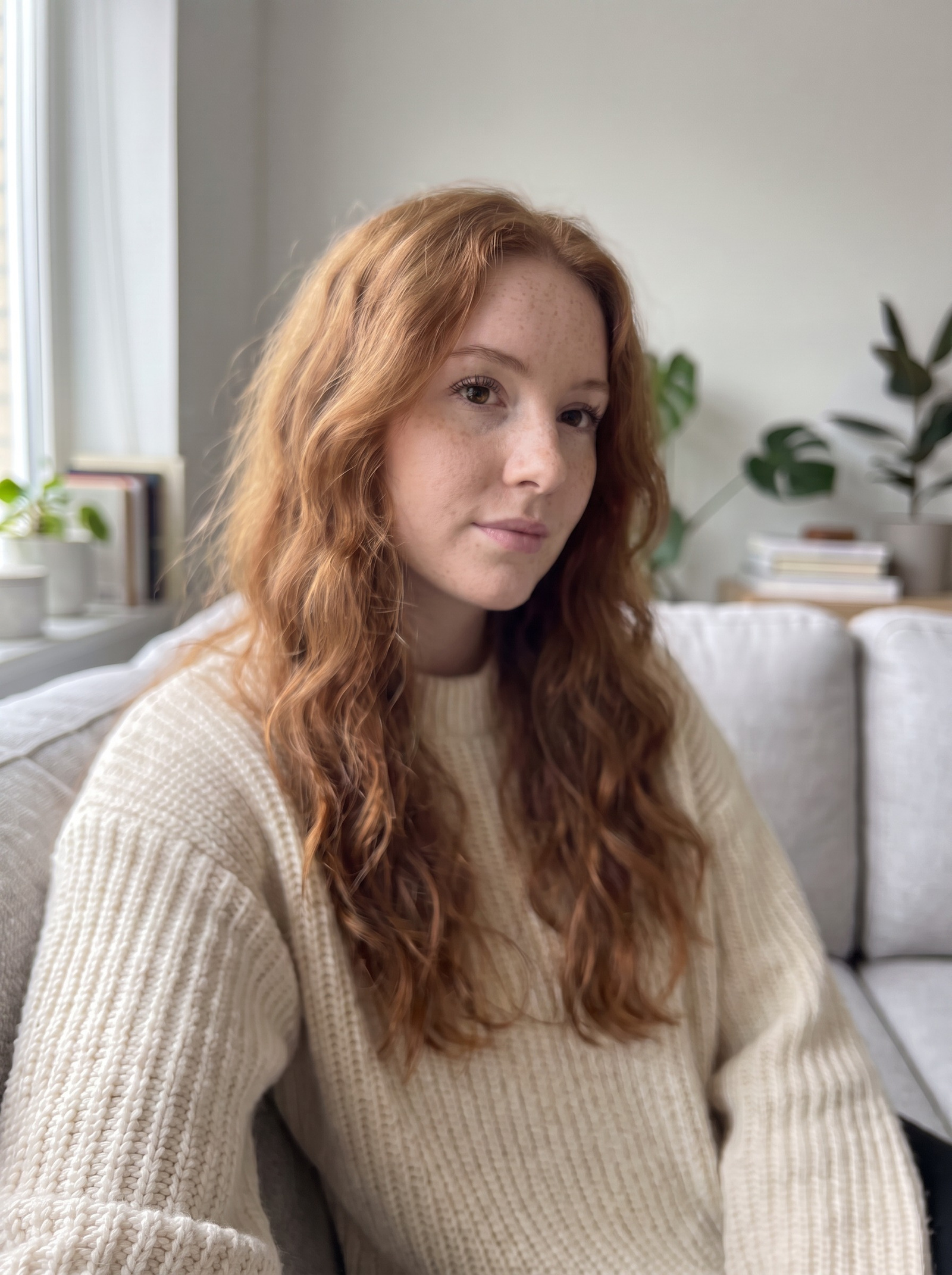
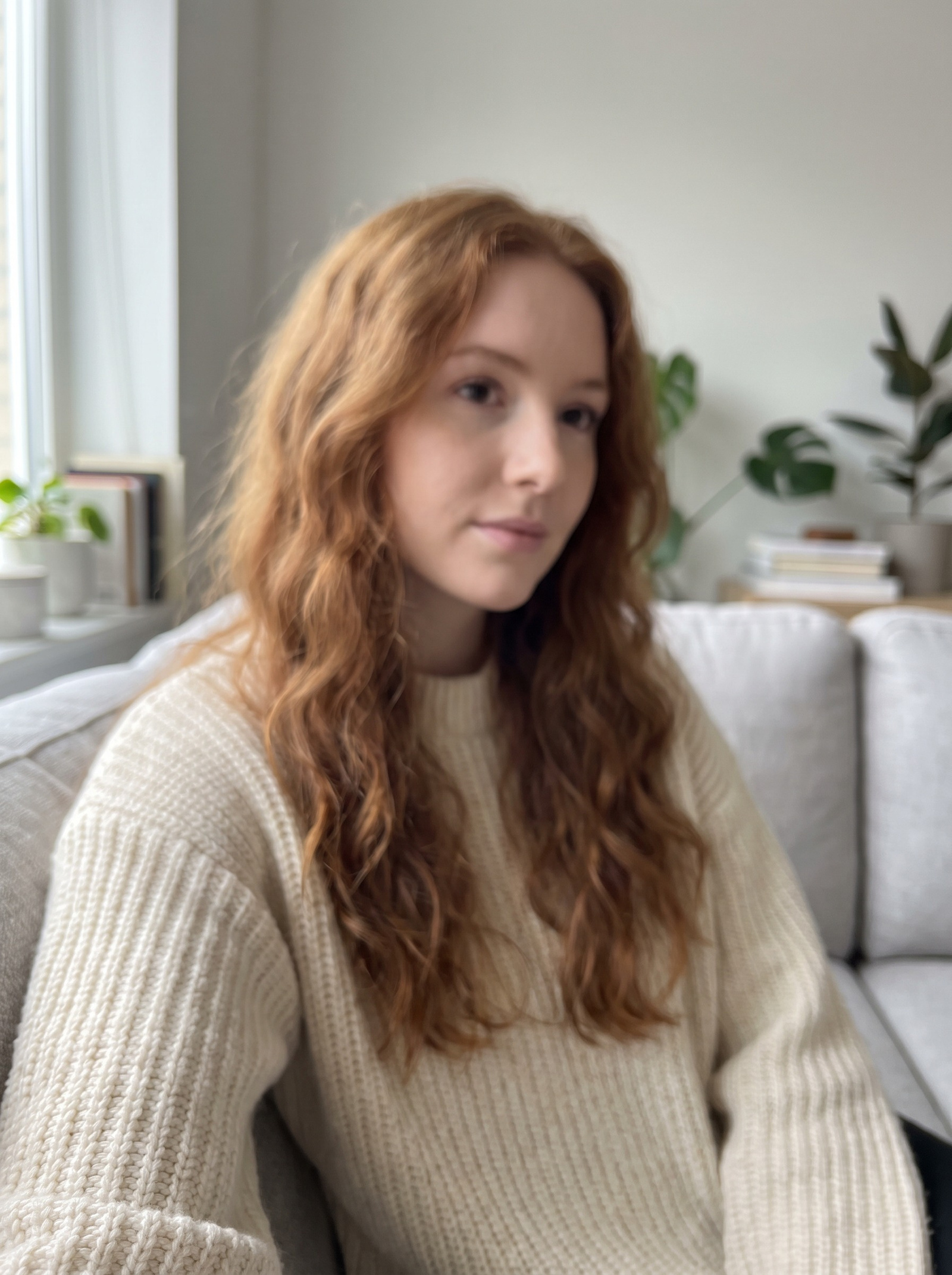 BeforeAfter
How do I fix a melted or blurry AI face?
Imagera's face fixer repairs the face inside a photograph you already have. You add one clear reference photo of the person and the images whose faces came out melted, asymmetric, blurry or too small to read, and each one is rebuilt towards that reference. Pose, clothing, lighting and background are left exactly as they were, and the identity is preserved rather than restyled.
- Credits
- 20 per photo, 25 on the higher-fidelity engine
- Uploads
- One reference photo of the person, plus the photos to repair
- What changes
- The face only — pose, clothing, lighting and background are left alone
- Where it runs
- In the browser, nothing to install
Updated October 10, 2026
Cite this page: https://imagera.ai/image/personal-influencer/face-enhance
 Illustration
What the repair pass is for
A fixer, not a beautifier
The tool is a fixer first and a quality booster second. It is not there to redesign a face or make someone look like a different person — it is there to resolve the artifacts a generator left behind and lift the detail so the portrait holds up at full size. That distinction matters, because a lot of "enhancers" quietly rewrite a face and hand you back a stranger who happens to be in your photo.
Know more →A focused pass, not a whole-image tool
Fix one thing at a time in your pipeline. The Face Enhancer is a focused tool — it targets the face, not the whole image. If your photo also needs background cleanup, upscaling, or a pose change, run those with the tools built for them and let the enhancer do the job it does well. Layering a single-purpose face pass into a larger workflow tends to beat asking one general tool to fix everything at once, and it keeps you from over-processing a face that only needed a light correction.
Know more →Enhance once, then move on
One caution worth building into your routine: enhance once, deliberately, rather than stacking pass after pass. The tool lifts detail and repairs artifacts, but it is a focused correction, not a dial you turn up indefinitely. A face that only needed a light fix can start to look over-processed if you run it repeatedly chasing a marginal gain. Treat it as the specific step that takes a face from clearly-off to publishable, then move on to the next stage of the pipeline.
Know more →How a face repair actually goes
One reference photo of the person, the photos that came out wrong, and a pass that touches the face and nothing else.
What it repairs
Anyone who generates portraits with AI runs into the same wall: the scene looks great, the lighting is right, the pose reads well — and then you zoom in and the face has fallen apart. Eyes sit at slightly different heights, teeth blur into a smear, skin turns waxy or plastic, and fine detail dissolves into mush the moment the face is small in frame. The Face Enhancer is built for exactly that gap. It takes an AI-generated photo that is almost right and repairs the facial region: melted features, asymmetric eyes, blurry or low-resolution detail, and the unnatural skin textures that give an image away as synthetic.
Two things go in: the person you mean, and the photo that went wrong
A run takes one clear, well-lit photo of the person the face is supposed to be, plus the images whose faces need repairing. The reference is not optional — it is the identity every repair is pulled towards, which is what separates this from a generic sharpening pass: the result is not just a better face, it is the right one. The photos you are fixing do not have to share a pose, a shoot or a resolution with it, and the reference is reused for all of them. Each photo is charged on its own, from 20 credits on the engine the studio opens with and 25 on the higher-fidelity one; switching engines re-prices the button before you commit, and failed runs are not charged.
Where it runs out of pixels
Small faces are the most common hard case. A person who occupies a tiny share of a wide shot has very few pixels of facial detail for the enhancer to build on, so the honest ceiling on the result is lower. Where your generator allows, produce the portrait tighter on the subject before enhancing — a larger face in the source is the single biggest factor in how faithfully the eyes, teeth, and skin come back. When multiple faces share a frame, the same logic applies to each: enhancement works best when each face is reasonably sized and clearly visible, not clustered small in a crowd.
How to repair a broken AI face
Three steps in the browser. No install, no GPU.
Add the reference face
Upload one clear, well-lit photo of the person the face is supposed to be — front on, with the face large in the frame. It supplies the identity, not the framing, so it does not need to match the pose of the photos you are fixing.
Add the photos that came out wrong
Drop in the renders whose faces are melted, asymmetric, smeared or too small to read. They can come from different prompts, shoots and resolutions; the same reference face is used for every one of them.
Run the repair
Pick an engine — 20 credits per photo on the one the studio opens with, 25 on the higher-fidelity one — and generate. Each photo becomes its own job and comes back with the face rebuilt and the pose, clothing, lighting and background untouched.
When a face fixer earns its keep
Salvaging a batch you already liked
The most common scenario is the salvage. You generated a batch of images, the composition on several is exactly what you wanted, and the only reason they are unusable is the face. Instead of re-rolling the prompt and hoping the next generation keeps the good parts, you enhance the faces you already have and keep the shots you liked. That turns a low hit-rate generation session into a usable set.
The last pass before something is published
There are plenty of finishing-touch cases too: a portrait headed for an ad, a profile, a storefront listing, or a thumbnail where a blurry or asymmetric face would undercut trust before a viewer reads a word. In each, the enhancer is the last pass that takes a photo from "clearly AI, look at the eyes" to something clean enough to publish. And because it preserves likeness rather than reinventing it, it is safe to use on faces you have deliberately locked in, without worrying that the fix will quietly hand you a different person.
Keeping a persona recognisable
The audience is practical: creators building a consistent AI persona whose face wobbles between generations, marketers who need a clean portrait for an ad or landing page, storefront and profile-photo use cases where a melted eye is a dealbreaker, and anyone finishing an image-generation pipeline who needs one reliable pass to make faces production-ready. If you have ever generated fifty images to get three usable faces, this is the step that rescues the other forty-seven.
Discover more AI features
Pro LoRA Generator
For advanced users — bring your own LoRA for a consistent style or character.
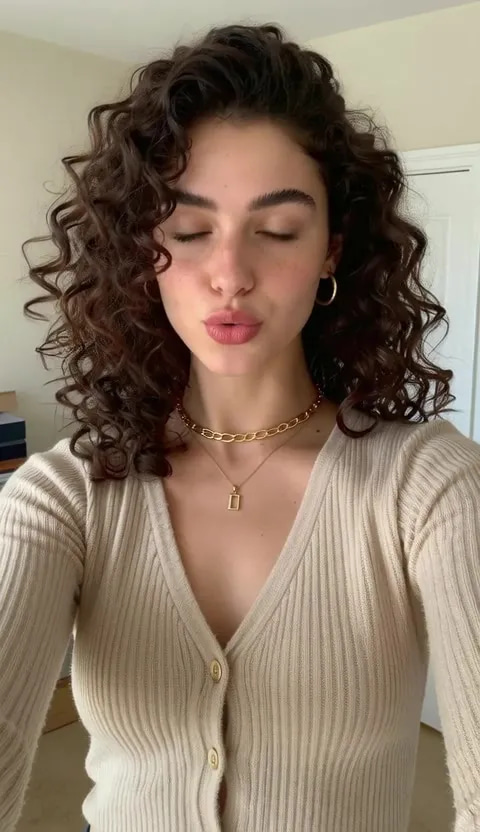
Lipsync Studio
No camera, no shoot, no retakes — a photo and a voice note become a video of that person saying it, or a clip you already shot says something new.
 Illustration
Creator program
Run an AI influencer account? Post what you make with your link and earn 30% of what each customer you refer pays for 12 months
AI Influencer Generator
Create a consistent virtual influencer — generate a face or train yours, then make photos and reels
LoRA Trainer
Train custom AI models on your own images
Frequently asked questions
What facial issues can it fix?
Melted features, asymmetric eyes, blurry details, low resolution faces, and unnatural skin textures.
Does it change my likeness?
No. Face enhancement preserves your identity while fixing artifacts and improving detail quality.
What do I need to upload?
Two things at minimum: one clear photo of the person the face should be, and one image to repair. The reference is required, not optional — the repair is pulled towards that face, which is how the result comes back as the right person rather than merely a sharper stranger. After that you can keep adding images to fix in the same run, and the one reference is applied to all of them.
What does one photo cost?
A flat credit charge per photo on the engine you have selected — 20 credits on the one the studio opens with and 25 on the higher-fidelity engine. Two photos is two charges at that rate. Switching engines re-prices the generate button immediately, the total is shown before you commit, and failed runs are not charged.
Does it work on a face in profile, or one that is tiny in the frame?
Not every problem face is a straightforward one, and knowing where the difficulty lies helps you set expectations and prep better inputs. A face in sharp profile gives the tool far less structure to work from than a front or three-quarter view, because half of the features it would normally repair are simply not in the frame. If a profile face is critical, it is often worth generating a version closer to frontal to enhance, rather than expecting a full reconstruction from a sliver of a face.
Key takeaways
What the repaired frame actually gives back
Real skin texture instead of a smeared surface, freckles that survive at full size, individual hair strands rather than one solid mass, sharp eyelashes and clean catchlights, and fabric whose weave you can read. It is the same photograph and the same person — pose, clothing, room and light are untouched — with the detail a generator lost put back.
What a face that needs this pass looks like
The shot is right and the face is not. Skin goes waxy or smooth to the point of blankness, hair reads as a single mass with no strands in it, eyes lose their catchlights and sit slightly off from each other, and fine texture in clothing dissolves. Nothing about the composition needs changing, which is exactly why re-rolling the prompt is the wrong move.
How does Imagera's Face Enhancer compare to fixing AI faces by hand?
| What matters | Imagera Face Enhancer | Manual retouching in an editor | Re-rolling the generator |
|---|---|---|---|
| Skill required | Low — add a reference photo of the person, add the photos to fix, run | High — you need retouching experience to rebuild eyes, teeth, and skin | Low, but you must prompt-tune and get lucky |
| Time per face | One guided pass from a single upload | Long, especially for melted or low-detail faces | Unpredictable — one to many attempts to hit a clean face |
| Keeps the original likeness | Yes — designed to preserve identity while fixing artifacts | Yes, if the retoucher is careful | No — a new generation invents a new face |
| Handles melted, asymmetric, or blurry faces | Yes — targets exactly these failure modes | Yes, with effort and manual reconstruction | Only by chance on the next attempt |
| Keeps the rest of the image intact | Yes — enhances the face, leaves the scene alone | Yes | No — you lose the composition you liked |
| Cost model | 20 credits per photo (25 on the higher-fidelity engine), from the balance the whole suite shares | Software plus your hours | Credits burned per re-roll, some wasted |
Keep the shot, fix the face
The composition you liked stays. Only the face is rebuilt, and it is rebuilt towards the person you say it is.
Fix a face →