One project or every project
A .cursor/mcp.json in a project folder loads Imagera for that project only; ~/.cursor/mcp.json in your home folder loads it everywhere.
Imagera AI - AI content creation platform for generating images, cloning voices, and enhancing videos. Privacy Policy | Terms
MCP guide · Updated 13 Oct 2026
Add the Imagera MCP server to Cursor and sign in with your Imagera account. Cursor can then call Imagera's image, video, voice and music tools in a chat, and each run spends your Imagera credits. No API key is involved: sign-in is OAuth in the browser.
By Imagera AI Team. Using Imagera from an assistant comes with the Pro plan and above.
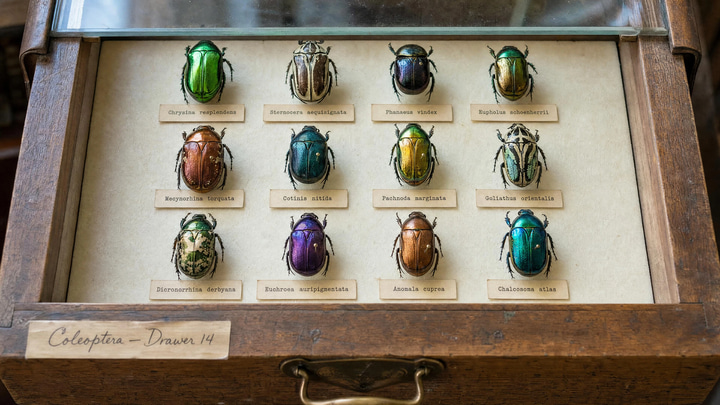 Imagera output
 Imagera output
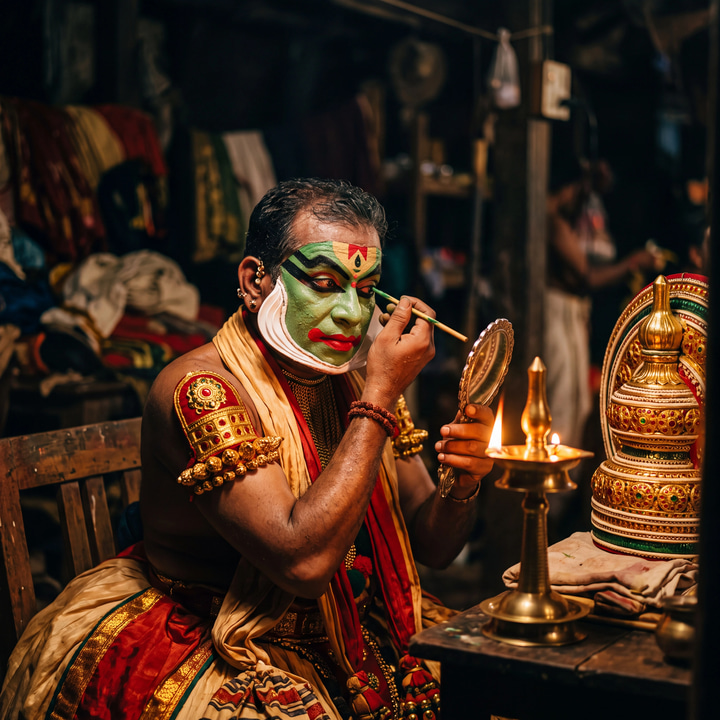 Imagera output
 Imagera output
A project-scoped .cursor/mcp.json works too. There is no API key to paste here — sign-in happens in the browser, so nothing secret goes in the file.
https://mcp.imagera.ai/mcp{
"mcpServers": {
"imagera": {
"url": "https://mcp.imagera.ai/mcp"
}
}
}Type the request in Cursor. The client turns it into a tools/call request to the Imagera server, like the one below.
You typeUse Imagera to make a 16:9 hero image for this landing page: a tidy desk at dawn, soft window light, empty space on the left for the headline.
{
  "jsonrpc": "2.0",
  "id": 1,
  "method": "tools/call",
  "params": {
    "name": "generate_image",
    "arguments": {
      "prompt": "A tidy desk at dawn, soft window light, empty space on the left for a headline, wide composition",
      "aspect_ratio": "16:9",
      "speed": "pro"
    }
  }
}
When the image is ready the tool returns its URL and the credits used. For a larger copy, ask the agent to pass that URL to upscale_image.
The server registers more, including AI detection, voice cloning and model comparison. The full list is on Imagera MCP.
| Tool | What it does | Main parameters |
|---|---|---|
generate_image | Text to image. Returns the image URL and the credits used. | promptaspect_ratiospeedmodel |
edit_image | Edits an image from a plain-language instruction. | image_urlinstructionspeed |
upscale_image | Returns a larger, sharper copy of an image. | image_urltarget_factor |
generate_video | Text to video. Starts a job and returns its job_id. | promptdurationaspect_ratiospeed |
animate_image | Image to video from a still and a motion note. | image_urlmotion_promptduration |
generate_voice | Text to speech. | textvoicelanguage_code |
generate_music | Text to music, with optional lyrics. | promptdurationlyricsinstrumental |
check_job | Waits for a running job and returns its result. Uses no credits. | job_idwait_seconds |
check_credits | Returns your plan and credit balance. Uses no credits. | None |
From Cursor Docs: Model Context Protocol (MCP), read .
A .cursor/mcp.json in a project folder loads Imagera for that project only; ~/.cursor/mcp.json in your home folder loads it everywhere.
Cursor asks before it runs an MCP tool, by default. In Auto-review mode, tools you allowlist run straight away and the rest go through its classifier, so leave paid tools off the allowlist if you want to confirm each run.
Cursor's mcp.json accepts an auth object with a client ID and secret, for servers that hand out fixed OAuth clients. Imagera needs no such block: the url line alone is enough.
Switch the Imagera server off from Customize in the sidebar. A disabled server does not load or appear in chat, and its mcp.json entry stays.
Open the Output panel (Cmd+Shift+U on a Mac), choose "MCP Logs" and read the connection or sign-in error there.
The desktop app receives the sign-in on http://localhost:8787/callback, a fixed address. If another program holds port 8787, close it and sign in again.
Cursor shows the server's error in chat and keeps other servers running. Read the message: a credits or plan reply comes from Imagera, a connection error from the network or the URL.
Check the server is switched on in Customize, then ask in Agent chat and name Imagera ("Use Imagera to …").
That reply comes from the Imagera server when its sign-in has lapsed. Switch the server off and on in Customize, approve the sign-in it asks for in the browser, then retry.
Using Imagera from an assistant comes with the Pro plan and above. Runs spend the same credits as the studios; paid generations start at 15 credits. Ask for check_credits to see your balance first.
The server URL is not a secret. The client gets access only after you sign in to Imagera in the browser, and it acts as your account.