AI Sound & Music: Music and Sound Effects for Video — or from Text
Add synchronized sound effects or an original score to any clip, or generate music and sound effects from a text prompt. Imagera’s AI sound engine syncs audio to on-screen action.
Hear the demo
The uploaded clip had no audio track at all — every sound here was added by the studio, timed to the picture.
How do I add music or sound effects to a video with AI?
Open Imagera AI Sound & Music, pick a mode, and upload your clip — AI adds timed sound effects or an original score so ads and reels feel finished. No video? Use text-to-music or text-to-sound-effects to generate audio from a prompt alone.
- Credits
- From 15 per run, scaled by length and takes
- Modes
- 6: SFX or music onto a video, extract audio, text to music or SFX
- Video in
- MP4, WebM, MOV, AVI · up to 100MB
- Takes
- 1, 2 or 3 per run
Updated October 14, 2026
Cite this page: https://imagera.ai/audio/auto-sfx
 Illustration
Features
Music & Sound Effects in One Studio
Generate an original music track or a synchronized sound-effects layer — from a text prompt or straight from your video — all in a single studio.
Know more →Video-Synchronized Audio
Upload a clip and AI analyzes motion, objects, and scenes to add perfectly timed sound effects or a full score directly onto your video.
Know more →Text-to-Music & Text-to-SFX
No video needed. Describe the track or sound you want — "warm lo-fi with vinyl crackle" or "rain on a tin roof" — and AI composes it from scratch.
Know more →Six Purpose-Built Modes
Add SFX to video, add music to video, extract an SFX track, generate a soundtrack, or create music and sound effects from text — pick the mode that fits the job.
Know more →AI-Powered Analysis
Imagera’s sound engine reads visual content frame-by-frame to produce audio that matches the on-screen action.
Know more →Production-Ready Output
Export high-quality audio, or a video with the audio embedded — ready for social media, film, games, or any creative project.
Know more →AI music and sound effects that sync with your video — or generate from text
One studio for two jobs, with six modes to cover how you actually work.
What is AI Sound & Music?
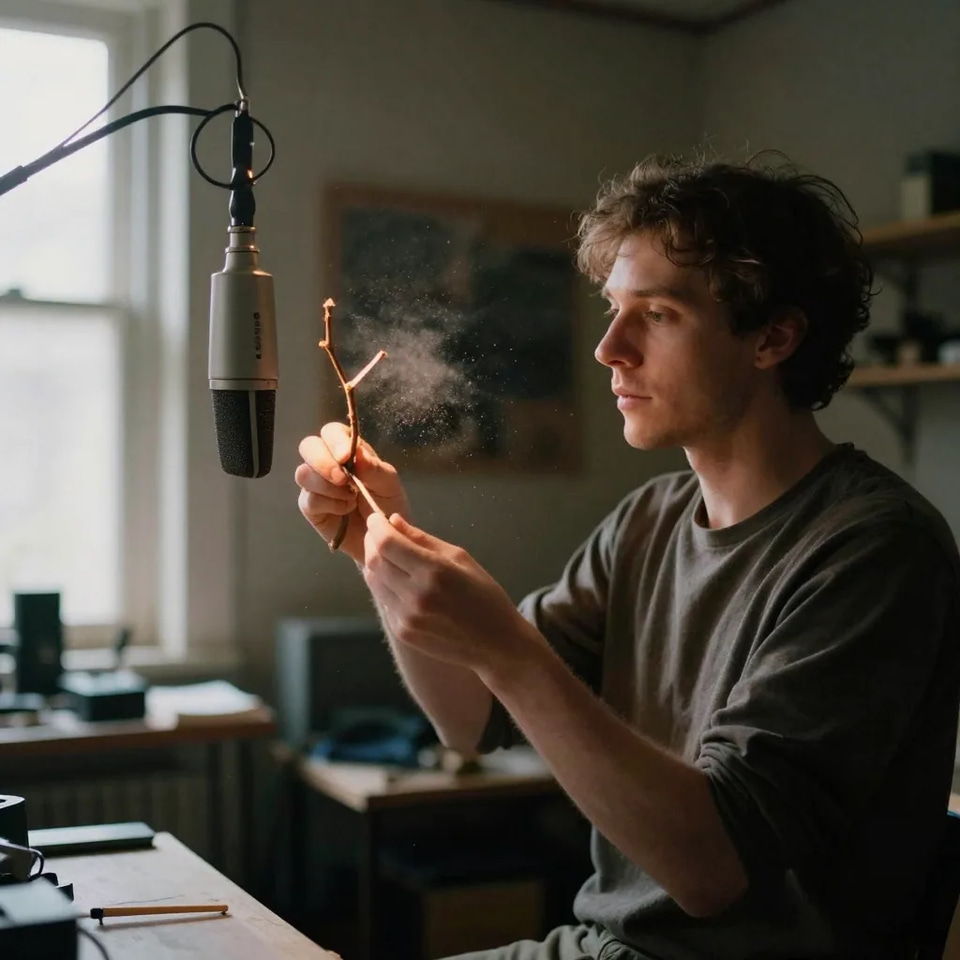
AI Sound & Music is one studio for two jobs — music and sound effects — with six modes to cover how you actually work. Drop in a clip and it generates a synchronized sound-effects track or an original score, placed on the timeline to match what happens on screen. Or skip the video entirely and describe the track or sound you want, and AI composes it from your prompt. There is no library to dig through and no manual keyframing. Imagera’s AI sound engine reads your footage frame-by-frame and scores it in seconds, and you can request up to three takes so you can pick the one that fits. The most common use is finishing a clip that shipped without audio. AI-generated videos — from Imagera’s own Video Generator or from any other source — almost always arrive silent. A silent action shot feels unfinished; the same shot with a footstep on the step, a whoosh on the pan and an impact on the hit — or a music bed under the whole thing — suddenly reads as a real, edited piece. Closing that gap, for both sound effects and music, is what this studio is built for.
Try it now →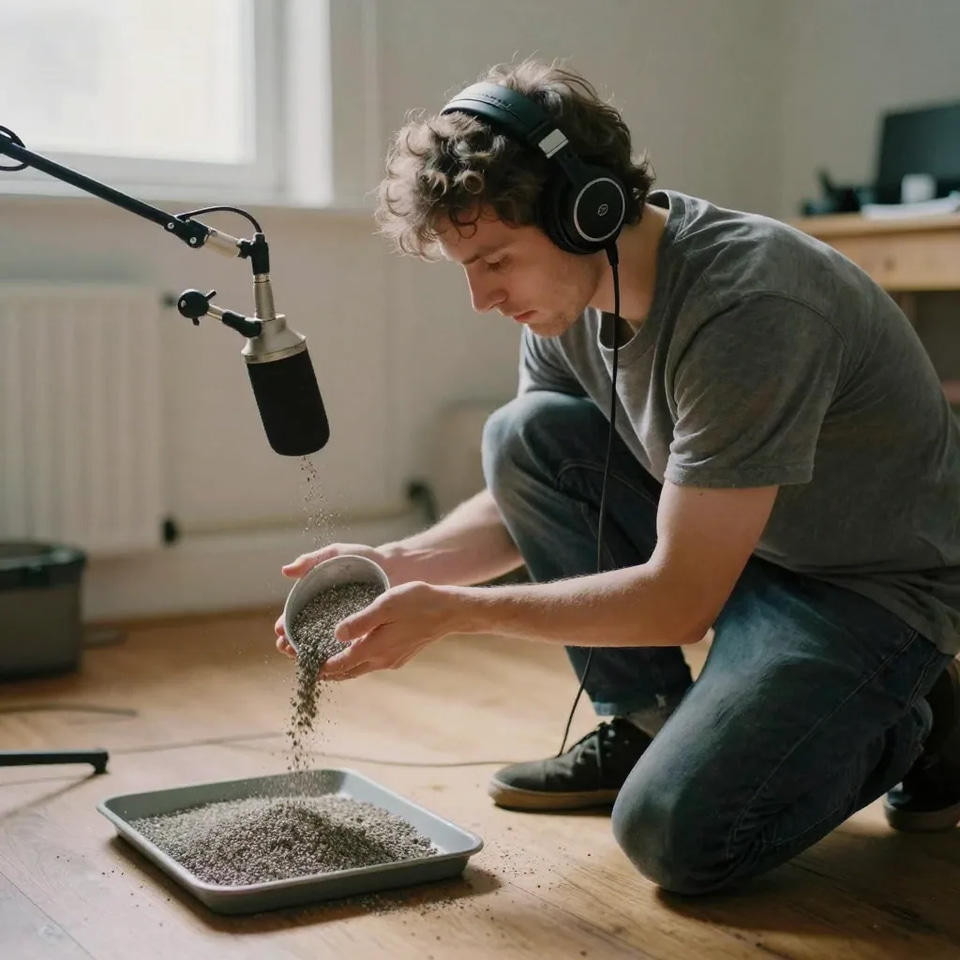
How does it sync sound to the picture?
The video modes sync by reading the clip, not by guessing from a caption. Imagera’s AI sound engine analyzes your footage frame-by-frame, tracking on-screen motion, objects and scene changes, then places each sound event on the timeline at the frame where it visually happens. A footstep lands when the foot hits the ground; a whoosh follows a fast pan; an impact hits on contact — automatically. That frame-aware approach is what separates a real synced pass from generic royalty-free clips you would otherwise have to nudge into place by hand. Because the engine is watching the picture, the timing comes out aligned on the first try for most clips, and you skip the tedious part of sound editing — scrubbing the timeline to line up every hit. The studio auto-detects your clip length and matches the audio to it, and you can request up to three takes to compare in a single run. For sound effects on a video, you can leave the prompt blank and auto-detection reads the footage and chooses the sounds itself — or add a short prompt like "gravel footsteps and distant wind" or "cinematic sci-fi impacts" to steer the palette. Prefer music? Switch to "Add Music to Video" (with an option to keep the original speech) or, with no video at all, use text-to-music and text-to-sound-effects to generate audio purely from a description.
Try it now →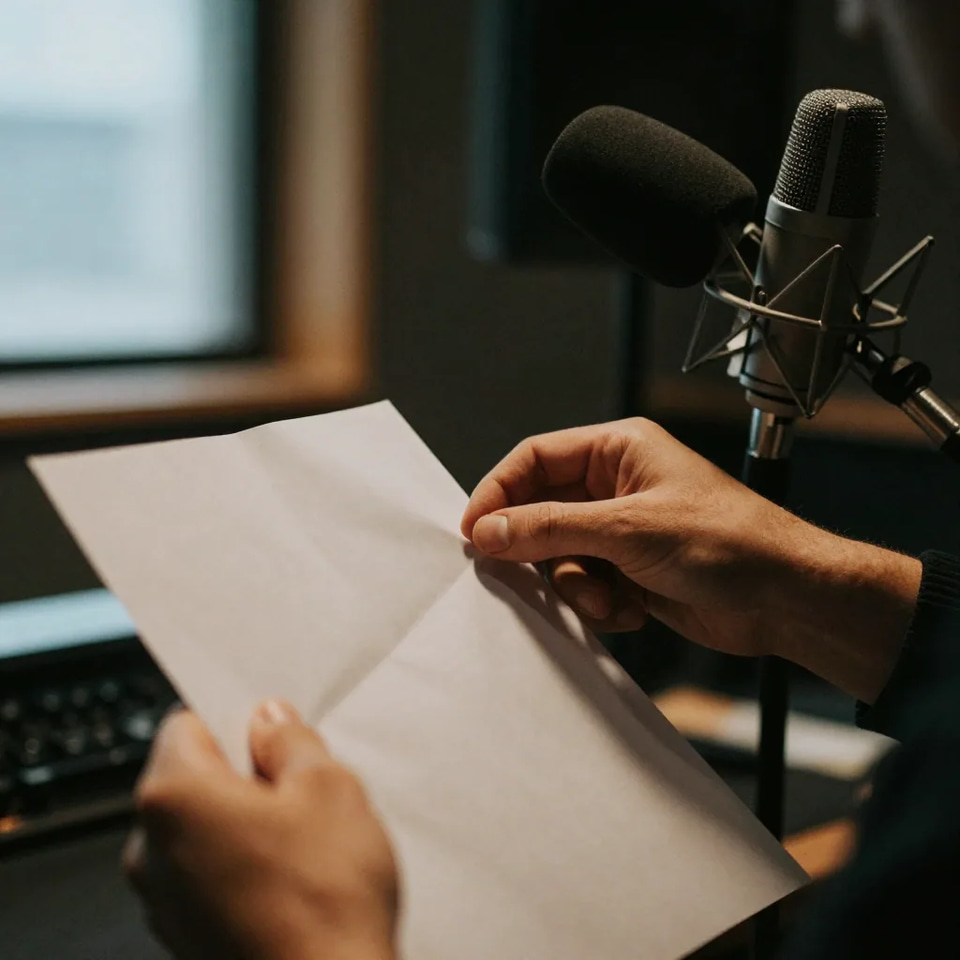
How do I build a full soundtrack?
This studio covers both sound effects and music — foley, impacts, ambience, texture and an original score — so you can build most of a soundtrack in one place. When you want each layer separate so you can balance it on its own, use the audio-only modes and combine everything with your voice track in your editor. Sound effects come from this studio: timed foley and impacts synced to the picture, or generated from a text prompt. For a music track, score a video directly here with "Add Music to Video", compose from a brief with text-to-music, or use Music Factory for songs with structure and vocals. For narration or dialogue, add a voiceover with the Voice Generator for explainers and ads. And if your clip is still silent because it came from AI, make it in the Video Generator first, then bring it here to score.
Try it now →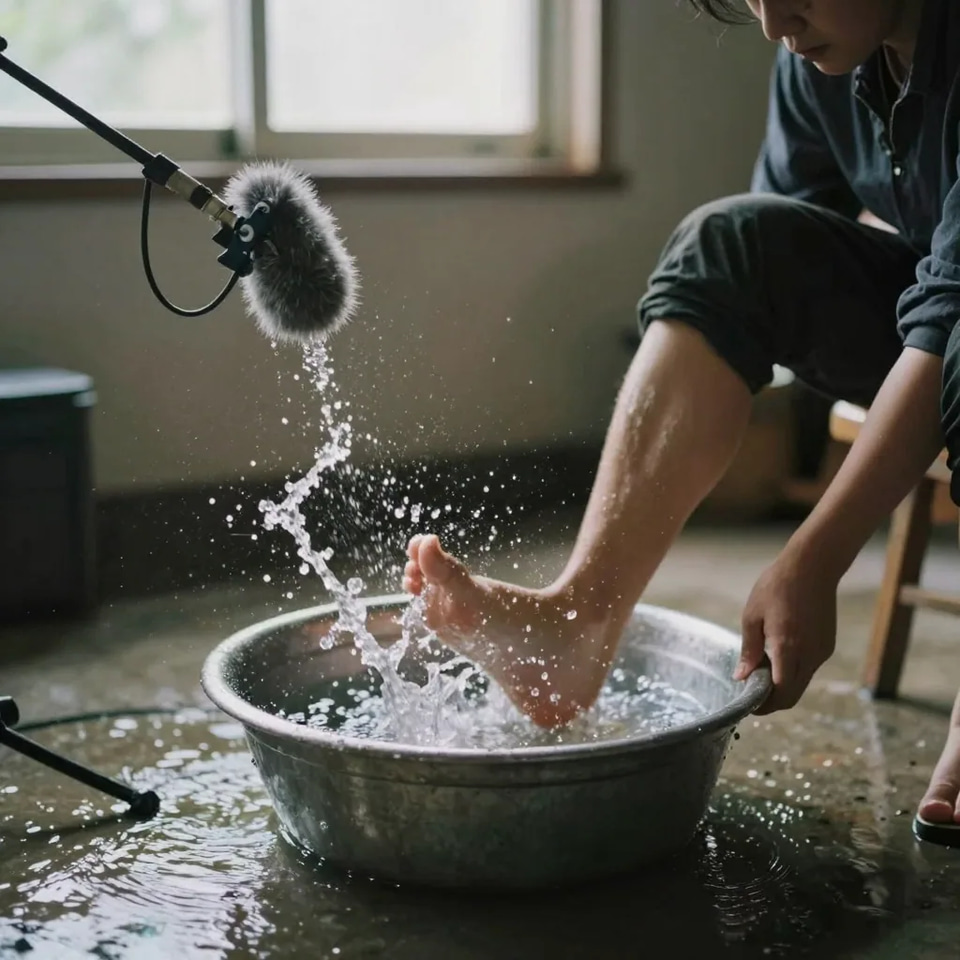
How do I get the best results?
For the video modes, sync quality depends more on the clip you feed it than on the settings — the engine scores what it can see, so footage with clear, isolated on-screen action gives it obvious events to hit. For the text modes, a specific, well-described prompt is what does the work. Pick the right mode first: decide up front whether you want sound effects, a music score, or standalone audio — and whether you have a video or just a description. Feed video modes clips with visible motion: action, impacts, camera moves and object interactions give the engine events to sync to; a locked-off talking head has little to score, so route those to the Voice Generator instead. Prompt SFX to steer, not to describe everything — "muffled indoor footsteps," "metallic sci-fi hits." Be specific in text-to-music: "warm lo-fi hip-hop, 90 BPM, dusty piano and vinyl crackle" beats "chill music." Use extra takes when the tone matters, and preview them against the picture or brief before you commit. Because generation only takes seconds, treat it as iterative: run a pass, check it, adjust the mode, length, take count or prompt, and run again.
Try it now →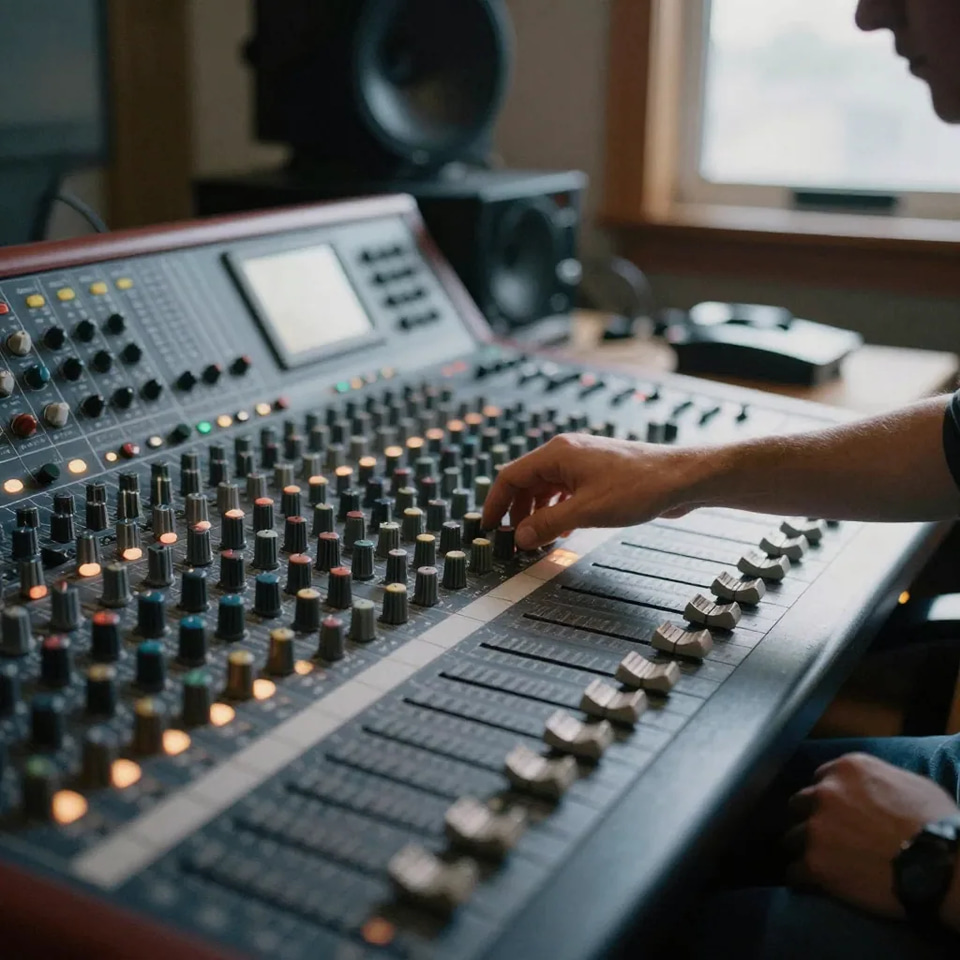
Can I use the generated music and sound effects commercially?
Yes. Audio you generate on a paid plan — whether it is sound effects or a music track — comes with commercial rights, so you can use it in client work, monetized videos, ads and social content. The takes you receive per run are all yours to keep: download the one you want, or export several and blend them in your editor. There are no per-clip licensing fees on top of the credits you already spent. The audio-only modes give you a sound layer for your clip, not a replacement editor: bring that audio into whatever timeline you already use to set levels against voice, add a fade, or trim the tail. Keeping SFX and music as their own layers is what lets you mix them properly — and if you prefer, the video modes will burn the audio straight onto the clip for you.
Try it now →How much does it cost in credits?
Cost is dynamic: it depends on the mode you pick, how long the output is, and how many takes you request — and every amount is a multiple of 5, starting from 15 credits for a short generation. You always see the exact credit total on the generate button before you run anything, so there are no surprises. Adding sound effects or music onto a video is priced by clip length; generating audio from text is priced by the output duration you choose. Credits are shared across every Imagera tool. Add Sound Effects to Video, Add Music to Video, Extract SFX and Generate Soundtrack are priced by clip length × takes; Text to Music and Text to Sound Effects by the length you choose × takes. Because you choose the number of takes (1, 2, or 3), you control the trade-off between cost and choice: a single take is the cheapest, while extra takes let you A/B the result against your video or brief. Whatever the mode, the on-screen estimate updates as you change the length and take count, so the credit cost is always visible before you commit.
What formats, modes and controls are supported?
The studio runs entirely in the browser and accepts the common video formats you already export from your editor or capture from a phone — MP4, WebM, MOV and AVI, up to 100MB per video — and the text modes need no upload at all. Six modes: add SFX to video, add music to video, extract SFX, generate soundtrack, text-to-music and text-to-SFX. Takes per run: 1, 2 or 3, delivered together for A/B comparison. "Keep original speech" is an optional toggle when adding music to a video. A text prompt is required for the text modes and optional for adding SFX to a video. If your clip is larger than 100MB or longer than you want to score in one pass, trim it in your editor first and upload the section you care about.
Why is this the missing step for AI-generated videos?
Almost every AI video model outputs picture without sound. A generated shot of rain, a running character or a product turning looks convincing but plays dead silent — and silence is the tell that reads as "AI clip" to a viewer. AI Sound & Music is the step that closes that loop: it watches the generated footage and adds the timed rain, footsteps or mechanical sounds — or a full music score — the model never made. The workflow is short. Generate or upscale your clip, upload it here, pick a mode, and run a pass — you get one to three synced takes in seconds. Build the shot in the Video Generator, score it here, add a track from Music Factory and, if it needs a voice, drop narration in from the Voice Generator. Each tool draws from the same credit balance, so a full picture-plus-sound clip stays a few generations, not a full production.
How to add AI music or sound effects to video
Pick a mode, add your clip or describe the sound, then generate and compare takes.
Pick a Mode
Choose what you want to make: add sound effects to a video, add music to a video, extract an audio track, or generate music or sound effects from text.
Add Your Video or Prompt
For video modes, upload an MP4, WebM, MOV, or AVI. For text modes, describe the music or sound you want — e.g., "warm lo-fi beat" or "rain on a tin roof."
Generate & Download
Choose 1–3 takes and click generate. Preview, compare, and download your favorite audio or scored video.
What can you use AI Sound & Music for?
Silent AI-generated videos
Clips from a text-to-video or image-to-video model ship without audio. Add footsteps, ambience and impacts — or a full score — so they stop feeling like a preview and start feeling like a finished shot.
Social reels and ads
A product reveal, a swipe transition or a fast cut all read better with a whoosh, a stinger, or a music bed on the beat. Score a short reel in one pass — sound effects, music, or both — and post it the same minute.
Background music from a brief
Need a track and have no footage? Text-to-music composes an original piece from a description — genre, mood, tempo — for a podcast intro, a loop under a voiceover, or a reel bed.
Action and sports B-roll
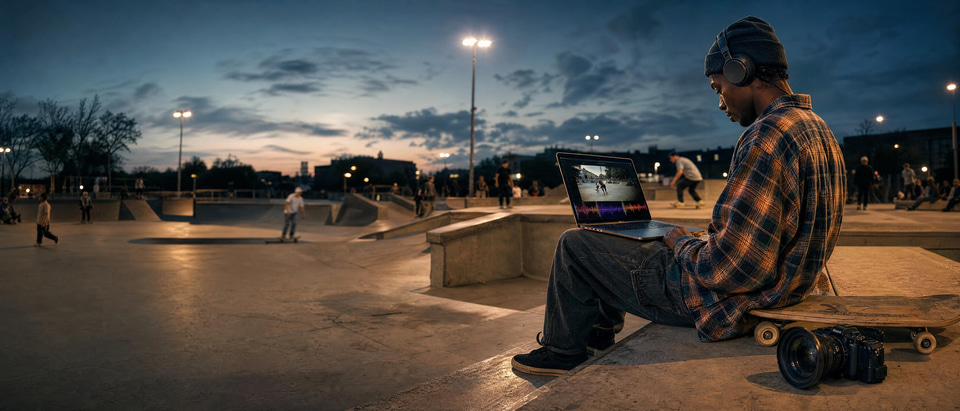
Skate landings, ball impacts, car passes — the on-screen action is obvious, and the engine lands the sound on the frame of contact instead of leaving the shot flat.
Game clips and montages
Highlight reels of gameplay or edited montages get punchy impacts, whooshes and music synced to the cuts, cheaply and fast.
Product and explainer demos
Clicks, mechanical sounds and reveal stings make a product motion demo feel tactile — pair the audio here with narration from the Voice Generator.
Discover more AI features
AI Podcast Maker
Script to full episode. Multiple AI hosts that sound completely human.
Lipsync Studio
No camera, no shoot, no retakes — a photo and a voice note become a video of that person saying it, or a clip you already shot says something new.
Music Factory
Full AI music studio. Generate, extend, remix, add vocals, separate stems, and more.
AI Model Arena
Compare answers from several AI models in one Sandbox conversation.
Voice Studio
Transcribe, translate, dub, and lip-sync audio in one place
Common questions
What can this studio create?
It does music and sound effects in six modes: add sound effects to a video, add music to a video, extract a sound-effects track from a video, generate a soundtrack for a video, create music from a text prompt, and create sound effects from a text prompt. Video modes produce a scored video or a standalone audio file; text modes produce audio from your description alone.
What video formats are supported?
The video modes support MP4, WebM, MOV, and AVI, with a maximum file size of 100MB. Text-to-music and text-to-sound-effects need no video at all — just a written description.
How does the AI sync audio to my video?
Imagera’s sound engine analyzes your video frame-by-frame, detecting objects, motion, and scene context. It then places sound events — footsteps, impacts, whooshes, ambience, or a music cue — on the timeline where they visually happen, so audio lands in sync without manual keyframing.
Can I generate music without a video?
Yes. Use Text to Music, describe the track you want (genre, mood, instruments, tempo), pick an output length, and AI composes an original piece. Text to Sound Effects works the same way for one-off sounds like rain, an engine start, or a UI click.
Can I keep the original speech when adding music to a video?
Yes. In "Add Music to Video" mode there is a "Keep original speech" toggle. Leave it on to preserve dialogue and vocals under the new score, or turn it off to let the music take over completely.
How many credits does it cost?
Cost is dynamic per mode, output length, and number of takes — and every amount is a multiple of 5. Sound-effect and music generations start from 15 credits for a short pass, and adding sound effects or music onto a video is priced by clip length. You see the exact credit total on the generate button before you run anything, and credits are shared across every Imagera tool.
Can I get more than one version per generation?
Yes. Choose 1, 2, or 3 takes before generating. More takes cost proportionally more credits but let you compare options and pick the one that fits your video or brief best.
Can I use this on AI-generated videos?
Absolutely. AI-generated videos from our Video Generator, Film Studio, or any other source almost always arrive silent, which makes them a perfect fit. Add sound effects, add a music score, or both, to make a rendered clip feel like it was really captured.
Do I get sound effects and music separately or mixed together?
That is up to the mode. The video modes let you add sound effects OR music directly onto the clip. The audio-only modes give you a standalone sound-effects track or soundtrack you can layer and balance yourself in an editor. For full control, generate the SFX and the music separately and mix them alongside any narration from the Voice Generator.
What kinds of videos work best?
Clips with clear visual action get the most out of the sync engine: product reveals, action beats, nature and travel B-roll, game clips, and especially AI-generated videos that ship without any audio. Static talking-head footage benefits less because there is little on-screen motion to score — pair those with the Voice Generator instead.
Learn more
GuideLipsync Studio
Use generated voices to create lip-synced talking videos
 Article
Hedra Alternative
Pair AI voices with lip-synced avatars — compare Imagera vs Hedra
ElevenLabs Alternative: Affordable AI Voice Generator
Compare Imagera vs ElevenLabs — pay-per-use voice cloning and text to speech without subscription
Prompt Writing Guide
Write scripts and prompts for AI voice generation
All AI Tools
Explore the complete Imagera audio toolkit
AI Audio Detection
Check recordings for AI voice clones and synthetic speech
Suno Alternative
Compare Imagera vs Suno for AI audio — voice generation and music creation
Browse All Comparisons
Side-by-side comparisons of Imagera vs other AI voice tools
Key takeaways
What can this studio create?
It does music and sound effects in six modes: add sound effects to a video, add music to a video, extract a sound-effects track from a video, generate a soundtrack for a video, create music from a text prompt, and create sound effects from a text prompt. Video modes produce a scored video or a standalone audio file; text modes produce audio from your description alone.
What video formats are supported?
The video modes support MP4, WebM, MOV, and AVI, with a maximum file size of 100MB. Text-to-music and text-to-sound-effects need no video at all — just a written description.
How does the AI sync audio to my video?
Imagera’s sound engine analyzes your video frame-by-frame, detecting objects, motion, and scene context. It then places sound events — footsteps, impacts, whooshes, ambience, or a music cue — on the timeline where they visually happen, so audio lands in sync without manual keyframing.
AI Sound & Music vs. manual sound design and stock libraries
| Consideration | Imagera AI Sound & Music | Stock library | Manual designer / composer |
|---|---|---|---|
| Sound effects and music | Both, six modes | Separate libraries | Separate hires |
| Timing to picture | Auto, frame-synced | Manual per clip | Hand-placed |
| Turnaround | Seconds | Minutes–hours | Days |
| Takes to compare | Up to 3 per run | One per download | Per revision |
| Cost model | Credits, from 15 | Per-clip or subscription | Hourly / project |
Good to know
For a hero cut where every hit needs to be perfect, a human sound designer or composer still wins on nuance. For the everyday reality — dozens of reels, product clips and AI-generated shots that all need to feel finished this week — an AI pass gets you 90% of the way in a fraction of the time, and you can always take the exported audio into your editor for the final polish.
Powered by Imagera’s AI sound & music engine — text-to-audio and video-to-audio synthesis
AI Sound & Music — music and SFX in seconds
AI-synchronized audio, 6 modes, any video or a text prompt. Credits show on the button before you run.
Open the Studio →