
Quick answer: Auto SFX on Imagera is a browser-based AI tool that generates matching sound effects for your video clips — upload a clip, describe the moment, confirm credits, and download layered audio without any local software.
How does Imagera Auto SFX add sound effects to a video?
You open Auto SFX Engine, upload 1 clip, describe the sound in under 10 words, and confirm credits before generating. Imagera reads the on-screen action and produces effects timed to it, so a single 30-second clip can carry several distinct SFX layers. Most previews return in under 60 seconds, and 4K sources stay fully supported through 2026.
Are AI sound effects from Imagera good enough to publish?
Yes — Imagera renders effects at a 48 kHz standard and lets you regenerate a layer as many times as you need to fine-tune it before export, with commercial rights included on paid plans. Well-matched sound design makes short-form video feel more polished and immersive, so pairing Auto SFX with Imagera's video and music tools helps your clips feel finished rather than silent. Credits apply only when you generate.
Auto SFX solves this for footage that arrived silent. Some newer generators now produce a synchronized audio track in the same pass as the frames instead — dialogue, ambience and score together — which is covered in our explainer on MiniMax H3 and native audio.
Quick start
Open Auto SFX → upload your video → optionally describe the effect or context → generate → mix the result under your edit. Credit packs from 350 credits.
What Auto SFX does
Auto SFX adds synchronized sound effects to a video automatically. You upload a clip and Imagera analyzes the visual content frame by frame — motion, objects, and scene context — then generates audio that lines up with what's happening on screen. It's built for the common problem of a strong visual that plays silent: a great shot with no sound loses its scroll-stopping impact, and a full sound-design session is slow and expensive.

You can steer the result two ways. Leave the prompt blank and let the tool auto-detect appropriate sounds for the footage, or add a short text description — like "cinematic explosions" or "outdoor ambience with wind" — to push it toward a specific palette. Each run returns two SFX variations so you can compare and keep the take that fits best. It works with any source footage, and it pairs especially well with AI-generated video that ships without an audio track.
The core idea is that the audio follows the picture. Instead of scrubbing a stock library and dragging clips onto a timeline, hoping a "whoosh" lands on the right frame, Auto SFX reads the footage and produces sound designed to sit where the motion is. That shifts the effort from manual placement to review: your job becomes picking between two takes and mixing the winner under dialogue and music, rather than building the effect from scratch.
Why silent video underperforms
There is a specific, practical reason this tool exists. Video-first feeds reward motion that feels complete, and a clip with strong visuals but no sound reads as a draft. Viewers scroll past it. On ad platforms, a silent cut has to do all its work through the picture alone, which raises the bar on the edit and the hook. And when you generate video with AI, the output frequently arrives with no audio at all — so even a polished shot lands flat until you add sound.

The traditional fix is a sound-design pass: someone opens a digital audio workstation, auditions foley and effect libraries, syncs each hit by hand, and layers the result. That is real craft, and for a finished film it is worth it. But for the volume of short-form content most teams ship — product ads, creator reels, trailer drafts, social clips — that workflow is too slow and too expensive to run on every piece. Auto SFX targets exactly that gap: it produces timed, usable sound effects fast, so a silent clip stops looking unfinished before your final polish.
How it works
- Upload a video. Supported formats are MP4, WebM, MOV, and AVI, up to 100MB. Clips under 60 seconds give the most reliable sync.
- Add an optional prompt. Describe the sounds you want, or leave it blank for automatic detection based on the on-screen action.
- Set duration and offset. SFX duration defaults to 10 seconds. Use the duration and start-offset controls to target a specific moment in a longer clip — a whoosh on a cut, an impact on a landing.
- Generate. Each generation costs 30 credits and produces two variations.
- Review and export. Preview both takes, pick the one that matches the picture, and download. Paid Imagera plans include commercial rights for outputs you generate.
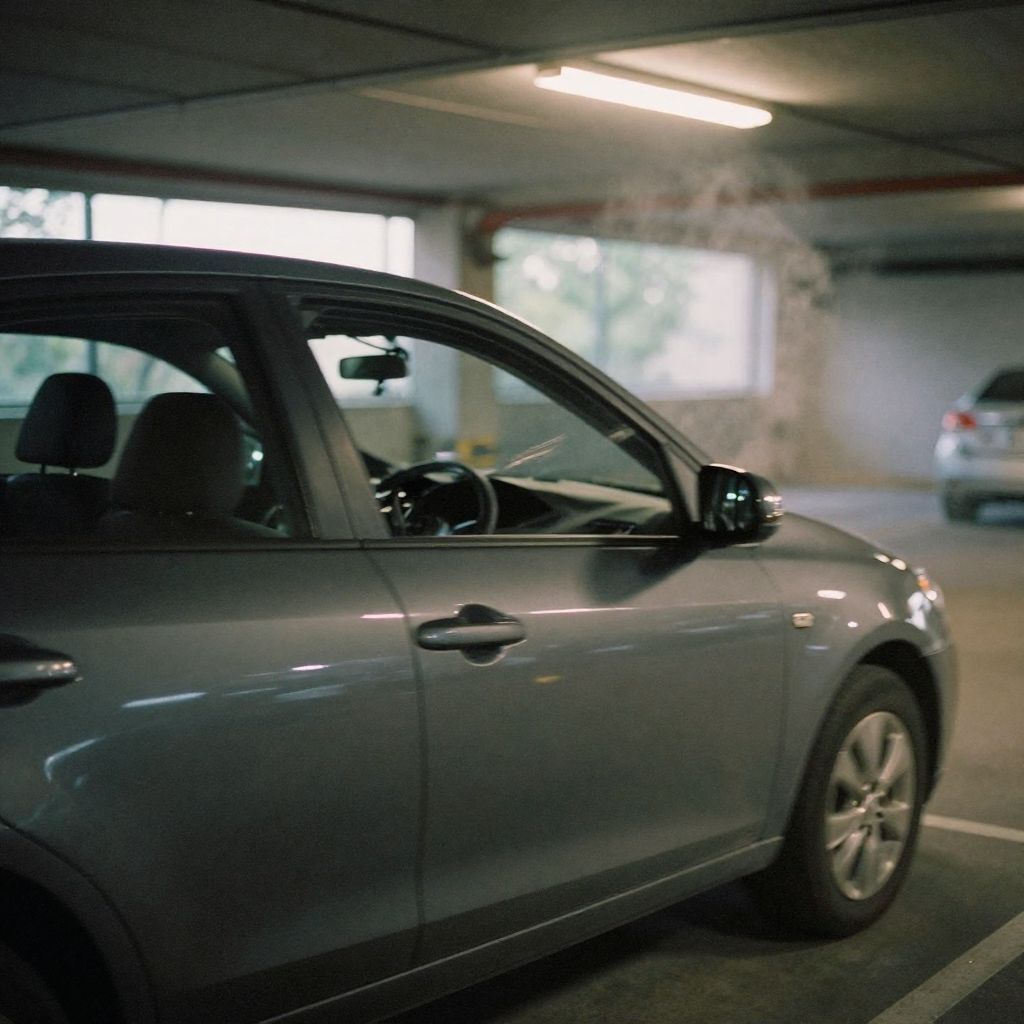
Behind those steps, the tool analyzes the footage frame by frame to detect what is moving and when. Objects, motion, and scene context all feed into the audio it generates, so the result is meant to align with visible action rather than play as a generic bed. Because it produces two variations each run, you are not locked into a single interpretation — one take might lean into a punchy impact while the other favors ambience, and you keep whichever fits the cut.
Step-by-step walkthrough
Here is a concrete pass, the way you'd actually run it on a real clip.
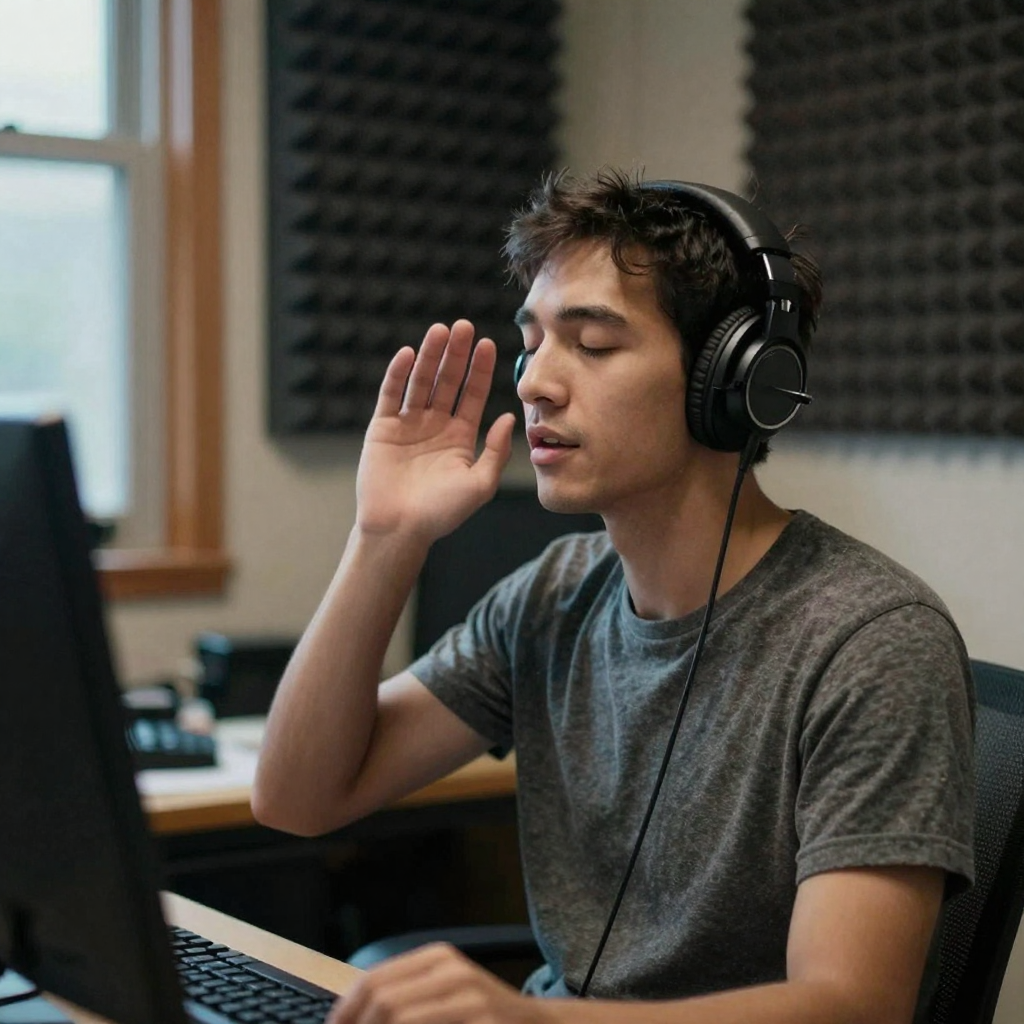
1. Trim first, then upload. Cut your video down to the moment you want scored. A 6–12 second focused clip syncs more reliably than a 90-second timeline, because the analysis has less to interpret and fewer competing actions. Export it as MP4, WebM, MOV, or AVI and keep it under 100MB.
2. Decide: describe or auto-detect. If you have a clear intent — "heavy footsteps on gravel," "tense low-end rumble," "glass shatter on impact" — type it into the prompt. If you're not sure, or you want to see what the footage suggests on its own, leave the prompt empty and let auto-detection read the scene.
3. Set duration and offset to the moment. The SFX duration defaults to 10 seconds. If your hit is a single frame — a landing, a cut, a door slam — shorten the duration and use the start offset to place the effect where the action happens rather than smearing it across the whole clip.
4. Generate and listen to both takes. Each run costs 30 credits and returns two variations. Play them back against the picture. One usually reads as the stronger match; sometimes the weaker take has a texture you want to layer under the stronger one.
5. Export the winner and mix it. Download your pick and drop it into your editor under dialogue and music. Treat Auto SFX output as a layer, not the entire mix — it sits best when it supports voice and score rather than competing with them.
6. Iterate on stubborn moments. If a specific hit didn't land, re-run just that section with a tighter prompt and a shorter offset window. Because you're generating short takes, iterating is cheap in effort and fast to review.
Common use cases
- Product ads: Punchy impacts for unboxings and demos so the cut feels finished.
- UGC and creator reels: Add sound design to creator-style clips without hiring a sound designer.
- Trailers and drafts: Bring energy to a silent draft before your final mix.
- AI-generated video: Fill the audio gap on clips from a video generator or film studio that render without sound.
- Social clips: Time short impacts to hit points so reels feel premium in the feed.

Who it's for
Solo creators and UGC makers. If you're producing creator-style clips at volume, you can't afford a sound designer on every reel — and you probably don't have one. Auto SFX lets a single person add timed effects to a batch of clips in an afternoon, keeping the finish quality up without adding a role to the workflow.
Ecommerce and performance marketers. Product ads live or die on the first few seconds. A crisp impact on the unboxing, a satisfying click on the demo, a whoosh on the transition — these are the small details that separate a "scroll past" from a "watch to the end." Auto SFX makes those details reachable on every ad variant you test, not just the hero cut.
Editors racing a deadline. When you're roughing a trailer or a promo and the picture is locked but the audio is still a blank track, a silent draft is a hard sell to a client or a stakeholder. Dropping in timed effects turns a draft into something that reads as intentional, which buys you time to do the real mix later.
AI video teams. If your pipeline generates video without an embedded audio track, Auto SFX is the natural next step. It's designed to take exactly that kind of silent, motion-rich footage and add sound that follows the action — closing the gap between "the picture renders" and "the clip feels done."
Auto SFX vs. the alternatives
The honest comparison isn't "this replaces a sound designer." It's about where each approach fits. Here's how Auto SFX stacks against the common ways people add sound to short-form video. Competitor prices below are their published subscription rates; the Imagera column is expressed in credits, which come with any paid plan.
| Approach | What you do | Speed | Sync effort | Typical cost |
|---|---|---|---|---|
| Auto SFX on Imagera | Upload clip, optional prompt, pick from 2 takes | Fast — one generation per moment | Low — audio follows the picture | 30 credits per generation (plans from $19.99/month) |
| Stock SFX library | Search, download, drag onto timeline, sync by hand | Slow — manual placement | High — you time every hit | Subscription libraries commonly $10–$30/mo plus your editing time |
| Hiring a sound designer | Brief, review, revise over days | Slow — human turnaround | None on your end (they do it) | Project rates, often hundreds of dollars per finished piece |
| DIY foley recording | Record and edit your own sounds | Slowest — capture plus editing | Very high — record, clean, sync | Gear and hours; realistically not viable at content volume |
Auto SFX sits in the fast, low-effort corner: you keep creative control through the prompt and the two-variation choice, but you skip the manual timing and the search-and-drag grind. For a finished feature film, a dedicated sound designer still wins on nuance. For the volume of short-form content most teams actually ship, the speed-to-finished tradeoff usually favors generating.
Tips for best results
- Keep clips short and focused. Sync is tightest on tight footage, so trim before you upload.
- Use the offset control to place an effect on a specific frame rather than covering the whole clip.
- Write for a mood, not a shopping list — "tense low-end rumble" reads better than a dozen comma-separated sounds.
- Generate a few passes and layer the winners under your dialogue and music instead of relying on one take.
- Score one moment at a time on longer videos. Use the duration and offset controls to target a single hit, generate, then move to the next — rather than asking one pass to cover the whole timeline.
- Treat the two variations as an A/B. Even when one is clearly better, listen to the other for a texture worth layering underneath.
- Match the prompt language to the picture. If the scene is quiet and tense, don't ask for "explosions"; describe the atmosphere you actually see.
Common mistakes to avoid
- Uploading a long, busy timeline and expecting one pass to score all of it. Sync degrades when there's too much competing action. Trim to the moment, or target sections with the offset control.
- Over-specifying the prompt. A long comma-separated list of sounds pulls the result in too many directions. Describe the dominant mood or the single key hit.
- Leaving the SFX duration at the default when your hit is one frame. A landing or a cut is a moment, not ten seconds. Shorten the duration and place it with the offset.
- Relying on a single take. You get two variations for a reason — auditioning both is part of the workflow, not an optional extra.
- Treating the output as a finished mix. Auto SFX produces a layer. It's meant to sit under dialogue and music, not to be the entire soundtrack on its own.
- Skipping the review. Because the audio is generated to match motion, it usually lands — but "usually" isn't "always." Play it against the picture before you export.
Examples
A silent product unboxing. You've got a clean 8-second shot of hands opening a package, but it plays dead. Prompt "crisp cardboard and tape, satisfying reveal," generate, and you get two takes. The stronger one adds the small tactile sounds that make an unboxing feel real, and the ad suddenly reads as finished.
An AI-generated action clip with no audio. Your video generator rendered a great 6-second motion shot — but it's silent. Leave the prompt blank, let auto-detection read the scene, and the tool proposes sound that follows the on-screen motion. You pick the take that matches the energy and layer your music over the top.
A locked trailer draft. The picture edit is done, the client review is tomorrow, and the audio track is empty. Instead of a full sound-design pass, you score the three big hits — a whoosh on the opening cut, an impact on the reveal, a low rumble under the title — using short generations with tight offsets. The draft now reads as intentional, and you save the real mix for after sign-off.
Pair with
- Music Factory for music
- Video tools for picture
- Voice tools for dialogue
Auto SFX is one layer of a finished soundtrack. In practice you'll often generate a music bed in Music Factory or the Music Generator, add your dialogue or voiceover, and then use Auto SFX to place the impact effects that tie the mix to the picture. Because each output downloads as a file you drop into your editor, you stay in full control of the balance between voice, music, and effects.
Pricing
Pay-first. Each generation costs 30 credits and returns two variations. See pricing.
Credits come with any paid Imagera plan, from $19.99/month, and the same credit pool powers other tools across the platform — so the credits you spend on Auto SFX are the same ones you'd use for image, video, and music tools. There's no separate audio subscription and no per-download fee beyond the 30 credits per generation. Because every run returns two variations, that 30 credits buys you a comparison, not a single roll of the dice.
Start here (product links)
Bottom line
Auto SFX generates synchronized AI sound effects for video on Imagera — upload a clip, optionally describe the sound, and get two timed variations to mix under your edit. Credit packs from 350 credits.
Related tools: Auto SFX · Music Generator · Pricing
Tools and next steps
| Goal | Open |
|---|---|
| Image edits & pose | Imagera Image Editor · Identity Editor |
| Headshots | AI Headshot |
| Product / person reels | Product Reel Maker · Human Reel Maker |
| Talking photo | Lipsync Studio |
| Pricing | Pricing |
How to ship: upload a master file → write a clear instruction → confirm credits → generate → review on phone → export winners only.