Fix Broken AI Images — Hands, Faces & Artifacts
Fix broken AI images — hands, faces, anatomy & artifacts
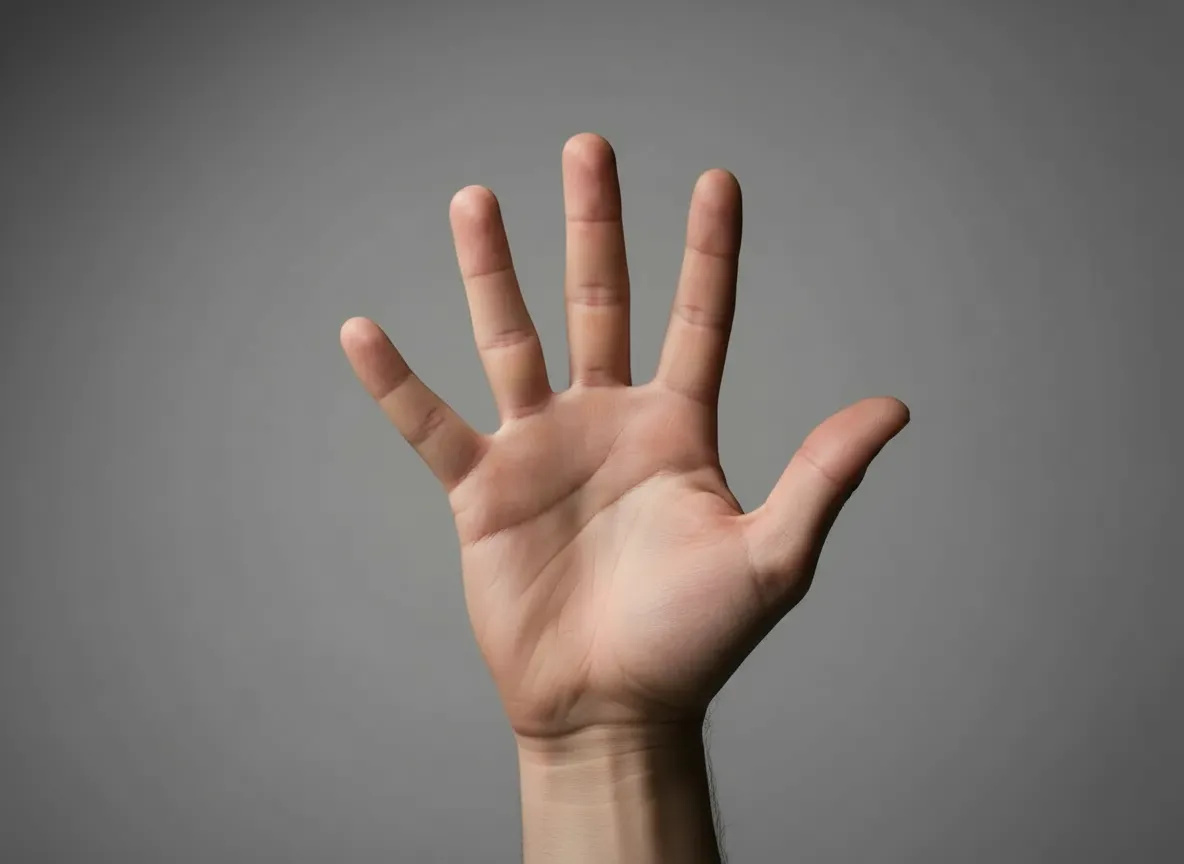
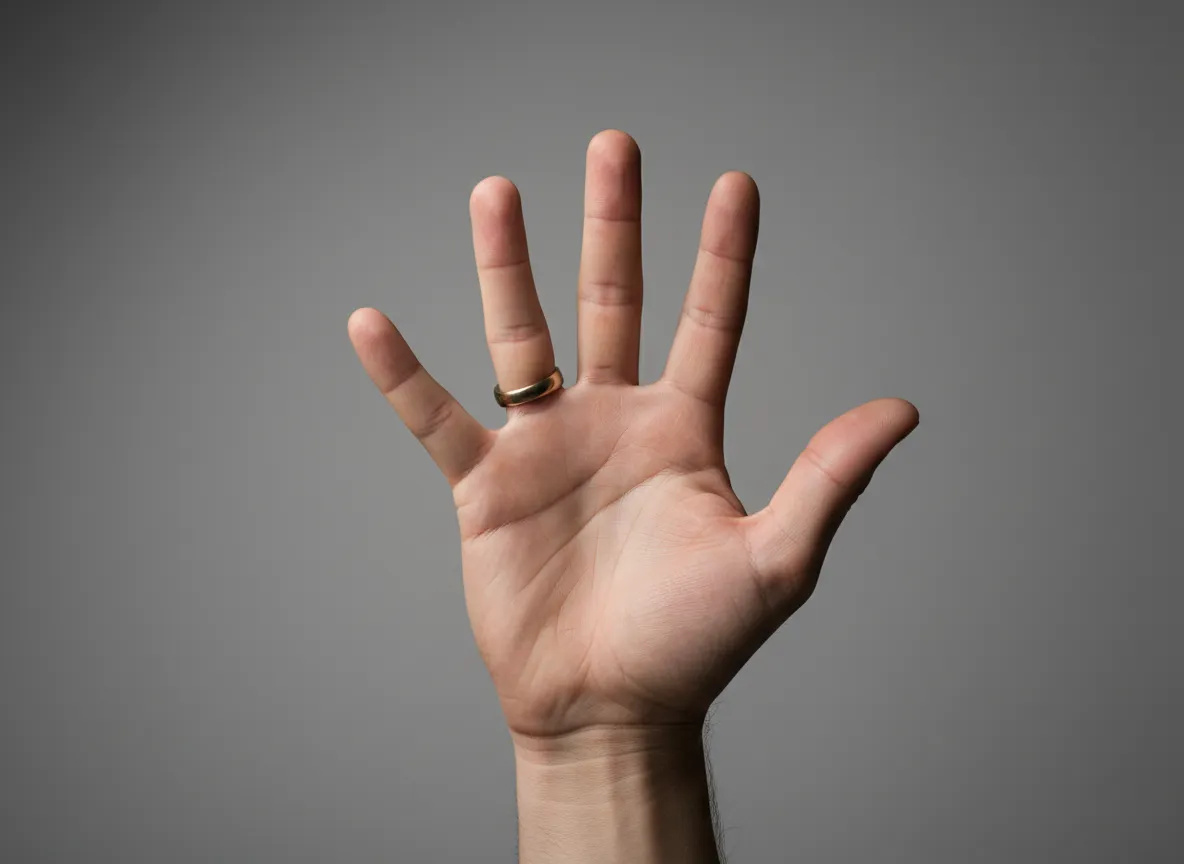 BeforeAfter
How do I fix broken AI hands and faces?
AI image repair fixes the parts a generator got wrong — six-fingered hands, warped faces, jumbled teeth, garbled signage and stray artifacts — without re-rolling the picture. Upload the image, tap Auto Fix to have the flaws detected and a repair plan drafted, or describe the fix yourself. Only the broken region is regenerated, so the composition, style and lighting you liked stay exactly as they were.
- Credits
- From 10 per image · Auto Fix 15
- Formats
- JPG, PNG, WEBP from any AI generator
- Output
- Same resolution as the file you upload
Updated July 10, 2026
Cite this page: https://imagera.ai/image/ai-image-repair
 Illustration
Every classic AI failure, repaired
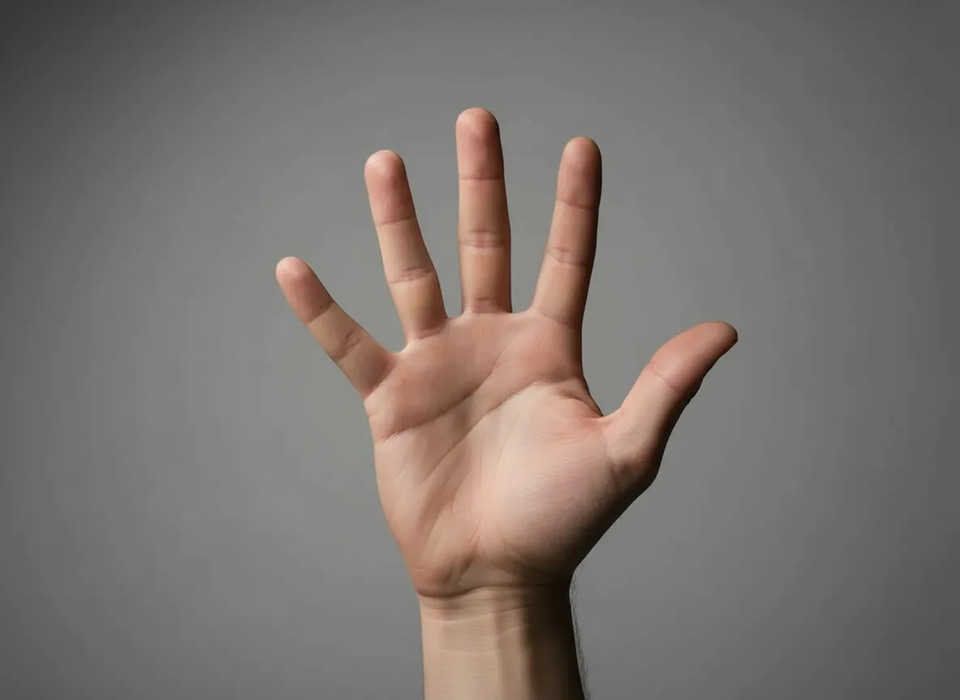
Hands & fingers
Six fingers, fused knuckles, impossible grips — rebuilt into natural, anatomically correct hands.
Know more →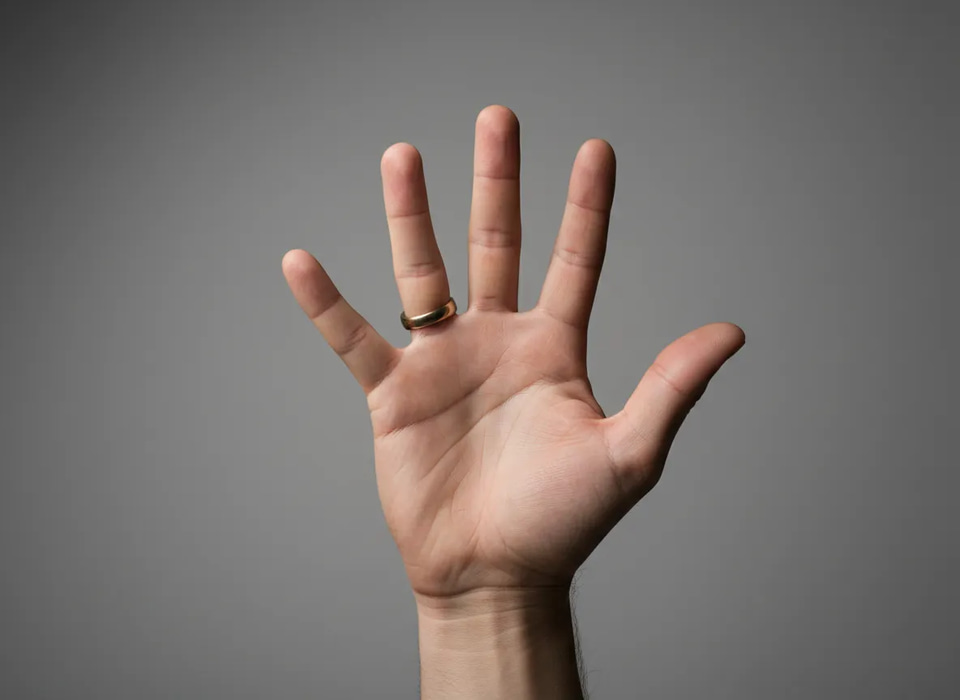
Warped faces
Melted features, asymmetric eyes and uncanny expressions restored to clean, believable faces.
Know more →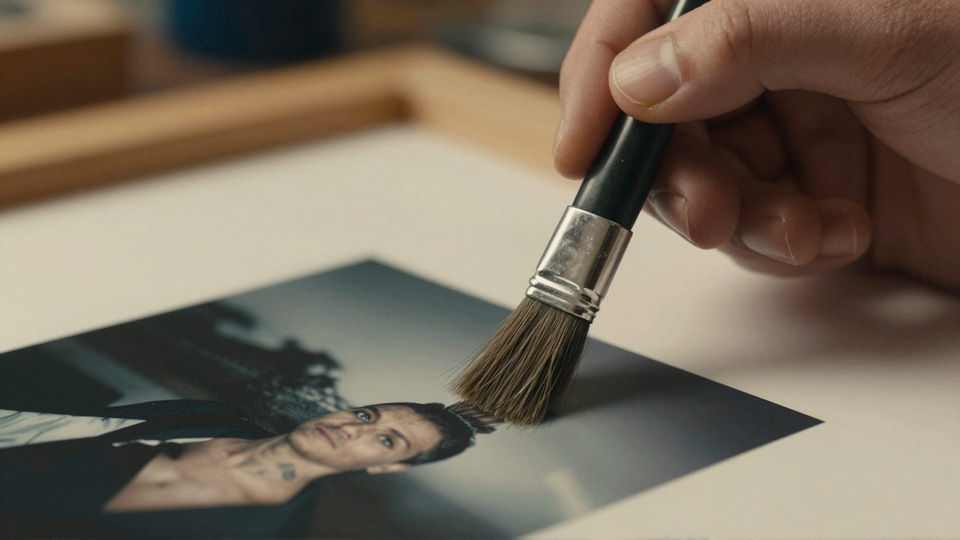
Garbled text
Alien lettering on signs, labels and logos replaced with the text you actually wanted.
Know more →Which AI tells does Image Repair fix?
The failures that make a picture obviously AI cluster around a few regions — hands, eyes, teeth, text and repeated patterns. Each one is a local defect the repair can target without disturbing the rest of the frame.
Six fingers & fused knuckles
Hands are the most-miscounted region in AI images because fingers overlap, bend and hide each other in the source data. The repair rebuilds the hand with the right number of fingers, natural joint spacing and a believable grip on whatever it is holding — while the arm, sleeve and pose stay exactly as generated.
Try it now →Dead eyes & mismatched pupils
Uncanny stares usually come from asymmetric irises, off-axis pupils or catchlights that do not match. The repair re-aligns the eyes, evens the gaze direction and restores natural catchlights, so the subject looks alive rather than glassy — a fix that matters most on portraits and product shots with a model.
Try it now →Garbled signage & labels
Storefront signs, book spines, packaging and neon come out as pseudo-lettering, because the model is reproducing the shape of writing rather than spelling actual words. Type the real words you want and the repair swaps the alien characters for legible text that fits the sign's perspective and lighting — essential for anything headed to a product listing or an ad.
Try it now →How to repair a broken AI image
Three steps, and only the broken region changes.
Upload the broken image
Any AI-generated image with problems — from any image generator.
Auto Fix or describe the problem
Auto Fix analyzes the image (15 credits), lists what's broken and drafts the repair — review and edit it before generating. Or describe the fix yourself.
Download the repaired image
The fixed image keeps the composition, style and detail you liked — only the broken parts change.
Where do people use a repaired AI image?
Print-on-demand artwork
Designs going onto posters, shirts and phone cases print at high resolution, so a duplicated limb or smudged edge that hides on a screen becomes obvious on the product. Repair the artifacts before the file goes to the printer.
Try it now →Thumbnails & social visuals
A six-fingered hand is exactly what a commenter screenshots. Fix the tell before the thumbnail or post goes live, so the conversation stays on your content instead of the glitch.
Try it now →Client-facing concept art
Mood boards and concept frames get picked apart in review. Clean the anatomy and geometry first so the client reacts to the idea, not the AI artifacts, and you keep the composition you already sold them on.
Try it now →Discover more AI features

Frequently asked questions
How do I fix extra fingers in AI images?
Upload the image to Imagera's AI Image Repair, and either tap Auto Fix — which detects the hand problem and drafts the repair for you — or type "fix the hand, it has six fingers". The repair rebuilds the hand with correct anatomy while leaving the rest of the image untouched, so you keep the composition you spent time generating.
Can it repair distorted or warped faces in AI images?
Yes. Warped faces are one of the most common AI-generation failures, and the repair engine restores clean facial structure, symmetric eyes and natural expressions. If the face belongs to a specific character you generated, the repair preserves their overall look.
What is Auto Fix and how does the analysis work?
Auto Fix sends your image through an AI inspection pass (a flat 15-credit analysis) that lists the detected issues — bad hands, warped faces, artifacts, garbled text — and writes a suggested repair plan. You can edit that plan in the text box before generating, so you always control exactly what changes.
Will repairing the image change the parts I like?
No — repairs are surgical. The engine edits the broken region and preserves the composition, style, lighting and detail everywhere else. That is the difference between repairing an image and re-rolling the generation and hoping for better luck.
Which image generators does it work with, and what does it cost?
It works on images from any AI generator — just upload the PNG or JPG. Repairs start at 10 credits per image depending on the quality engine you choose, plus the optional 15-credit Auto Fix analysis.
Why not just re-roll the generation until the hands come out right?
Re-rolling is a gamble: every new seed changes the composition, the pose, the lighting and the face along with the hand, so you rarely get the same image back with only the flaw fixed. On a busy prompt you can burn dozens of generations chasing five clean fingers. Repair keeps the exact frame you already liked and edits only the broken region, so you spend 10 credits fixing one image instead of re-generating it ten times and hoping.
Can it fix garbled text on signs, labels and logos in AI images?
Yes. Alien lettering — the scrambled pseudo-text image generators put on shop signs, book spines, product labels and neon — is one of the fastest tells that a picture is AI. Type the exact words you want on the sign, or let Auto Fix flag the garbled region, and the repair replaces the nonsense characters with real, legible text while leaving the surrounding scene untouched.
Does the resolution or quality drop after a repair?
No. The repair works at the resolution you upload and returns a full-quality image, not a downscaled or over-smoothed one. Because only the broken region is regenerated, the detail, grain and sharpness of the rest of the picture are preserved exactly. If you want a larger, crisper file afterwards, run the repaired image through the AI Image Upscaler.
Can I fix more than one problem in the same image?
Yes. A single image often has a six-fingered hand, a slightly warped eye and a smudged background object at once. Auto Fix lists every issue it detects in one pass, so you can approve the whole repair plan and correct all of them in a single generation rather than uploading the image over and over for each separate flaw.
Will the person or character in my image still look the same after repair?
Yes — repairs preserve identity. When the flaw is on or near a face, the engine rebuilds clean facial structure while holding onto the overall likeness, hair, skin tone and expression of the character you generated, so a fixed portrait still reads as the same person rather than a stranger.
Key takeaways
How do I fix extra fingers in AI images?
Upload the image to Imagera's AI Image Repair, and either tap Auto Fix — which detects the hand problem and drafts the repair for you — or type "fix the hand, it has six fingers". The repair rebuilds the hand with correct anatomy while leaving the rest of the image untouched, so you keep the composition you spent time generating.
Can it repair distorted or warped faces in AI images?
Yes. Warped faces are one of the most common AI-generation failures, and the repair engine restores clean facial structure, symmetric eyes and natural expressions. If the face belongs to a specific character you generated, the repair preserves their overall look.
What is Auto Fix and how does the analysis work?
Auto Fix sends your image through an AI inspection pass (a flat 15-credit analysis) that lists the detected issues — bad hands, warped faces, artifacts, garbled text — and writes a suggested repair plan. You can edit that plan in the text box before generating, so you always control exactly what changes.
Should I repair the image or re-roll the generation?
| What you care about | Imagera repair | Re-rolling the prompt |
|---|---|---|
| Keep the composition you liked | Composition preserved — only the flaw changes | New seed changes the whole frame |
| Credits spent | From 10 credits for one targeted fix | Multiplies with every re-roll attempt |
| Predictable outcome | You review the repair plan before it runs | Luck of the seed each time |
| Best when | One region is broken and the rest is good | The whole image is wrong |
Keep the image. Lose the flaws.
Upload your broken AI image and get the repaired version back in minutes — hands, faces and artifacts fixed. Credits show on the button before you run.
Repair my image →