How do you slow down an existing video?
For a quick edit on Android, open the video in Google Photos, tap Speed, select the section with the trim handles, choose half speed or quarter speed, and save. On a desktop, use speed change in FFmpeg (setpts). Both approaches change timing; the next section covers generating intermediate frames.
Use the controls to change video speed in Google Photos only where the action benefits. Keep the approach and aftermath at normal speed, then slow the jump, splash, or gesture. Stretching the entire edit usually weakens the emphasis.
For an existing iPhone Slo-mo clip, adjust the slow-motion portion in Photos: open the video, tap Edit, then drag the black vertical bars beneath the viewer. Those instructions apply specifically to Slo-mo clips.
For repeatable desktop exports, start with half speed in FFmpeg. That is the timing choice we would try first because it gives the action more breathing room without extending it as much as quarter speed. The same command works for both source-rate copies:
ffmpeg -i input.mp4 -vf "setpts=PTS/0.5,fps=30" -c:v libx264 -crf 14 -preset slow -pix_fmt yuv420p -movflags +faststart -an output.mp4
Use quarter speed when the action deserves a longer look. Again, the command is identical for both source rates:
ffmpeg -i input.mp4 -vf "setpts=PTS/0.25,fps=30" -c:v libx264 -crf 14 -preset slow -pix_fmt yuv420p -movflags +faststart -an output.mp4
Play the basic export to judge timing and shot length. Converting to a higher frame rate alone does not create slow motion; the duration must change too. If the timing works but movement looks uneven, keep that speed for the interpolation step next.
How do you add intermediate frames before slowing a video?
Run the original clip through 60fps Frame Interpolator, save its output, then reduce that output to half speed in your editor. Use the FFmpeg retiming step above if you prefer working locally. For a fully local workflow, FFmpeg motion interpolation (minterpolate) generates intermediate frames before retiming; the commands below reproduce our tested settings.
Choose 60fps Frame Interpolator when preserving fine moving detail matters more than processing time.
Try 60fps Frame Interpolator → Plans start at $19.99; credit packs from 350 credits.
Start with the original-speed clip, process it, and download the result. Check the downloaded file’s actual frame rate before importing it into your editor. Conversion alone leaves the action at normal speed. Set the imported clip to half speed, then export at your intended project frame rate.
Final Cut Pro can generate intermediate frames during retiming. Select the clip, open the Retime pop-up menu below the viewer, and choose Slow, or Smooth Slo-Mo on Apple silicon. Under Video Quality, choose Better (Optical Flow) or Best (Machine Learning). See the Final Cut Pro retiming controls.
For the fully local route, the same FFmpeg commands work with both source frame rates, so choose the pair for your intended slowdown. In each pair, interpolation generates the intermediate frames first; the timing operation then stretches playback.
Prepare and retime for half speed:
ffmpeg -i input.mp4 -vf "minterpolate=fps=60:mi_mode=mci:mc_mode=aobmc:me_mode=bidir:vsbmc=1" -c:v libx264 -crf 14 -preset slow -pix_fmt yuv420p -movflags +faststart -an step1.mp4 ffmpeg -i step1.mp4 -vf "setpts=PTS/0.5,fps=30" -c:v libx264 -crf 14 -preset slow -pix_fmt yuv420p -movflags +faststart -an output.mp4
Prepare and retime for quarter speed:
ffmpeg -i input.mp4 -vf "minterpolate=fps=120:mi_mode=mci:mc_mode=aobmc:me_mode=bidir:vsbmc=1" -c:v libx264 -crf 14 -preset slow -pix_fmt yuv420p -movflags +faststart -an step1.mp4 ffmpeg -i step1.mp4 -vf "setpts=PTS/0.25,fps=30" -c:v libx264 -crf 14 -preset slow -pix_fmt yuv420p -movflags +faststart -an output.mp4
Why does regular video look choppy when slowed down?
Regular video looks choppy because slowing playback spreads its existing frames across more time. Converting to a higher frame rate alone leaves the action at its original speed. Smooth slow motion needs enough distinct frames to fill the export rate after retiming, which makes the requested slowdown just as important as interpolation.
Doubling a clip’s duration requires twice as many distinct source or generated frames to preserve the same export cadence. Quarter speed requires four times as many. That is the practical relationship behind how source rate and playback rate determine slow motion: enough separate moments must exist to fill the longer running time.
Our basic half-speed export ran at 30 frames per second, yet recorded 51% near-duplicates. Repeated images filled the gaps. The export rate looked sufficient; the motion samples were not.
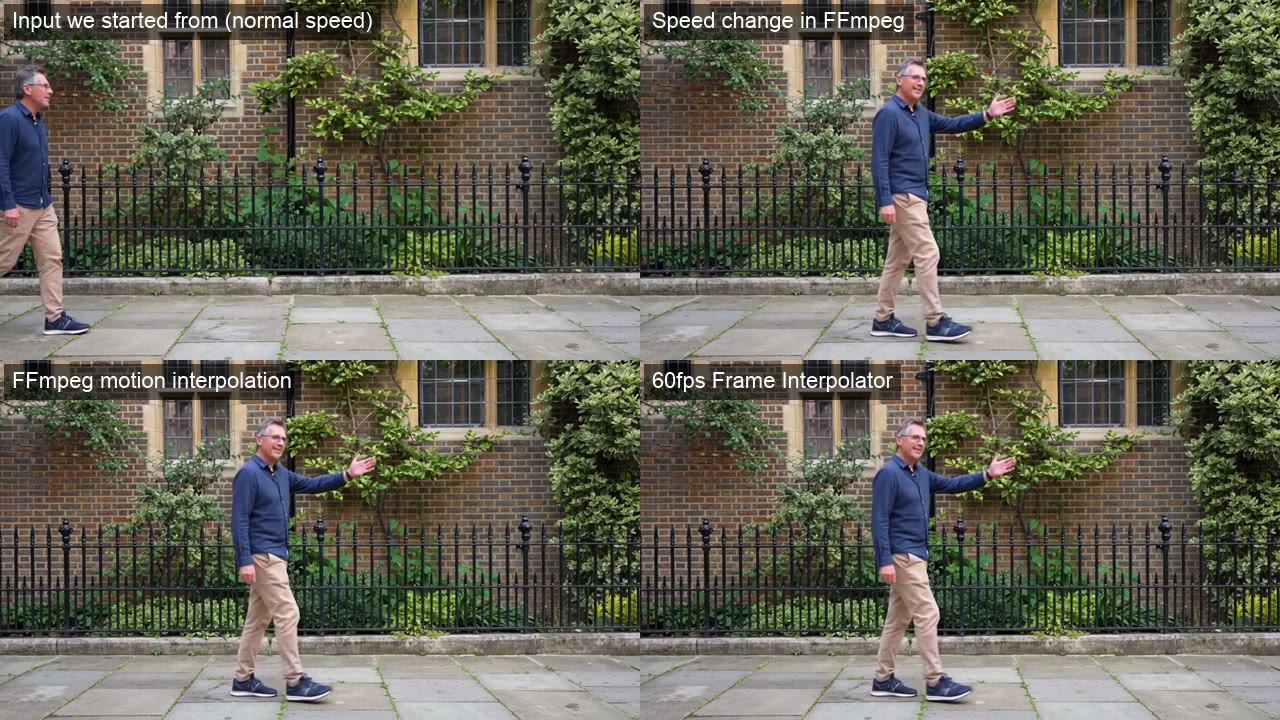
Quarter speed reveals frame-budget limits (all from the 30 fps source): Input we started from (normal speed) · Speed change in FFmpeg · FFmpeg motion interpolation · 60fps Frame Interpolator. AI-generated test video, made for this test, not a real recording. Our test, Oct 22, 2026.
At quarter speed, 60fps Frame Interpolator recorded 52.3% near-duplicates, slightly more than the basic half-speed result above. Why? Its generated output only doubled the source cadence, then retiming stretched those frames across four times the duration. That left roughly half the export needing repeated images.
By contrast, quarter-speed preparation with FFmpeg motion interpolation (minterpolate) generated enough intermediate frames for the longer playback and recorded 5.8% near-duplicates. Watch the matched-speed comparison in motion: clean individual frames can still repeat too often to produce smooth movement.
Which slow-motion settings worked best in our test?
Start with half speed and an export at 30 frames per second. We would use FFmpeg motion interpolation first for its fast processing and low repetition, then choose 60fps Frame Interpolator when fine moving detail matters more. The lower-frame-rate comparison strengthens that preference for local processing, because the AI output did not reach the same cadence.
Our paired short clips were AI-generated, with 30 fps originals and lower-frame-rate copies. FFmpeg handled ordinary processing; our studio’s model handled the AI step. This was not a direct test of Final Cut Pro’s optical flow. Near-duplicate detection measures repetition; sampled-frame reviews alone cannot establish playback smoothness.
On the 30 fps copy at half speed, FFmpeg motion interpolation recorded 4.2% near-duplicates and took 2.3 seconds. 60fps Frame Interpolator recorded 4.5% and took about 36 seconds, but preserved droplets and moving-body detail better.
Half-speed results from matched 30fps footage (all from the 30 fps source): Input we started from (normal speed) · Speed change in FFmpeg · FFmpeg motion interpolation · 60fps Frame Interpolator. AI-generated test video, made for this test, not a real recording. Our test, Oct 22, 2026.
The lower-frame-rate AI result looked clean in sampled frames, yet recorded 23% near-duplicates. The model merely doubled that input’s cadence rather than reaching the rate suggested by its name. Slowing that output by half left too few distinct frames for the 30 fps export. With 3.4% near-duplicates, FFmpeg motion interpolation (minterpolate) was the stronger smoothness choice.
24fps footage tests actual interpolation output (all from the 24 fps source): Input we started from (normal speed) · Speed change in FFmpeg · FFmpeg motion interpolation · 60fps Frame Interpolator. AI-generated test video, made for this test, not a real recording. Our test, Oct 22, 2026.
The complete ranking separates repetition from sampled-frame quality. Read the review score as an assessment of detail and geometry, not playback smoothness.
| Method | Repeated frames | Blind review (0-10) | Processing time | Credits | Output fps | Frames | Length (s) |
|---|---|---|---|---|---|---|---|
| FFmpeg motion interpolation (24 fps source, Optical flow half speed) | 3.4% | 5.6 | 2.4 s | none (runs locally) | 30 | 296 | 9.87 |
| 60fps Frame Interpolator (30 fps source, AI then half speed) | 4.5% | 5.6 | 36 s | 40 | 30 | 299 | 9.97 |
| FFmpeg motion interpolation (30 fps source, Optical flow half speed) | 4.2% | 5.2 | 2.3 s | none (runs locally) | 30 | 297 | 9.9 |
| FFmpeg motion interpolation (30 fps source, Optical flow quarter speed) | 5.8% | 5.2 | 4.1 s | none (runs locally) | 30 | 593 | 19.77 |
| FFmpeg motion interpolation (24 fps source, Optical flow quarter speed) | 5.8% | 4.9 | 3.4 s | none (runs locally) | 30 | 591 | 19.7 |
| 60fps Frame Interpolator (24 fps source, AI then half speed) | 23% | 5.9 | 33 s | 40 | 30 | 299 | 9.97 |
| speed change in FFmpeg (30 fps source, Basic half speed) | 51% | 5.6 | 2.9 s | none (runs locally) | 30 | 300 | 10 |
| 60fps Frame Interpolator (30 fps source, AI then quarter speed) | 52.3% | 5.6 | 36 s | 40 | 30 | 598 | 19.93 |
| speed change in FFmpeg (24 fps source, Basic half speed) | 60.7% | 6.1 | 2.3 s | none (runs locally) | 30 | 300 | 10 |
| 60fps Frame Interpolator (24 fps source, AI then quarter speed) | 61.5% | 5.8 | 33 s | 40 | 30 | 598 | 19.93 |
| speed change in FFmpeg (30 fps source, Basic quarter speed) | 75.6% | 5.6 | 3.7 s | none (runs locally) | 30 | 600 | 20 |
| speed change in FFmpeg (24 fps source, Basic quarter speed) | 80.4% | 5.9 | 3.7 s | none (runs locally) | 30 | 600 | 20 |
Interpolation substantially reduced repetition versus basic retiming. AI preserved finer detail on the 30 fps copy, but did not consistently produce smoother playback. Keep half speed as the balance of cadence and visual accuracy; for deeper slowdowns, revisit the earlier frame-budget comparison.
How do you spot interpolation artifacts?
Inspect moving edges frame by frame, especially hands, feet, crossing objects, fence lines, splashing water, and fine foam. Look for doubled outlines, stretched shapes, missing droplets, and textures that smear between otherwise sharp frames. Then watch at the intended playback speed, because a convincing still frame can hide an uneven sequence.
Return to matching moments in the earlier comparisons. At half speed, FFmpeg motion interpolation smeared airborne droplets and produced ghosting around the walking subject’s hands, feet, and torso. Pause during those movements and step through adjacent frames. Watch for an edge that briefly splits or a droplet that turns into a streak.
Quarter speed exposed more obvious damage. With FFmpeg motion interpolation, hands and feet warped, fence geometry shifted, and fine foam or droplets blurred or partially disappeared. For your own inspection, make matching tight crops around those details in the source and result. Compare the same instant with identical framing, then return to full-frame playback. A defect that dominates a crop may barely register in the finished shot.
Crossing motion and erratic camera movement need particular attention because optical flow can tear or stretch shapes as it tracks them. Blackmagic Design’s official Resolve documentation recommends checking difficult optical-flow scenes and falling back to Frame Blend when artifacts appear. Use that fallback for a damaged passage, then check it again in motion. A visibly distorted hand is a stronger reason to change the processing than a clean still frame is to keep it.