What should you decide before creating a poster?
Write down who the poster is for, what they should do, and every word that must appear before generating artwork. Include the event name, date, time, location, and call to action. Choose the destination, visual style, colors, required objects, and exclusions so the image has a clear job.
For the fictional coffee-shop evening, use a compact checklist:
- Audience and action: Local adults, with “Reserve a seat” as the action the poster should encourage.
- Essential copy: “COFFEE AFTER HOURS,” followed by the confirmed date, time, address, and reservation wording. Settle spelling and punctuation before generating the image.
- Placement: Decide where the poster will appear, such as a shop window or a social post. Adobe Express supports templates and resizing for the intended space and purpose, so start with that destination in mind.
- Visual direction: Flat cut-paper illustration, crisp edges, subtle paper grain, and espresso brown, cream, and orange.
- Required subjects and exclusions: A steaming coffee cup on a saucer beside a small acoustic guitar. Exclude people, logos, and extra objects.
Keep the event information fixed; let decoration earn its space. The cup and guitar communicate the evening’s mood, but neither should compete with the booking details.
We would settle the copy and destination first because they determine how much room the artwork can occupy. Leave decorative refinements for later, unless a particular visual element is essential to explaining the event.
How do you generate poster artwork with space for text?
Use Imagera Image Blend — Pro to generate artwork with explicit empty areas for typography. Describe the subject, style, palette, placement, and exclusions in separate sentences. For our coffee-shop example, keep the cup and guitar in the center, with uninterrupted dark areas above and below. Ask for no lettering anywhere in the artwork.
Use this instruction structure, replacing the subject and colors to suit your event:
Show a steaming coffee cup on a saucer beside a small acoustic guitar. Use flat cut-paper shapes with crisp edges and subtle paper grain. Restrict the palette to espresso brown, cream, and orange. Confine the illustration, including steam and shadows, to the middle of the canvas. Leave uninterrupted, solid espresso-brown areas above for the headline and below for event details and a call to action. Include no people, extra objects, logos, letters, or numbers.
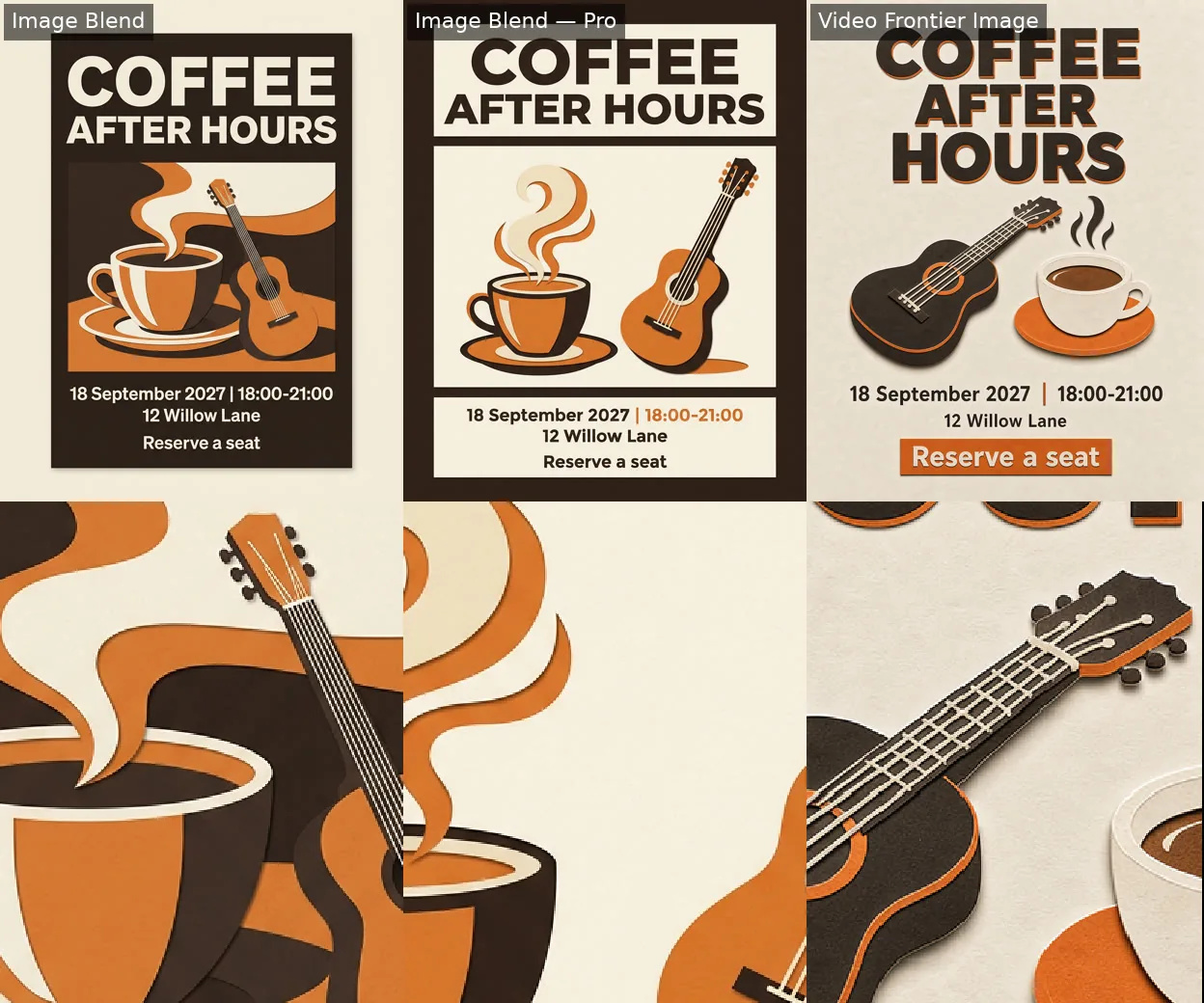
The standalone artwork comparison below shows the alternative: letting the illustration occupy the canvas without dedicated typography zones. That gives the artwork more compositional freedom, but leaves you finding room for copy afterward.
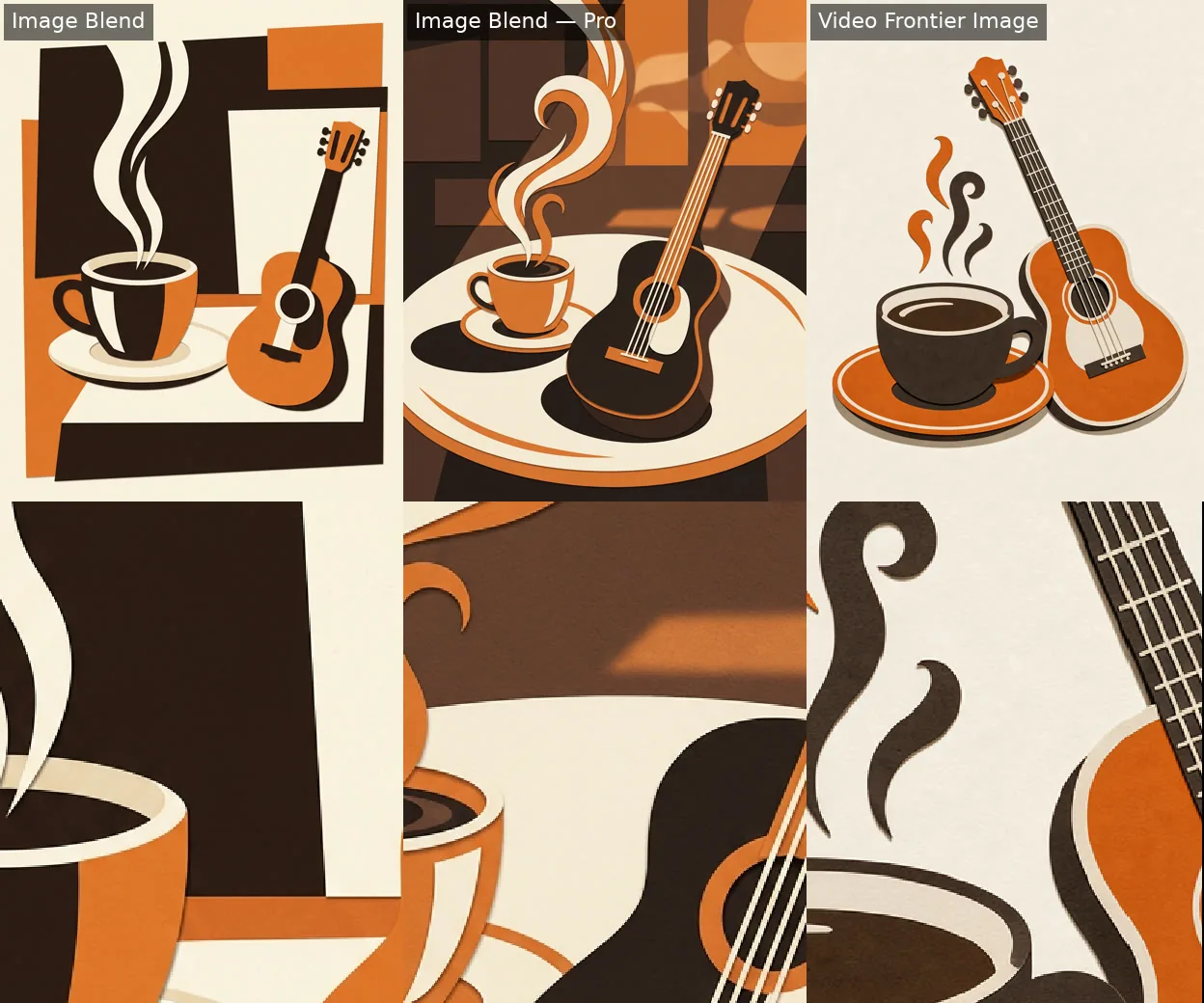
Unconstrained artwork before typesetting: Image Blend · Image Blend — Pro · Video Frontier Image. Test prompt. Bottom row: the same centre crop, zoomed. Our test, Oct 24, 2026.
Choose reserved-space artwork for an event poster because the copy already has somewhere to go. After generating, inspect both blank areas. If steam, shadows, or objects intrude, revise the composition before typesetting. Keep unrestricted artwork for designs where the illustration can sit in a separate panel.
Try Ultra HD Image Generator → Plans start at $19.99; credit packs from 350 credits.
Is it better to generate the whole poster or add text separately?
Adding text separately is our pick because event copy stays editable, although the complete generated posters rendered the requested wording accurately in our test. We would use Image Blend — Pro for its clear reserved typography areas. Its enlarged result and Imagera Image Blend both scored 5.8 out of ten, so the layout observation matters more than the tied score.
We tested a complete poster, artwork with reserved typography zones, and unrestricted artwork, examining each as a small preview and an enlarged output. A blind AI review used a vision model without knowing the generating method, with swapped-order passes and disagreements excluded. The test covered a fictional coffee-shop design and automated visual assessment, with no completed separately typeset poster or physical print comparison.
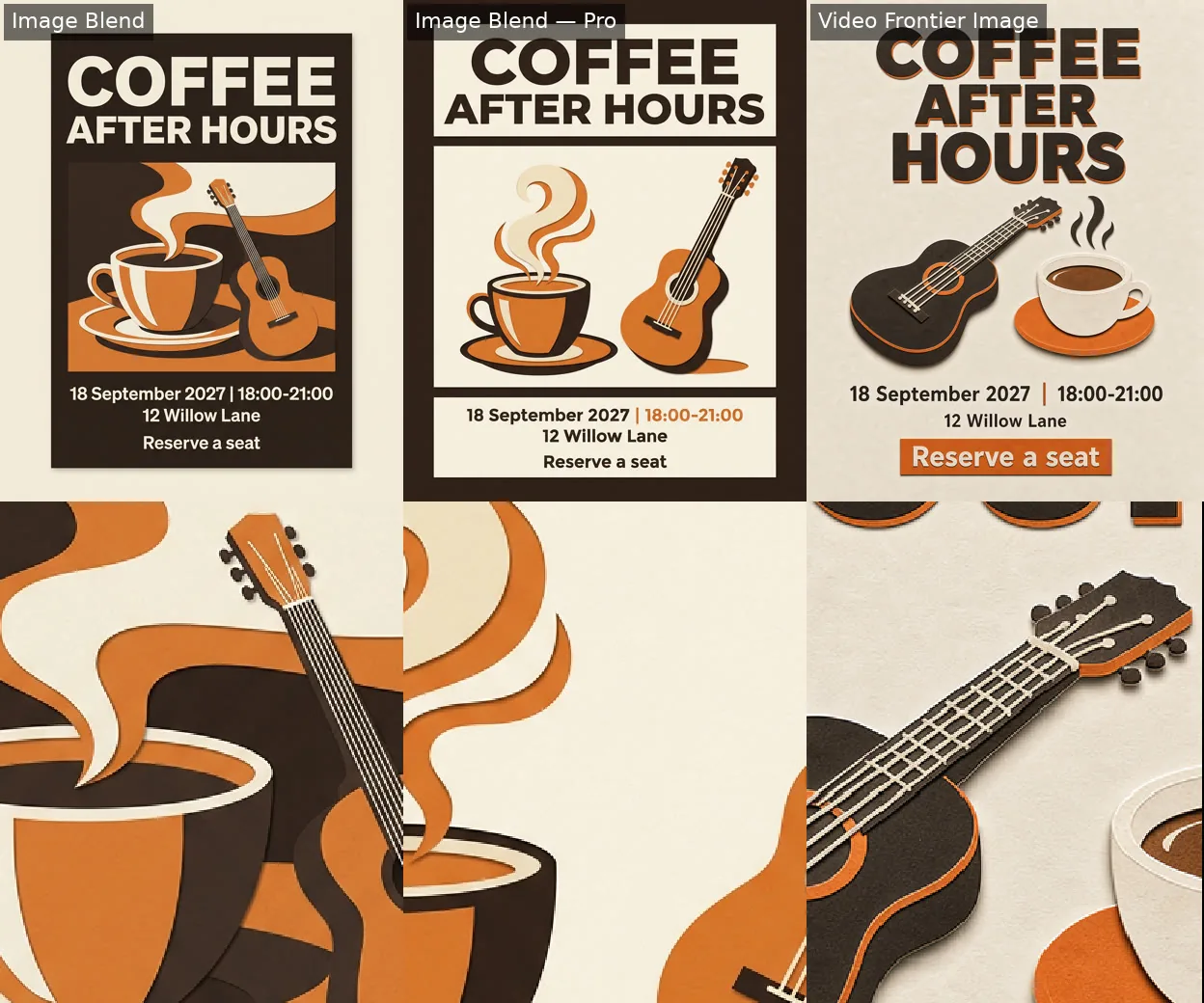
Complete posters with generated lettering: Image Blend · Image Blend — Pro · Video Frontier Image. Test prompt. Bottom row: the same centre crop, zoomed. Our test, Oct 24, 2026.
The complete Image Blend poster had accurate wording and clear hierarchy, but arrived as a framed mockup on a cream background. That surrounding presentation needs attention if you want artwork that fills the final page.
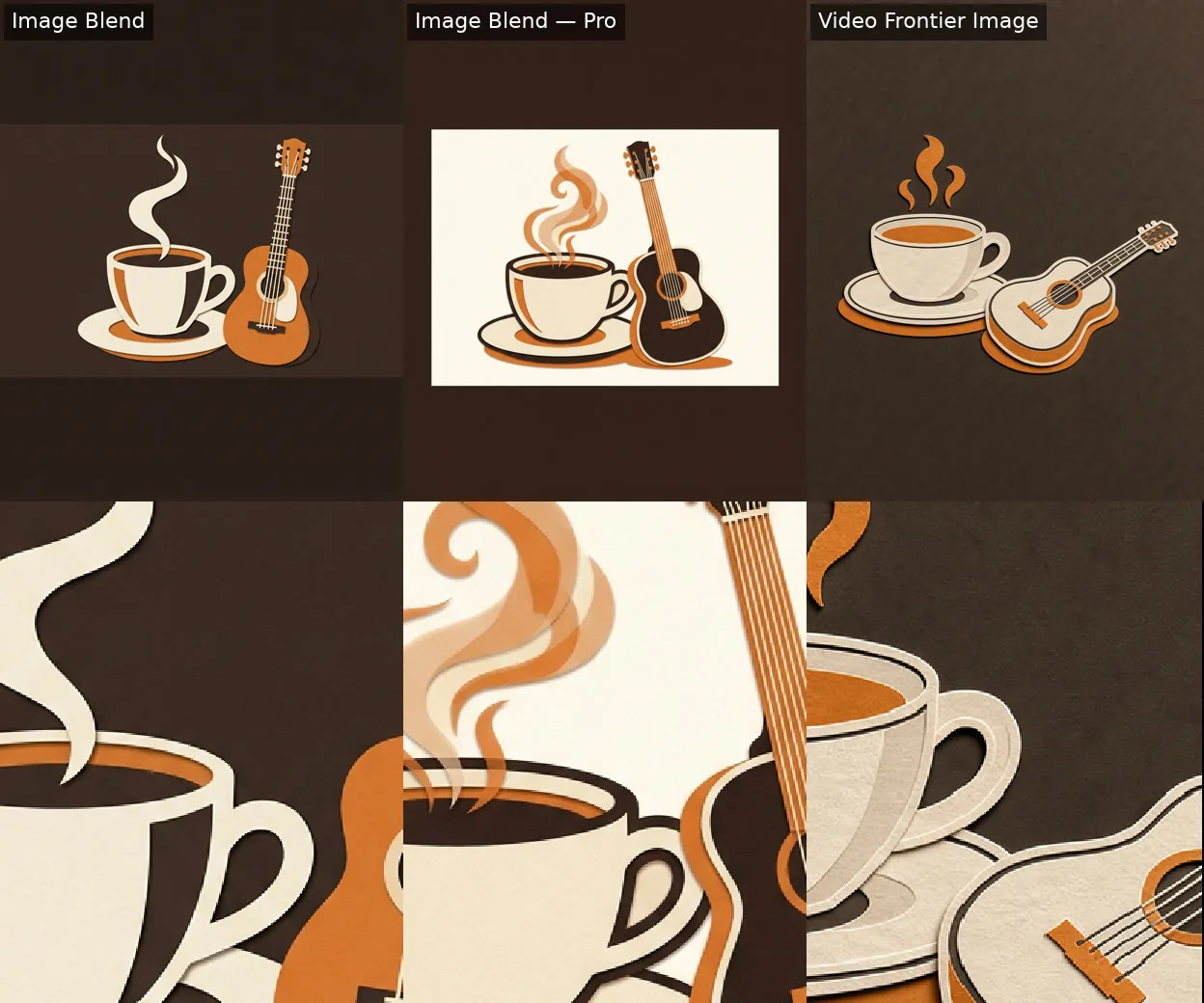
Reserved typography space before typesetting: Image Blend · Image Blend — Pro · Video Frontier Image. Test prompt. Bottom row: the same centre crop, zoomed. Our test, Oct 24, 2026.
For adding your own lettering, the reserved-space Image Blend — Pro artwork was more useful: the cup, saucer and guitar occupied a central cream rectangle, leaving ample dark brown margins above and below.
| Method | Output size | Blind AI review (0-10) | Processing time | Credits |
|---|---|---|---|---|
| Imagera Image Blend — Pro (Small screen preview) | 232×288 | — | 29 s | 20 |
| Imagera Image Blend (Enlarge graphic artwork) | 3300×4096 | 5.8 | 13 s + 11 s to enlarge | 75 (15 + 60 to enlarge) |
| Imagera Image Blend — Pro (Enlarge graphic artwork) | 3300×4096 | 5.8 | 29 s + 10 s to enlarge | 80 (20 + 60 to enlarge) |
| Imagera Image Blend (Small screen preview) | 232×288 | 5.7 | 13 s | 15 |
| Imagera Video Frontier Image (Enlarge graphic artwork) | 3243×4096 | 5.6 | 35 s + 11 s to enlarge | 75 (15 + 60 to enlarge) |
| Imagera Video Frontier Image (Small screen preview) | 228×288 | 5.5 | 35 s | 15 |
Longer generation did not earn a higher enlarged-result score. Image Blend — Pro took 29 seconds to generate, compared with 13 seconds for Image Blend, yet their scores tied. Choose for the usable layout rather than assuming extra processing time buys a better poster.
Keep a complete generated poster when its wording and layout already suit the intended use and no copy revision is needed. Otherwise, keep the artwork and set the text separately.
How do you make the headline and event details readable?
Put the headline in the upper blank area, group the event details below the illustration, and finish with a distinct call to action. Use cream lettering against the dark background and make the headline visibly larger than the details. In Canva, adjust the text box width carefully so the address does not wrap awkwardly.
Build a clear reading order: headline, illustration, date and time, location, then “Reserve a seat.” Keep the date and time together, with the address directly beneath them. Give the call to action enough separation to stand out without making it compete with the headline.
For this coffee-shop poster, use a consistent left alignment for the text blocks. It gives readers a predictable starting point. Keep steam, guitar strings and paper textures out of the lettering areas; a decorative edge behind an address can make an otherwise clean layout feel cluttered.
In Canva, use the white pill handles to adjust the text box without changing the font size. Narrowing the box can make text wrap or overflow onto another line. If the address breaks awkwardly, widen its box before shrinking the lettering.
Adobe Express is an alternative for adjusting typography, colors and graphics. Keep the same hierarchy there: a dominant headline, a compact details group and a clearly separated invitation to act.
What dimensions and export settings work for digital sharing and A3 print?
Export digital posters as JPEG or PNG, and prepare print posters as a high-quality PDF or TIFF using these export formats. A screen-friendly option is 1080 x 1920 pixels. For A3 printing, obtain the printer’s required dimensions and production settings before building the final document.
We would make separate digital and print layouts, then export each for its destination. Use separate sizes for print and digital platforms rather than assuming the same crop will serve both. A taller screen layout may need the illustration repositioned and the details regrouped; stretching the finished poster would distort both artwork and lettering.
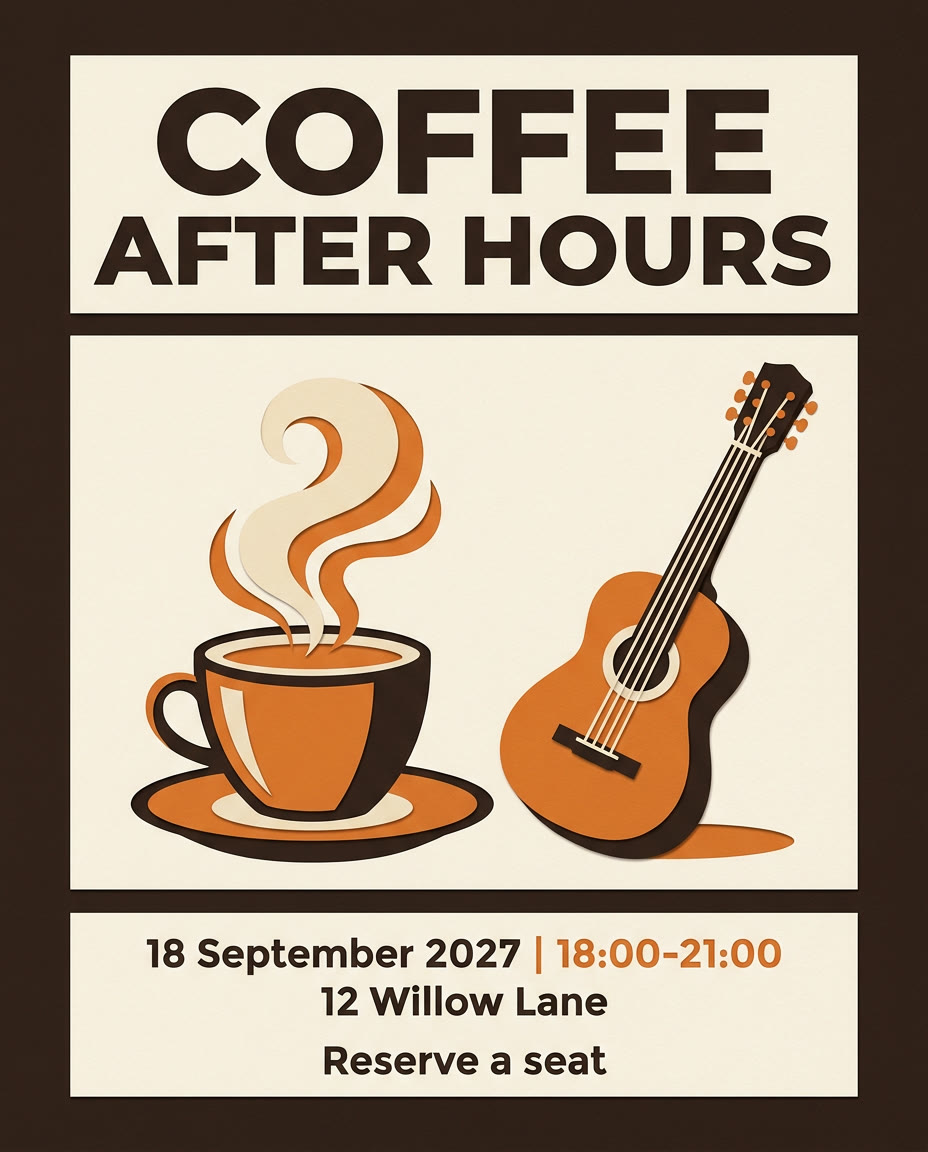
In our test, the enlarged Image Blend — Pro image measured 3300 pixels wide by 4096 pixels high. Those dimensions describe the artwork file. Place that artwork inside a correctly sized print document, then arrange the headline, event details, and call to action for that page. Changing the export format alone does not create the right page geometry.
Before assembling the print version, ask the printer for required bleed, safe area, color handling, and PDF requirements. Build to those specifications from the start. Keep the typography editable in your working document so a print-specific adjustment does not require regenerating the illustration.
How do you check a poster before publishing or printing?
Check the finished poster at reading size and close up before sending it anywhere. Compare every text block with the approved copy, inspect object edges and fine details, and verify that nothing essential approaches the trim. Then open the exported file itself and confirm its dimensions, crop, and appearance.
Use this final checklist:
- Read every word. Check spelling, punctuation, date, time, address, and call to action against the approved copy. Read each block separately so familiar wording does not hide a mistake.
- Inspect the illustration closely. Look at guitar strings, cup edges, and paper texture. Our outputs included minor guitar-string artifacts, extra intermediate colors, and soft shadows. Check that these fit the intended cut-paper treatment, then scan for unwanted objects or stray lettering.
- Judge readability at the intended size. The small Imagera Image Blend — Pro preview was 232 pixels wide by 288 pixels high, which explains its soft small details. Use the final export on the intended screen to judge the event details, rather than relying on that preview.
- Check the document edges. Remove any unwanted frame or surrounding background. Confirm that the final crop preserves the artwork and keeps essential text safely inside the trim.
- Approve the actual deliverable. Reopen the exported file, then request a print proof before approving a print run. We would make that proof the final approval step: it puts the lettering, crop, and color together on paper.