Imagera AI - AI content creation platform for generating images, cloning voices, creating avatars, and enhancing videos. Privacy Policy | Terms

Prompt
AI Image Generation

AI Avatar & Character Creation Prompts (2026)

AI avatar and character creation prompts. Talking avatar scripts, character design prompts, and expression guides for digital personas and virtual characters.

By Imagera Team8 min readFebruary 11, 2026Updated: August 8, 2026
Share:
AI Avatar & Character Creation Prompts (2026)

TL;DR

AI avatar and character creation prompts. Talking avatar scripts, character design prompts, and expression guides for digital personas and virtual characters.

Try it yourself — no setup

Turn a portrait or a clip into a lip-synced talking video.

AI Avatar & Character Creation Prompts

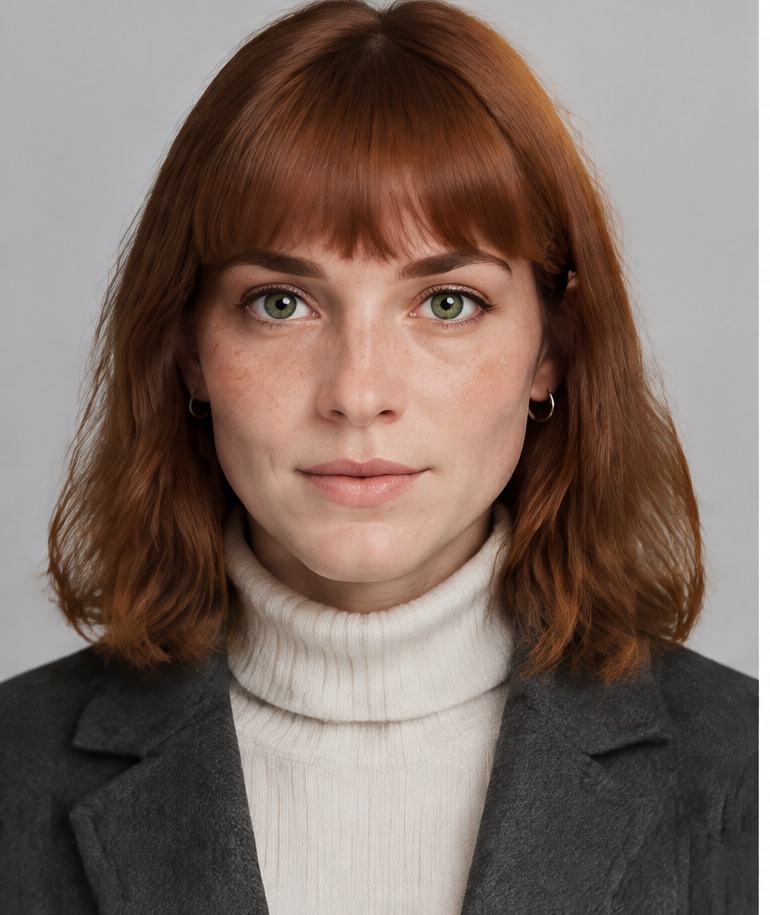
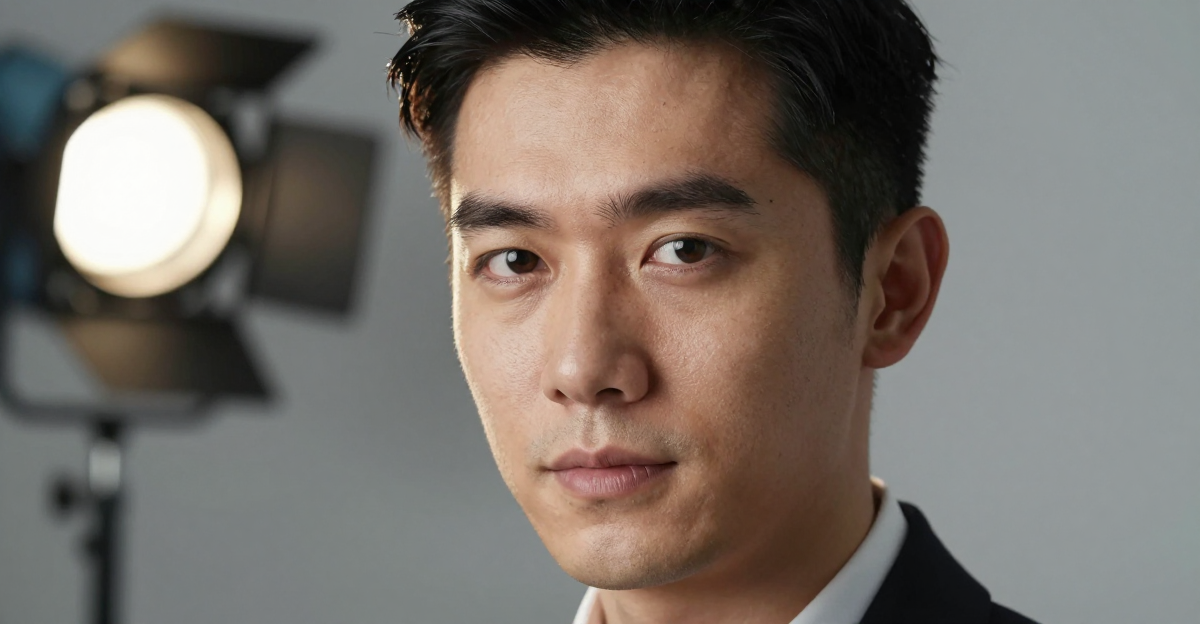
Source portrait input for AI avatar character creation

Create compelling AI avatars and digital characters with these tested prompts. From professional talking heads to fantasy characters, these prompts help you design the perfect digital persona. This guide pairs prompt recipes with the practical workflow behind them, so you can go from a single photo or a written description to a finished avatar — and, when you want it, a talking avatar video — inside Imagera's Avatar Generator.

A quick orientation before the prompts: there are two different jobs people call "AI avatar." The first is a still character — a headshot, a game character concept, an anime portrait — which you write with an image prompt. The second is a talking avatar video, where a photo of a person is animated to speak a script with lip-sync, head movement, and gestures. The prompts and scripts below cover both, and the section headings make clear which is which.

Quick answer: The strongest AI avatar and character prompts in 2026 lock 4-5 fixed traits (face, hair, wardrobe, age, art style) and add scene-only variables, so Imagera can render a consistent character across dozens of poses from a single description.

1.How do you write an AI avatar prompt that keeps the same face across images?

Anchor 4-5 identity traits in every prompt, then change only the scene. Reuse a 1-2 sentence "character sheet" verbatim across all 100+ generations, keep 3 style tags fixed, and render at 4K. In Imagera, this approach holds facial consistency far better than loose free-text prompts and produces a usable avatar in under 60 seconds per image.

2.What makes a character prompt work better in 2026 than older templates?

2026 prompts front-load 3-4 concrete nouns (identity, wardrobe, lighting, mood) before any abstract adjectives, and cap length near 60-75 words to avoid trait drift. Specific, ordered descriptors consistently outperform vague ones, so Imagera users who structure prompts this way tend to lock in a look with far fewer retries, then upscale finals to 8K for print.

3.What an AI avatar actually is

An AI avatar is a synthetic on-screen persona. In Imagera it takes two main forms:

  • A generated character image — you describe a person or creature in words, and the AI renders a still portrait or full-body design.
  • A talking avatar video — you upload one clear photo of a real face, add a script, and the Avatar Generator produces a video of that person speaking, with lip movement matched to the audio and natural body motion.

The talking-avatar path is the one most creators are after for marketing, training, and social clips. Unlike tools that only move the lips on a frozen frame, Imagera drives the whole person: the head tilts and nods while speaking, posture shifts, hands gesture, and expressions respond to the tone of the script. That "full-body" motion is what makes an avatar read as a real presenter rather than a photo with a talking mouth. Videos export in Full HD (1080p), and a single clip can run up to four minutes.

4.How the Avatar Generator works

The workflow is deliberately short. Here is the real four-step flow:

  1. Choose your avatar. Upload your own photo or pick from the built-in avatar library. For an uploaded photo, use one clear image with a single person, good lighting, and the face toward the camera. Higher source quality means a more realistic result.
  2. Add your script. Type or paste the words you want the avatar to say. This is the audio the animation is built around, so pacing and punctuation matter — write it the way you'd speak it.
  3. Customize settings. Adjust the voice, background, gestures, and animation to match your brand or scene. Voices support 50+ languages with lip-sync tuned per language.
  4. Generate and download. Render the video and export as MP4, MOV, or WEBM for whatever platform you're publishing to. A one-minute video typically finishes in roughly two minutes.

For a still character image (no speech), you skip the script and voice steps entirely: you write an image prompt like the ones below, generate, and download the portrait. The same account and credits cover both.

5.Professional Avatar Prompts

5.1Business Avatars

Professional female executive avatar, modern business attire, confident posture, warm genuine smile, clean office background, natural lighting, LinkedIn-appropriate, photorealistic
Male tech entrepreneur avatar, smart casual outfit, creative workspace background, approachable expression, natural skin texture, editorial photo quality

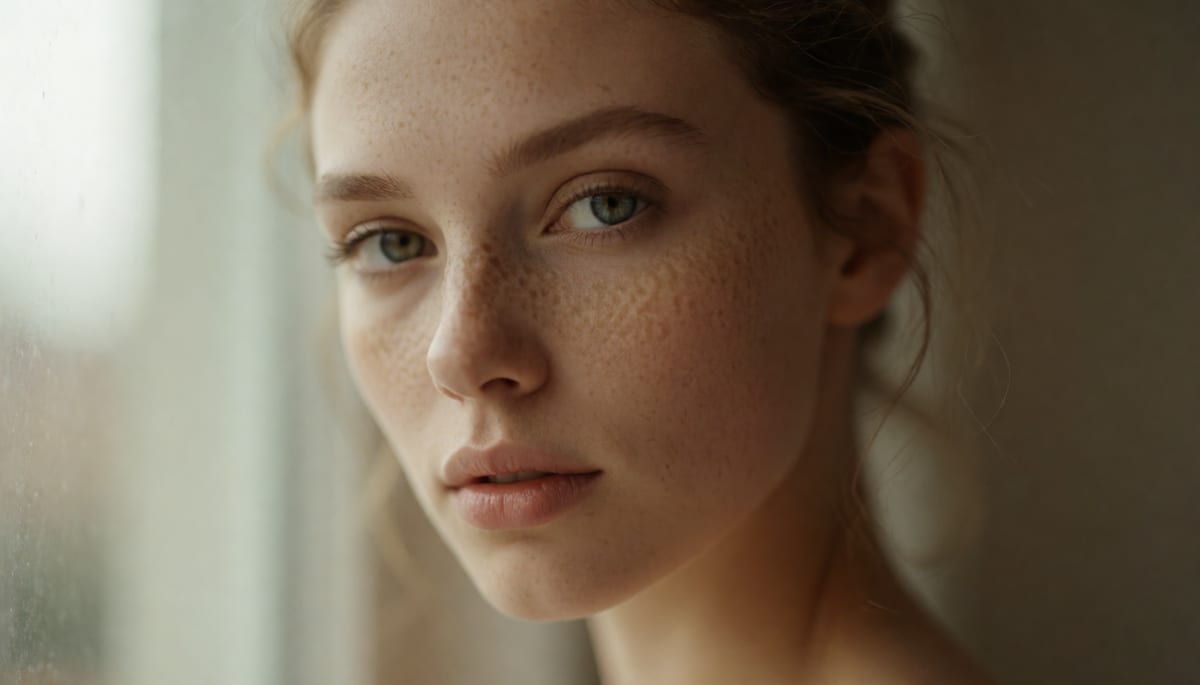
#AI avatar generator output showing realistic digital character

6.Creator Avatars

Content creator avatar, trendy streetwear style, colorful studio background, energetic expression, ring light catchlights in eyes, YouTube thumbnail quality

AI-generated talking avatar character with realistic expressions

7.Talking Avatar Scripts

7.1Product Introduction

[Neutral expression → Smile]
"Hi there! I'm [Name], and I'm here to show you something that's going to save you hours every week. [Product Name] uses AI to [key benefit]. Let me walk you through how it works."

[Gesture: slight head tilt, engaged expression]
"First, you simply [step 1]. Then [step 2]. And just like that, you're done. It really is that simple."

[Smile → Nod]
"Ready to try it yourself? Click the link below to get started. Trust me, you'll wonder how you ever worked without it."

7.2Educational Explanation

[Thoughtful expression]
"You know how [common problem]? Well, there's actually a really elegant solution to this. Let me explain."

[Engaged, explaining gesture]
"The key insight is [core concept]. Think of it like [analogy]. When you [action], the AI [result]."

[Satisfied smile]
"And that's really all there is to it. The technology behind it is complex, but using it couldn't be simpler."

8.Fantasy & Creative Character Prompts

8.1Anime Characters

Anime-style female character, long flowing silver hair, crystal blue eyes with light reflections, school uniform with magical accessories, cherry blossom background, detailed art style

Professional artists sketchbook lying open showing pages filled with character

Dark anime anti-hero, spiky black hair, glowing red eyes, torn cape flowing in wind, lightning storm background, dramatic lighting, shonen style

8.2Fantasy RPG Characters

High elf mage character design, flowing robes with arcane symbols, staff with glowing crystal, pointed ears, ancient library background, concept art quality, full body shot
Dwarf warrior character, intricate plate armor with gold trim, braided red beard, battle axe, mountain fortress background, fantasy game art style

8.3Sci-Fi Characters

Space marine character, futuristic powered armor, holographic HUD visor, energy weapon, space station corridor background, Mass Effect art style

9.Expression Guide for AI Avatars

9.1Common Expressions

  • Neutral: calm expression, relaxed face, natural resting position
  • Happy: warm genuine smile, slight eye crinkle, engaged expression
  • Thoughtful: slight head tilt, one eyebrow raised, contemplative look
  • Surprised: wide eyes, raised eyebrows, open mouth, amazed expression
  • Serious: focused gaze, firm jawline, determined expression, professional

Costume designers fabric swatch collection featuring hundreds of small fabric

9.2Lip Sync Optimization

When creating talking avatars:

  1. Start with a neutral expression as the base
  2. Use clear, well-paced audio for best lip sync results
  3. Keep face centered in frame with enough space for head movement
  4. Ensure consistent lighting across the face

All avatar prompts tested with Imagera AI avatar and image generators. Works with talking avatar, face swap, and image generation features.

10.Step-by-step: from photo to talking avatar

If you want a finished talking-avatar video rather than a still character, follow this concrete sequence in the Avatar Generator studio:

  1. Pick one strong source photo. A front-facing headshot or portrait with soft, even lighting works best. One person only, no group shots, and avoid low-resolution or heavily filtered images — the AI can only animate detail that's actually in the pixels.
  2. Write the script the way you speak. Keep sentences short. Break long ideas into two lines. Add natural pauses with commas and periods rather than trying to cram everything into one breath. The lip-sync tracks your written text, so clean phrasing produces cleaner mouth shapes.
  3. Choose voice and language. Select a voice that matches the character's age and energy. If you're localizing, the same script and photo can be produced in any of the 50+ supported languages with matched lip-sync — no separate re-shoot.
  4. Set the scene. Pick or adjust the background and gesture style so the presenter fits the context — a clean office look for training, a brighter studio look for social.
  5. Generate, then review the first ten seconds. Watch the opening for natural eye direction and mouth timing. If it feels off, the usual culprit is the source photo (angled face, harsh shadow) rather than the script.
  6. Export. Download in MP4 for most platforms, MOV for editing timelines, or WEBM for lightweight web embeds.

A one-minute clip generally renders in about two minutes, so iterating on a script is fast and cheap — you can try two or three phrasings without a long wait.

11.Common use cases

AI avatars replace a filming crew for a surprising range of everyday content. These are the scenarios creators reach for most:

  • Corporate training. Produce dozens of onboarding or compliance videos without booking a studio or an on-camera presenter. When policy changes, you update the script and re-render instead of re-shooting.
  • Course creation. Build an entire course with one consistent AI instructor. No camera anxiety, no lighting setup, and lessons stay easy to revise as your material evolves.
  • Marketing and ad testing. Spin up several spokesperson variations to A/B test hooks and offers, then keep the winner — all without a new production for each version.
  • Multilingual localization. Take one presenter and one script into 50+ languages with per-language lip-sync, instead of hiring separate voice talent per market.
  • Real estate and property tours. Give every listing a professional on-screen agent walkthrough without the agent standing in front of a camera each time.
  • Social media presence. Keep a steady posting cadence on YouTube, TikTok, and LinkedIn with a recognizable presenter, without filming daily.
  • Professional headshots. The same tool generates studio-style headshots from a single photo for LinkedIn, resumes, speaker bios, and team pages — useful when you need a clean profile image but don't have a photographer session.

12.Who it's for

The prompts and workflow in this guide fit several different creators:

  • Solo creators and course builders who want an on-screen presence without being on camera, and who need to update content often.
  • Marketing and social teams producing high volumes of short video who can't justify a shoot for every variation.
  • Game designers and illustrators using the still-image side to draft character concepts — RPG heroes, anime portraits, sci-fi designs — before committing to final art.
  • Small businesses that need explainer and training videos but don't have a video budget or a studio.
  • Professionals who simply need a polished headshot for a profile and want a repeatable, low-cost way to get one.

13.Tips for best results

  • Describe five to seven traits, not fifty. Overloading an image prompt with detail confuses the render and produces cluttered results. Nail the primary elements — subject, style, wardrobe, mood, lighting, background — and let the AI fill in secondary detail.
  • Lead with identity, end with quality cues. Put who the character is first (age, role, defining features), then style and setting, then finish with quality words like "photorealistic," "concept art quality," or "editorial photo quality."
  • Specify lighting on purpose. Warm, diffused light reads friendly and approachable; dramatic side or rim lighting reads powerful or mysterious. Lighting is one of the strongest levers over the emotional tone of an avatar.
  • For talking avatars, invest in the source photo. A sharp, well-lit, front-facing image does more for realism than any script tweak. Angled faces, harsh shadows, and busy backgrounds are the most common causes of a weak result.
  • Write scripts for the ear. Read your script out loud before generating. If it's hard to say, it'll be hard to lip-sync cleanly.
  • Iterate in small changes. Because a short clip renders in around two minutes, change one variable at a time — voice, background, or a single line — so you can tell what actually improved the output.

14.Common mistakes to avoid

  • Group photos or crowded source images. The talking avatar works from a single clearly visible face. Multiple people or a small, distant face gives the model too little to animate.
  • Contradictory prompt terms. Asking for "photorealistic anime" or "minimalist, highly ornate" fights the model. Keep your style words consistent.
  • Cramming the whole message into one sentence. Long, breathless scripts produce rushed, muddy lip-sync. Break ideas into short lines with natural pauses.
  • Ignoring lighting entirely. A prompt with no lighting cue leaves the mood to chance. Even one phrase — "natural lighting," "dramatic side lighting" — steadies the result.
  • Using photos you don't have rights to. Only create avatars from images of yourself or people who have consented. Making talking avatars of others without permission is against Imagera's terms and is an ethics and legal risk.
  • Expecting a low-res photo to produce a high-res avatar. The AI can't add detail that isn't in the original. Start from the best image you have.

15.Creating Compelling AI Avatars: Tips and Best Practices

AI avatar generation opens up creative possibilities that were previously limited to professional digital artists. These tips will help you create more realistic and visually striking avatar designs.

Professional sculptor working with clay figure in progress on a

15.1Establishing Visual Identity

The most effective avatars have a clear visual identity. Before writing your prompt, decide on the core characteristics: age range, personality traits that should be visible, cultural influences, and the overall mood you want to convey. Having these decisions made before prompting produces more cohesive results.

15.2Balancing Detail and Simplicity

Overly complex prompts can confuse the AI model, leading to cluttered or inconsistent results. Focus on five to seven defining characteristics rather than trying to specify every detail. Let the AI fill in secondary details naturally while you control the primary visual elements.

15.3Consistency Across Generations

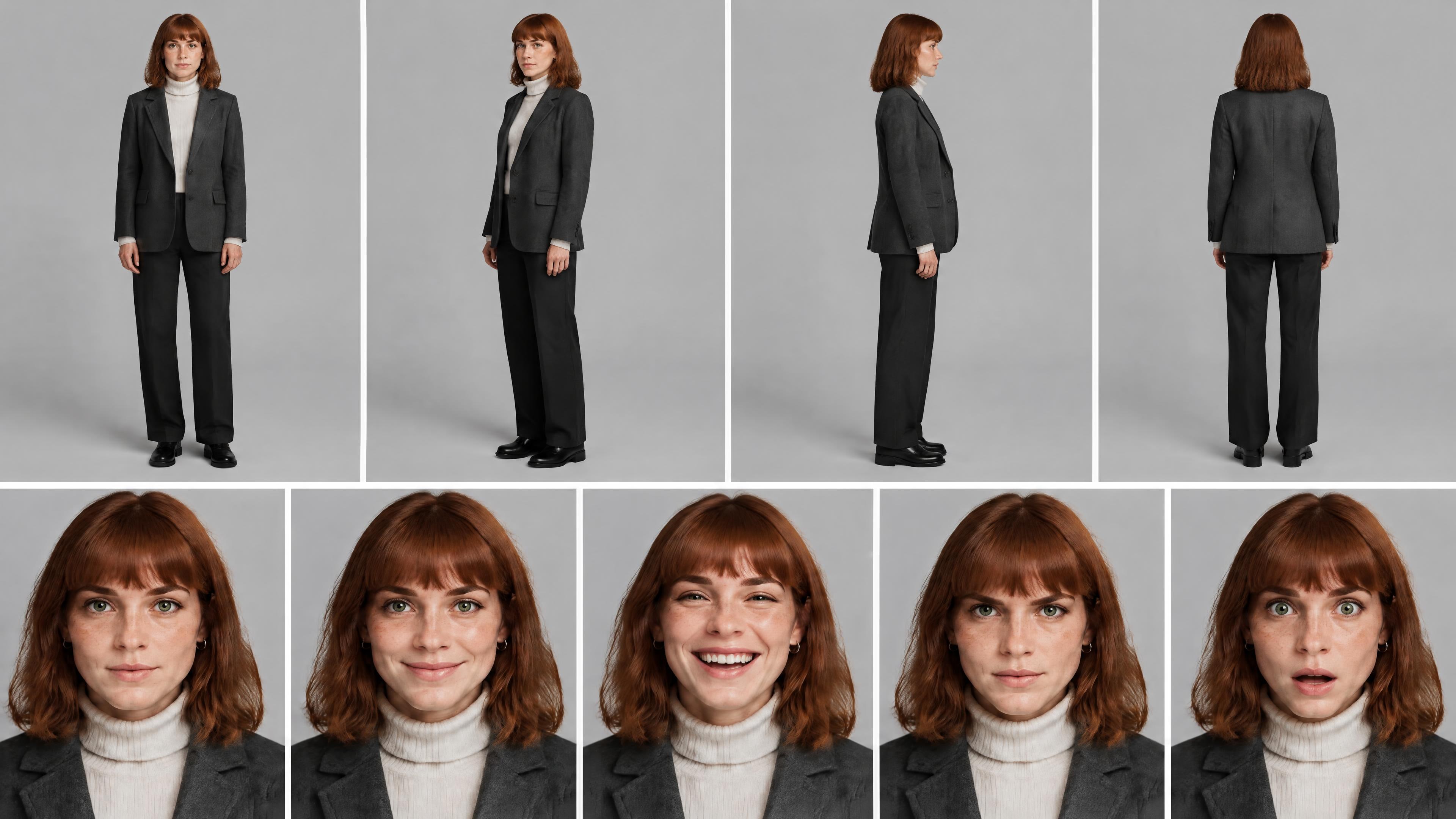
If you need multiple images of the same character, maintain consistency by keeping your core description identical and only changing the pose, expression, or background. Using Imagera's LoRA training feature, you can train a custom model on your character design to achieve even greater consistency across generations.

15.4Lighting and Atmosphere

Lighting dramatically affects how an avatar feels. Warm, diffused lighting creates approachable, friendly characters. Dramatic side lighting or rim lighting creates mysterious or powerful characters. Specify your lighting in the prompt to control the emotional impact of your avatar.

15.5Combining with Voice and Video

Once you have created a compelling AI avatar, consider bringing it to life with Imagera's talking avatar feature. You can pair your generated character with AI-generated voice to create digital presenters, virtual assistants, or animated storytellers. The combination of visual and vocal AI creates engaging content that captures attention.

16.Building a Consistent Character Library

One of the most valuable skills in AI avatar creation is building a library of consistent characters that you can reuse across different projects and contexts. Here is how to approach this systematically.

Professional theatrical makeup palette featuring multiple compartments with cream makeup

16.1Creating a Character Sheet

Before generating your avatar, write a detailed character description document. Include physical attributes like height, build, skin tone, hair color and style, eye color, and distinguishing features. Add personality traits that should be visible in the avatar's expression and posture. Document clothing preferences and accessories that define the character. This reference document ensures consistency when generating the same character in different poses or situations.

16.2Using Seed Values for Consistency

Many AI generation tools allow you to set seed values that influence the randomization process. By keeping the same seed value across multiple generations while changing only the pose or background, you can maintain greater consistency in your character's appearance. Imagera's image generator supports this feature, making it easier to create character series.

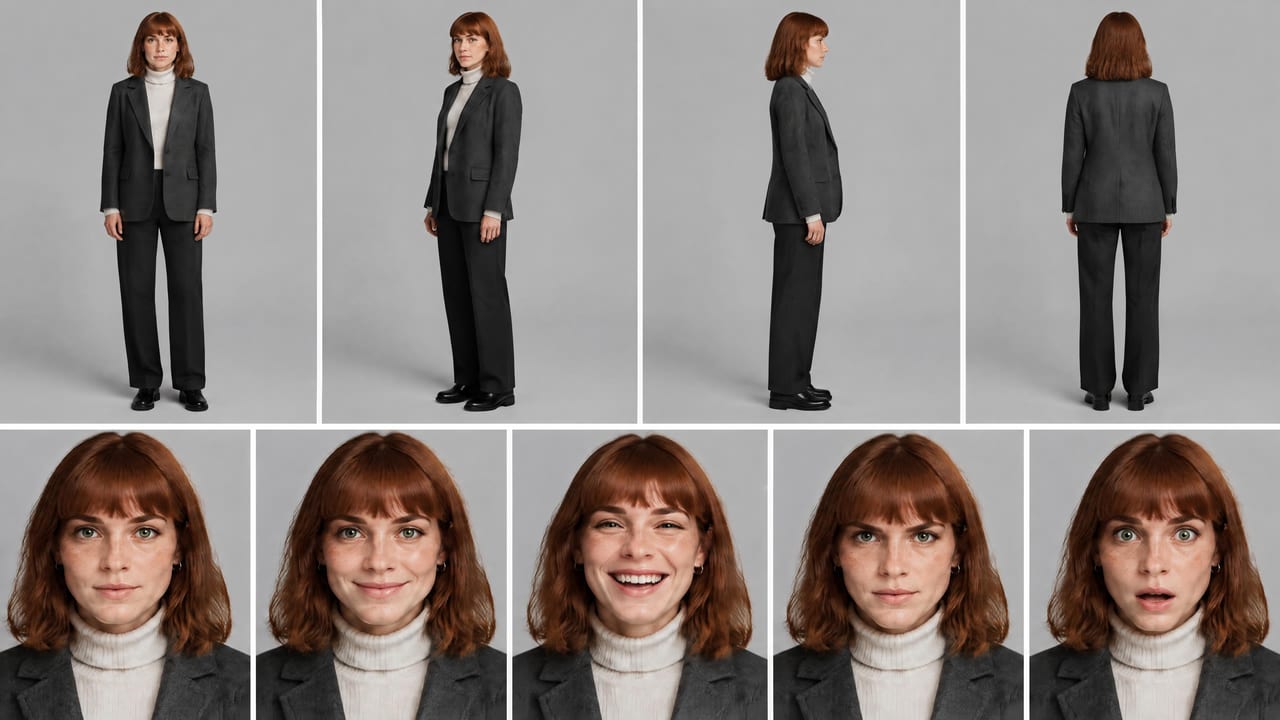
16.3Building Expression Libraries

Create a set of the same character showing different emotions: happy, sad, thoughtful, surprised, determined, and relaxed. These expression libraries are invaluable for storytelling, marketing materials, and social media content where you need visual variety while maintaining character recognition.

16.4Scaling Your Avatar Workflow

Once you have established reliable prompts for your characters, you can scale your production significantly. Create template prompts where you swap out specific elements like background, lighting, or clothing while keeping the core character description intact. This templated approach allows you to generate dozens of consistent variations efficiently, turning avatar creation from a creative bottleneck into a streamlined production pipeline.

17.Examples: three quick scenarios

Scenario 1 — A course creator recording lesson intros. Instead of setting up a camera for each of twelve lessons, they upload one headshot, write twelve short intro scripts, and generate twelve clips. When a lesson's content changes next quarter, they edit that one script and re-render — no re-shoot, no matching the old lighting.

Scenario 2 — A marketer testing ad hooks. They keep the same presenter photo and produce five versions of a 20-second pitch, each opening with a different hook line. All five are consistent in look because they share the same source photo, so the only variable being tested is the copy.

Scenario 3 — A game designer drafting a party of heroes. Using the still-image prompts above, they generate a high elf mage, a dwarf warrior, and a space marine as concept art, then keep the core description fixed while swapping backgrounds and poses to build a matching set for a pitch deck.

18.Comparison: Imagera vs. subscription avatar tools

The honest trade-off is subscription pricing versus pay-per-use. Subscription tools charge a flat monthly fee whether or not you make videos; Imagera charges credits per clip, so occasional creators avoid a standing bill. Competitor prices below are their published subscription rates; the Imagera column is in credits.

ImageraTypical subscription tools
Pricing modelPay-per-use, credits per clip$18–$89/month subscription (varies by tool)
Cost per short clip30 credits per 10-second videoIncluded in monthly plan (charged monthly regardless of use)
AnimationFull body — lips, head, posture, gesturesOften lip-sync only on a static frame
Max video lengthUp to 4 minutes per clipVaries; several cap length by plan
Output resolutionFull HD 1080pVaries by plan
Languages50+ with per-language lip-syncVaries by tool
Custom photoOne high-quality photoVaries; some require multiple photos
Commercial rightsIncludedVaries by plan

If you publish avatar video constantly, a subscription can make sense. If your usage is spiky — a batch of training clips this month, nothing next month — pay-per-use credits usually cost less because you only pay when you generate.

19.Pricing

Avatar video is priced in credits, so you pay only for what you render:

  • Talking avatar video: 30 credits per 10-second clip (about $0.92), scalable to longer videos up to four minutes. No subscription required.
  • AI headshots: approximately 20 credits per headshot (about $0.62), versus $200+ for a traditional photographer session. Each generation returns multiple variations.

Credits are purchased in packages — see the pricing page for current packs. There's no monthly lock-in, so a light month costs you nothing.

20.The Future of AI Avatar Creation

As AI models become more sophisticated, the distinction between AI-generated and traditionally created digital art continues to narrow. The creators who thrive will be those who combine technical prompt engineering skills with genuine artistic sensibility. Use the prompts in this guide as starting points rather than final destinations. Experiment with unexpected combinations, push the boundaries of what these tools can create, and develop your own signature style. The technology serves your creative vision, not the other way around. With Imagera providing accessible generation tools, your main constraint is the clarity of your idea and the quality of your source material.

Gallery wall covered with character concept art sheets showing various

With consistent effort and creative exploration, you will develop an instinct for what makes an effective avatar prompt, transforming AI generation from a technical exercise into a genuine creative practice.

21.See it in action — real Imagera output

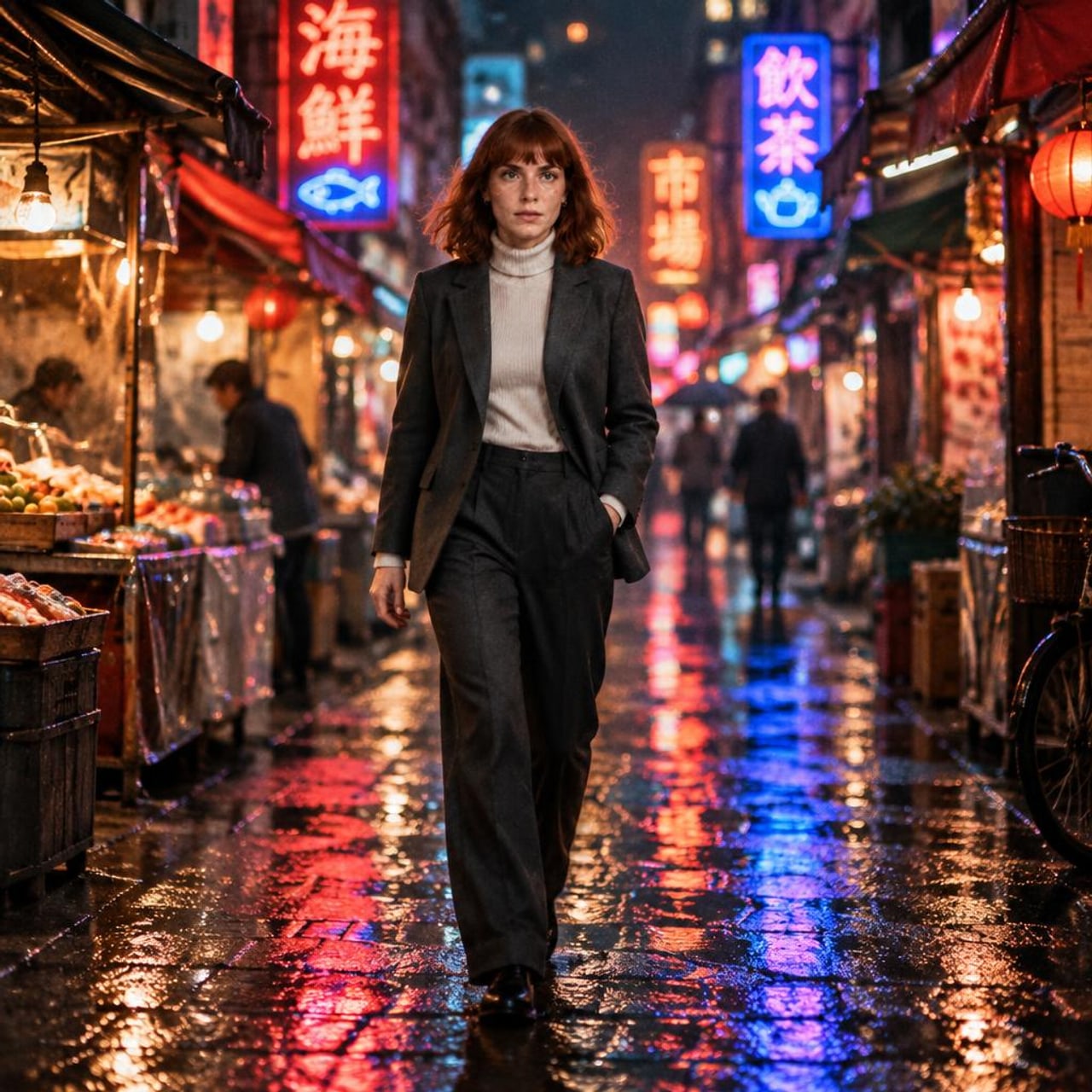
These are real, unedited results from the Imagera talking avatar — the exact tool this guide covers.

Talking Avatar — real output generated with Imagera
The original input photo

Try the Talking Avatar →

22.Tools and next steps

What you want to doWhere to go
Create a talking avatar from a photoAvatar Generator studio
Learn what the tool doesAvatar Generator
Generate professional headshotsAvatar Generator
See credit packagesPricing

23.Bottom line

Reach for the still-image prompts when you're designing a character — a headshot, an anime portrait, a game concept — and want a portrait you control with words. Reach for the Avatar Generator when you want a real person's photo to speak: upload one strong image, write a clean script, pick a voice and language, and get a Full HD talking video with full-body motion, up to four minutes, priced per clip in credits. The prompts and scripts in this guide are starting points — the quality of your source photo and the clarity of your script do most of the work.

Next steps: Open the Avatar Generator studio · See the tool overview · View pricing

Frequently Asked Questions

Can I use my own photo as an avatar?
Yes. Upload one clear photo with a single person, good lighting, and the face toward the camera, and the Avatar Generator creates a talking avatar from it. The higher the photo quality, the more realistic the result. Avoid group photos and low-resolution images.
What video quality and formats do I get?
Videos are generated in Full HD (1080p) with lip-sync and natural facial animation. You can export in MP4, MOV, or WEBM to fit whatever platform or editing timeline you are working in.
How long can an avatar video be, and how long does it take?
A single clip can run up to four minutes. Generation time scales with length — a one-minute video typically finishes in about two minutes, so iterating on a script is quick.
How much does an avatar video cost?
It is pay-per-use in credits, with no subscription required: 30 credits per 10-second talking-avatar clip, and about 20 credits per AI headshot. Because the price per credit changes across plans, see the pricing page for current credit packages.
What languages are supported?
Avatar voices support 50+ languages, each with lip-sync animation tuned to that language, so you can localize the same presenter and script without a separate recording.
Can I keep a character looking consistent across many images?
Yes. Keep your core description identical and change only pose, expression, or background. For tighter consistency you can hold a seed value in the image generator, or train a custom model on your character with Imagera's LoRA training feature.
Can I use avatar videos and headshots commercially?
Yes. Avatar videos come with full commercial rights for marketing, training, social media, and more. AI headshots are widely used for LinkedIn, resumes, corporate directories, and speaker bios.
Is my uploaded photo kept or used to train the AI?
No. Uploaded photos are processed securely and automatically deleted after your video is generated, and they are never used to train Imagera's models. Processing follows GDPR and international privacy regulations. Only upload photos you have the rights to use.

Imagera AI Team

AI Content & Editorial Team

The Imagera AI editorial team brings together AI researchers, product specialists, and content strategists covering practical AI creation workflows.

Areas of Expertise:

AI Image GenerationAI Voice RecreationAI Avatar CreationContent Marketing

Put this guide to work

Turn a portrait or a clip into a lip-synced talking video.