You found the right clip and want your character in it. Put a full-body photo in the Character slot and a 3–10 second clip of one person in the Motion slot, switch the engine to Imagera Motion with Orientation on Image, and press Animate. In our test runs and generation logs, three problems came up: the run is refused over clip length, the result is a bobbing close-up when you wanted the footwork, or the person on screen isn't your character. Each has one cause and one fix. On September 22, 2026, we ran one 5-second dance clip through the AI character replacement studio with three different photos. Here is what each run produced, what it cost and which settings fixed the misses.
1.What character replacement changes, and what it keeps
Character replacement takes a still of your character and a clip of someone moving. It then renders a new clip of your character doing that movement, with the same timing, weight shifts and hand positions. Some tools call this motion transfer or character swap. On the motion engines, each part of the result comes from one of the two inputs:
| Comes from your photo | Comes from the clip |
|---|---|
| Face, hair and build | Body movement and timing |
| Outfit and shoes | Gestures and hand positions |
| Background and lighting | Nothing of the original performer or set |
| Frame shape in Image orientation | Frame shape in Video orientation |
Plan for the background row: the clip's room disappears. Run 3 shows how to keep it.
This is a different job from a face swap or a head swap:
| Tool | What it replaces | What it keeps |
|---|---|---|
| Face swap in a video (AI face enhancer and swap for video) | The face inside an existing clip | The clip's body, outfit, set and motion |
| AI Head Swap | The whole head, hair included, in a still photo | The photo's body and background |
| Character replacement | The whole person, head to shoes | Only the clip's motion |
2.How we tested: one clip, three photos
- Date and studio: September 22, 2026, in the AI character replacement studio on Imagera Motion, with Orientation set to Image and the optional Describe the scene box left empty. We also ran Run 1's inputs through Imagera Open (below).
- Clip: one vertical 5-second clip, 720 × 1276, of an invented dancer in a sunlit studio doing side steps, arm swings and a double clap above her head. We made a still of her with ChatGPT 2.5 Flare and animated it with Imagera Warlord Pro, so the clip's first frame is the still.
- Photos: one invented man, made with ChatGPT 2.5 Flare: full body (Run 1), a square chest-up crop (Run 2), and the clip's first frame with him edited in using ChatGPT 2.5 Flare Edit (Run 3).
- Checks: each output's frame size and length, and frames compared with the clip at full size at matching timestamps.
- Credits: 60 per Imagera Motion run, plus 40 for the Run 3 image edit.
- Clip-length refusals: these come from Imagera's generation logs for August 28, 2026, not from these runs (see the 10-second limit below).
2.1Run 1: full-body photo (works)
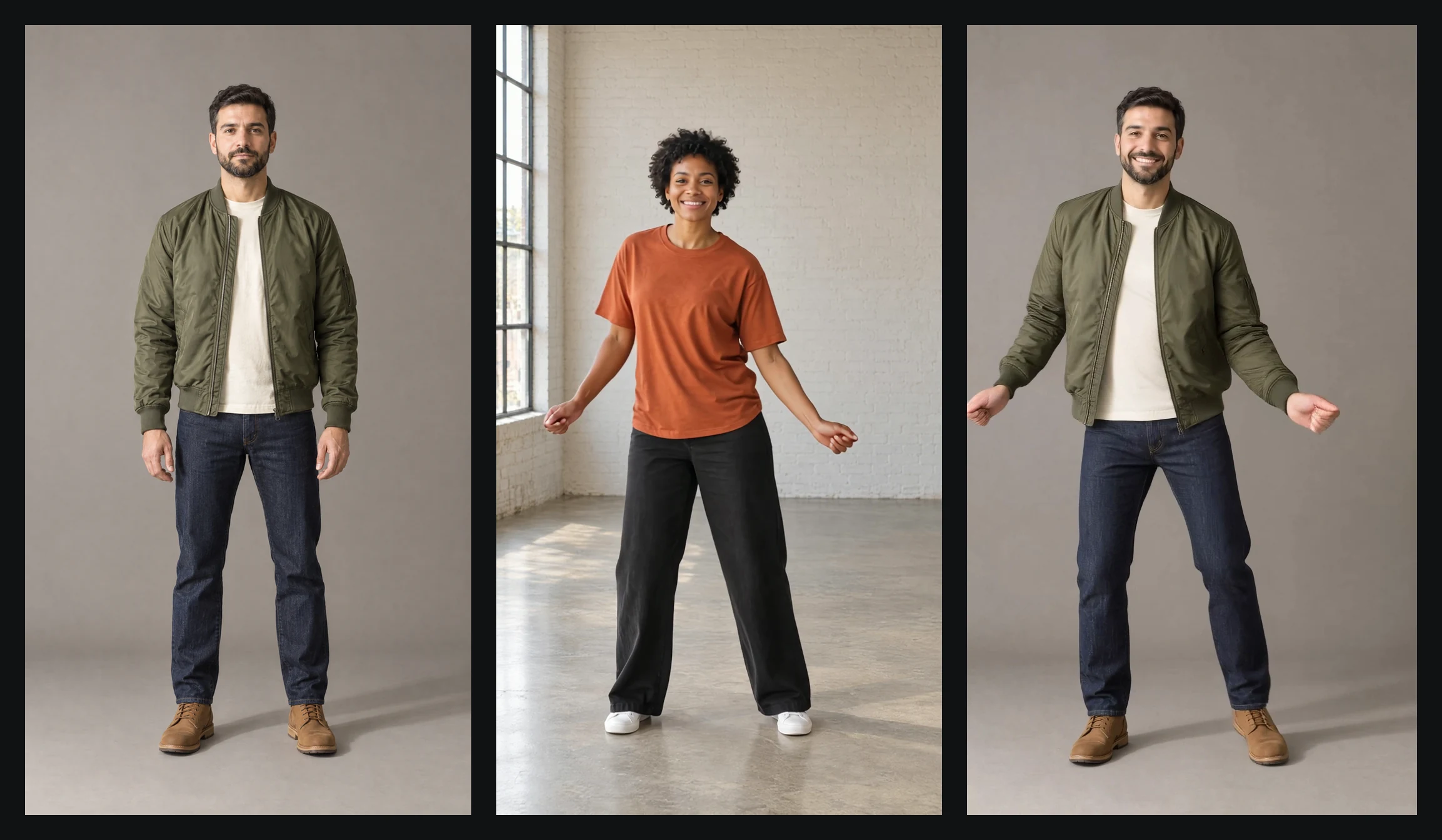 Real result, Run 1. Left: character photo (generated input). Middle: clip frame at 2.5 seconds. Right: the Imagera Motion output at the same moment.
The output was 720 × 1264 and 4.8 seconds long. It followed the clip beat for beat through the side steps, the arm swings and the clap. We checked frames at full size across the clip, and the face, beard, jacket and boots stayed consistent. The background is the grey backdrop from the photo. The clip's brick studio is gone.
2.2Run 2: headshot (the footwork disappears)
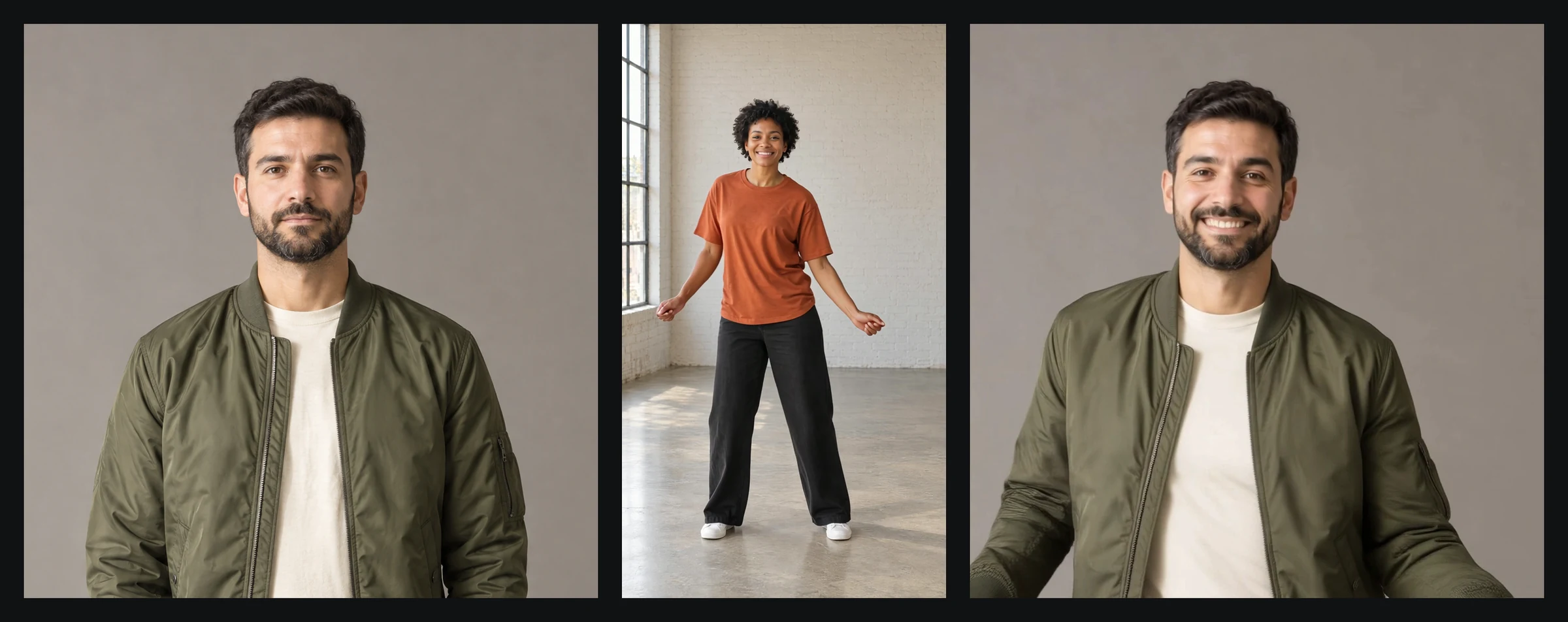 Real result, Run 2, the failure. A chest-up photo gives a chest-up video: the side steps happen below the frame.
Same man, same clip, but the photo was a square chest-up crop, the kind of profile picture that makes a tempting first try. In Image orientation the output takes the photo's shape, so the result came back as a 960 × 960 chest-up square. The timing was right, but the side steps happened below the frame and the arms swung out of it. The run was charged as normal; it just wasn't the clip we wanted.
Fix: use a full-body photo in the same shape as the clip. That means a vertical photo for a vertical clip, with the head, hands and shoes all visible, as in Run 1.
2.3Run 3: keep the clip's room
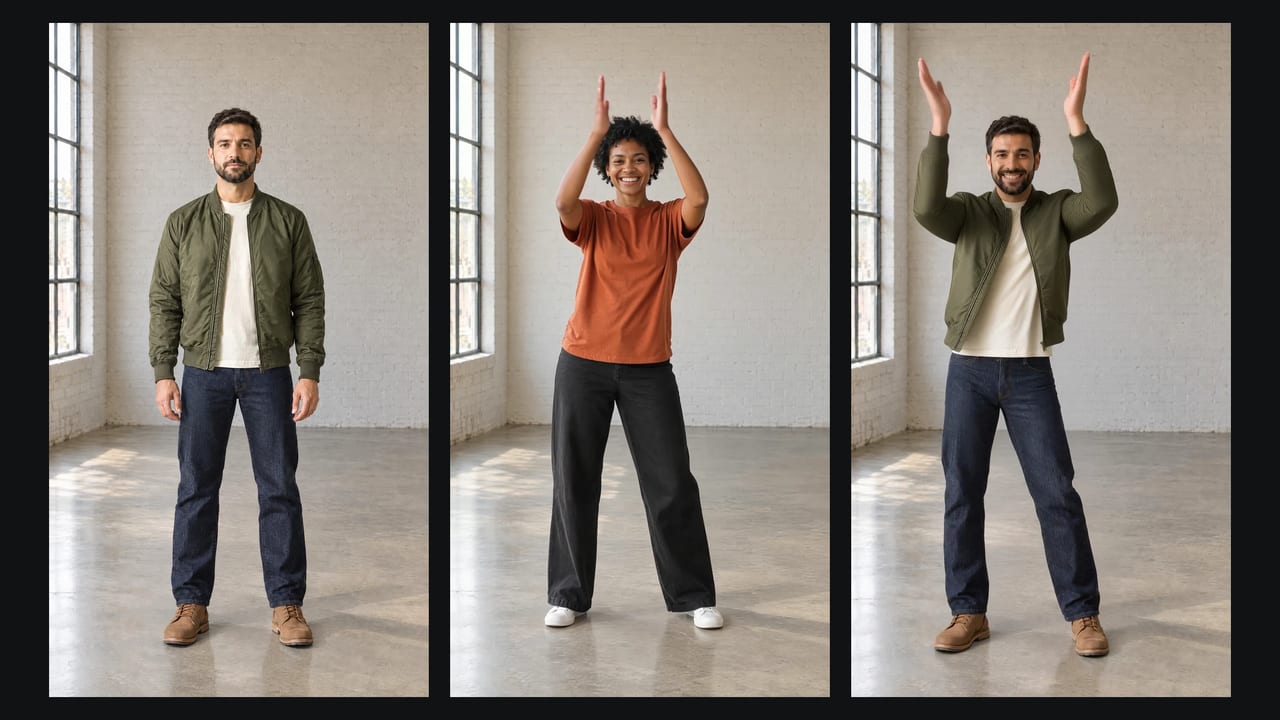
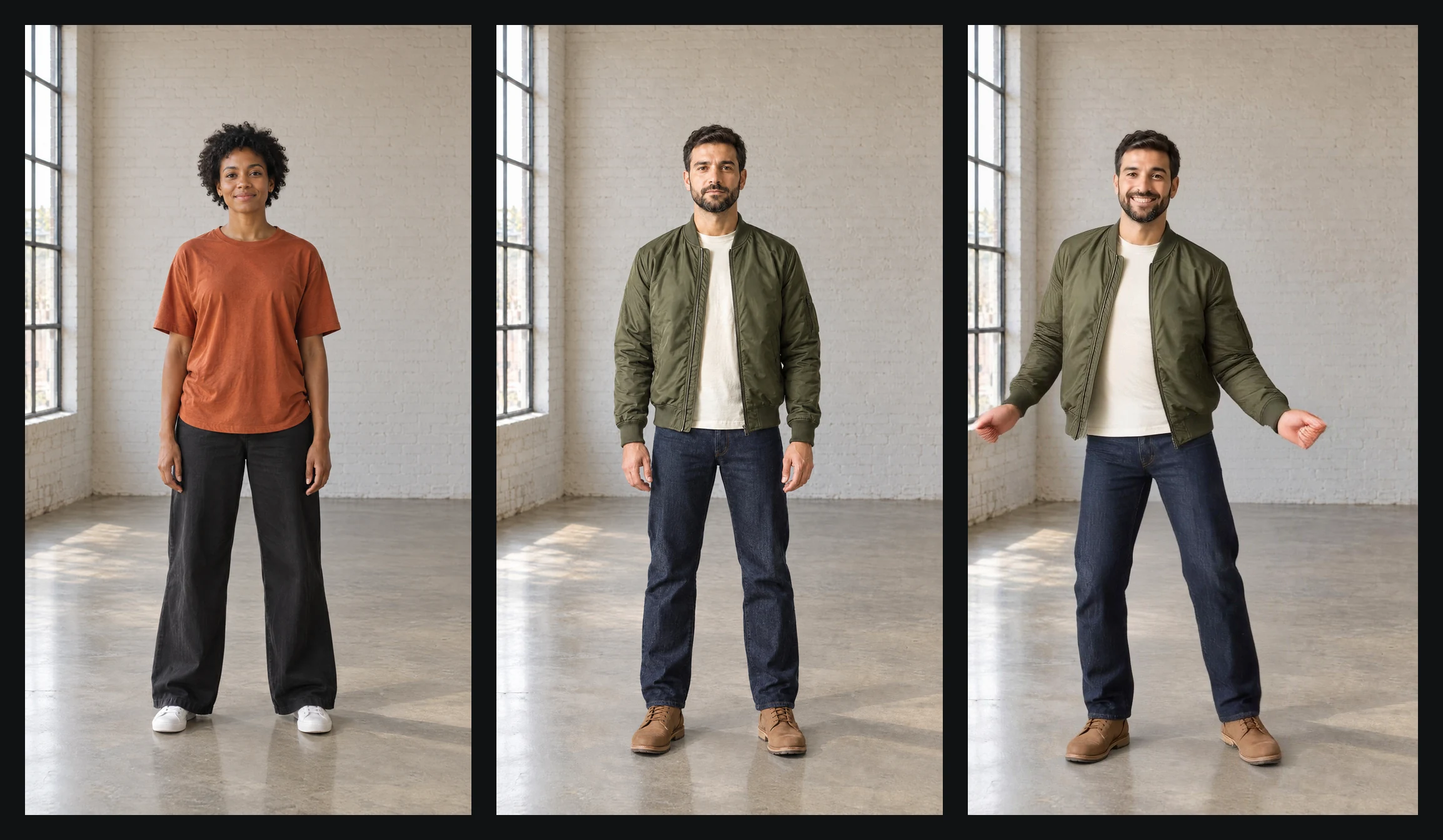 Real result, Run 3. Left: the clip's first frame. Middle: that frame with our character edited in. Right: the Imagera Motion output using the edited frame as the character photo.
The engine builds the background from your photo, so give it a photo that already shows the clip's set. We took the clip's first frame and replaced the dancer with our character using ChatGPT 2.5 Flare Edit in Sandbox. The frame was image 1 and the character photo was image 2. The instruction, in short: replace the woman in image 1 with the man from image 2; keep the room, framing, pose and window light. The Edit Image tool also takes a main photo plus up to two references, but we didn't test its engine for this step. The edited frame then went into Imagera Motion as the character photo.
Real result, Run 3 in motion. Left: the 5-second driving clip. Right: the Imagera Motion output. We muted and trimmed both to 4.8 seconds.
The output kept the brick wall, the window light and the concrete floor. The motion lined up with the source at every timestamp we checked. This route costs one image edit (40 credits in our test) plus 60 credits for the transfer.
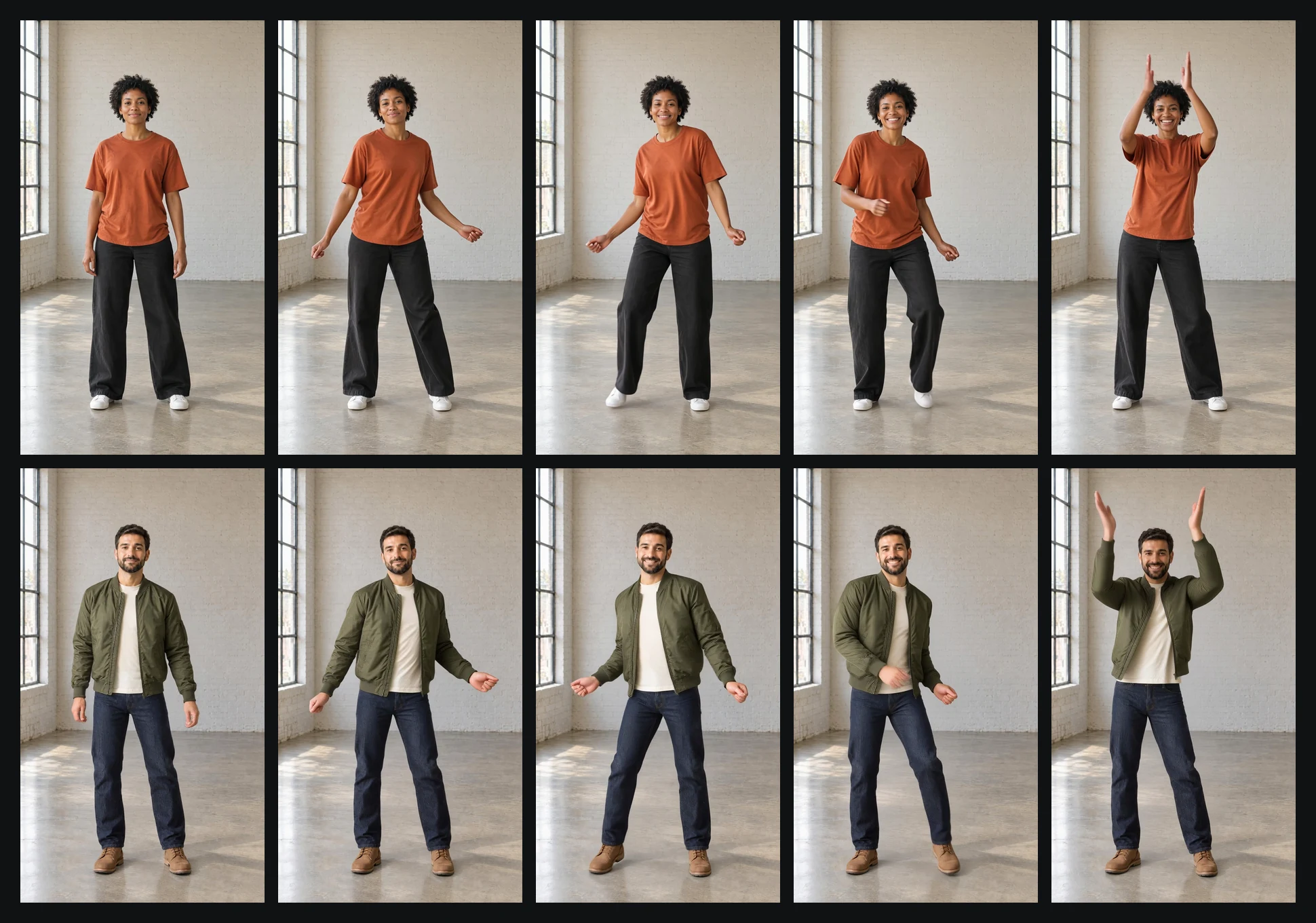 Real result. Top: the driving clip. Bottom: the Run 3 output at the same timestamps. The pose and timing match through the final clap.
2.4The same inputs on Imagera Open
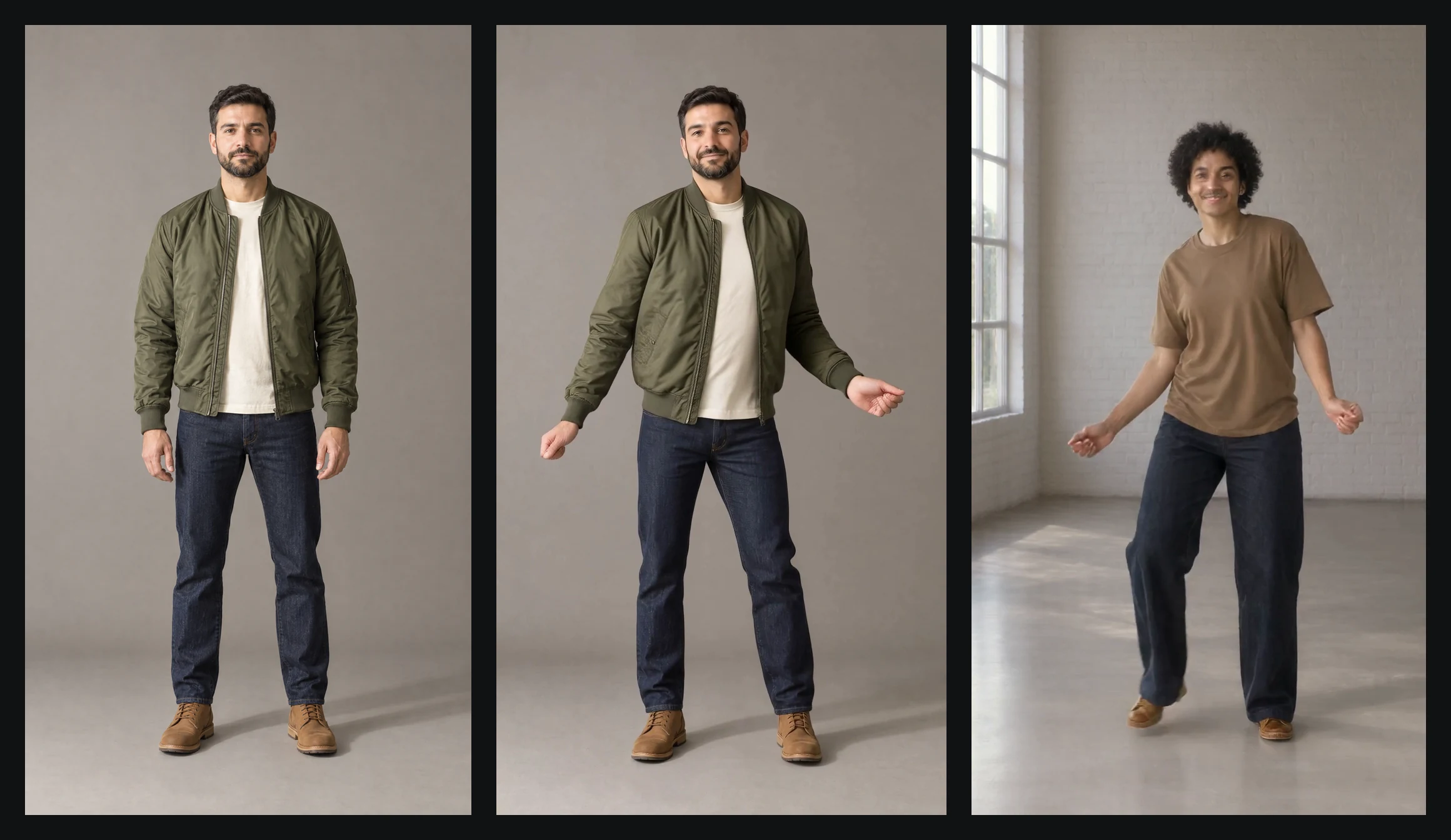 Real results. Left: character photo (generated input). Middle: Imagera Motion. Right: Imagera Open with the same photo and clip. Only the boots and jeans carried over.
The studio opens on Imagera Open, so we ran Run 1's inputs through it too:
- It needs a description. Describe the scene is marked optional, but with the box empty our run failed with "prompt is required". The 60 credits were refunded.
- It didn't keep our character. With one sentence describing him, it completed, but showed a different curly-haired person in the clip's room.
- It returns about 5 seconds, whatever the clip length. It renders 81 frames at 16 fps on every run; ours measured 5.06 seconds and ended before the clap. It bills 60 credits per started 5 seconds of the clip you upload, so a 10-second clip costs 120 credits and still returns about 5 seconds.
To put a specific person into a clip, switch the engine to Imagera Motion.
3.Which clips work
- One person, head to shoes, for the whole clip. The engine follows one subject; if the feet leave the frame, the footwork has nothing to follow.
- A locked-off camera and no cuts. Magic Hour's August 17, 2026 comparison notes that footage with "heavy motion blur, occlusion, or fast cuts" can still cause flicker or character drift in its tool (Magic Hour).
- 3 to 10 seconds in Image orientation. Video orientation takes up to 30 seconds. The Imagera Motion engines need at least 3 seconds.
- Readable movement. Side steps, arm swings and claps carried over cleanly in our test. We didn't test fast spins or an arm crossing in front of the body, moments that give the engine less to track.
- A start pose close to your photo. Our photo and clip both began standing, arms down.
4.Which photos work
- Head to shoes in frame, hands visible, nothing over the face. No sunglasses, no cropped feet, no hands in pockets.
- The same shape as the output you want. In Image orientation, a square photo gives a square video (Run 2).
- Light from the same side as the clip. Our photo and clip were both lit from the left, so the edited frame in Run 3 matched the room's light.
- A background you're happy to keep. Use a plain backdrop, or edit your character into the clip's first frame as in Run 3.
- Only people who agreed. Use yourself, invented characters, or people who gave you permission. Impersonating someone without consent breaks the terms of service.
5.The 10-second limit, and how to get past it
Imagera Motion and Imagera Motion Pro have two Orientation settings:
- Image: the output takes its shape from your photo. Clips up to 10 seconds.
- Video: the output takes its shape from the clip. Clips up to 30 seconds.
These limits come from the engine, and our logs show what happens without a check. On August 28, 2026, the same 12-second clip was submitted nine times in Image orientation: seven times on Imagera Motion and twice on Imagera Motion Pro. The engine refused all nine because, "for character orientation 'image', the video duration must not exceed 10 seconds". Every run was refunded. The studio now checks the length before charging and shows: "That clip is 12s. In Image orientation this engine takes up to 10 seconds — trim it, or switch Orientation to Video for clips up to 30s."
There are three ways past it:
- Trim the clip to 10 seconds or less. You keep your photo's framing.
- Switch Orientation to Video. You can use up to 30 seconds, but the frame follows the clip's shape.
- Split a longer take into pieces of 10 seconds or less and join them afterwards. Imagera Motion bills by the second, so this costs about the same. Expect a visible jump where pieces meet unless you cut on a still moment.
The studio doesn't apply this check to Imagera Motion Max; in our logs, one 12-second Image-orientation clip completed on it within the same half hour. Short caps are normal in this category: a September 4, 2026 comparison of character-swap tools lists clip caps from 5 to 30 seconds across the tools it covers.
6.What it costs
| Engine | How it bills | 3 s clip | 5 s clip | 10 s clip | 30 s clip |
|---|---|---|---|---|---|
| Imagera Motion | 12 credits per second, rounded up to the nearest 5 | 40 | 60 | 120 | 360 (Video orientation) |
| Imagera Motion Pro | 20 credits per second | 60 | 100 | 200 | 600 (Video orientation) |
| Imagera Open | 60 credits per started 5 seconds of clip; the result is about 5 seconds at any clip length | 60 | 60 | 120 (about 5 s returned) | 360 (about 5 s returned) |
| Imagera Motion Max | Per second, with Standard (720p) or Professional (1080p) quality | Shown on the button | Shown on the button | Shown on the button | Shown on the button |
The Animate button shows the total for the loaded clip before anything runs, and updates when you change the clip or engine. Failed runs are refunded, as our failed Imagera Open run was. The four completed transfers in this test cost 240 credits, and the image edit for Run 3 cost 40. If you do use Imagera Open, trim the clip to 5 seconds: a longer clip costs more there without a longer result. Plan prices are on Pricing.
7.Honest limits
- Imagera Motion gives 720p-class output (Run 1: 720 × 1264; Run 2: 960 × 960). At full size, fingers and fabric edges were slightly soft. Imagera Motion Pro (higher-fidelity) and Motion Max's Professional quality (1080p) exist for detail work; we didn't test them here.
- One person per clip. Group dances need one run per dancer and a compositing step.
- Check every frame yourself. The same September 4, 2026 comparison notes that no vendor publishes an identity-drift benchmark. Scrub the whole result, especially hands and faces during fast moves.
8.Put your character in the clip
Open AI character replacement, or go straight to the studio with a full-body photo and a clip of 10 seconds or less. Switch the engine to Imagera Motion, keep Orientation on Image, and check the credit total on the Animate button before you run it.