To add sound effects to a silent AI video clip, upload the clip to AI Sound & Music (Auto SFX), choose Add Sound Effects to Video, describe the sounds in a line or two (or leave the box blank), and generate. The clip comes back with a synced effects track on it. At one take, a clip under 6 seconds costs 15 credits and one of 6 to 10 seconds costs 20; for a longer clip, read the total on the Generate button before you run. Below: which of the six modes fits your job, how to write a description that helps, what our test runs returned, and where the result still needs your ears.
Why is your AI clip silent?
A great shot with no sound reads as a draft. It usually arrives that way for one of three reasons:
- The engine renders picture only. Some image-to-video and camera-move engines return a video file with no audio track at all.
- Sound was switched off. Several engines treat audio as an option. The test clip later in this guide was generated with its sound option off, and it arrived with no audio stream.
- An export dropped it. A GIF, or an editor export with audio disabled, throws the track away.
If the clip does not exist yet, the shortest route may be an engine that renders sound in the same pass. Imagera Hermes and Imagera Warlord both do, and you can pick either in Sandbox. If you already have a picture you like, adding sound afterwards leaves it exactly as it is and gives you an effects track you can check and adjust on its own.
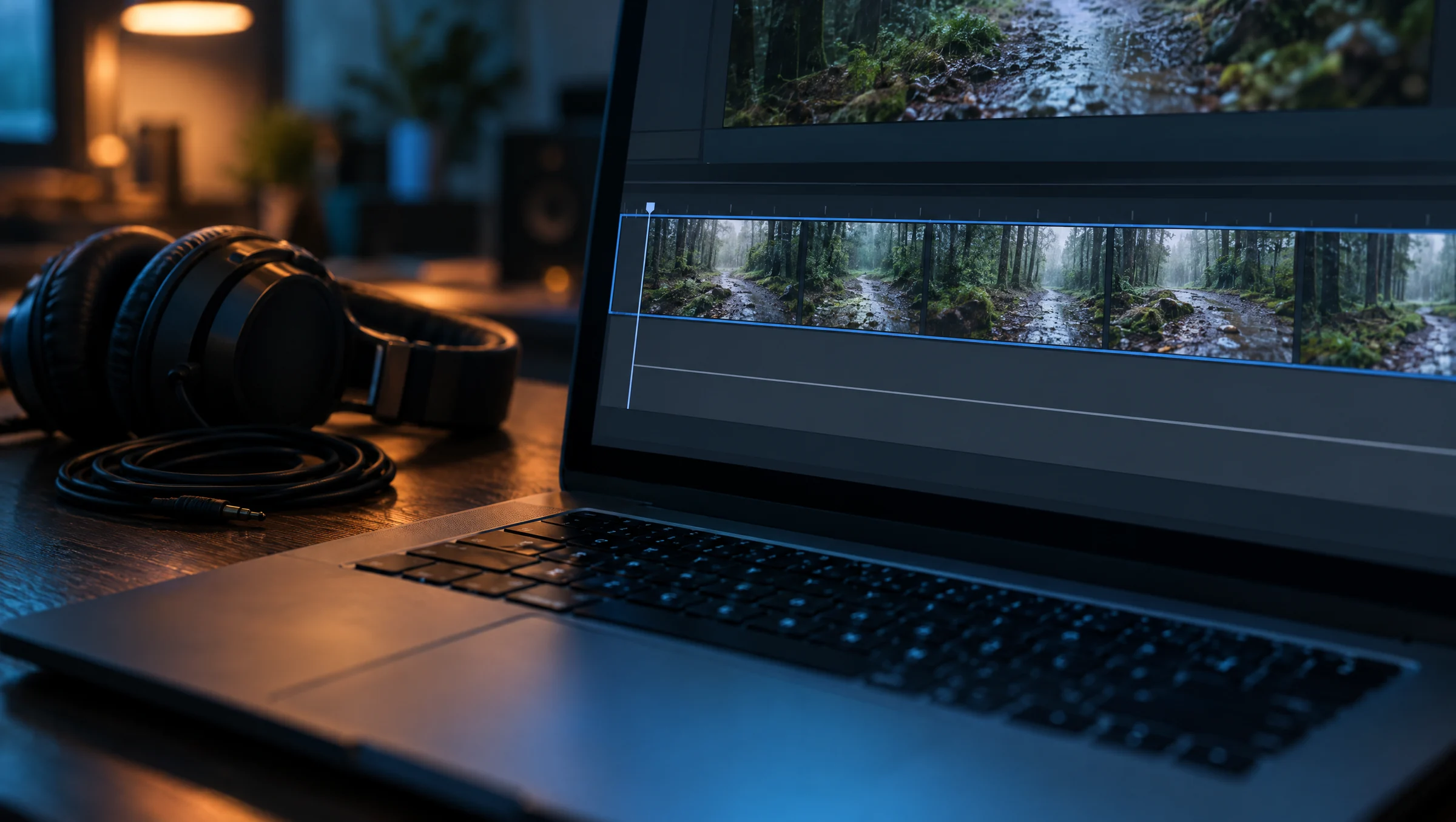
Illustration: a finished picture track over an empty audio track, the state many silent AI clips arrive in.
Pick the mode for the job
The studio has six modes. Four take a video and two work from text alone. Only one of the four video modes reads your description.
| Mode | You give it | You get back | Reads a description | Credits (1 take) |
|---|---|---|---|---|
| Add Sound Effects to Video | A clip | The same clip with synced effects on it | Yes, optional | 15 under 6 s, 20 for 6 to 10 s |
| Add Music to Video | A clip | The same clip with an original score; Keep original speech is on by default | No | 15 under 6 s, 20 for 6 to 10 s |
| Extract Sound Effects (audio) | A clip | A synced effects track as a separate audio file | No | 15 for up to 10 s |
| Generate Soundtrack (audio) | A clip | An original score as a separate audio file | No | 15 for up to 10 s |
| Text to Sound Effects | A description | 3 to 30 seconds of audio | Yes, required | 15 |
| Text to Music | A description | 30 seconds to 10 minutes of music | Yes, required | From 15 (90 s is 15, 3 min is 30) |
Up to 10 seconds, the video modes are priced on the clip's own length. For a longer clip, the Generate button shows the total before you run. For a silent clip that should come back ready to post, Add Sound Effects to Video is the mode. Choose Extract Sound Effects instead when you would rather place the effects yourself under narration or music in an editor.
Step by step
- Open the Add Sound Effects to Video studio and sign in.
- Replace the sample clip with yours. Pick it from your generations, or upload an MP4, MOV or WebM file.
- Describe the sounds in up to 500 characters, or leave the box blank and the sounds are chosen from what is on screen.
- Leave Takes at 1. Takes multiply the price, and if you want another version you can run again and compare.
- Check the total on the Generate button, then run it. Our 5-second runs finished in about 12 seconds each; a 15-second clip took 22.
- Play the result at normal speed, then step through the frames where things make contact (see "Check the sync and finish the mix" below).
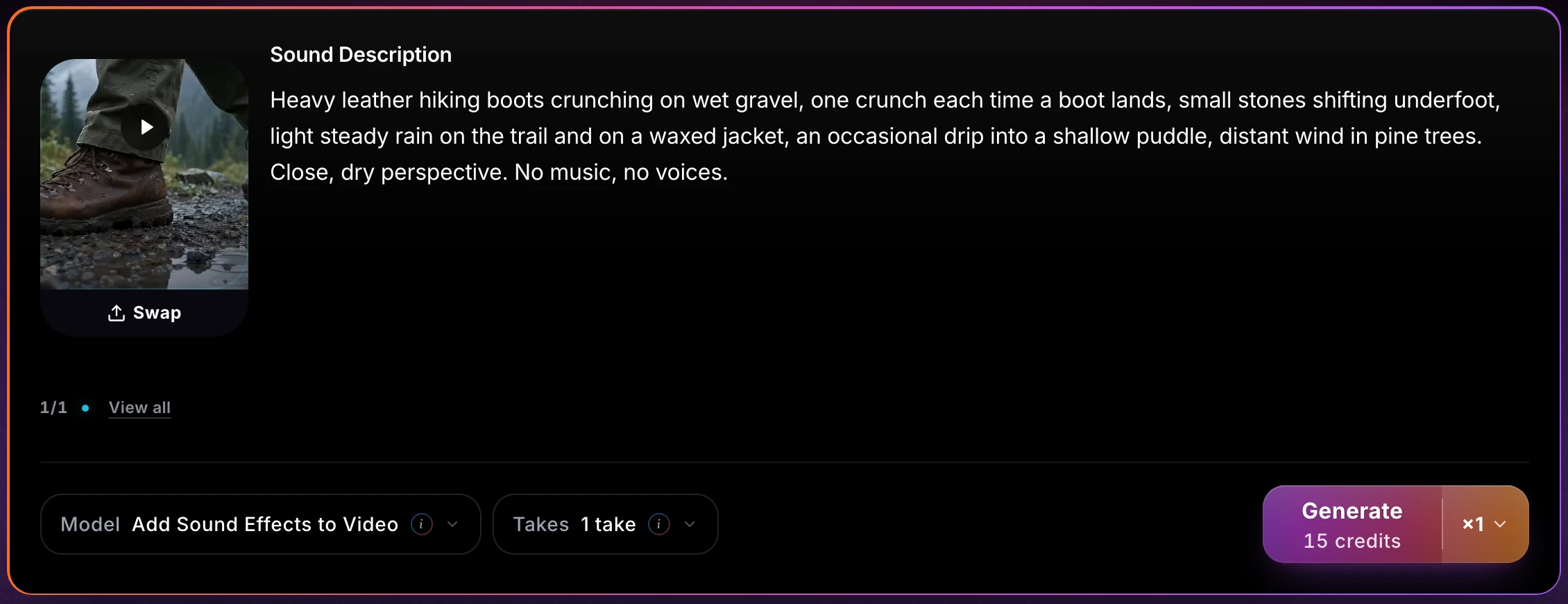
Real product screenshot: our 5-second test clip with the description used below, at 1 take. The button quotes 15 credits before anything runs, and the described run was charged exactly that.
Describe sound like a foley artist
Write the description the way you would brief a foley session: by material and distance, not by mood. That gives the model something concrete to match to the picture:
- Name the materials in contact. "Leather boots on wet gravel", not "walking sounds".
- Say how often it happens. "One crunch each time a boot lands."
- Add the bed. Rain, room tone or wind: the continuous layer under the hits.
- Set the distance. "Close, dry perspective" or "distant, in a large hall".
- Exclude what you don't want. "No music, no voices." This mode makes effects. Narration belongs in the Voice Generator.
Three descriptions to adapt:
- Boots on gravel (our test): "Heavy leather hiking boots crunching on wet gravel, one crunch each time a boot lands, small stones shifting underfoot, light steady rain on the trail and on a waxed jacket, an occasional drip into a shallow puddle, distant wind in pine trees. Close, dry perspective. No music, no voices."
- Rain on a tin roof: "Heavy rain drumming on a corrugated tin roof overhead, a gutter overflowing onto concrete, thunder far away. Interior perspective, no music."
- Café interior: "Low murmur of indistinct conversation in a small café, cups set down on saucers, a spoon stirring, an espresso machine hissing behind the counter. Medium distance, no music."
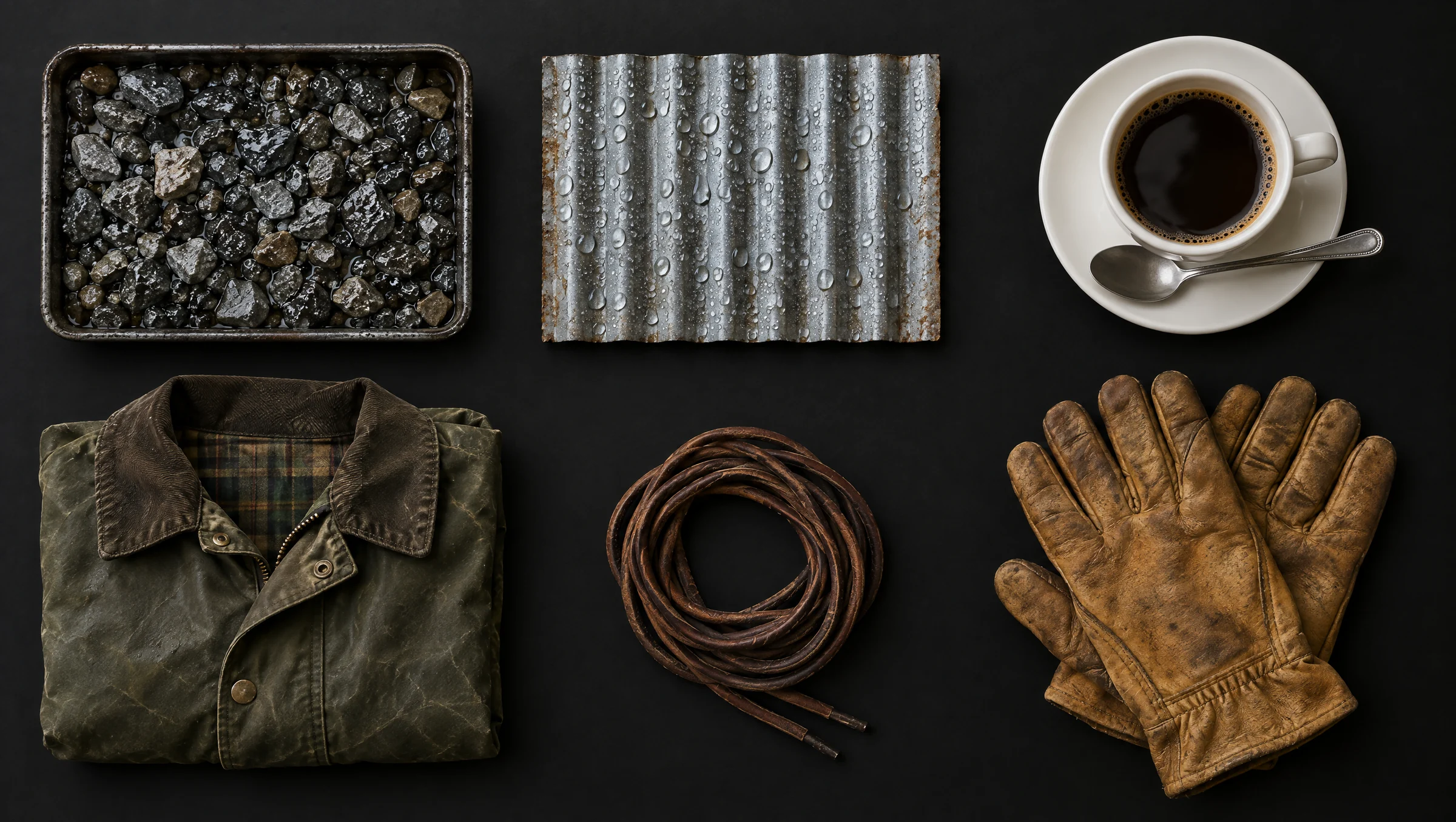
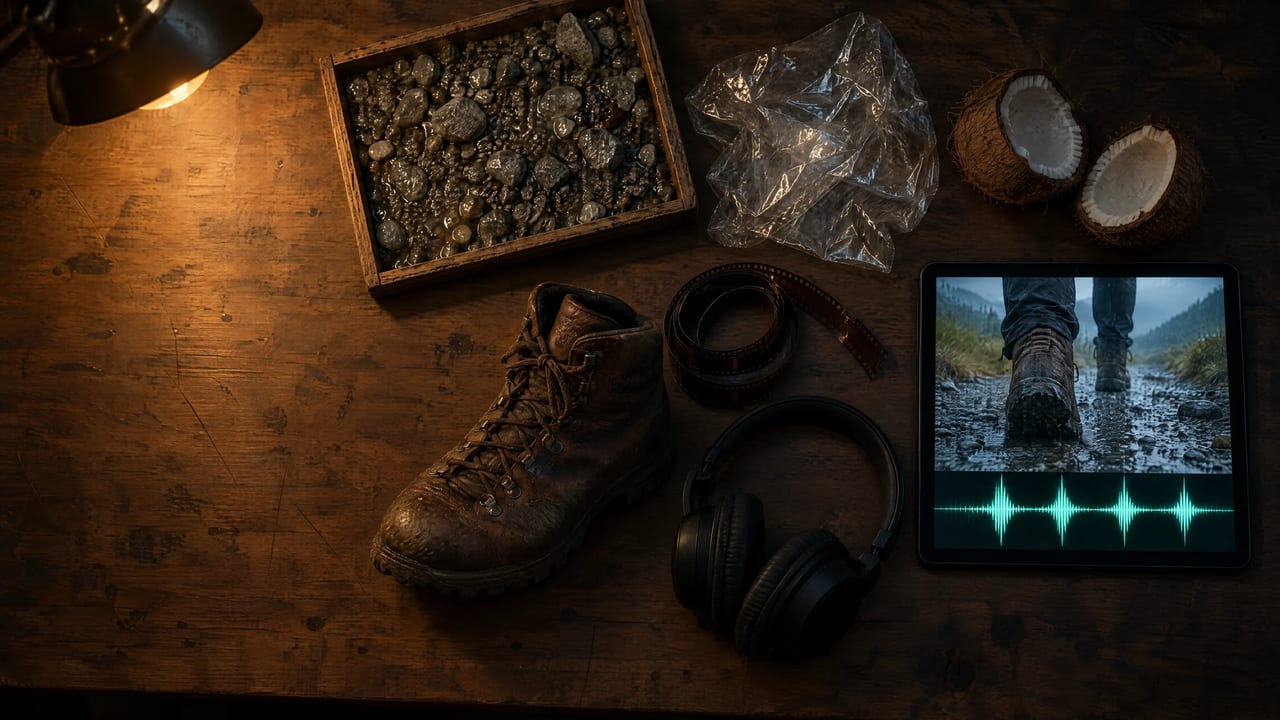
Illustration: the materials behind everyday effects. Naming them in your description does the same job as putting them on a foley table.
How we tested
- Date and tool: 22 September 2026, the Add Sound Effects to Video studio at 1 take per run.
- Input: a 5-second, 1280×720 clip of hiking boots on a wet gravel trail, generated with Imagera Video Cinema — Mini From Image with its sound option off. It arrived with no audio track.
- Runs compared: one with the description blank and one with the boots-on-gravel description above, at 1 take each. A further run used a 15.1-second file made from three copies of the clip (see "Clips longer than 10 seconds").
- Measured with: ffprobe, a loudness meter, an onset detector and a spectrum analysis, plus a frame-by-frame comparison of each result with the input. This was not a listening panel.
- Credits: each 5-second run was charged the 15 credits the Generate button quoted.
What a real run returned
Real result, unedited: the described run, 1 take, 15 credits. It plays at the level it was delivered, so turn your volume up.
- The picture was left alone. Decoded frame by frame, both results matched the input exactly: 1280×720 and 5.04 seconds, now with a stereo AAC track at 44.1 kHz.
- The price matched the quote. Each run was charged the 15 credits the button showed.
- Both runs placed roughly one hit every half-second, about ten in five seconds, at the pace of the walk. The blank run did this with no description at all. The exact count depends on the detector's threshold, so treat it as approximate.
- The hits did not fall in the same places. The two runs put their hits at different moments, so neither run is guaranteed to land on every footfall.
- The described run was heavier in the low end. In one spectrum taken over each full clip, about 26% of its energy sits below 300 Hz, against about 14% for the blank run: roughly twice the low end, which fits "heavy leather boots".
- Neither run added music. Neither spectrum showed sustained tones.
- Both came back quiet: about −32 to −33 LUFS integrated, measured to ITU-R BS.1770. That is 9 to 10 dB quieter than the −23 LUFS broadcast target in EBU R 128, revised November 2023.
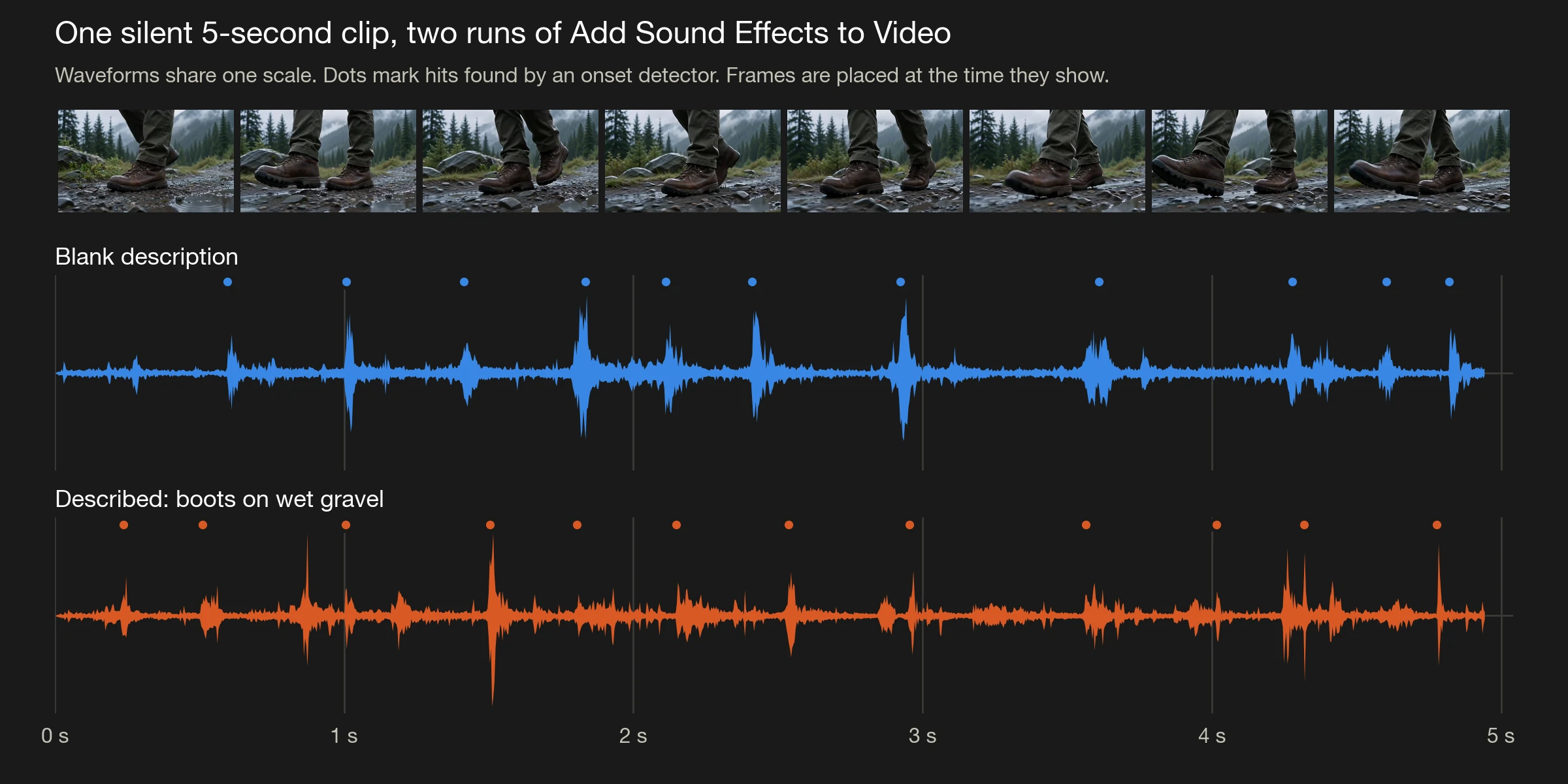
Real result: both runs on one timeline under the frames they belong to. Each dot is a detected hit, and the two runs place theirs differently.
Check the sync and finish the mix
- Step through the contacts. Scrub to each frame where a boot, a hand or an object lands and confirm a hit sits there. Where one misses, run again or nudge the track a few frames in your editor.
- Raise the level. Our results came back around −33 LUFS. Normalise to your platform's loudness target in your editor, with a limiter so the peaks don't clip. Where a platform publishes no target, use the references in the table below.
- Add music as its own layer. Add Music to Video scores the clip directly. Generate Soundtrack gives you the score as a file, so you can balance it under the effects. For a complete song with structure, use Music Factory.
- Keep dialogue separate. Generate speech in the Voice Generator and mix it on top of the effects.
Published loudness references, and the gain a −33 LUFS result needs to reach each:
| Reference | Integrated loudness | Gain to add from −33 LUFS |
|---|---|---|
| EBU R 128 broadcast target (revised November 2023) | −23 LUFS | About 10 dB |
| AES TD1008 floor for streamed content (September 2021) | −20 LUFS | About 13 dB |
| AES TD1008, speech in streams | −18 LUFS | About 15 dB |
| AES TD1008, track-normalised music in streams | −16 LUFS | About 17 dB |
Clips longer than 10 seconds
We also tested what comes back for a clip longer than 10 seconds. We joined three copies of the 5-second test clip into one 15.1-second silent file and ran the boots-on-gravel description on it at 1 take.
- The effects covered the whole clip. The returned track ran 15.0 seconds, and the hits kept their pace to the end: the detector found about as many hits between 10 and 15 seconds as in the first five.
- The last five seconds were quieter, about 5 dB below the first ten.
- The track dropped out briefly at each cut. At both points where our joined clip jumped back to its start, the sound fell to silence for about 20 to 30 milliseconds.
For a clip this long, check the credit total on the Generate button before you run it.
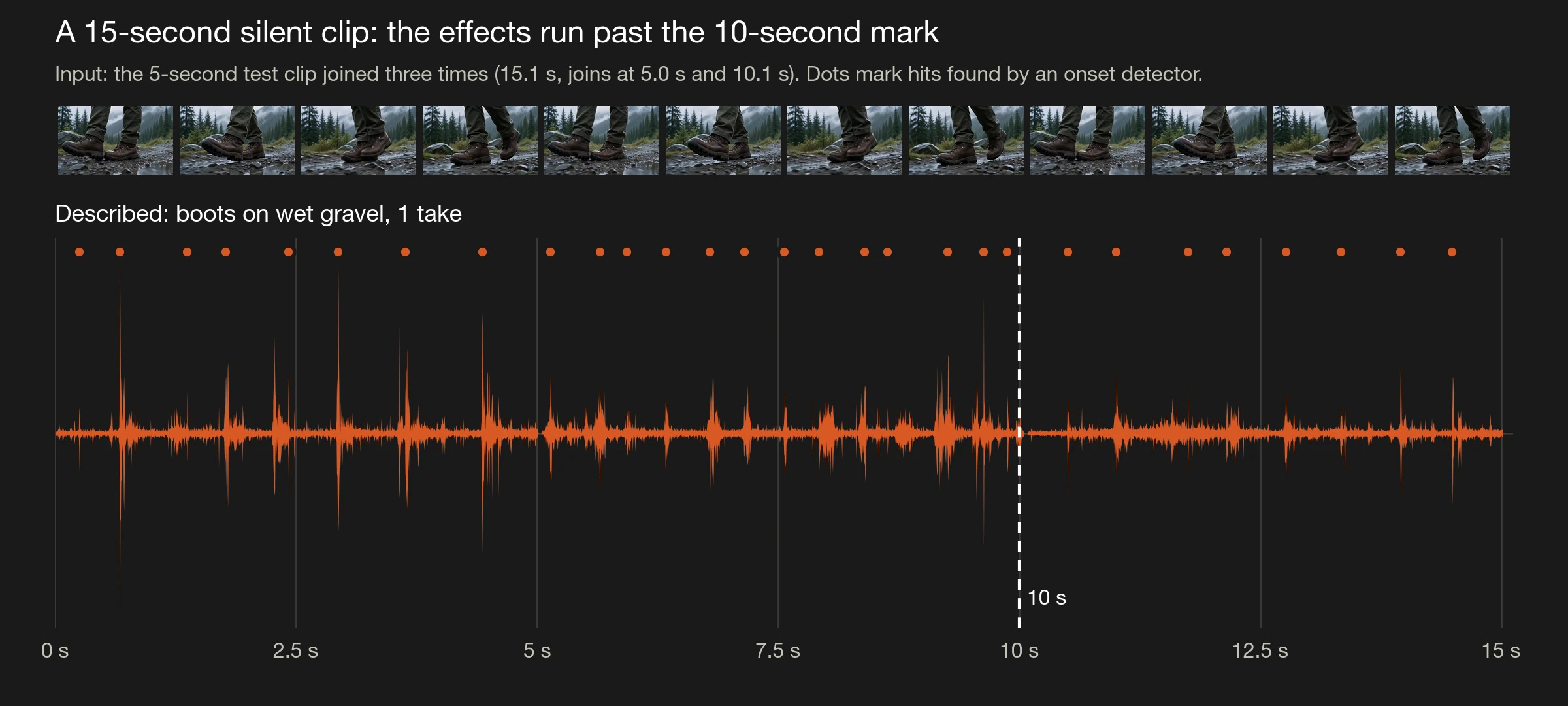
Real result: a 15-second clip, one run. The hits continue past the 10-second mark to the end of the clip.
The dropouts at the cuts are the reason to sound a multi-shot edit one shot at a time. Single AI shots also tend to drift past about eight seconds, so longer edits are usually cut from short shots anyway. For a longer edit:
- Add sound to each shot before you cut them together.
- Generate one continuous bed (rain, wind or room tone) with Text to Sound Effects, up to 30 seconds long.
- Lay the bed under the whole sequence so the ambience does not jump or drop out at a cut.
Add sound to your silent clip
Drop the clip into Add Sound Effects to Video, paste one of the descriptions above with your own materials swapped in, and check the credit total on the button before you run.