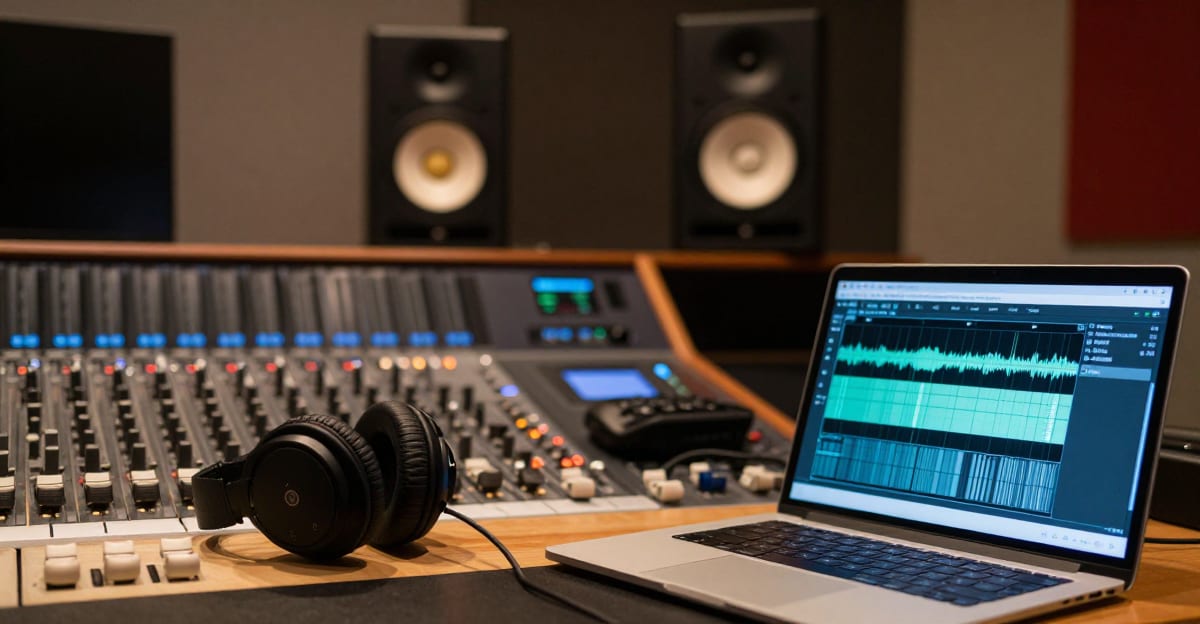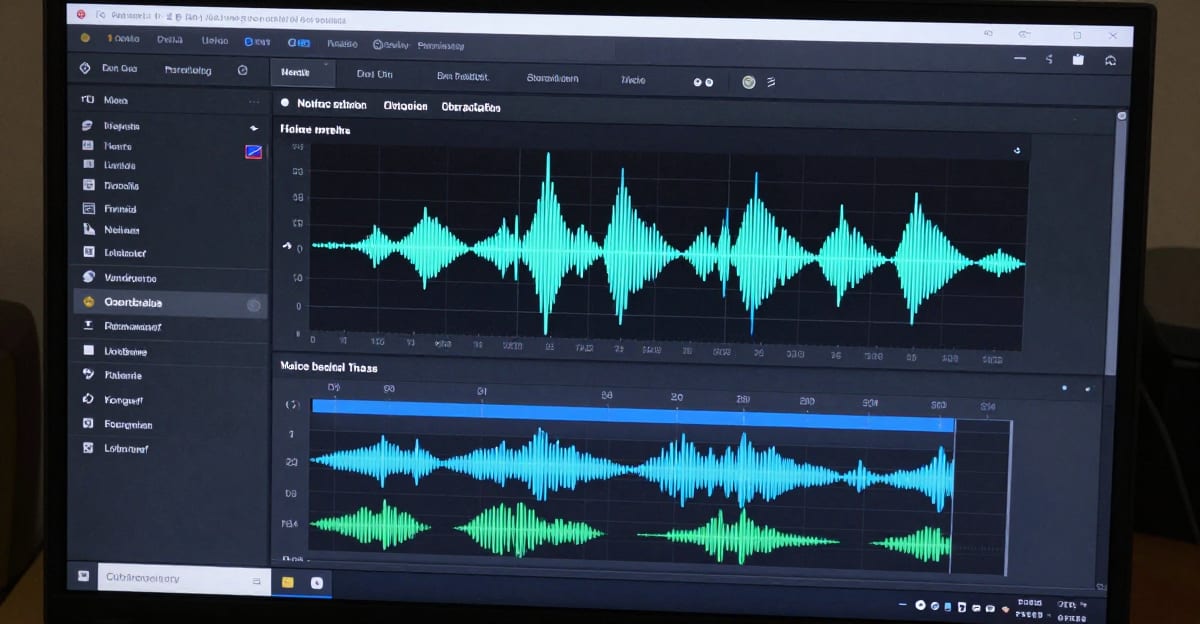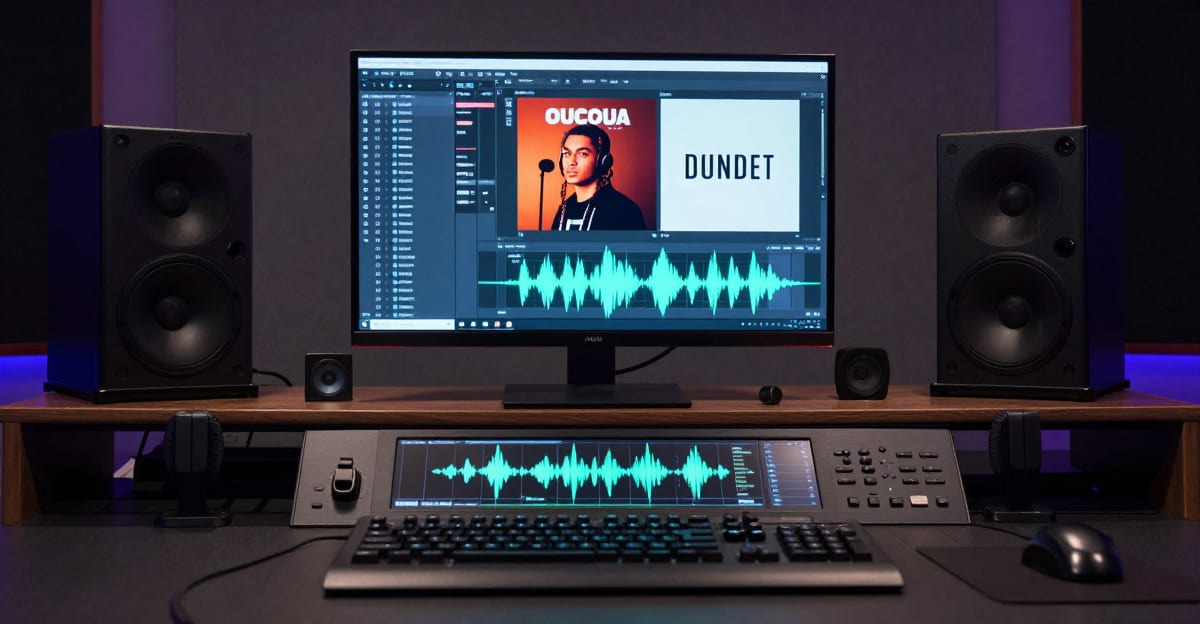

You can complete this on Imagera without installing software: upload a real source file, describe the change, confirm credits up front, generate, and review before you publish. Music Factory AI Studio Guide: Generator, Cover & Vocals Online — this guide covers the steps, quality checks, and when to open related tools.
Music Factory is Imagera's full AI music production suite. Instead of stopping at a single one-click song, it bundles twelve connected tools that cover the whole arc of making music: writing a track from a text prompt, extending it, covering it, adding vocals or an instrumental, replacing a weak section, generating a music video, splitting stems, pulling synced lyrics, and saving a reusable AI singer. Everything runs in the browser and draws from one shared credit balance, so you can move a track through several steps without switching apps or re-uploading files between tools.
Quick answer: Imagera's Music Factory AI Studio is an all-in-one online workspace that generates full songs, remakes covers, and produces studio-grade vocals from a text prompt or reference clip, with most tracks rendering in under 60 seconds.
How does the Imagera Music Factory AI Studio create a full song?
You type a prompt describing genre, mood, and tempo, and the Music Factory drafts a complete track in under 60 seconds. In 2026 it layers instrumentation and vocals in a single pass, exports clean audio for reuse, and supports 100+ style directions, so you can iterate on a 3-minute song quickly without juggling stems across multiple tools.
Can I make an AI cover or new vocals with Imagera?
Yes. The Cover and Vocals tools let you transform an existing melody into a new vocal style or add lead and backing vocals in just a few steps, typically under 2 minutes per pass, using credits that scale with track length. Imagera keeps every generation credit-transparent, so you always see the cost before rendering and can experiment without surprises.
Quick map of every Music Factory tool
| Tool | Path | Job |
|---|---|---|
| Hub | Music Factory | Home |
| Upload & Extend | Upload & Extend | Continue an uploaded track |
| Upload & Cover | Upload & Cover | Cover-style transform |
| Extend Track | Extend Track | Lengthen generations |
| Cover Art | Cover Art | Artwork |
| Add Vocals | Add Vocals | Vocal layer |
| Add Instrumental | Add Instrumental | Backing |
| Replace Section | Replace Section | Surgical rewrite |
| Music Video | Music Video | Visuals for track |
| Separate Vocals | Separate Vocals | Stems |
| Timestamped Lyrics | Timestamped Lyrics | Lyric timing |
| Generate Persona | Generate Persona | Artist persona |
| AI Singers | AI Singers | Singer styles |
| Playlists | Playlists | Organize |
Also: Music Generator, Popular AI Music, Auto SFX.
What Music Factory does
Music Factory groups its twelve tools into three clear stages, which is also how the studio itself is organized:

- Create — start something new. Generate Music writes a full song from a text prompt or your own lyrics. Upload & Extend and Upload & Cover let you bring in any audio file from your computer as the starting point.
- Transform — modify what you already have. This covers Extend Track, Create Cover, Add Vocals, Add Instrumental, Replace Section, and Music Video.
- Analyze — break a track down into usable parts. Separate Vocals splits a song into clean stems, Timestamped Lyrics returns synced LRC lyrics, and Generate Persona saves a reusable AI singer identity.
Two details make the suite practical. First, most generations return two variants so you can pick the better take instead of re-rolling from scratch. Second, all output comes with full commercial rights — you can use it on YouTube, TikTok, Spotify, podcasts, games, or client work. Credits are consumed at the moment you generate, and results can vary between runs, so short test generations before a long or expensive job are worth it.
How it works (real workflow)
The studio follows the same three-step loop no matter which of the twelve tools you open:

- Choose your tool. Open the Music Factory hub and pick a feature from the Create, Transform, or Analyze categories. Each tool page shows its own inputs and credit cost before you commit.
- Provide input. Depending on the tool, you either type a text prompt and lyrics, upload an audio file, or select a track you generated earlier. You can also choose the music engine and set style parameters at this stage.
- Generate and review. Run the job, wait for the result, then listen through both variants before you download. Every download is a high-quality audio file, video, stem, or lyric file ready for real use.
Under the hood, tools that build on an existing track pass along the audio so the AI can match tempo, key, and feel — that is why an extension or a replaced section blends rather than jumping abruptly.
Step-by-step: write a full song with vocals
Here is a concrete path from blank page to a finished, released song using several Music Factory tools in sequence.

- Draft the song. Open Generate Music. In Simple Mode, type a short description of the genre, mood, and instruments and let the AI handle lyrics and arrangement. In Custom Mode, write exact lyrics, set style tags, choose the vocal gender, and adjust creative parameters for tighter control. Toggle the Instrumental switch if you want music with no vocals.
- Pick the best take. Each generation returns two variants. Listen to both and keep the one with the stronger hook or cleaner vocal.
- Extend the strong take. If the song ends too soon, open Extend Track and continue it from a chosen point. You can preserve the original style or override the lyrics, tags, and title to move the track somewhere new. Chain extensions to build a longer arrangement.
- Fix a weak part. If one verse or chorus falls flat, use Replace Section. Select a time range (6 to 60 seconds, and no more than half the track), describe the replacement with tags, and the AI regenerates only that window while keeping the rest untouched.
- Add artwork. Open Cover Art to generate album artwork that matches the mood of the track — you get two image options per run.
- Optional visuals. Turn the finished song into a shareable clip with Music Video. The output is an MP4 with visuals matched to your track, formatted for social platforms.
- Export and organize. Download the master, then group related tracks with Playlists. Master externally if your release target needs it.
For a track you recorded yourself, start at step three with Upload & Extend or Upload & Cover instead of generating from text.
Common use cases
- Independent artists who want to demo, extend, and finish full songs without booking studio time. Generate a base, refine sections, and build a consistent catalog using a saved Generate Persona.
- Video editors and filmmakers who need custom background music that fits the cut instead of overused stock loops. Generate to length, then extend to cover the full edit.
- Podcast and content brands that want theme music and segment stings that stay consistent across episodes.
- Producers and remixers who need clean stems. Separate Vocals isolates the vocal and instrumental so you can rework, mash up, or resample a track.
- Karaoke and lyric-video makers who pair the instrumental stem with Timestamped Lyrics for synced, on-screen words in standard LRC format.
- Songwriters with a topline who have vocals but no backing — Add Instrumental builds a full arrangement underneath an uploaded vocal, while Add Vocals does the reverse over an instrumental.

Who it's for
Music Factory suits anyone who needs finished music, not just a novelty clip. That includes solo creators building a release schedule, small teams that can't justify separate subscriptions for a stem splitter, a cover tool, and a video maker, and content producers who value one credit balance shared across audio, image, and video work. If you only ever want a single quick loop, the streamlined Music Generator may be enough. If you expect to extend, fix, cover, split, or visualize your tracks, the full suite saves the round-trips.

Comparison
Standalone AI music apps usually specialize in one job and bill monthly. Music Factory's advantage is breadth under one credit balance shared with the rest of Imagera. Competitor prices below are their published subscription figures; the Imagera column is expressed in credits because the cost per credit varies by plan.
| Capability | Single-purpose music apps | Imagera Music Factory |
|---|---|---|
| Generate a song from text | Often $8–$24/mo | Current quote shown before submission |
| Extend or continue a track | Sometimes separate tool | Current quote shown before submission |
| Add vocals or instrumental | Frequently unavailable | Current quote shown before submission |
| Vocal / stem separation | Usually a separate subscription | Current quote shown before submission |
| Music video from a track | Rarely included | Current quote shown before submission |
| Timestamped LRC lyrics | Uncommon | Current quote shown before submission |
| Reusable AI singer identity | Rare | Current quote shown before submission |
| Billing model | Monthly subscription | Credits through current packs and plans |
The honest trade-off: dedicated tools sometimes offer deeper controls in their single niche. Music Factory's value is consolidation — twelve related tools, one interface, one balance — so a track can move from draft to stems to video without leaving the studio. For a focused music-vs-music look, see Suno vs Imagera.
vs Suno-class tools
Suno is a music-specialist tool. Music Factory wins when you need suite production ops + shared credits with video/image. See Suno vs Imagera.
Tips for best results
- Test short before you commit. Long extensions and music videos cost the most credits. Run a short version first to confirm the direction, then scale up.
- Be specific in prompts. Name the genre, mood, tempo feel, and lead instruments. Vague prompts produce generic results; concrete tags steer the arrangement.
- Use Custom Mode for control. When lyrics and structure matter, Custom Mode lets you set exact words, style tags, and vocal gender rather than leaving everything to the AI.
- Provide negative tags where required. Add Vocals and Add Instrumental ask for negative tags — describe what to avoid (for example "off-key, robotic, monotone" for vocals, or "distortion, clipping, noise" for instrumentals) to steer toward cleaner output.
- Upload clean source audio. Upload & Extend, Upload & Cover, and Add Vocals work best with clear, well-recorded files. Supported formats are MP3, WAV, OGG, M4A, FLAC, and AAC, up to 200MB and 8 minutes.
- Fix, don't restart. If only one part is wrong, use Replace Section instead of regenerating the whole song — it is cheaper and keeps the parts you already like.
- Save a singer early. If you plan an EP or album with a consistent voice, create a persona from your favorite vocal take, then reuse it across future generations in Custom Mode.
Common mistakes to avoid
- Expecting a free tier for full generation. Cloud music tools consume credits. Free-tool claims elsewhere on the site do not apply to Music Factory generation.
- Skipping the variant review. Each run returns two takes for a reason. Downloading the first without comparing often means missing the better version.
- Confusing the upload tools with the ID-based tools. Extend Track and Create Cover work on tracks you already generated in Music Factory. Upload & Extend and Upload & Cover accept any external audio file. Choose the one that matches your source.
- Over-scoping a section replace. Replace Section is capped at 6–60 seconds and at most half the track. Trying to replace more than that will not work; break large rewrites into steps.
- Ignoring engine requirements. Advanced features like Add Vocals and Add Instrumental need the newer music engines. Basic generation, extension, and covers work across all engine versions.
Examples
A creator finishing a 90-second track. They generate a 45-second draft in Generate Music, keep the second variant, then run Extend Track twice to reach full length. One flat pre-chorus gets swapped with Replace Section. Cover Art produces the artwork, and Playlists files it with the rest of the release.
An editor scoring a montage. They upload a rough piano sketch to Upload & Extend, let the AI continue it in the same key and feel to match the edit length, then keep the instrumental as-is — no vocals needed for a background bed.
A remixer building a mashup. They run Separate Vocals on a generated track to pull a clean vocal stem, pair it with an instrumental from a second generation, and use Timestamped Lyrics to add synced on-screen words for a lyric video.
Creator workflow (release-ready)
- Draft with Music Generator or Popular AI Music.
- Extend / replace weak sections in Music Factory.
- Separate stems if you need remix control.
- Add cover art + optional music video.
- Export and master externally if required.
- Track credits per released song.
Pricing
Choose a current plan or credit pack, then review the quote for the specific operation and settings before submitting. Song generation, extension, vocals, separation, lyrics, personas, and video can have different pricing rules. Budget separately for each successful step and start with a short test before committing to a larger project.
Start here (product links)
- Music Factory
- Upload & Extend
- Upload & Cover
- Extend Track
- Cover Art
- Add Vocals
- Add Instrumental
- Replace Section
- Music Video
- Separate Vocals
- Timestamped Lyrics
- Generate Persona
- AI Singers
- Playlists
- Popular AI Music
- Auto SFX
- Pricing
Bottom line
Music Factory is Imagera's full music production suite: extend, cover, vocals, stems, personas, playlists, and music video. Credit packs from 350 credits. Use this hub to open every Music Factory tool from one guide.
Related tools: Music Factory · Upload & Extend · Upload & Cover · Pricing