Is it digital noise, film grain, compression or low resolution?
Look closely at flat shadows, edges and fine textures before choosing a repair. Colored speckles and irregular shadow mottling suggest digital noise. Intentional grain can be part of the photograph’s look. Blocky patches and ringing suggest compression, while coarse edges and missing small features point toward insufficient resolution.
Start with the original file at full-size viewing, where each image pixel maps to a screen pixel. Examine a shadow, a sharp boundary and a textured area such as hair or fabric. Then view the whole photograph at its intended display size. Roughness that dominates a magnified crop may barely register in the finished image.
Match the repair to what you see:
- Digital noise: Distracting color flecks or uneven shadow texture call for restrained noise reduction.
- Intentional film grain: Keep it when it supports the photograph’s character. A deliberately gritty image does not need to become perfectly smooth.
- Compression artifacts: Square patches and ripples beside high-contrast edges need artifact cleanup. In Photoshop, Reduce Noise includes a Remove JPEG Artifacts option.
- Low resolution: Jagged outlines and absent small features call for enlargement if you need more pixels. Denoising alone cannot supply missing detail.
Choose the defect that most harms the image and address that first. The exception is intentional grain: preserve it unless changing that look is part of the edit. A cleaner surface is only useful if the photograph still looks convincing.
How do you reduce noise without making skin waxy?
Use Photoshop’s Filter > Noise > Reduce Noise and balance Strength against Preserve Details while watching hair, pores and fabric. Increase removal only until distracting speckles recede. Stop when texture starts merging into smooth patches. Enable Remove JPEG Artifacts when compression damage is part of the problem.
Keep the preview at full-size magnification or greater, and hold it on the same textured area while adjusting the controls. A cheek beside a hairline is useful: pores should remain visible, and individual hairs should stay separate. Check fabric weave too. If threads merge into a flat patch, back off the removal even if some shadow noise remains. Perfectly clean shadows are a poor trade for believable skin.
Photoshop would be our pick for this adjustment because Strength and Preserve Details let you balance cleanup against texture in the preview. If you already work in Affinity Photo, use Layer > New Live Filter Layer > Denoise. Luminance and Colors control removal; raise Luminance Detail to let more fine detail through.
In Adobe Camera Raw or Lightroom, open Denoise from Detail or Enhance, adjust Amount, then use Enhance to create the denoised DNG.
For a free, local alternative, try GIMP’s Filters > Enhance > Despeckle conservatively on small speck defects. Keep checking those same hair and fabric details as you adjust it.
Should you reduce noise before enlarging a photo?
Reduce obvious noise before enlargement so the resizing stage does not enlarge the speckles too. Keep that pass gentle, then assess the enlarged result before doing more. An AI upscaler can suppress noise while rebuilding apparent detail, but it cannot reliably recover information that the original never recorded.
For visibly noisy photographs, we would start with a light denoise pass, then enlarge. The tradeoff is texture: aggressive cleanup can erase fine patterns before the enlargement stage has a chance to use them. Stop short of making every shadow perfectly smooth. Enlarging first leaves you trying to clean up bigger speckles, which can make the balance harder to judge.
If you choose an AI enlargement, assess its cleanup before adding another denoise pass. Use separate noise reduction when distracting speckles remain, and keep that correction restrained. Automatically stacking strong cleanup passes risks turning an acceptable result into a smeared one.
For the ordinary resizing step after editing, use FFmpeg:
ffmpeg -i input.jpg -vf "scale=iw*4:ih*4:flags=lanczos" -q:v 1 output.jpg
Plain resize (Lanczos) is the ordinary enlargement baseline. It changes pixel dimensions but is not a dedicated noise-removal method, so handle obvious noise separately rather than expecting resizing alone to fix grainy photos. If the original already looks clean enough, skip preliminary denoising and preserve the texture you have.
Which enlargement method kept the most natural texture?
Imagera Image Upscale — Restore 4× was our preferred enlargement method because it reduced visible noise while retaining more convincing fine detail. Our blind AI review scored results without knowing the method. Restore 4× led on the AI-generated portrait; on the real night photo, plain resize scored slightly higher. This enlargement-only test used an AI-generated image and Wikimedia Commons photos, with no separate denoising-order comparisons or physical print proofs.
| Method | Output size | Blind AI review (0-10) | Processing time | Credits |
|---|---|---|---|---|
| Imagera Image Upscale — Restore 4× | 8192×4608 | 6.4 | 83 s | 60 |
| plain resize (Lanczos) | 8192×4608 | 6.1 | 1.6 s | none (runs locally) |
| Imagera Image Upscale — Studio | 8192×4608 | 5.7 | 27 s | 160 |
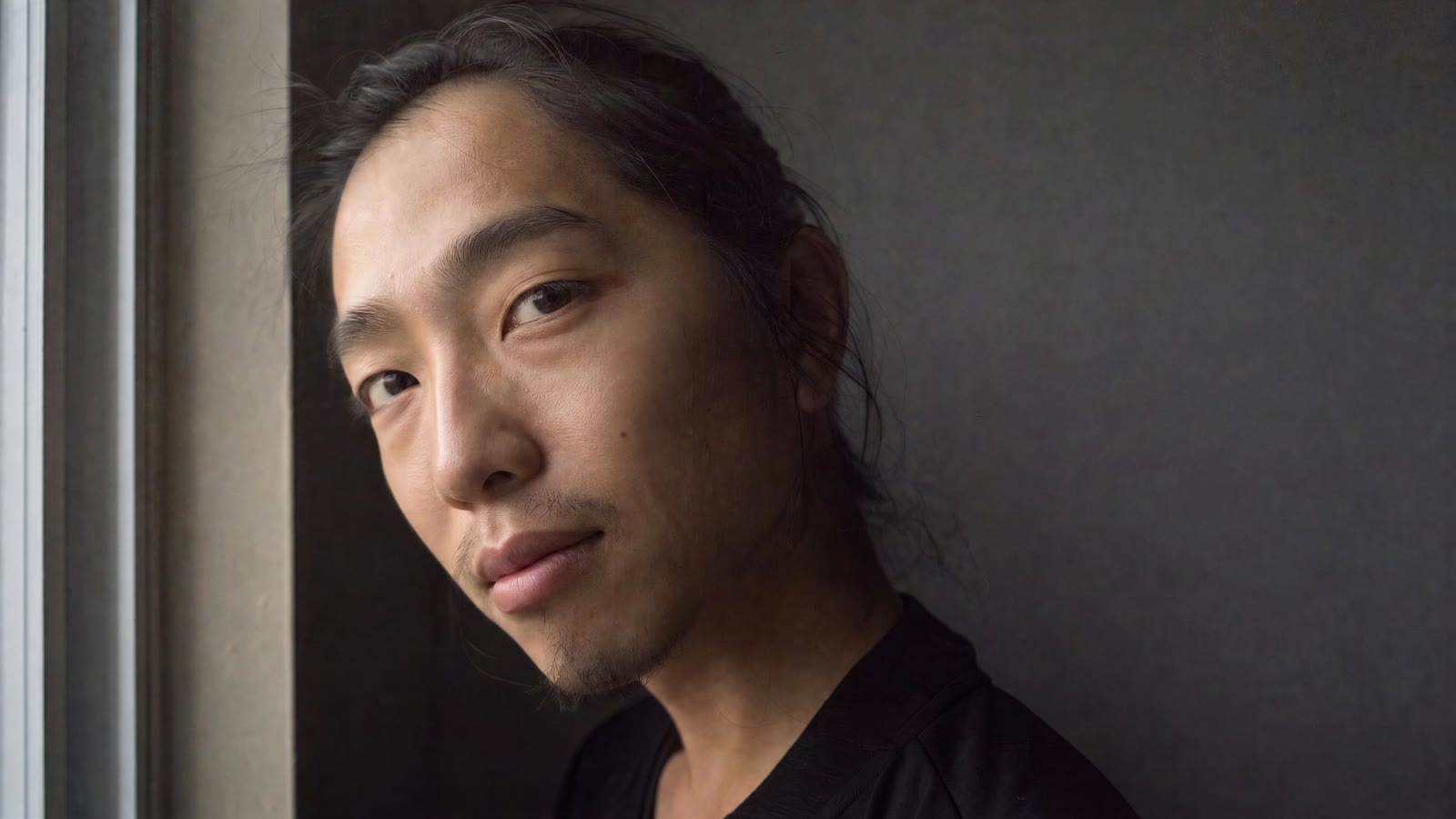
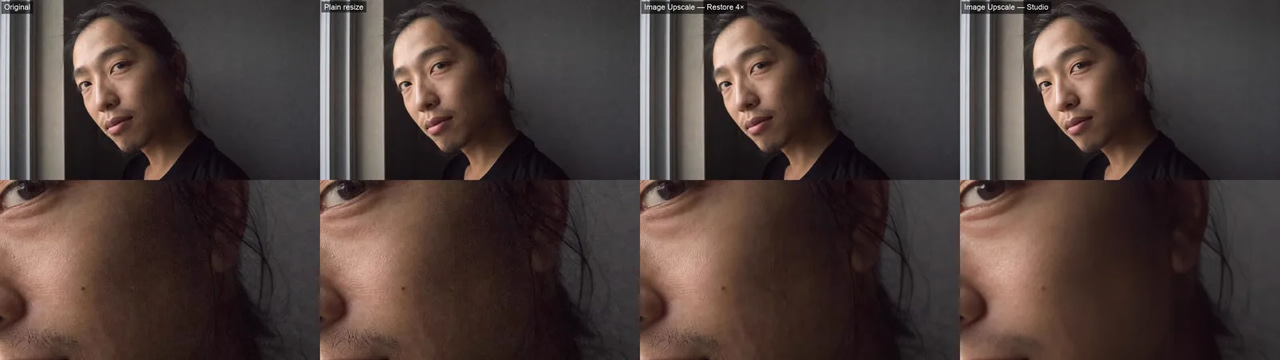
In the AI-generated portrait, Image Upscale — Restore 4× retained fine facial hairs, pores and stray strands while reducing background noise. Imagera Image Upscale — Studio cleaned the background more heavily, but smoothed facial hair and made skin somewhat waxy.
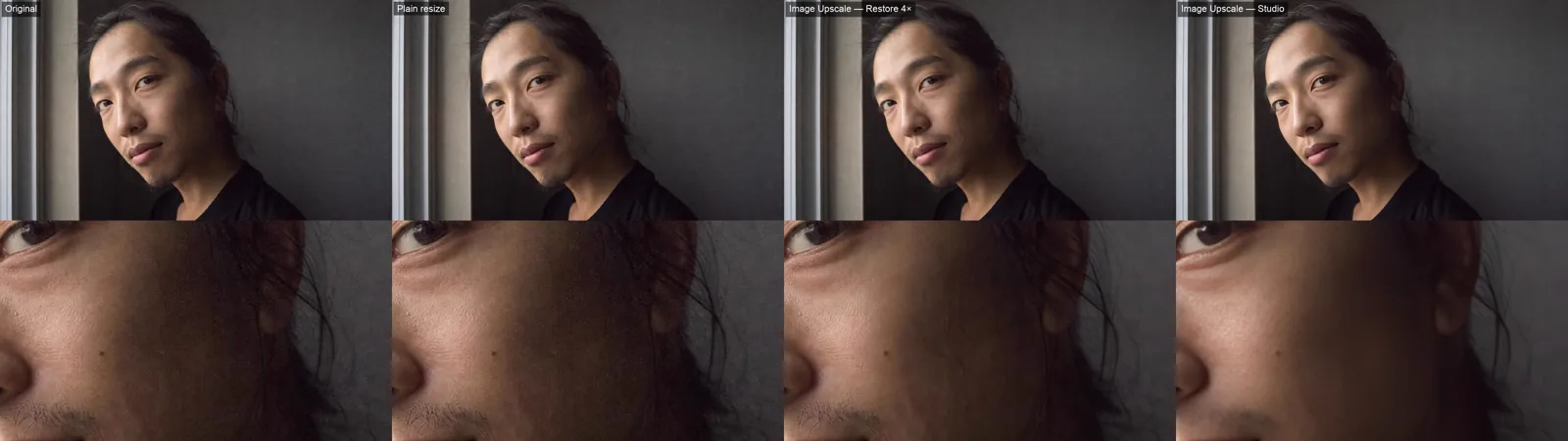
Portrait noise versus natural skin and hair: Original · Plain resize · Image Upscale — Restore 4× · Image Upscale — Studio. AI-generated test image, made for this test, not a real photo. Bottom row: the same centre crop, zoomed. Our test, Oct 22, 2026.
The low-light comparison shows the same tradeoff. Image Upscale — Restore 4× reduced road and sky noise, with slight smoothing of pavement and siding. Image Upscale — Studio pushed asphalt and foliage toward a plastic appearance.
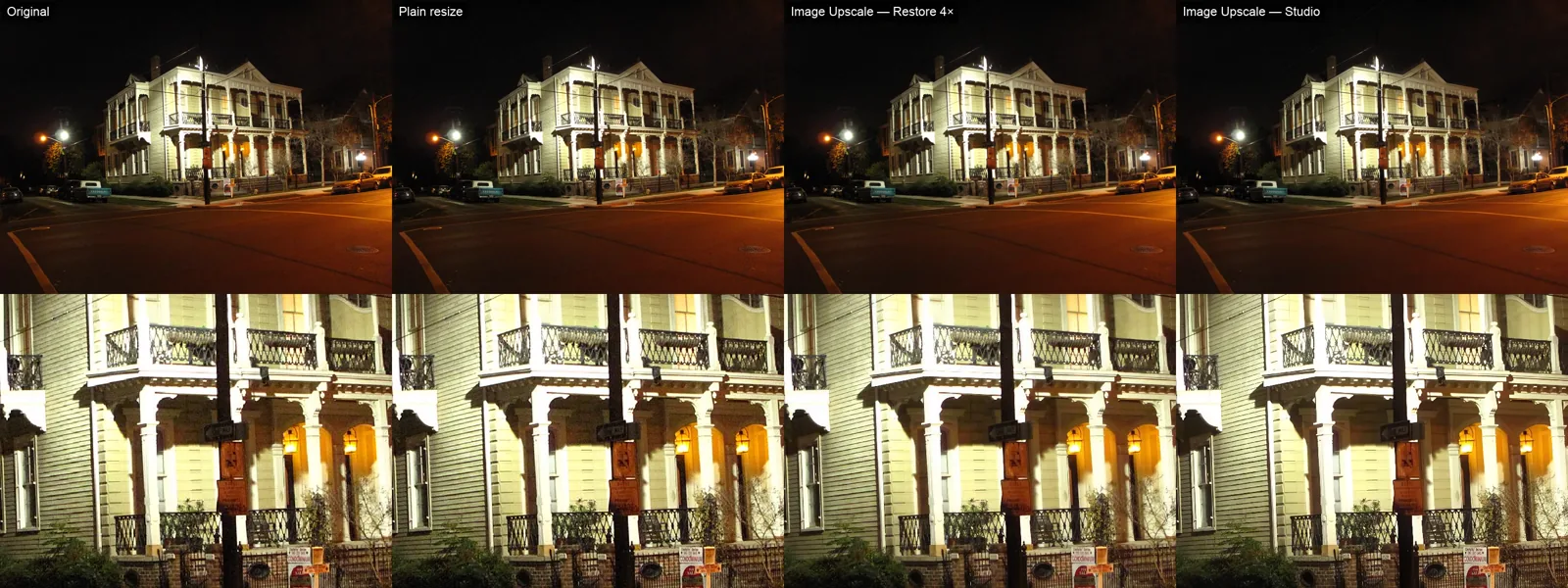
Low-light noise versus fine texture retention: Original · Plain resize · Image Upscale — Restore 4× · Image Upscale — Studio. Photo: Carlos Pacheco from Toronto, Canada, CC BY 2.0, via Wikimedia Commons. Bottom row: the same centre crop, zoomed. Our test, Oct 22, 2026.
Plain resize ranked above Image Upscale — Studio because it preserved useful texture and architectural edges rather than pursuing stronger cleanup. It also took 1.6 seconds, compared with about 83 seconds for Image Upscale — Restore 4×. Choose the ordinary method when the existing appearance is acceptable and cleanup matters less than preservation.
Use the compression comparison to check edge changes and apparent new detail. Extra detail should not be mistaken for recovered original information. Photograph: Tomwsulcer, public domain, via Wikimedia Commons.
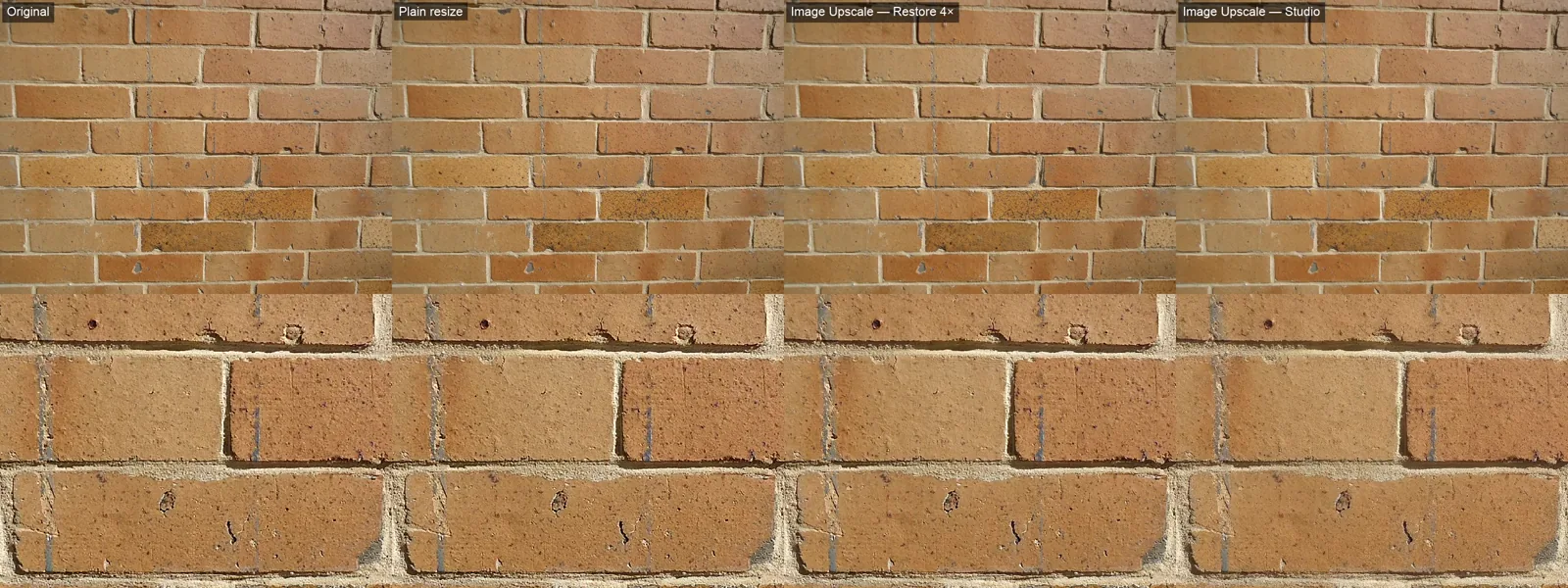
Compression cleanup versus invented detail: Original · Plain resize · Image Upscale — Restore 4× · Image Upscale — Studio. Photo: Tomwsulcer, CC0, via Wikimedia Commons. Bottom row: the same centre crop, zoomed. Our test, Oct 22, 2026.
For visible noise that needs cleanup alongside enlargement, choose Image Upscale — Restore 4× for its better balance of suppression and texture retention.
Try Print-Ready 16K Upscaler → Plans start at $19.99; credit packs from 350 credits.
How many pixels do you need for a large print?
Set the intended print size and the lab’s target PPI before deciding how far to enlarge. Multiply each print dimension in inches by that target to find the required pixel dimensions. A higher PPI target needs more pixels for the same print size; changing resolution metadata alone adds no detail.
Calculate width and height separately, using the final crop. If you trim the image to fit a frame, the pixels outside that crop no longer count toward your print.
Our tested Image Upscale — Restore 4× output measured 8192 pixels wide by 4608 pixels high. To find its print width in inches, divide 8192 pixels by your lab’s chosen PPI. Divide 4608 pixels by the same PPI for the height. A higher-density target gives you a smaller print from those same pixels.
We would choose the lab’s higher-density target for a print people will inspect closely. For a large wall print viewed farther away, use the lab’s lower-density option if it meets their recommendation. That can avoid unnecessary enlargement.
Enlargement creates additional pixels, but those pixels do not guarantee additional believable texture. Editing the PPI metadata merely assigns existing pixels to a different physical size.
Before ordering, match the image’s aspect ratio to the paper or frame. Otherwise, the lab may crop away a carefully composed edge to fill the print.
How should you inspect and export the finished photo?
Inspect the finished image at matched viewing sizes, then make a small print proof before ordering the large print. Check the areas identified earlier rather than judging only the overall impression. Export at the final pixel dimensions using the lab’s requested file format and color profile, and reopen that export.
Place before-and-after crops side by side at equivalent display scale. Match the size of the subject within each crop so an enlarged preview cannot pass for improved detail. Look along high-contrast edges for halos, through textured areas for smearing, and into shadows for remaining color speckles. Watch for suspiciously repetitive detail, especially where the original was indistinct.
For the proof, put critical crops on a small sheet at their intended final print scale. Disable any fitting option that would shrink those crops to the page. Include a face or another detail-sensitive area, a dark patch and a sharp edge where available. Judge the proof from the distance at which the finished print will usually be seen. We would make this check before committing to a large print.
Use the printer’s requested format and color profile instead of relying on a universal export preset. Reopen the saved file and verify its pixel dimensions, crop, color appearance and compression. If the export introduces visible damage, correct the export settings and check the replacement before uploading.