No quality loss for turns
A 90°, 180° or 270° turn is saved as the same orientation setting phone cameras use. The frames are copied, not re-encoded.
Imagera AI - AI content creation platform for generating images, cloning voices, creating avatars, and enhancing videos. Privacy Policy | Terms
Video · free · private
Turn a sideways phone video upright, flip one that is upside down, or mirror a selfie clip. Quarter turns are saved without re-encoding, so the quality stays the same. It all runs in your browser.
Your video is rotated in your browser on your own device. It is never uploaded or saved on our servers.
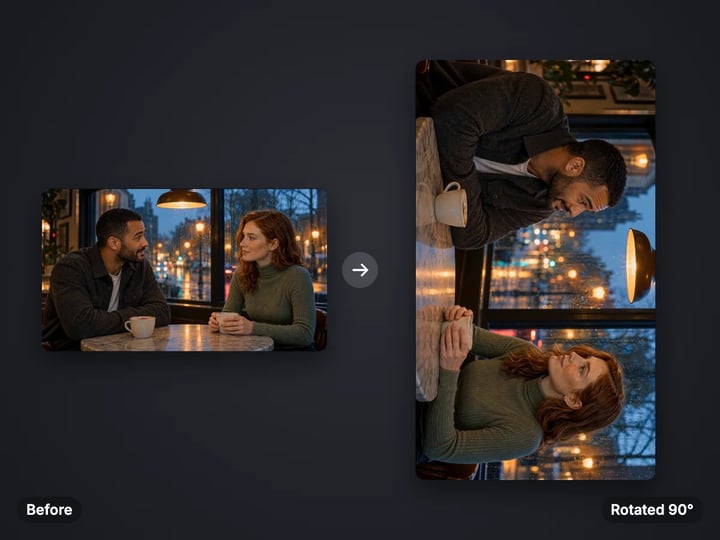 Real result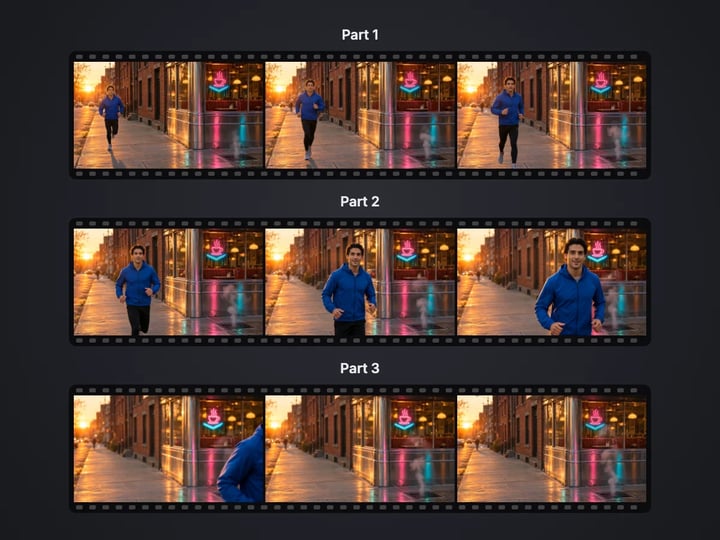
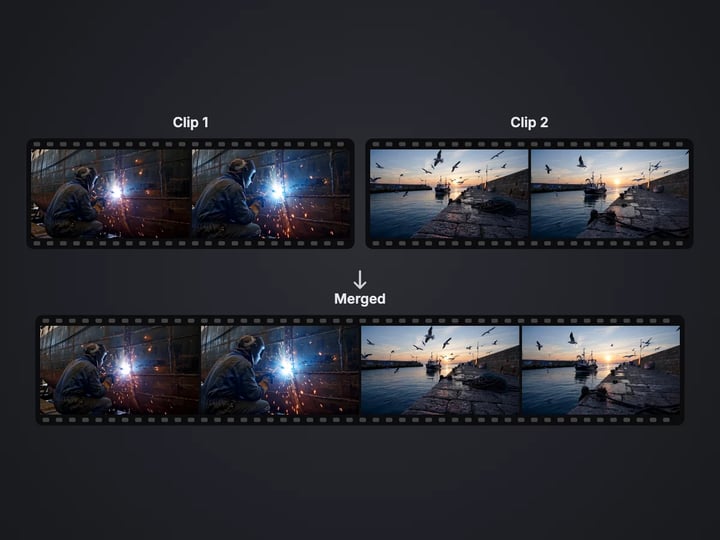
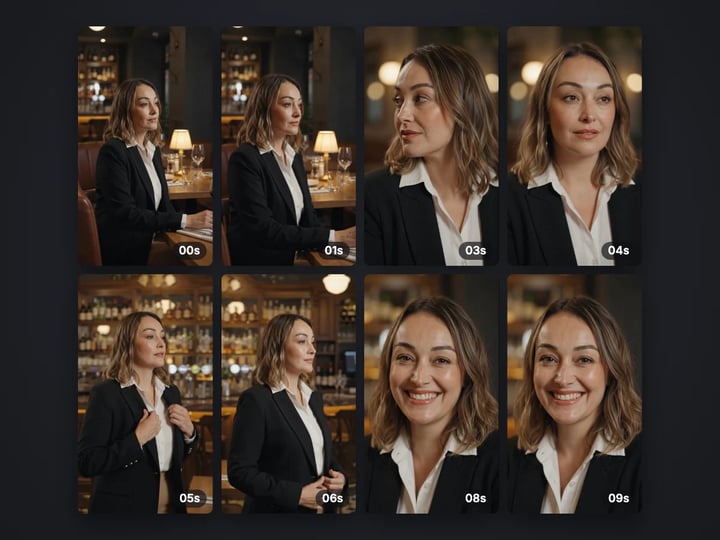
Quick answer
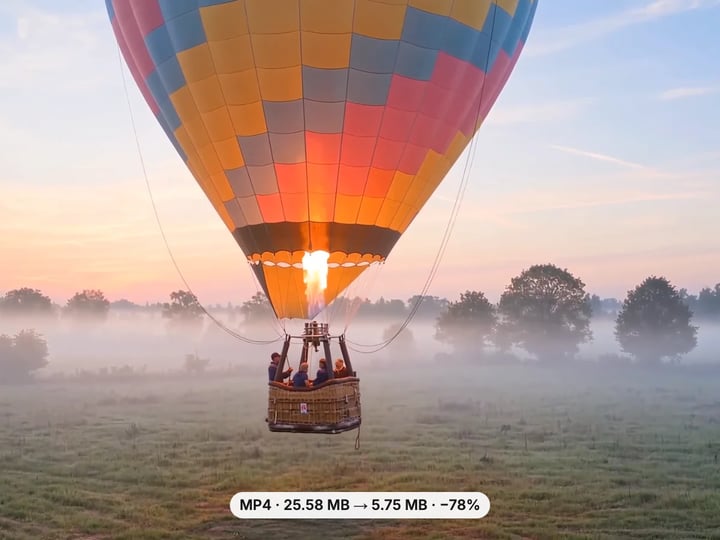
To rotate a video, open Imagera’s free Rotate Video tool, choose your MP4, MOV or WebM file, pick 90° right, 90° left or 180°, and press Rotate video. Quarter turns are saved as the orientation setting phone cameras use, so the frames are copied without losing quality and it takes seconds. Mirroring or flipping re-encodes the picture. Everything runs in your browser, so your video is never uploaded.
Your video never leaves your device — nothing is uploaded or saved on our servers.
How it works
Pick an MP4, MOV or WebM file. It stays on your device.
Choose 90° right, 90° left or 180°, and a flip if you need one.
Press Rotate video. Quarter turns take seconds; flips re-encode and take longer.
Play the result to check it is upright, then download it.
Why this one
A 90°, 180° or 270° turn is saved as the same orientation setting phone cameras use. The frames are copied, not re-encoded.
Mirror a selfie video left to right, or flip it top to bottom. Flips re-encode the picture, and the result says so.
Turning without re-encoding finishes in seconds, even for a long recording, with the sound kept as it was.
If an app ignores the turn, Bake into the picture re-encodes the video so every player shows it upright.
Continue in Imagera
Rotate Video edits the pixels you have. These studios use AI to create what is not in the picture yet — they run on credits.
 Next step
240p trash to 4K cinema. Every pixel rebuilt. Netflix-grade output.
Open studio Imagera
Too small to print? Enlarge a photo to 4K, 8K or 16K (15,360 px on the long edge).
Open studio Imagera
Edit images with Imagera Edit. Inpaint, modify, and transform any part of your image.
Open studio Imagera
Replace any photo background with AI-generated luxury scenes.
Open studioWho it is for
Fix the clip that was filmed with the phone on its side, or that came out upside down after a quick grab.
Mirror a front-camera video so text, logos and gestures read the right way round.
Rotate a clip for a portrait display, a kiosk or a ceiling-mounted projector.
Guide
This tool changes which way up your video plays, in your browser.
You get two controls:
- Turn — 90° right, 90° left or 180°. - Flip — mirror left to right (the selfie fix) or flip top to bottom.
They combine, so you can turn a clip and mirror it in one go.
Quarter turns without a flip are handled the same way a phone camera records a portrait video: the frames stay as they are and the file carries an orientation setting telling players to turn them. Nothing is re-encoded, so the picture keeps its exact quality and a long file takes seconds.
Flips have no such setting that players agree on, so a flip re-encodes the picture with your browser’s video encoder. The sound is kept either way.
The result tells you what changed, the size before and after, and whether the picture is the original or re-encoded.
1. Choose your video. Phone videos (MP4 or MOV) and WebM screen recordings both work. 2. Work out the turn. If the top of the picture is on the left, choose 90° right. If it is on the right, choose 90° left. If it is upside down, choose 180°. 3. Leave Flip on No flip unless the picture is mirrored. Mirrored text is the giveaway. 4. Press Rotate video. A quarter turn is ready in seconds. 5. Play the result and check that people and text are upright. 6. Download it. MP4 and MOV videos are saved as MP4.
If you picked the wrong way, simply run the original again with the other direction. Because quarter turns never re-encode, trying again costs nothing in quality, and your original file is never changed.
Every phone records video in the sensor’s own landscape shape and writes a small orientation setting into the file when you hold it upright. Browsers, iPhone and Android galleries, desktop players, video editors and the major social apps read it and show the video the right way up.
This tool uses the same mechanism. A 90°, 180° or 270° turn updates that setting and copies the frames, so there is no generation loss and no waiting.
The picture is re-encoded in three cases, and the result says Re-encoded each time:
- A flip. Players do not agree on a mirror setting, so the mirrored frames are drawn and encoded. - Bake into the picture. For the rare old player or upload form that ignores the orientation setting. - WebM files. WebM has no orientation setting, so the turned frames are encoded, usually as an MP4.
Re-encoding uses a bitrate close to the original’s, so the difference is hard to see, but it is not a perfect copy.
Front cameras and webcams often save video the way the preview looked: mirrored. That feels natural while recording, but on playback any text in the shot reads backwards, a logo on a shirt is reversed, and a presenter pointing "left" points right.
Choose Mirror left to right to fix it. The tool draws every frame reversed and encodes it again with your browser’s encoder, keeping the original resolution and a bitrate close to the source. The sound is copied unchanged.
Flip top to bottom is the less common case: footage from a camera mounted upside down under a shelf, a drone gimbal or a car dashboard. On its own it mirrors the picture vertically; combined with a 180° turn it becomes a pure mirror, which is sometimes what an upside-down mount needs.
Because flips re-encode, keep your original file until you have checked the result.
Your video never leaves your device. It is read by your browser, rotated on the page and handed back as a download. Nothing is uploaded or saved on our servers.
What that means in practice:
- Quarter turns work in any current browser, because nothing is encoded. - Flips need a browser that can encode video: Chrome, Edge or Firefox from the last couple of years, or Safari 16.4 or newer on a Mac, iPhone or iPad. If yours cannot, the tool says so and suggests one that can. - File size limits follow your device’s memory, because the new file is built in memory: up to 15 minutes or 1 GB per run on a phone, up to 60 minutes or 4 GB on a computer. - HEVC video from iPhones is copied as it is for quarter turns. Flipping it needs a browser that can decode HEVC, which Safari can.
A free sign-in, needed after your first few downloads, never sends your video anywhere.
The free Rotate Video tool fixes direction: quarter turns without any quality loss, and mirror or top-to-bottom flips when you need them. Rotating is unlimited. Your first few downloads need no account, and after that a free sign-in keeps them going.
What it cannot do is improve the picture. A dim, noisy or low-resolution phone clip is still dim, noisy and low resolution after it has been turned the right way up.
The paid Imagera AI video enhancer works on the picture itself. It sharpens soft footage, reduces noise and upscales low-resolution clips in the cloud, and exports a finished video. It uses credits.
They fit together naturally. Straighten the clip here in seconds, then send it to the enhancer when it needs to hold up on a large screen, a client presentation or a high-resolution feed.
Free vs studio
Questions people ask
Choose the video here, pick 90° right or 90° left, and press Rotate video. The turn is saved without re-encoding, in your browser, and your first downloads need no account.
If the top of the picture is on the left, choose 90° right; if it is on the right, choose 90° left. Check the result in the player before downloading.
Open this page in Safari, choose the video from your library, pick the turn and press Rotate video. The result downloads to Files, from where you can save it to Photos.
Quarter turns do not: the frames are copied and only the orientation setting changes. Flips and baked turns are re-encoded at a bitrate close to the original.
Choose Mirror left to right under Flip and press Rotate video. Text and logos in the shot will then read the right way round.
A few older players and upload forms ignore the orientation setting. Turn on Bake into the picture and rotate the original again so the turn is part of the frames.
Yes. WebM has no orientation setting, so the turned picture is re-encoded, usually into an MP4 that plays everywhere.
No. The video is rotated in your browser on your own device. It is never uploaded or saved on our servers.
This free tool only changes direction. The paid AI video enhancer sharpens, cleans up and upscales the footage in the cloud; rotate here first, then enhance the result.
More free tools
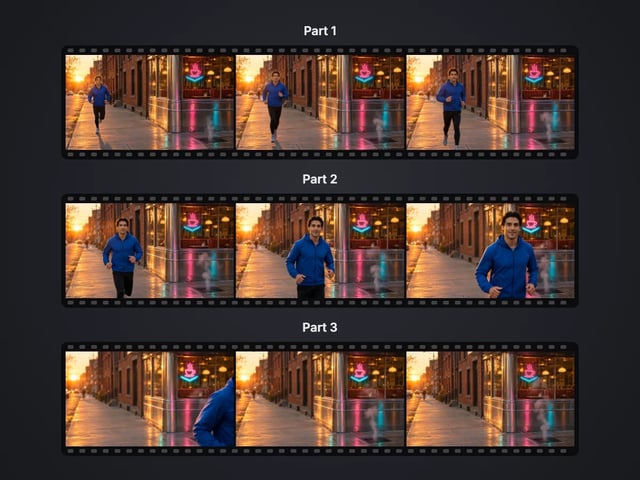
Cut a big video into evenly sized parts
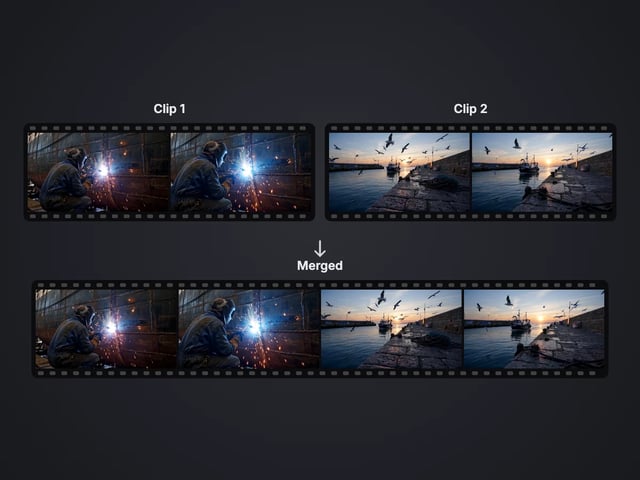
Rejoin split parts back into one file
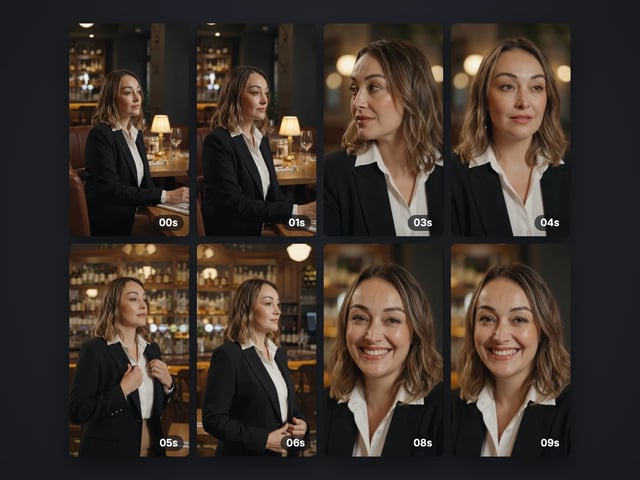
Save stills from a video as JPG or PNG
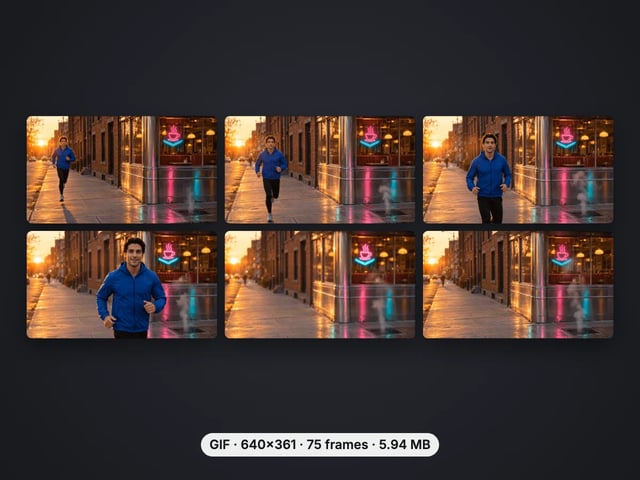
Turn a video clip into an animated GIF
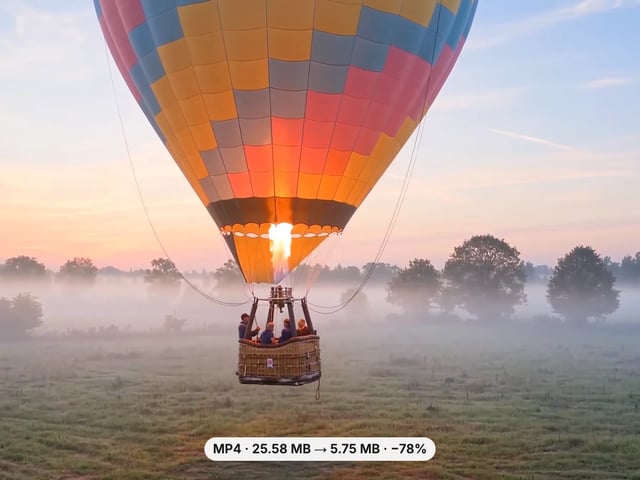
Make a video file smaller, or remove its sound
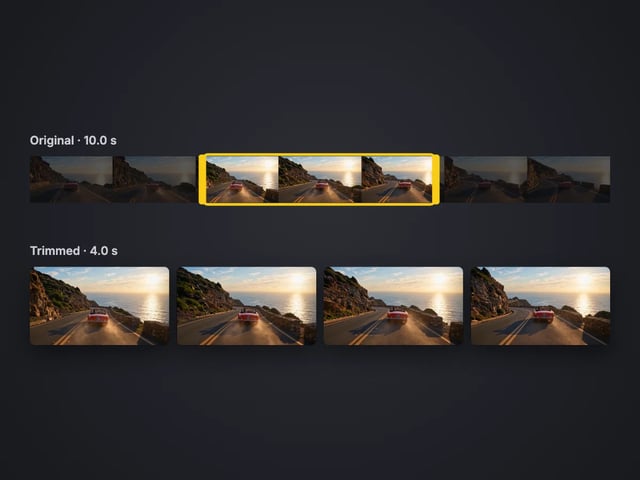
Cut the start or end off a video, no quality loss
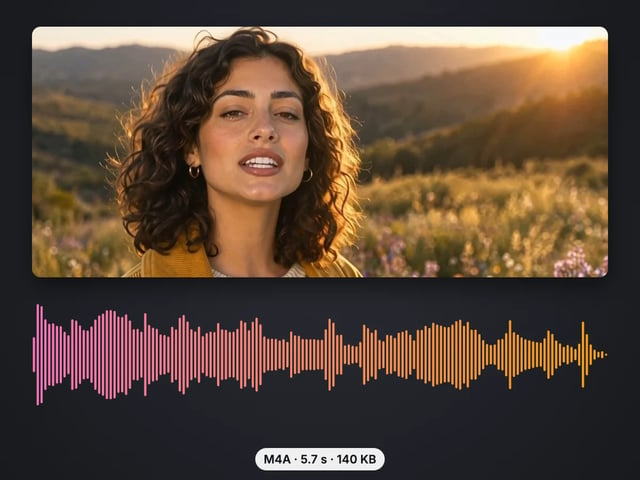
Save the sound of a video as M4A or WAV
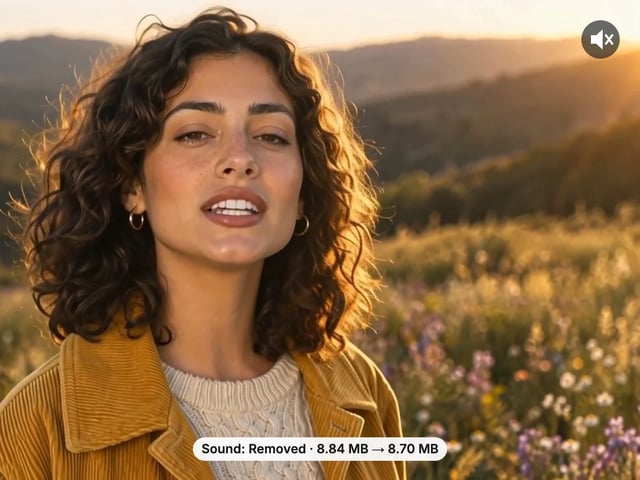
Remove the sound from a video, picture untouched
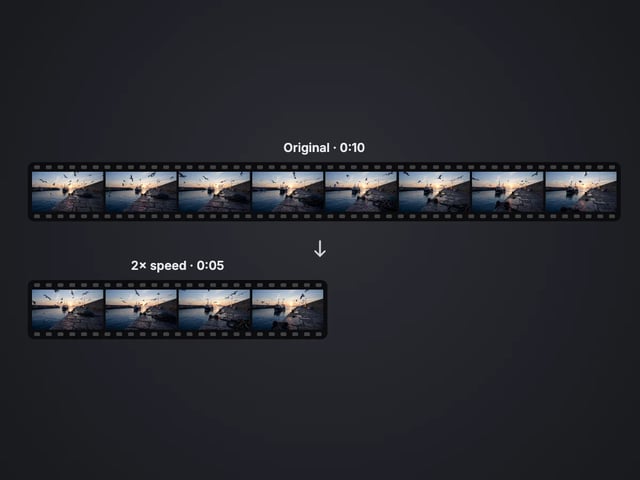
Speed a video up or slow it down, 0.25× to 4×
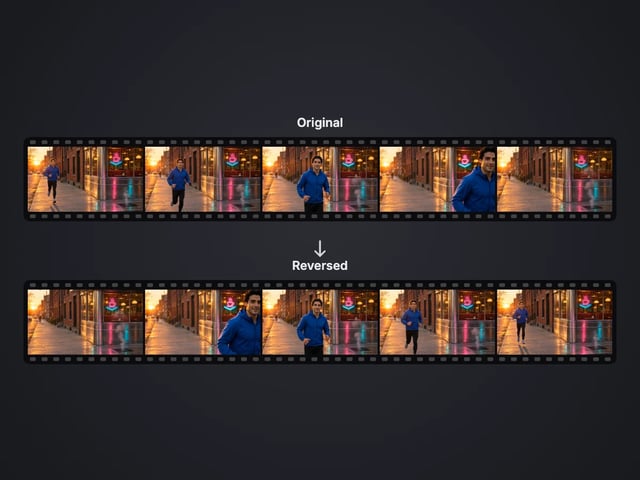
Play a clip backwards, sound included
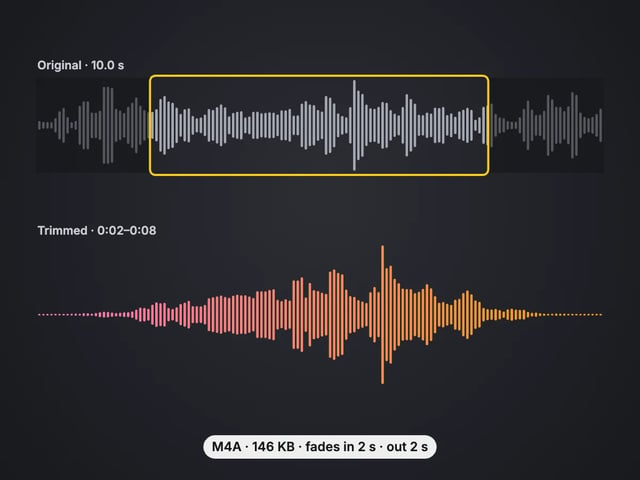
Cut an audio file to the part you want, with fades
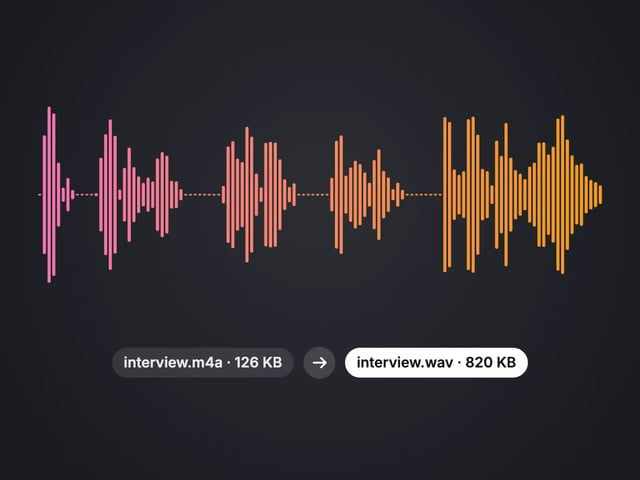
Convert MP3, WAV or OGG to M4A or WAV
Complete your workflow
These pair with 4K Video Enhancer. Every tile says what the tool actually does — without leaving this page.
Upscale images to 16K with the same AI enhancement technology
Create AI talking videos then enhance to 4K
Generate AI podcasts and pair with enhanced video content
Translate a clip into another language. Same faces, same footage, new voice — billed per minute.
Choppy AI video to butter-smooth 60fps. The secret pros use.
One photo = Hollywood drone shot. Zero equipment. Pure magic.
Steal any dance. Apply to any character. Viral content factory.
Imagera AI Team
Unified AI creation platform