Two ways to pick frames
Spread 1 to 30 frames evenly across the whole video, or take one every 1 to 30 seconds.
Imagera AI - AI content creation platform for generating images, cloning voices, creating avatars, and enhancing videos. Privacy Policy | Terms
Video · free · private
Save still frames from a video as JPG or PNG images — a set number spread across the clip, or one every few seconds. Each file is named with its timestamp. Your video never leaves your device.
Frames are captured in your browser on your own device. Your video is never uploaded or stored on any server.
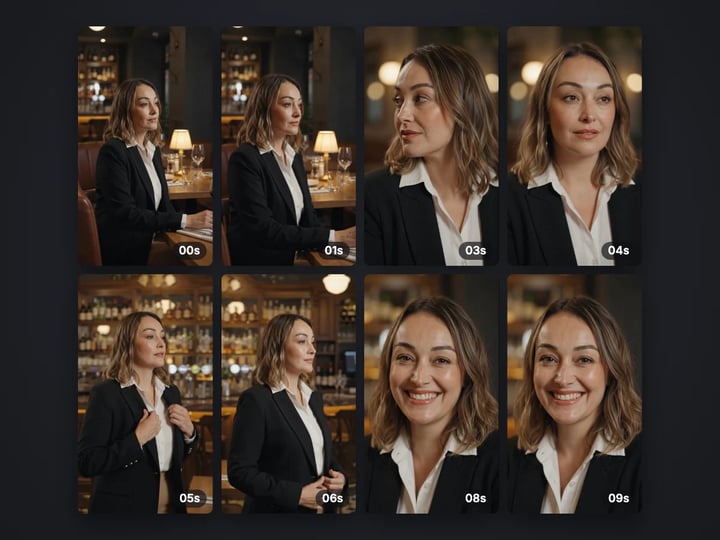 Real result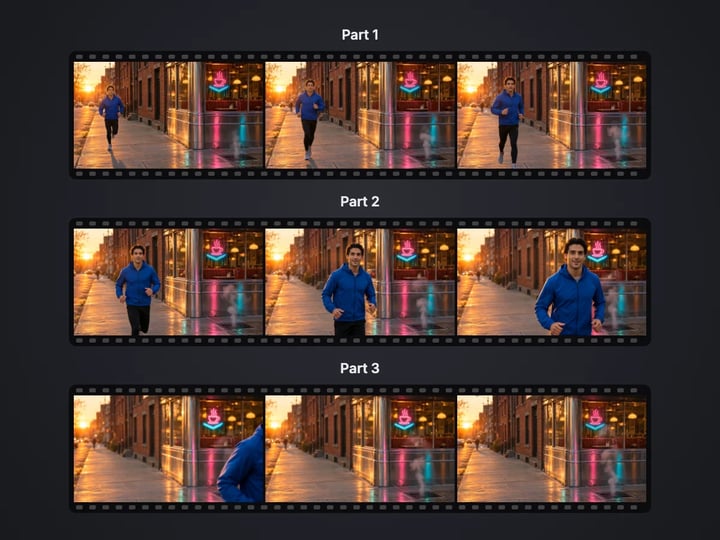
Quick answer
To extract frames from a video, open Imagera's free video frame extractor, choose your video and pick Evenly spaced or Every few seconds. Set how many frames or how often, choose JPG or PNG, and press Extract frames. You get a contact sheet preview and one image per frame, each named with its timestamp. It runs in your browser, so your video is never uploaded or saved on a server.
Your video never leaves your device — nothing is uploaded or saved on our servers.
How it works
Pick an MP4, MOV or WebM file. It stays on your device.
Evenly spaced with a frame count, or every few seconds with an interval.
Press Extract frames and check the contact sheet.
Save the frames you need as JPG or PNG.
Why this one
Spread 1 to 30 frames evenly across the whole video, or take one every 1 to 30 seconds.
Every image is named with its number and time in the video, like frame-03-00m12s.jpg, so you can find the moment again.
See every frame in one grid before you download, with the frame count and video length.
JPG for small files to share, PNG when you want no compression at all.
Continue in Imagera
Video Frame Extractor edits the pixels you have. These studios use AI to create what is not in the picture yet — they run on credits.
 Next step
240p trash to 4K cinema. Every pixel rebuilt. Netflix-grade output.
Open studio Imagera
Too small to print? Enlarge a photo to 4K, 8K or 16K (15,360 px on the long edge).
Open studio Imagera
Edit images with Imagera Edit. Inpaint, modify, and transform any part of your image.
Open studio Imagera
Replace any photo background with AI-generated luxury scenes.
Open studioWho it is for
Pull a set of candidate stills from your video and pick the strongest one for a thumbnail or cover.
Get an evenly spaced overview of a clip to share with a team or a client without sending the whole file.
Save still photos of a moment that only exists on video, straight from your phone.
Guide
This tool saves still images from a video. It plays your video in the browser's own video player, jumps to each chosen moment and captures the frame shown there as an image.
You choose how to pick the moments:
- Evenly spaced takes a set number of frames, from 1 to 30, spread across the whole video from start to end. Good for an overview. - Every few seconds takes one frame every 1 to 30 seconds. Good for a steady sequence.
A single run captures up to 60 frames.
Each image is named with its number and timestamp, such as frame-03-00m12s.jpg, so you can find the moment in your editor later. Save them as JPG for small files or PNG for no compression.
Before you download, a contact sheet shows every frame in one grid, along with the frame count and the video length. Everything happens in your browser.
1. Choose your video. MP4, MOV and WebM files work when your browser can play them. 2. Pick a method. Evenly spaced is the default. It suits a quick overview or picking a thumbnail. 3. Set the amount. With Evenly spaced, choose the number of frames. Eight is the default. With Every few seconds, choose the gap, such as every 2 seconds. 4. Choose a format in Advanced. JPG is smaller and fine for sharing. PNG keeps every pixel exactly and suits editing or print. 5. Press Extract frames. The tool steps through the video and builds the contact sheet. 6. Download the frames you want.
Long videos with a short interval hit the 60-frame limit quickly. For a one-hour video, every 60 seconds or evenly spaced frames make more sense than every 2 seconds.
Evenly spaced divides the video into equal parts and takes a frame from each. Eight frames from a two-minute video gives you one about every 15 seconds. The same eight frames from a ten-minute video gives one about every 75 seconds. You always get the number you asked for, whatever the length. Use it for thumbnails, storyboards and quick summaries.
Every few seconds takes a frame at a fixed gap, such as every 2 seconds. The number of frames depends on the length of the video, up to 60. Use it when timing matters: a how-to video where each step is a few seconds long, a timelapse you want to sample, or a sports clip where you want a sequence.
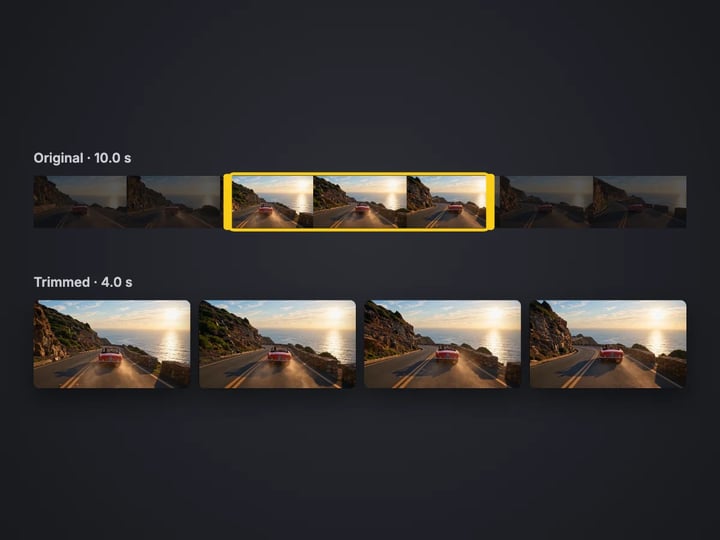
If you are after one specific moment, such as a smile or a goal, start with a short interval around that part of the video. Trim the clip first if the moment is deep inside a long file.
A frame is captured at the video's own resolution. A 1080p video gives 1920 × 1080 images; a 4K video gives 3840 × 2160.
Video frames are not the same as photos, though. Video is compressed heavily, and fast motion is often blurred within a single frame. Expect frames from a phone video to look softer than a photo taken with the same phone. Moments where the camera and subject are still give the sharpest stills.
Two honest limits come from using your browser's player.
Formats. The tool can only read videos your browser can play. MP4 and WebM work almost everywhere. Some MOV files from phones only play in certain browsers.
Exact timing. When the tool jumps to a time, the browser shows the nearest frame it can. The timestamp in the file name is where it landed, which may differ from the target by a fraction of a second.
Your video never leaves your device. The frames are captured with your browser's own video player and canvas. The video is read from your device, played silently in the page, and each frame is handed back as an image. Nothing is uploaded or saved on our servers.
That also means no upload wait. Most online frame extractors ask you to upload the whole video first, which can take minutes for a large file and puts a copy of it on someone else's server. Here, the tool starts as soon as the video opens.
Videos often capture more than you intend: faces, homes, license plates, screens. Keeping them on your device is the simple way to avoid sharing that by accident. A free sign-in, which you need after the first few downloads, never sends your video anywhere.
The free frame extractor saves stills from your video on your device: up to 60 per run, timestamped, as JPG or PNG, with a contact sheet. Processing is unlimited. The first few downloads need no account, and then a free sign-in keeps them coming.
The paid Imagera video enhancer works on the video itself. It uses AI to sharpen, clean up and raise the resolution of the whole clip, and exports a finished video. It runs in the cloud and uses credits.
The two fit together. If your frames come out soft because the source is low resolution or noisy, enhance the video first and then extract stills from the cleaner version. For a single still, the free image upscaler can also enlarge a frame after you save it.
Free vs studio
Questions people ask
Choose your video here, pick evenly spaced or every few seconds, and press Extract frames. The video is played and captured in your browser, so it never leaves your device.
Choose the video, keep the format on JPG and extract. Each frame is saved as its own JPG image, named with its timestamp.
Use Every few seconds with a short interval around the moment you want, then pick the sharpest frame from the contact sheet. Trim the video first if the moment is deep inside a long file.
Choose Every few seconds and set the interval to 1 second. A single run captures up to 60 frames, so this covers the first minute.
The tool reads videos through your browser's player. Some MOV files from phones only play in certain browsers. Try another browser, or export the video as MP4.
The same as the video. A 1080p video gives 1920 × 1080 images and a 4K video gives 3840 × 2160.
Video is heavily compressed and motion blurs single frames. Pick moments where the camera and subject are still, or enhance the video first for sharper stills.
JPG gives smaller files that are easy to share. PNG keeps every pixel without compression, which suits editing, print and archiving.
No. Processing is unlimited without an account. The first few downloads need no sign-in; after that, a free sign-in keeps downloads going. Your video still stays on your device.
Yes. Extract 8 to 12 evenly spaced frames, pick the strongest one, and crop it to 16:9 with the free image cropper if needed.
More free tools
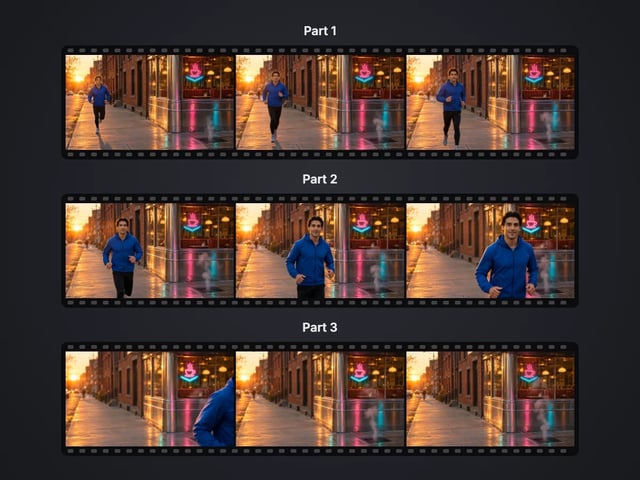
Cut a big video into evenly sized parts
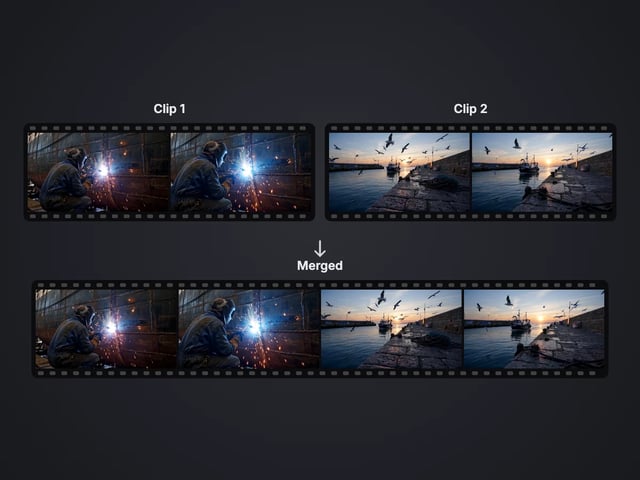
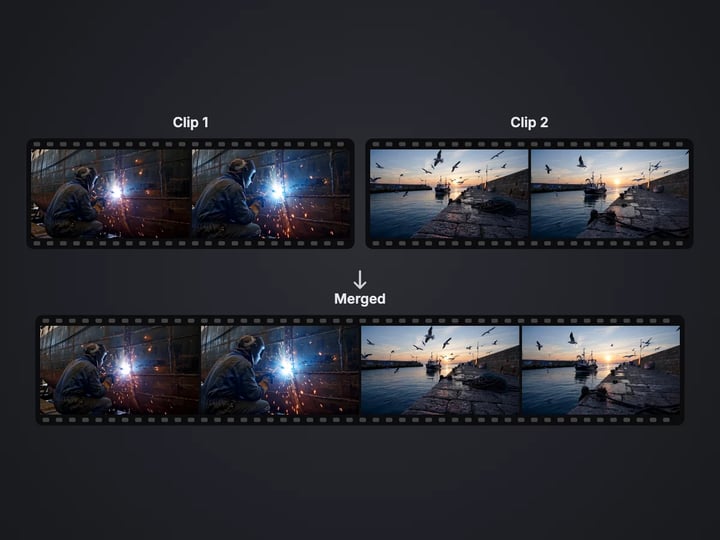
Rejoin split parts back into one file
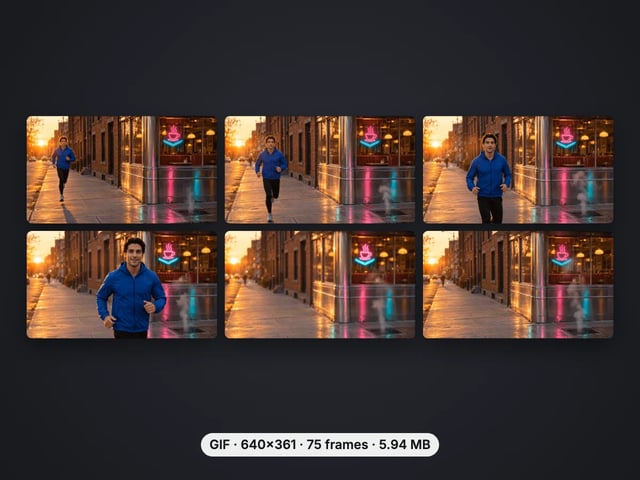
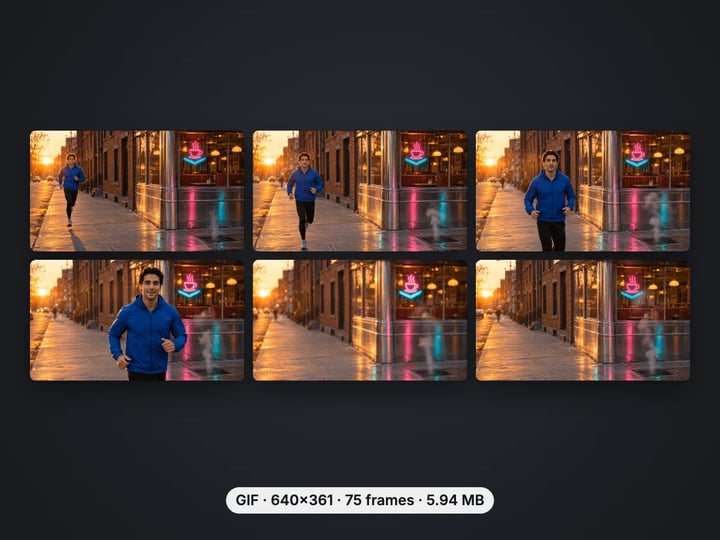
Turn a video clip into an animated GIF
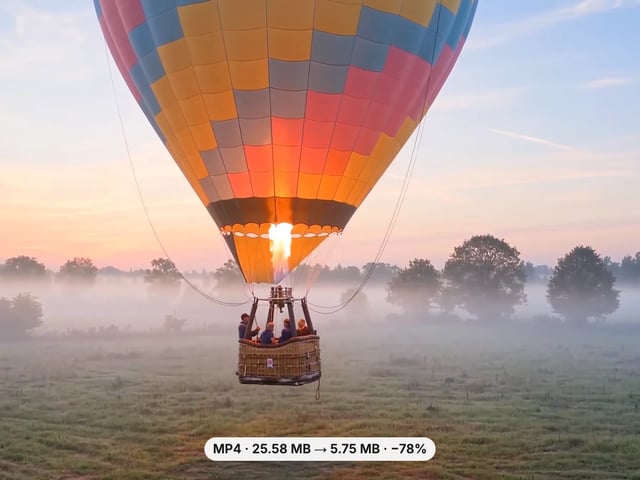
Make a video file smaller, or remove its sound
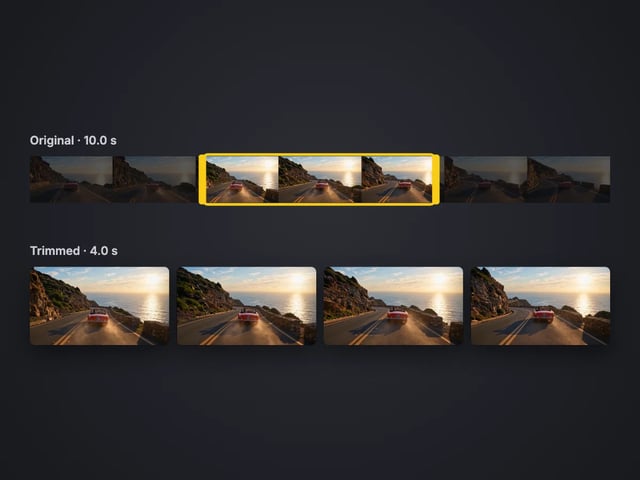
Cut the start or end off a video, no quality loss
Save the sound of a video as M4A or WAV
Remove the sound from a video, picture untouched
Turn a sideways video upright, or mirror it
Speed a video up or slow it down, 0.25× to 4×
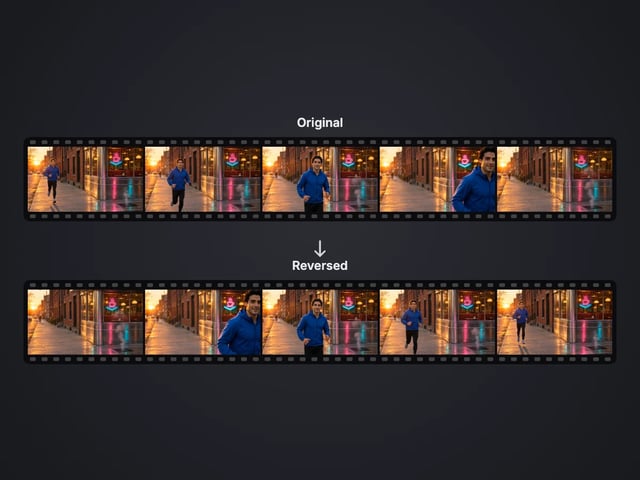
Play a clip backwards, sound included
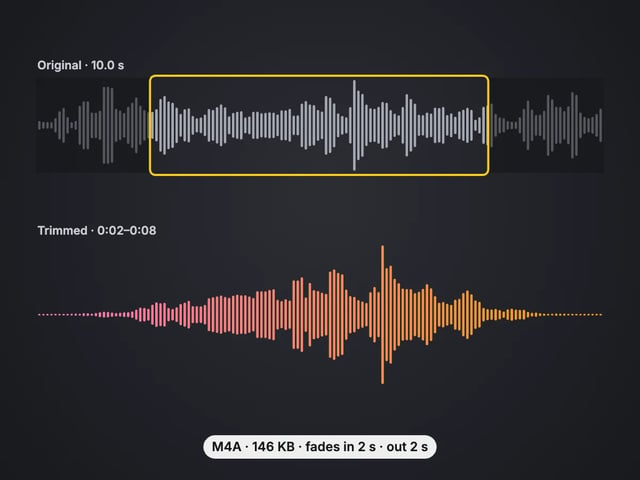
Cut an audio file to the part you want, with fades
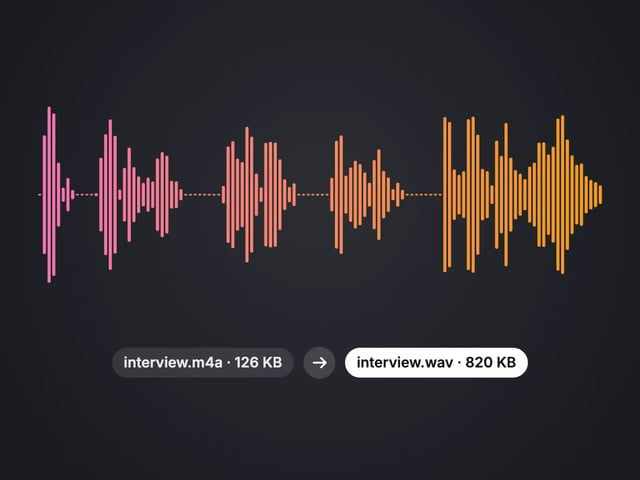
Convert MP3, WAV or OGG to M4A or WAV
Complete your workflow
These pair with 4K Video Enhancer. Every tile says what the tool actually does — without leaving this page.
Upscale images to 16K with the same AI enhancement technology
Create AI talking videos then enhance to 4K
Generate AI podcasts and pair with enhanced video content
Translate a clip into another language. Same faces, same footage, new voice — billed per minute.
Choppy AI video to butter-smooth 60fps. The secret pros use.
One photo = Hollywood drone shot. Zero equipment. Pure magic.
Steal any dance. Apply to any character. Viral content factory.
Imagera AI Team
Unified AI creation platform