Exact start and end
Type times like 0:05 or 1:23.5 and keep only that stretch of the recording.
Imagera AI - AI content creation platform for generating images, cloning voices, creating avatars, and enhancing videos. Privacy Policy | Terms
Video · free · private
Keep just the part of a song, voice memo or recording you want, and smooth the edges with a fade. Type the start and end, pick M4A or WAV, and download. It all runs in your browser.
Your audio is cut in your browser on your own device. It is never uploaded or saved on our servers.
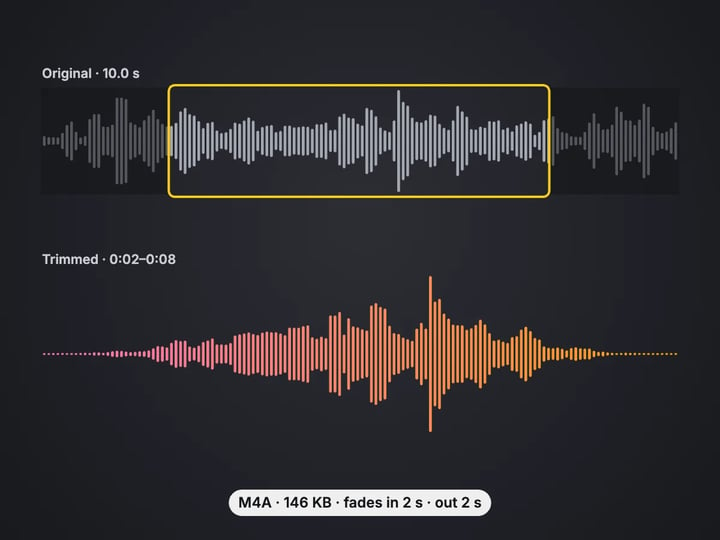 Real result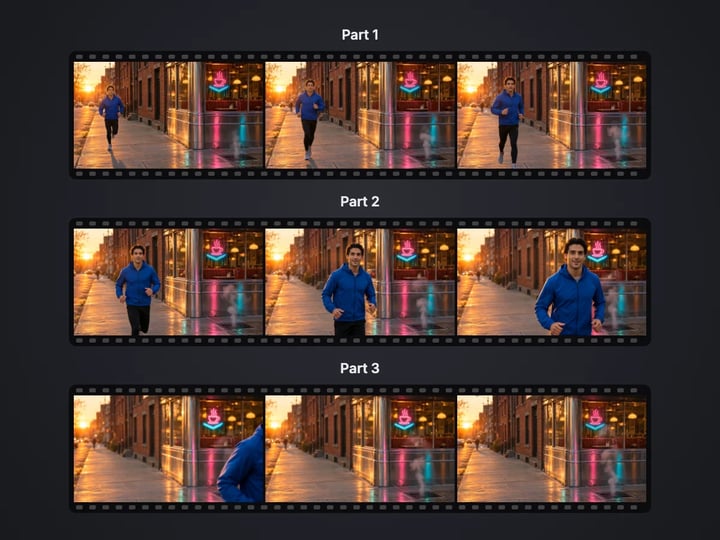


Quick answer
To trim an audio file, open Imagera’s free Audio Trimmer, choose an MP3, M4A, WAV or OGG file, type the start and end times, and press Trim audio. In Advanced you can add a fade in, a fade out or both, from half a second to five seconds. Save the result as M4A or WAV. Everything runs in your browser, so your audio is never uploaded, and M4A files cut without fades lose no quality.
Your audio file never leaves your device — nothing is uploaded or saved on our servers.
How it works
Pick an MP3, M4A, WAV or OGG file. It stays on your device.
Type where the part you want starts and ends, like 0:30 and 1:05.
In Advanced, choose a fade in, fade out or both, and its length.
Press Trim audio, listen to the result, then download M4A or WAV.
Why this one
Type times like 0:05 or 1:23.5 and keep only that stretch of the recording.
Fade in, fade out or both, from half a second to five seconds, on a gentle curve that sounds natural.
M4A and AAC files cut without fades are copied as they are, not re-encoded.
M4A is small and plays everywhere. WAV is uncompressed 16-bit audio for editors.
Continue in Imagera
Audio Trimmer edits the pixels you have. These studios use AI to create what is not in the picture yet — they run on credits.
 Next step
240p trash to 4K cinema. Every pixel rebuilt. Netflix-grade output.
Open studio Imagera
Too small to print? Enlarge a photo to 4K, 8K or 16K (15,360 px on the long edge).
Open studio Imagera
Edit images with Imagera Edit. Inpaint, modify, and transform any part of your image.
Open studio Imagera
Replace any photo background with AI-generated luxury scenes.
Open studioWho it is for
Cut the best 20 or 30 seconds of a song, add a short fade, and use it as a ringtone or notification.
Remove the silence at the start, the mumbled ending or the part you did not mean to record.
Trim a track to the length of your clip, with a fade-out that ends cleanly on the last frame.
Guide
This tool keeps the part of an audio file between two times, and can smooth its edges with a fade.
You set:
- Start and End — typed as minutes and seconds, like 0:30 and 1:05.5. Leave End empty to keep everything after the start. - Format — M4A (AAC), which is small and plays on phones, computers and music apps, or WAV, uncompressed 16-bit audio for editing. - Fade — in Advanced: fade in, fade out or both, with a length from 0.5 to 5 seconds.
The result has a player so you can listen before downloading, plus the new length, the times it was cut from, the file size and the sound format.
If the times would keep the whole file, or the end comes before the start, the tool says so in plain words instead of giving you a copy of what you already have.
1. Choose your file. MP3, M4A, AAC, WAV and OGG files work, as do most other audio files your browser can play. 2. Find your times. Play the file in any player and note where the part you want starts and ends. 3. Type the Start and End. Both 1:05 and 65 mean one minute five seconds. Tenths work too: 1:05.5. 4. Pick a format. M4A for sharing and ringtones, WAV for an editor. 5. Add a fade if you like. A one-second fade-out makes a ringtone or a music bed end cleanly. 6. Press Trim audio, listen, and download.
Not quite right? Change a time and press Trim audio again. Your original file is never changed, so you can try as many times as you like until the cut lands exactly where you want it.
A hard cut in the middle of music often clicks and always sounds abrupt. A fade eases the volume from silence up to full, or from full down to silence, over the time you choose.
This tool uses a curved fade rather than a straight line. Our ears hear loudness on a logarithmic scale, so a straight-line fade sounds like it jumps in at the start and then drops away suddenly at the end. The curve spends more of the fade in the quiet range, which sounds smooth and even.
Some guides for choosing a length:
- 0.5 s — removes a click or a breath at a cut without being noticed. - 1–2 s — the usual choice for ringtones, alerts and music under a video. - 3–5 s — a slow, deliberate fade for the end of a song or a podcast outro.
A fade is never longer than half of the trimmed clip, so a fade-in and fade-out never overlap.
Many people search for an "MP3 cutter". This tool saves M4A or WAV instead, and the honest reason is licensing: the MP3 encoders a website could include come under licenses this site does not use.
M4A (AAC) is the format phones and music apps use themselves. It plays on iPhone, Android, Windows, Mac, most music apps and most recent car systems, and sounds as good as MP3 at a smaller size.
The cut is lossless when the source is already AAC — an M4A, an AAC file, or sound from an MP4 — and you add no fade: the compressed audio is copied as it is. The cut lands on the nearest audio frame, about a fiftieth of a second, which nobody can hear. Other sources, and any cut with a fade, are re-encoded to AAC at a high quality setting.
WAV is uncompressed. It is the safe choice for an editor, or for a device that accepts only older formats.
Your audio never leaves your device. The file is read by your browser, cut on the page and handed back to you as a download. Nothing is uploaded or saved on our servers, and there is no upload wait.
What that means in practice:
- WAV works in every current browser. On older browsers without audio decoding on the page, the whole file is decoded at once, so very large files are limited to 300 MB there. - M4A from AAC without fades is a copy, so it works in every current browser too. - M4A from MP3, WAV or OGG, or with a fade, needs a browser that can encode AAC: recent Chrome, Edge and Safari can. If yours cannot, the tool says so and suggests WAV. - Length limits follow your device’s memory: up to 15 minutes of kept audio per run on a phone, 60 minutes on a computer.
A free sign-in, needed after your first few downloads, never sends your audio anywhere.
The free Audio Trimmer cuts and fades sound on your device, saving M4A or WAV. Trimming is unlimited. Your first few downloads need no account, and after that a free sign-in keeps them going.
Often that sound is headed for a video: music under a product clip, a voice-over for a tutorial, a sound bite for a reel. A well-cut track makes it very obvious when the picture it plays over looks soft, dark or noisy.
The paid Imagera AI video enhancer works on that picture. It sharpens soft footage, reduces noise and upscales low-resolution clips in the cloud, and exports a finished video. It uses credits.
A simple workflow: trim and fade your track here, enhance the footage in the studio, and put the two together in your editor. For the sound of a video you already have, the free Video to Audio tool saves it as a file you can trim here.
Free vs studio
Questions people ask
Choose the MP3 here, type the start and end times, and press Trim audio. Download the cut as M4A or WAV; your first downloads need no account.
Trim 20 to 30 seconds of the song here, add a one-second fade in and out, and save as M4A. On iPhone, ringtones must be set up through a computer or GarageBand; Android can use the M4A directly.
Yes. Open Advanced, choose Fade out or Fade in and out, and pick a length from 0.5 to 5 seconds before pressing Trim audio.
The MP3 encoders a website could include come under licenses this site does not use. M4A plays on the same devices and is smaller at the same quality; WAV works for anything that needs an older format.
Not if you add no fade. The compressed sound is copied as it is and the cut lands on the nearest audio frame, about a fiftieth of a second.
Open this page in Safari, choose the memo from Files, type the start and end, and press Trim audio. The trimmed M4A downloads to Files.
This tool takes audio files. Save the video’s sound first with the free Video to Audio tool, then trim that file here.
No. The file is read and cut in your browser on your own device. It is never uploaded or saved on our servers.
Not with this audio tool. The paid AI video enhancer sharpens, reduces noise and upscales footage in the cloud, so the picture matches your cleanly cut sound.
More free tools
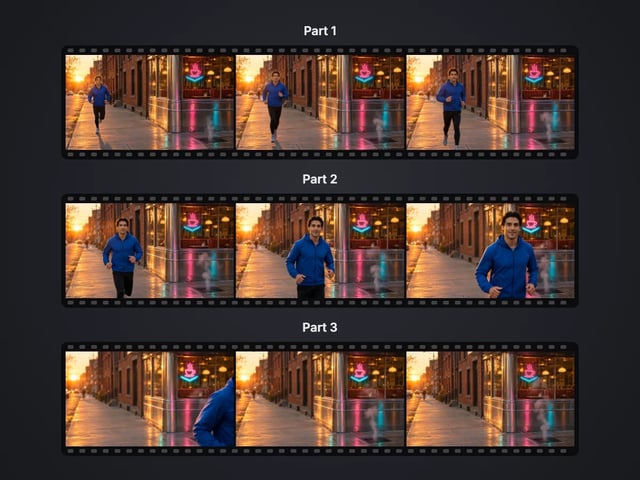
Cut a big video into evenly sized parts
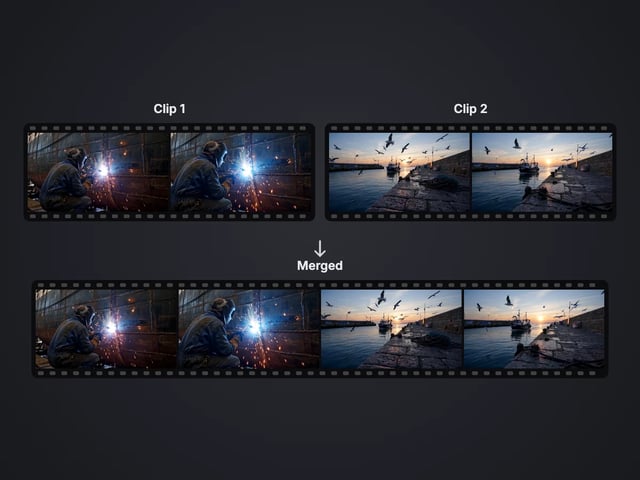
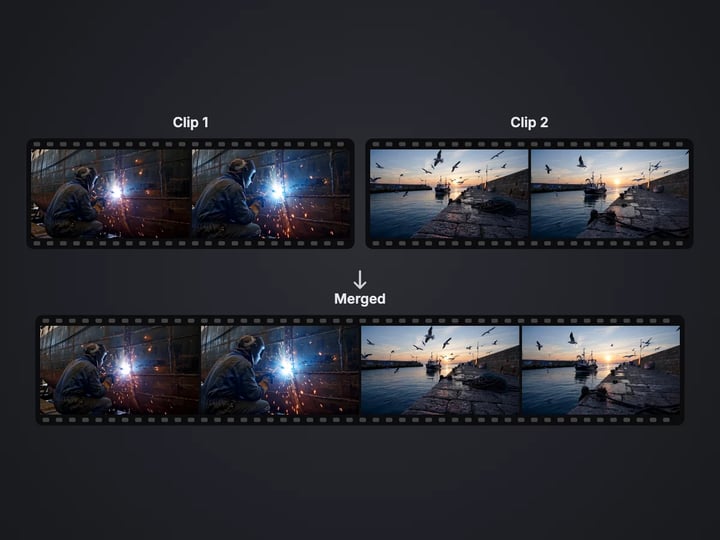
Rejoin split parts back into one file

Save stills from a video as JPG or PNG
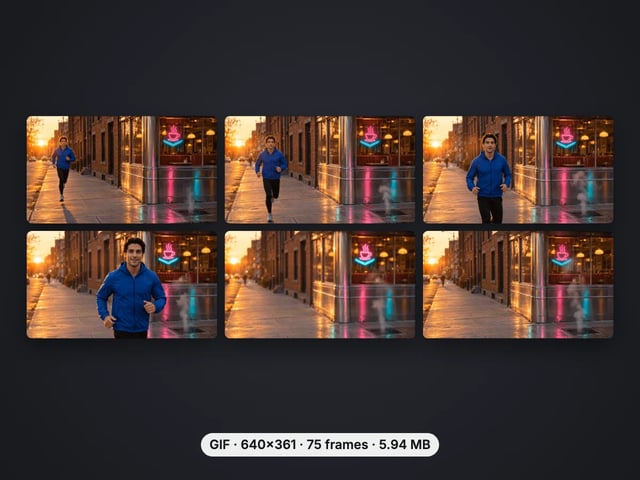
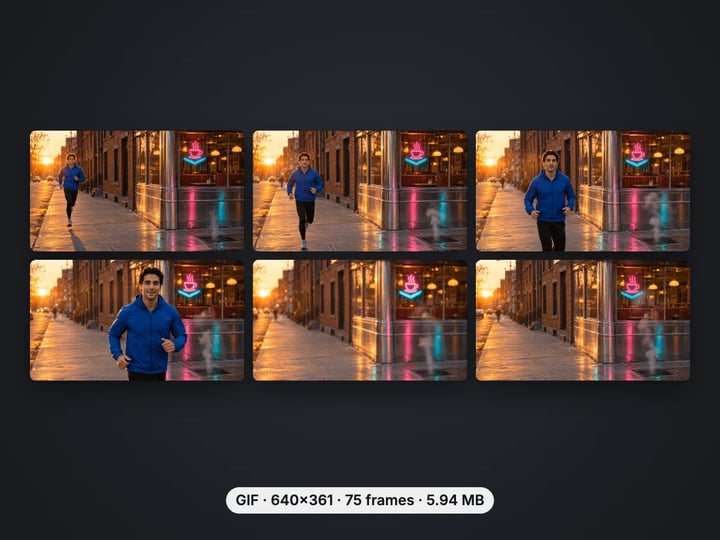
Turn a video clip into an animated GIF

Make a video file smaller, or remove its sound
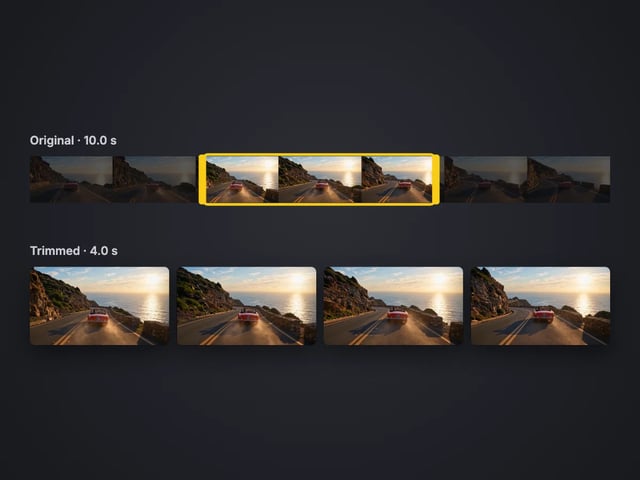
Cut the start or end off a video, no quality loss
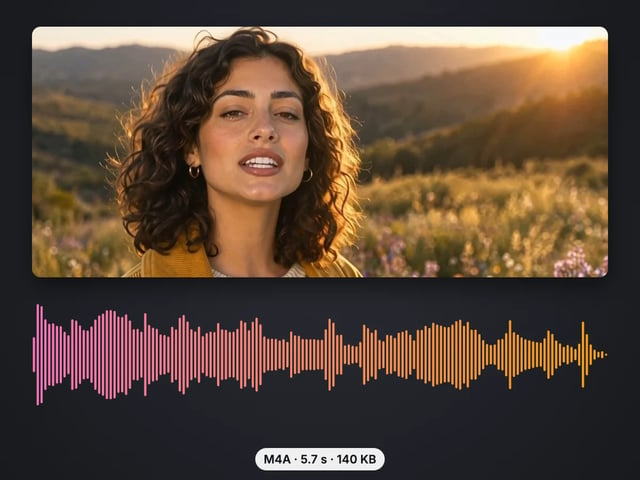
Save the sound of a video as M4A or WAV
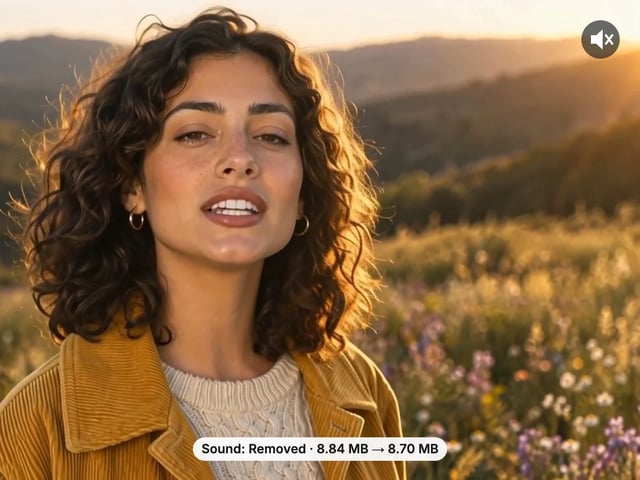
Remove the sound from a video, picture untouched
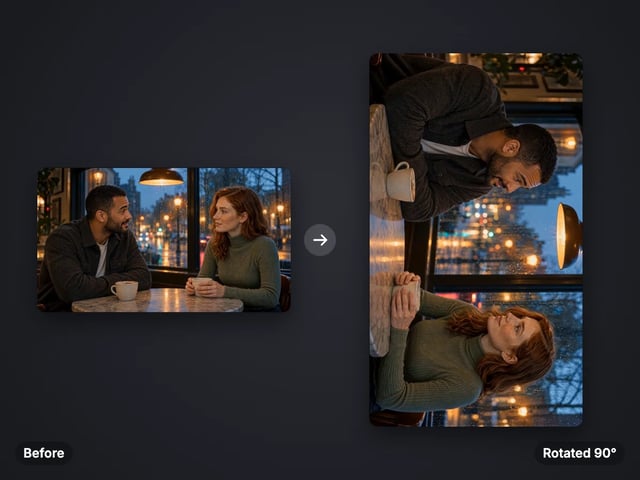
Turn a sideways video upright, or mirror it
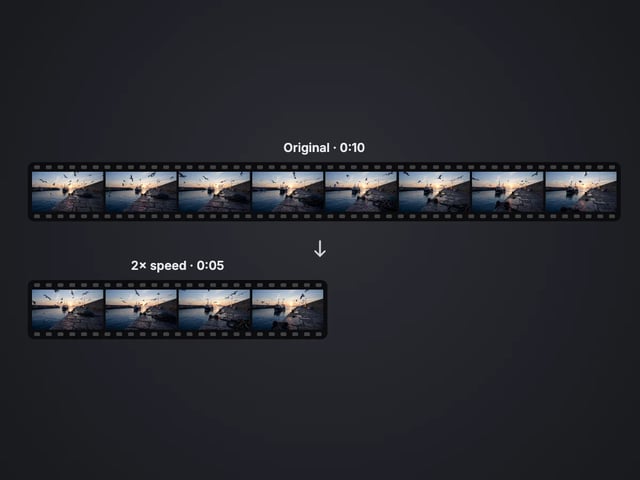
Speed a video up or slow it down, 0.25× to 4×
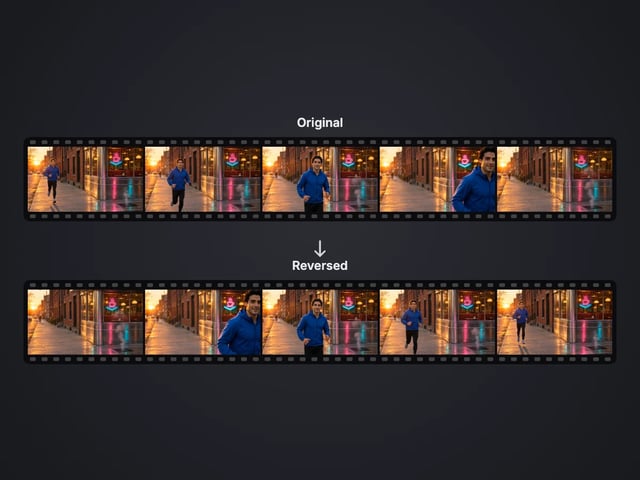
Play a clip backwards, sound included
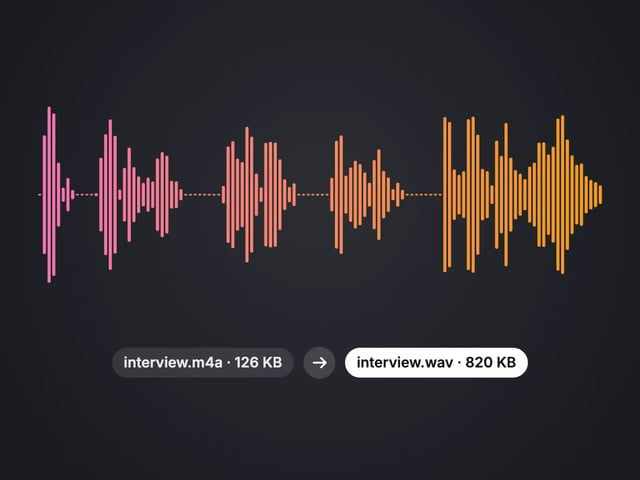
Convert MP3, WAV or OGG to M4A or WAV
Complete your workflow
These pair with 4K Video Enhancer. Every tile says what the tool actually does — without leaving this page.
Upscale images to 16K with the same AI enhancement technology
Create AI talking videos then enhance to 4K
Generate AI podcasts and pair with enhanced video content
Translate a clip into another language. Same faces, same footage, new voice — billed per minute.
Choppy AI video to butter-smooth 60fps. The secret pros use.
One photo = Hollywood drone shot. Zero equipment. Pure magic.
Steal any dance. Apply to any character. Viral content factory.
Imagera AI Team
Unified AI creation platform