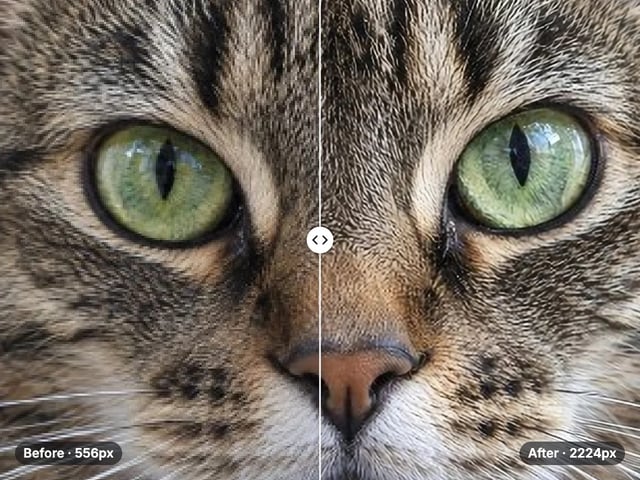
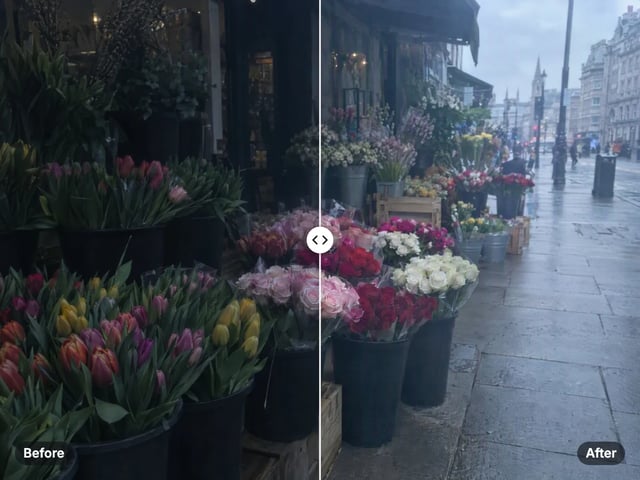
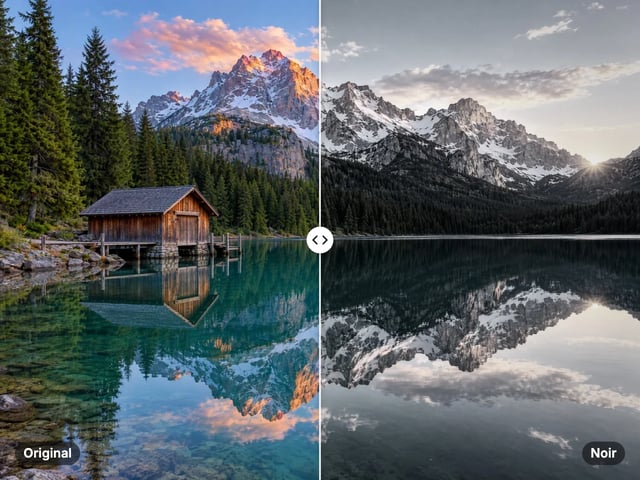
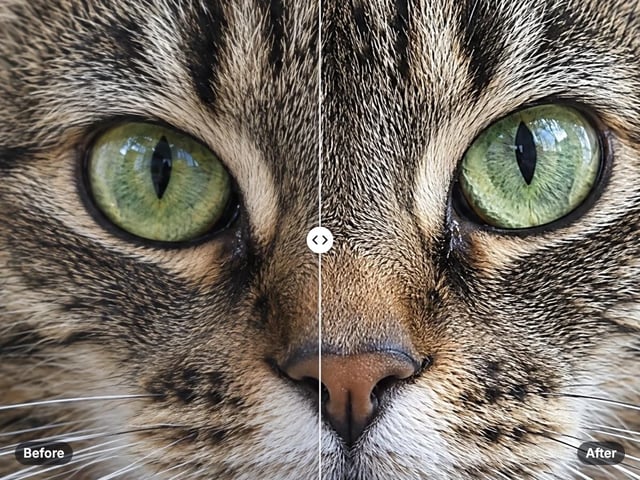
Grain, not a pattern
Smooth random grain at the size you choose, with no visible grid or repeating tile.
Imagera AI - AI content creation platform for generating images, cloning voices, creating avatars, and enhancing videos. Privacy Policy | Terms
Enhance · free · private
Give a clean digital photo the texture of film. Set how strong, how large and how uneven the grain is, and add color grain if you like. Your photo never leaves your device.
The grain is generated in your browser on your own device. Your photo is never uploaded or stored on any server.
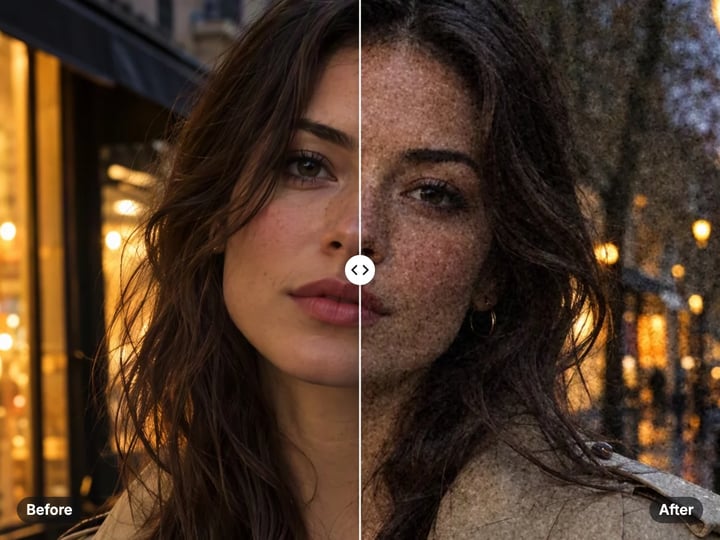 Real result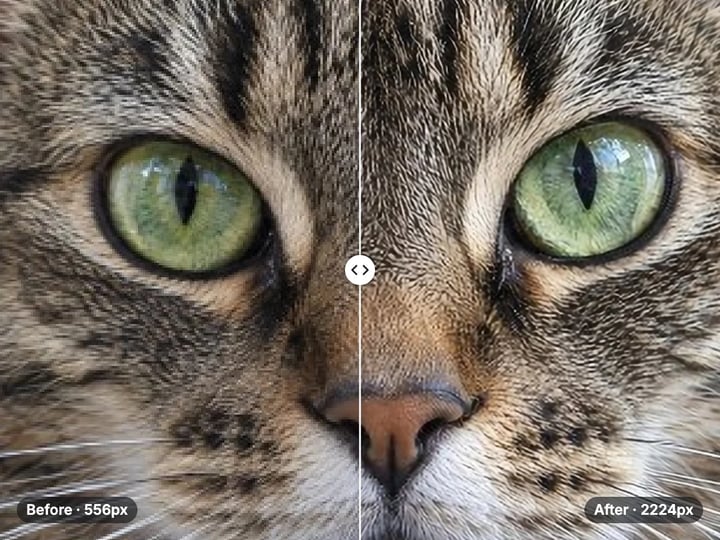
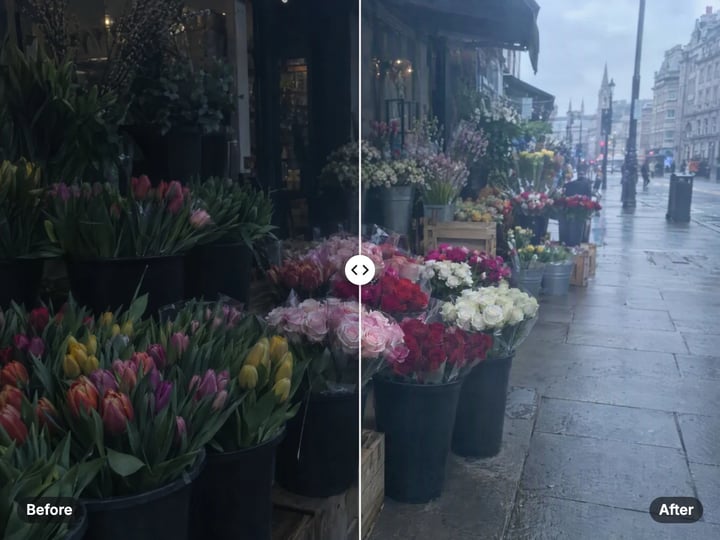
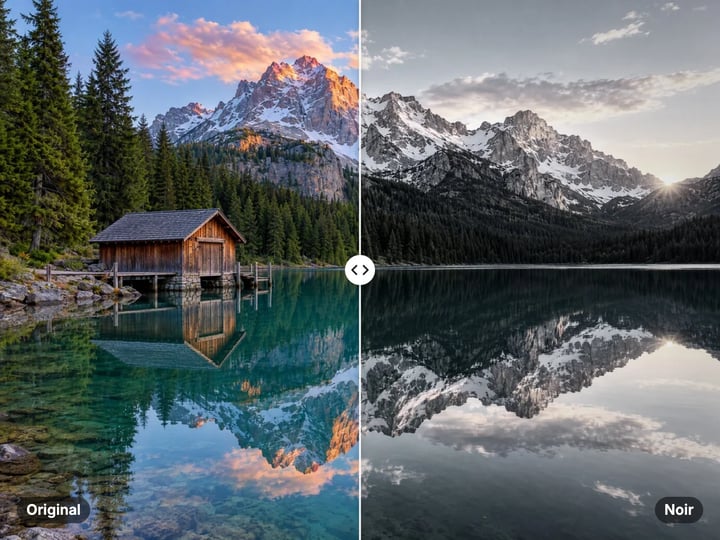
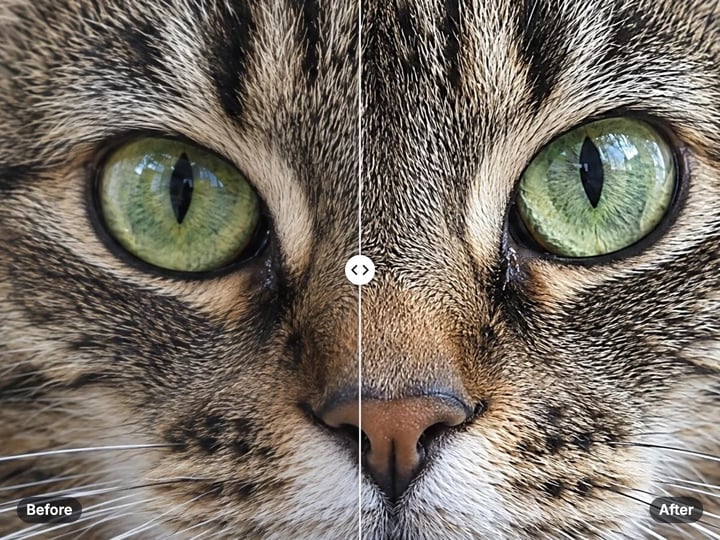
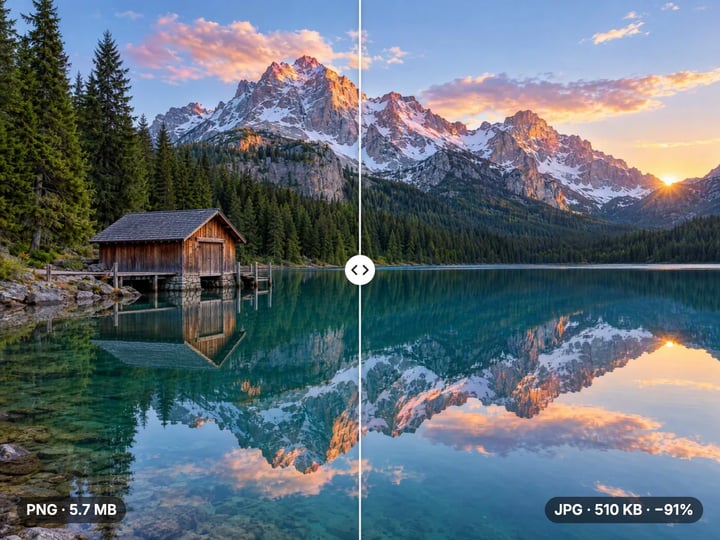
Quick answer
To add film grain to a photo, open Imagera's free grain tool, choose your photo and set three sliders: Amount for strength, Grain size for how large each speck is, and Roughness for how uneven it looks. Press Add grain and compare. The grain is strongest in midtones and softer in shadows and highlights, like real film. It is generated in your browser, so your photo is never uploaded.
Your photo never leaves your device — nothing is uploaded or saved on our servers.
How it works
Pick a JPG, PNG, WebP or HEIC photo. It stays on your device.
Choose the amount, grain size and roughness. Turn on color grain in Advanced if you want it.
Press Add grain and compare with the before and after slider.
Download the grainy photo in the same file type.
Why this one
Smooth random grain at the size you choose, with no visible grid or repeating tile.
Strongest in the midtones and gentle in deep shadows and bright highlights, the way film grain shows.
Go from even, fine grain to clumpy, uneven grain that looks like fast film stock.
Everything runs on your device. Nothing is uploaded and there is nothing to install.
Continue in Imagera
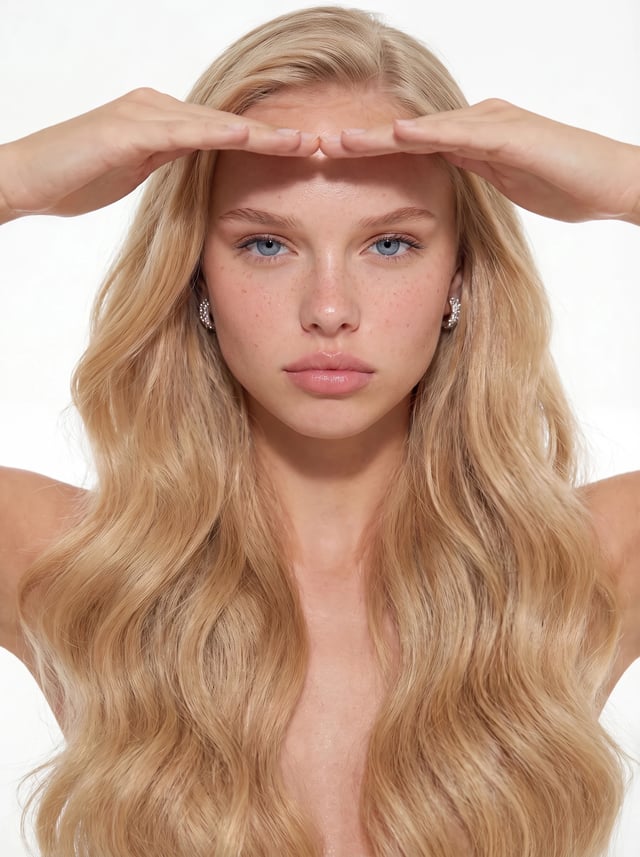
Film Grain Adder edits the pixels you have. These studios use AI to create what is not in the picture yet — they run on credits.
 Next step
Add authentic camera noise and film grain. Achieve photorealistic quality.
Open studio Imagera
Too small to print? Enlarge a photo to 4K, 8K or 16K (15,360 px on the long edge).
Open studio Imagera
Edit images with Imagera Edit. Inpaint, modify, and transform any part of your image.
Open studio Imagera
Replace any photo background with AI-generated luxury scenes.
Open studioWho it is for
Give digital shots the texture of film and hide the plastic look of heavy noise reduction.
Break up banding in smooth gradients and add tactile texture to flat graphics.
Take the too-clean edge off generated images before you post them.
Guide
This tool lays a fresh layer of random grain over your photo. You control four things.
Amount sets the strength. Around 20–35% is a subtle texture you feel more than see. Past 60% the grain becomes a clear part of the look.
Grain size sets how large each speck is, from 1 (fine, one-pixel grain) to 5 (coarse grain, like fast film pushed in the darkroom). Size scales with the photo, so the same setting keeps the same character on a small or large file.
Roughness sets how even the grain is. Low roughness gives a regular, fine texture. High roughness mixes in larger clumps and sharper specks, so the grain gathers unevenly the way film grain does.
Color grain, in Advanced, adds a little colored speckle on top of the brightness grain.
The result keeps your file type. Transparency in a PNG is left untouched.
Film grain and camera noise are both random texture, but they behave differently, and the difference is what makes a picture read as film.
Brightness. On film, grain is most visible in the midtones. Deep blacks and bright whites show little of it. This tool follows that curve, so skies and skin carry the texture while shadows stay deep and highlights stay clean.
Shape. Digital noise is often a fine, even hiss of single pixels. Film grain is softer and clumps into uneven specks. Size and roughness let you move between the two.
Color. Most film grain reads as brightness texture, with little colored speckle. That is why color grain is off by default. Turn it on for the look of high-speed color film.
The grain is also random, not a scanned texture repeated across the frame, so there is no pattern for the eye to catch on large prints.
Subtle texture for any photo. Amount 20–30%, size 1.5–2, roughness 40%. It hides the smooth, waxy look that phone noise reduction leaves on skin and sky.
Classic 35 mm film. Amount 35–45%, size 2–2.5, roughness 55–65%. A good match for street, travel and portrait work, especially after the free photo filters tool's Film or Vintage look.
Gritty black and white. Convert to black and white first, then amount 55–70%, size 3, roughness 75%. Strong grain suits high-contrast monochrome.
Fast color film. Amount 45%, size 3, roughness 60%, with Color grain on.
Fixing banding. Smooth gradients in skies or graphics can show visible steps. Amount 10–15% at size 1 breaks the steps up so they disappear, without the picture looking grainy.
Always judge grain at 100% zoom and on the device people will see it on.
Grain is fine random detail, and compression finds random detail expensive to store. A grainy JPG will usually be larger than the clean original, sometimes by a third or more at high amounts.
Social apps re-compress uploads, and heavy compression can smear fine grain into blotches. Two habits help. Use a slightly larger grain size (2–3) for images headed to social media, because larger specks survive compression better than single-pixel grain. And add grain as the very last step, after resizing, so it is not blurred away by a later resize.
For print, fine grain at size 1–2 holds up well and looks more like real film at viewing distance.
If file size matters more than texture, run the free image compressor afterward and compare. You can usually find a quality setting that keeps most of the grain.
Your photo never leaves your device. The grain is generated by your browser from a random number sequence, shaped to the size and roughness you choose and added to each pixel. Nothing is uploaded or saved on our servers.
That means unreleased work, client photos and personal pictures stay private. It also means there is no upload wait: a large photo is done in a second or two, and you can try settings as often as you like, since every run starts again from your original.
The same settings give the same grain each time, so a set of photos processed together will match.
A free sign-in, which you need after the first few downloads, does not change any of this. Signing in never sends your photo anywhere.
The free grain tool adds film-style texture with the settings you choose. It is quick, private and unlimited. The first few downloads need no account, and then a free sign-in keeps them coming.
Grain alone does not make a generated image look photographed. Real photos carry noise that depends on the light, the sensor and the detail in each part of the frame, and people notice when that is missing or wrong.
That is the job of the paid Imagera Real Film Grain tool. It analyzes each image and applies camera noise and grain matched to its light and detail, so an AI render reads as a camera photo rather than a render with a filter on top. It runs in the cloud, uses credits and keeps your results.
For a film look on your own photos, the free tool is enough. For AI images that must pass as real photos, try Real Film Grain.
Free vs studio
Questions people ask
Choose your photo, set Amount, Grain size and Roughness, and press Add grain. Compare with the slider, then download.
Try Amount 35–45%, Grain size 2–2.5 and Roughness 55–65%. Pair it with a warm film look from the free photo filters tool.
A light grain (Amount 20–30%, size 2) removes the too-smooth look. For images that must pass as real photos, the paid Real Film Grain matches camera noise to each image.
Most film grain reads as brightness texture, so color grain is off by default. Turn it on for the look of high-speed color film.
Yes. A small amount (10–15%) at size 1 breaks up visible steps in smooth gradients so they blend, without the image looking grainy.
Grain is fine random detail, which compression cannot shrink much. Higher amounts and finer grain make larger files.
Heavy re-compression can smear very fine grain. A grain size of 2–3 survives compression better than single-pixel grain.
No. It is generated fresh for the whole picture, not tiled from a small texture, so there is no repeating pattern.
No. Processing is unlimited without an account. The first few downloads need no sign-in; after that, a free sign-in keeps downloads going.
More free tools
Complete your workflow
These pair with Real Film Grain. Every tile says what the tool actually does — without leaving this page.
Combine a head reference with a target photo for catalog and portrait projects
The Real Camera showcase — see photorealistic results with authentic sensor noise and grain
One-pass workflow to make any AI image read as a real photo
Generate AI images then add authentic camera texture
Upscale images before or after adding camera noise
AI-edit images then apply camera noise for realism
Free passport, visa & ID photos — auto-cropped to any country's exact size, background and file size, right on your device.
AI upscaling to 1080p/2K/4K. Ultra-high resolution. Batch process up to 5 images.
Add freckles, pores, scars, tattoos. Remove blemishes. Fix plastic AI skin instantly.
Remove flyaway hair and fix fine imperfections with surgical AI precision.
Imagera AI Team
Unified AI creation platform