Opens everywhere
Many editors, office apps, upload forms and print services still reject AVIF. JPG works in all of them.
Imagera AI - AI content creation platform for generating images, cloning voices, creating avatars, and enhancing videos. Privacy Policy | Terms
Convert & compress · free · private
Got an .avif file that will not open or upload? Turn it into a JPG that works in every app, editor and form. The conversion runs in your browser.
Your AVIF image is decoded and converted in your browser on your own device. It is never uploaded or saved on our servers.
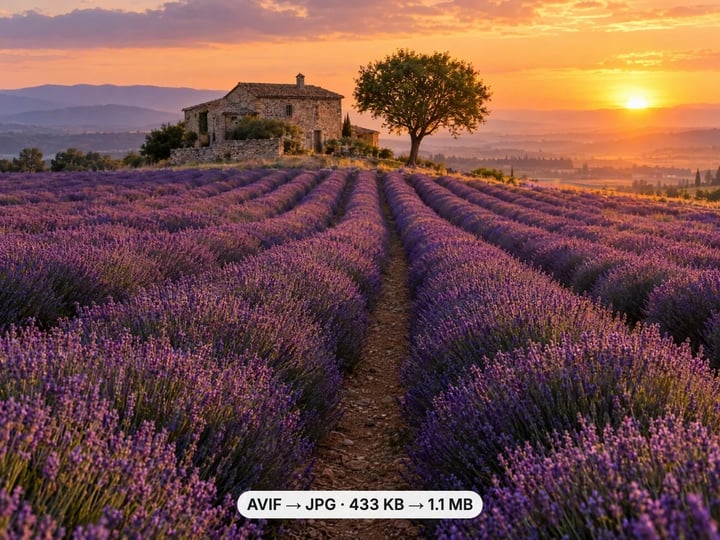 Real result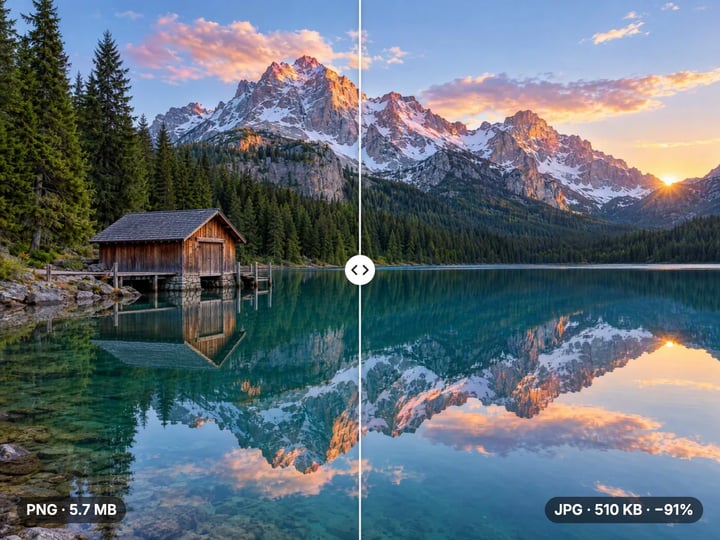
Quick answer
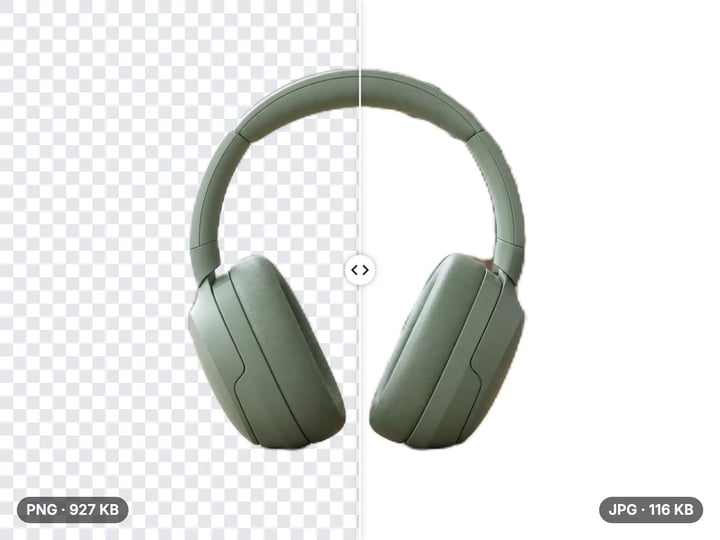
To convert AVIF to JPG for free, open Imagera’s AVIF to JPG Converter in a current browser, add the .avif file, keep the default 92% quality or adjust it, and press Convert to JPG. Your browser decodes the AVIF and saves a JPG with the same width and height. Transparent areas become white. The file is never uploaded or saved on our servers, and the JPG opens in every app.
Your image never leaves your device — nothing is uploaded or saved on our servers.
How it works
Drop in the .avif file. It stays on your device.
Keep 92% or lower it for a smaller JPG.
Press Convert to JPG and save the JPG to your device.
Why this one
Many editors, office apps, upload forms and print services still reject AVIF. JPG works in all of them.
Set JPG quality from 50 to 100%. The default of 92% keeps the image looking the same.
The JPG keeps the exact pixel dimensions of the AVIF. Nothing is cropped or resized.
Your browser decodes the AVIF on your device. Nothing is sent to or stored on a server.
Continue in Imagera
AVIF to JPG Converter edits the pixels you have. These studios use AI to create what is not in the picture yet — they run on credits.
 Next step
Too small to print? Enlarge a photo to 4K, 8K or 16K (15,360 px on the long edge).
Open studio Imagera
Edit images with Imagera Edit. Inpaint, modify, and transform any part of your image.
Open studio Imagera
Replace any photo background with AI-generated luxury scenes.
Open studioWho it is for
Turn .avif downloads into JPGs your photo viewer and editor can open.
Open AVIF images without hunting for an extra extension.
Submit images to forms and marketplaces that accept only JPG.
Guide
AVIF is a newer image format based on the AV1 video standard. It compresses photos very efficiently, often into smaller files than JPG or even WebP at a similar look, and it supports transparency, wide color and HDR. Websites increasingly serve AVIF to save bandwidth, and some apps and devices can save photos in it.
Support outside the browser has not caught up. Many photo viewers, image editors, office suites, upload forms, marketplaces and print services do not accept AVIF. On some Windows setups the file shows as a blank icon, or the Photos app asks for an extra extension before it will display it.
So AVIF files tend to arrive as a surprise: you save an image from a website, or someone sends you one, and it will not open where you need it. Converting it to JPG, the most widely supported image format, fixes that in one step.
1. Open the converter in a current version of Chrome, Edge, Firefox or Safari. The browser does the decoding, so it needs to be reasonably up to date.
2. Add the AVIF file. Drop it onto the page or tap to choose it. It stays on your device. JPG, PNG, WebP and HEIC images are accepted too.
3. Set the quality. The default of 92% keeps the image looking the same. Lower values make smaller files.
4. Press Convert to JPG. The image is decoded and re-saved as a JPG in your browser, at the same width and height.
5. Download the JPG. It will open in any app, editor or form that takes images.
If you have a paid plan or credits, you can select many AVIF files at once and convert them together. Processing is unlimited. Your first few downloads need no account; after that, a free sign-in keeps them going.
File size. AVIF is one of the most efficient image formats in common use. Expect the JPG to be larger than the AVIF it came from, sometimes noticeably so. That is not a fault in the conversion; JPG simply needs more bytes to show the same detail.
Quality. Both formats are lossy. Converting decodes the AVIF and compresses it again as JPG, so keep the quality high. At the default 92%, the JPG looks the same as the AVIF to the eye.
Support. This is where JPG wins outright. Every phone, computer, editor, email app, upload form and print service handles JPG. AVIF is displayed by current web browsers but remains patchy everywhere else.
The practical rule: keep AVIF for images that live on a website, where its small size helps pages load. Convert to JPG whenever the image has to leave the browser, to be edited, printed, uploaded or shared.
AVIF can hold more than a plain photo, and JPG cannot hold all of it.
Transparency. AVIF supports clear backgrounds; JPG does not. This converter fills transparent areas with white before saving, and blends soft edges onto white, so logos and cutouts do not end up on a black box.
Animation. Some AVIF files are short animations. A JPG is a single still image, so an animated AVIF converts as one still frame. Keep the original if you need the animation.
HDR and wide color. Some AVIF images store extra brightness or a wider range of colors than a standard screen shows. JPG is a standard-range format, so the converted image uses standard colors. Very bright highlights can look a little flatter than on an HDR display, while the image looks normal on ordinary screens and in print.
For most AVIF files, which are ordinary web photos, none of this applies, and the JPG looks the same.
The quality slider controls how much the JPG compresses.
92% (default): keeps the JPG visually identical to the AVIF. Because AVIF files are usually already compressed, this is the setting to keep unless you have a reason to change it.
85–90%: a reasonable choice for images headed to a website, email or social post, where a smaller file helps.
Below 80%: only for strict upload limits. Smooth skies, skin and gradients show blocky artifacts first, and they add to any the AVIF already had.
100%: the least compression JPG allows, but still lossy, and often a much larger file for no visible gain.
If a form has a hard size limit, such as 500 KB, convert here at 92%, then use the free Image Compressor, which works toward an exact target size without you guessing the quality.
Most online AVIF converters upload your file to a server, decode it there and send back a JPG. This one uses your own browser to decode the AVIF and save the JPG, all on your device. The file is never uploaded or saved on our servers.
Converting creates a fresh file from the image’s pixels, so metadata stored in the AVIF, such as camera details or location, is not carried into the JPG.
AVIF images saved from websites are often sized for a page layout rather than for print. The JPG keeps the same pixel size, so a small image stays small. Imagera’s paid AI Image Upscaler enlarges images to 4K and higher and adds detail instead of stretching pixels. It runs in the cloud and is paid with credits.
If you also have iPhone photos that will not open, the free HEIC to JPG Converter works the same way.
Free vs studio
Questions people ask
AVIF is a newer image format based on the AV1 video standard. It makes very small files for websites, but many apps and forms do not open it yet.
Open this converter in Chrome, Edge or Firefox and turn the AVIF into a JPG. The JPG opens in Photos, Office and every other app, with nothing installed.
Many upload forms, marketplaces and print services only accept JPG or PNG. Convert the AVIF to JPG here and upload the JPG instead.
Very little at the default 92% quality. Both formats are lossy, so keep the quality high to avoid adding visible artifacts.
AVIF compresses more efficiently than JPG, so the same image takes more bytes as a JPG. That is normal and is the cost of wider support.
Current versions of Chrome, Edge, Firefox and Safari display AVIF. If this converter cannot read your file, update your browser and try again.
JPG cannot store transparency, so clear areas are filled with white, and soft edges are blended onto white rather than turning black.
No. Renaming changes only the name; the data is still AVIF and apps will still reject it. Converting creates a real JPG.
Yes, if you have a paid plan or credits: select many AVIF files together. Otherwise convert them one at a time; processing is unlimited.
No. Your browser decodes and converts it on your own device. The file is never uploaded or saved on our servers.
More free tools
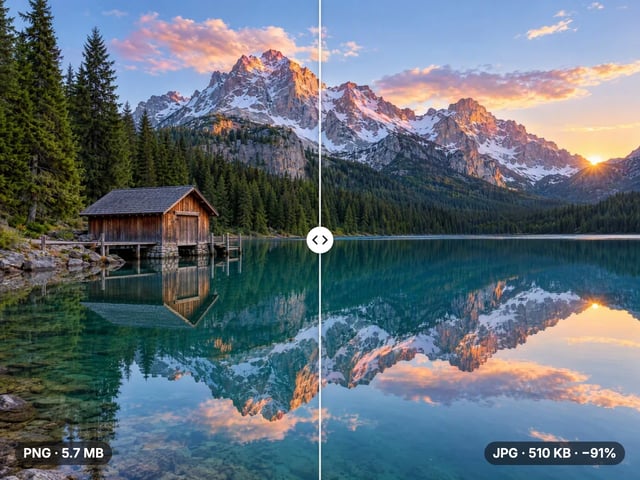
Compress, convert & resize to any size
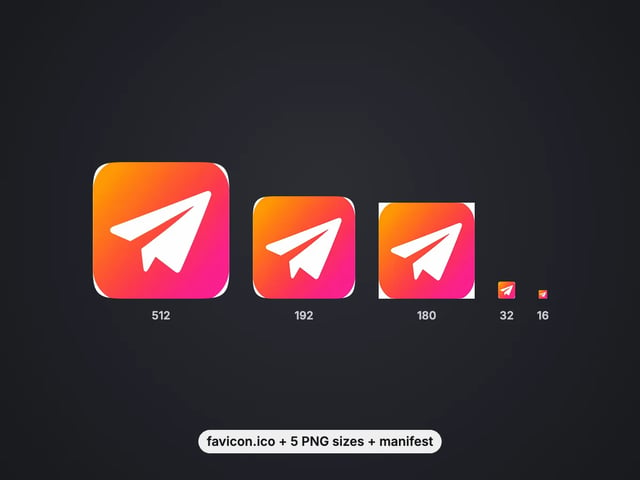
favicon.ico, PNG icons and site.webmanifest from one image
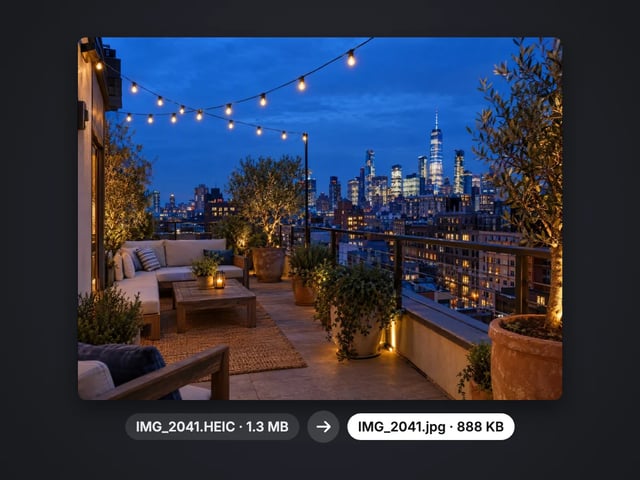
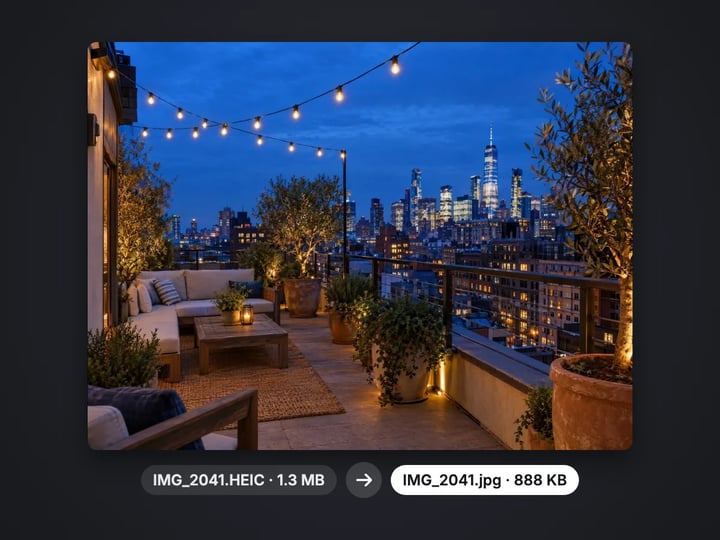
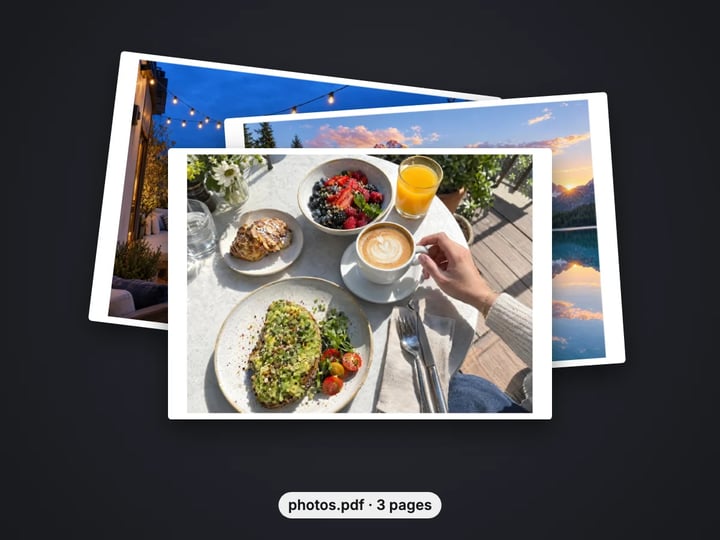
Turn iPhone photos into JPG, PNG or WebP
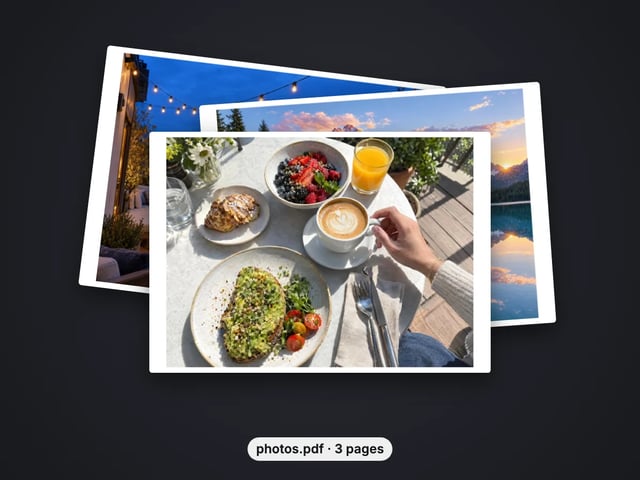
Combine images into one PDF
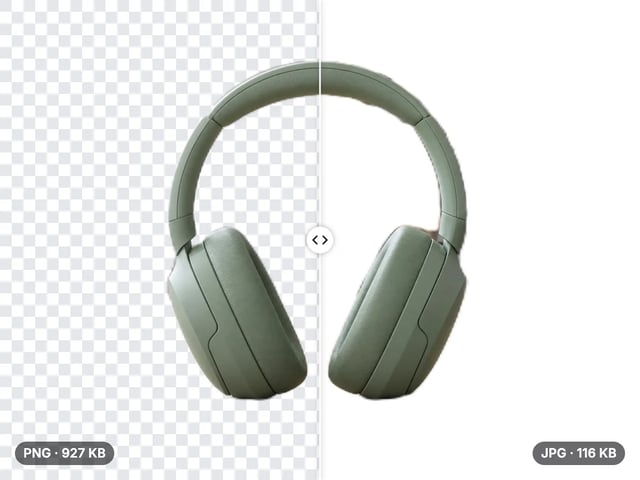
Smaller JPG files, white background
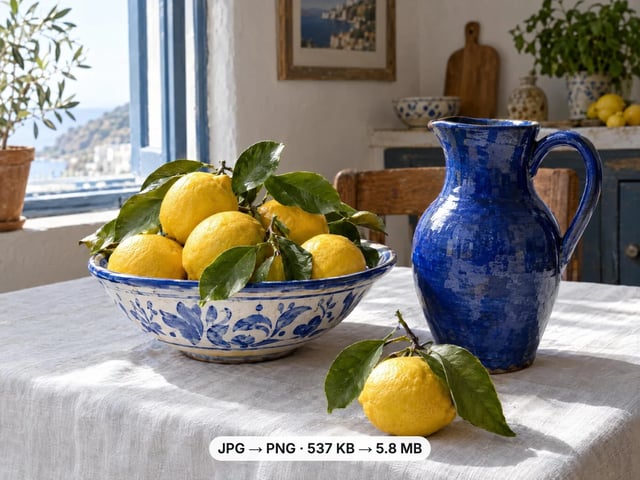
A lossless PNG copy of any photo
Open web images in any app
Keep transparency, open anywhere
Smaller web images, transparency kept
Lighter photos for faster pages
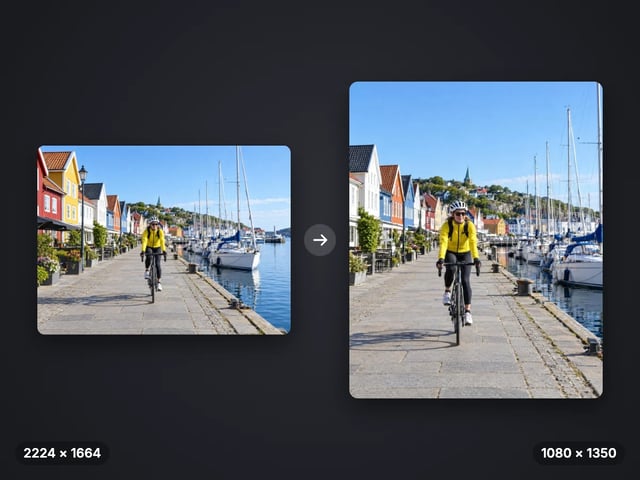
Exact pixel sizes and social presets
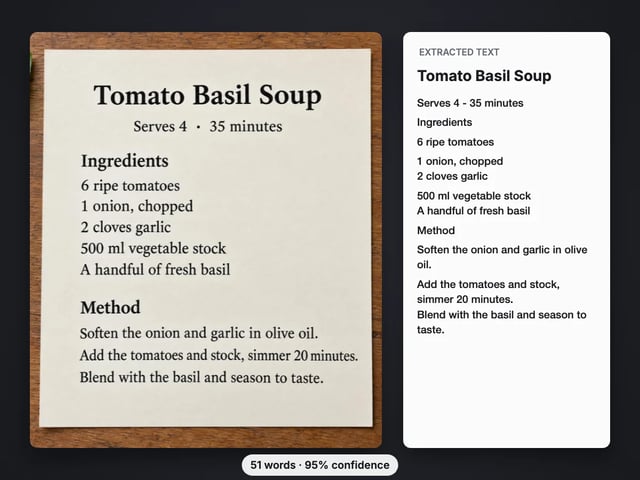
Copy the text out of a screenshot, photo or scan
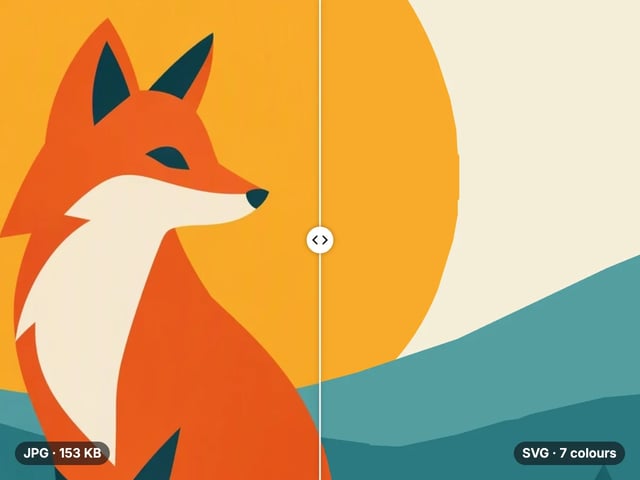
Trace a PNG or JPG into a scalable SVG
Complete your workflow
These pair with Print-Ready 16K Upscaler. Every tile says what the tool actually does — without leaving this page.
Repair scratches, tears and fading, then upscale for printing
Browser-based AI upscaling for 2K, 4K & 8K without a desktop license
Upscale videos to 4K with the same AI enhancement technology
Make AI images look like real camera photos before upscaling
Generate talking videos from your upscaled portraits
Add freckles, pores, scars, tattoos. Remove blemishes. Fix plastic AI skin instantly.
Edit images with Imagera Edit. Inpaint, modify, and transform any part of your image.
Remove flyaway hair and fix fine imperfections with surgical AI precision.
Change the words, color or font of text baked into a photo, poster or screenshot.
Imagera AI Team
Unified AI creation platform