Up to 30 images in one PDF
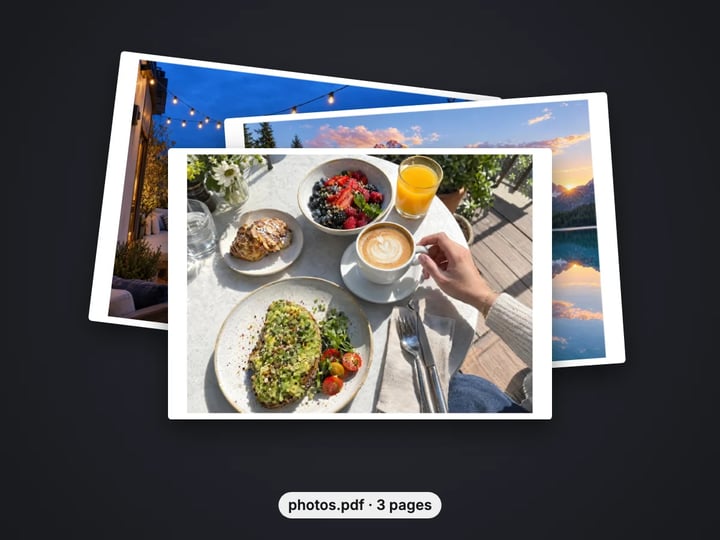
Add JPG, PNG, WebP or HEIC images together. Each becomes one page, in the order you add them.
Imagera AI - AI content creation platform for generating images, cloning voices, creating avatars, and enhancing videos. Privacy Policy | Terms
Convert & compress · free · private
Turn photos, scans and screenshots into a single PDF, one page per image. The PDF is built in your browser, so your documents are never uploaded.
The PDF is built in your browser on your own device. Your images and the finished PDF are never uploaded or saved on our servers.
 Real result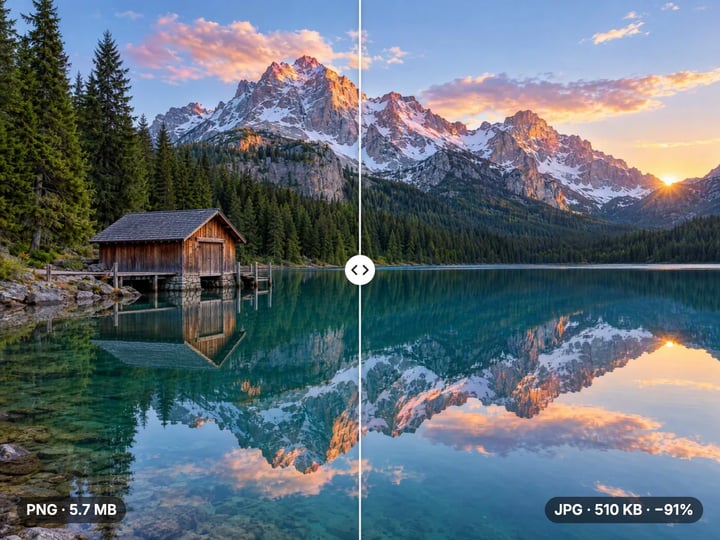
Quick answer
To convert JPG to PDF for free, open Imagera’s JPG to PDF Converter, add up to 30 images, choose a page size and press Create PDF. Each image becomes one page, in the order you add them. You can fit pages to each image or use A4 or US Letter with a margin. The PDF is built in your browser, so your images are never uploaded.
Your image never leaves your device — nothing is uploaded or saved on our servers.
How it works
Select up to 30 JPG, PNG, WebP or HEIC images in the order you want the pages.
Pick Fit to image, A4 or US Letter. On A4 or Letter, set orientation and margin if needed.
Press Create PDF. The file is built in your browser.
Save the PDF straight to your device.
Why this one
Add JPG, PNG, WebP or HEIC images together. Each becomes one page, in the order you add them.
Make each page match its image, or place images on standard A4 or Letter pages ready to print.
On A4 or Letter, let each page turn to suit its image or fix portrait or landscape, and add a margin up to 20 mm.
Receipts, IDs and signed forms never leave your device. The PDF is assembled in your browser.
Continue in Imagera
JPG to PDF Converter edits the pixels you have. These studios use AI to create what is not in the picture yet — they run on credits.
 Next step
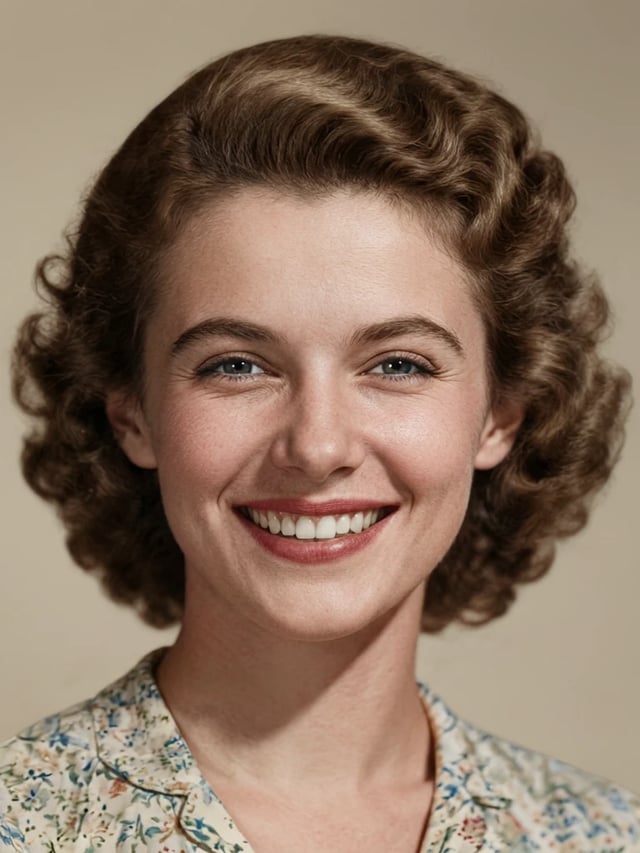
Repair scratches, fading & blur. Print-ready in minutes.
Open studio Imagera
Too small to print? Enlarge a photo to 4K, 8K or 16K (15,360 px on the long edge).
Open studio Imagera
Edit images with Imagera Edit. Inpaint, modify, and transform any part of your image.
Open studio Imagera
Replace any photo background with AI-generated luxury scenes.
Open studioWho it is for
Combine photos of ID pages, certificates and forms into the single PDF a portal asks for.
Turn a stack of receipt photos into one PDF for an expense report.
Send photographed homework, notes or worksheets as one tidy file.
Guide
Many websites and offices want one PDF, not a folder of photos. Job portals, visa applications, insurance claims, landlords, schools and expense systems often accept a single file, and a PDF keeps the pages together and in order.
A PDF also looks the same on every device. The recipient opens one file and scrolls through the pages, instead of downloading ten attachments and guessing the order.
Common examples: photos of both sides of an ID card, a multi-page contract photographed on a phone, a week of receipts for an expense claim, homework pages, a portfolio of artwork, or screenshots that together show a problem for customer support.
If you have taken photos of paper documents, turning them into a PDF is usually the final step before you send them.
1. Get your images ready. Photos, scans or screenshots in JPG, PNG, WebP or HEIC all work. iPhone photos can be added directly.
2. Add them in page order. Select up to 30 images. Pages follow the order you add them, so select page one first.
3. Choose the page size. Fit to image makes each page the shape of its image. A4 and US Letter place each image on a standard document page.
4. Set orientation and margin (A4 or Letter only). Auto turns each page to suit its image: tall images get portrait pages, wide ones get landscape. You can fix portrait or landscape instead, and add a margin of up to 20 mm.
5. Press Create PDF. The PDF is built in your browser and the tool shows the number of pages and the file size.
6. Download the PDF to your device.
Fit to image is the simplest option. Every page is exactly the size and shape of its image, with no white borders. It suits screenshots, artwork, photo sets and anything read on screen.
A4 is the standard paper size in most of the world. Choose it when the PDF will be printed outside North America, or when a form or portal expects standard document pages. Each image is scaled to fit inside the page without cropping or stretching.
US Letter is the standard in the United States and Canada. Choose it for printing there, or for American offices and portals.
With A4 or Letter, a margin of 5–10 mm keeps images away from the paper edge, which many home printers cannot print to. For on-screen use, a margin of 0 makes the image as large as possible on the page.
Shoot documents flat and square. Photograph paper from directly above in good, even light. Angled shots produce slanted pages that are harder to read.
Crop before converting. Remove table edges and backgrounds first so each page shows only the document.
Fix dark photos first. If a document photo is dim or yellow, run it through the free Photo Enhancer before building the PDF.
Mind the file size. Each image is embedded at high quality, so many large phone photos make a large PDF. If a portal has a size limit, shrink the images first with the free Image Compressor.
Check the page order. Pages follow the order you add the images. If one ends up in the wrong place, create the PDF again with the images added in the right order.
The images people turn into PDFs are often the most sensitive files they own: passports, ID cards, bank letters, medical forms, signed contracts and receipts with card details.
Most online JPG to PDF tools upload those images to their servers to build the PDF. Imagera’s converter builds the PDF inside your browser instead. The images are read on your own phone or computer, the PDF is assembled there, and neither is uploaded or saved on our servers.
It works in any modern browser on Windows, Mac, Android and iPhone, without installing an app. That also makes it usable on a shared or work computer where you cannot add software.
Processing is unlimited. Your first few downloads need no account; after that, a free sign-in keeps them going. There is no watermark on the pages.
People often use a JPG to PDF tool to collect scans of old family photos into one file to share with relatives. That works well: every scan becomes a page, and one PDF is easier to send than a folder.
The PDF keeps each image exactly as it is, though. If the originals are faded, scratched, torn or discolored, those flaws are in the PDF too.
Imagera’s paid AI photo restorer uses AI to repair scanned photos: reducing scratches and damage and bringing back faded detail. It runs in the cloud and is paid with credits.
A practical order is to restore the photos that need it first, then combine the results into a PDF with this free tool. For light fixes to brightness and color, the free Photo Enhancer is often enough, and it also runs entirely on your device.
Free vs studio
Questions people ask
Open the JPG to PDF Converter, select up to 30 images in page order, choose a page size and press Create PDF. Each image becomes one page of a single PDF.
Open this page in Safari, choose your photos from the library and press Create PDF. HEIC photos work directly, and nothing is uploaded.
Yes. PNG, WebP and HEIC work as well as JPG. Choose Fit to image for screenshots so each page matches the screen shape.
With this tool the PDF is built in your browser, so your ID images are never uploaded or saved on our servers. That is safer than tools that upload your files.
Choose A4 as the page size. Each image is scaled to fit the page without cropping. Add a 5–10 mm margin if you plan to print it at home.
Each image is embedded at high quality, so large phone photos add up. Shrink the images first with the free Image Compressor, then create the PDF again.
Pages follow the order you add the images. To change the order, create the PDF again, adding the images in the order you want.
Images are embedded as high-quality JPEG, so the pages look the same to the eye. Very slight compression is applied to keep the PDF a reasonable size.
More free tools
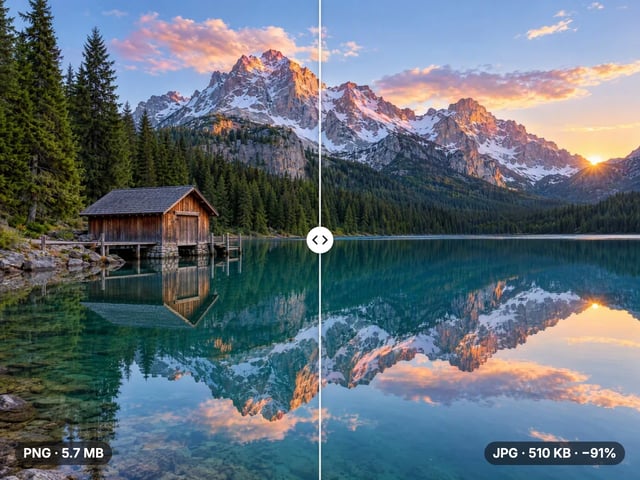
Compress, convert & resize to any size
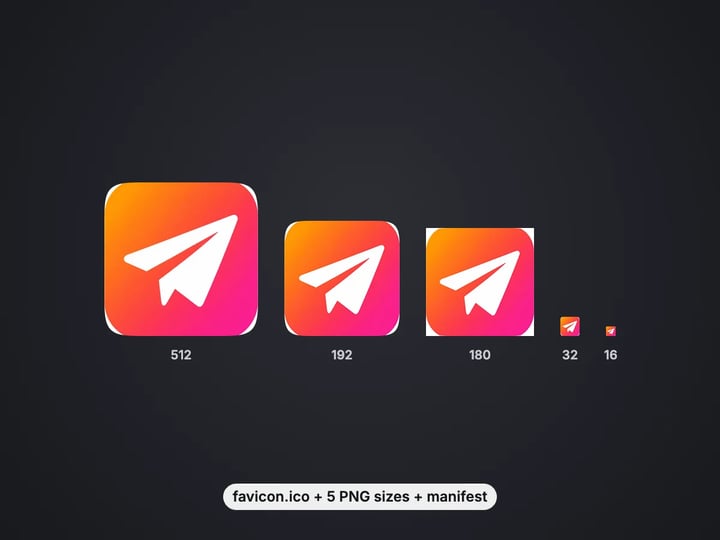
favicon.ico, PNG icons and site.webmanifest from one image
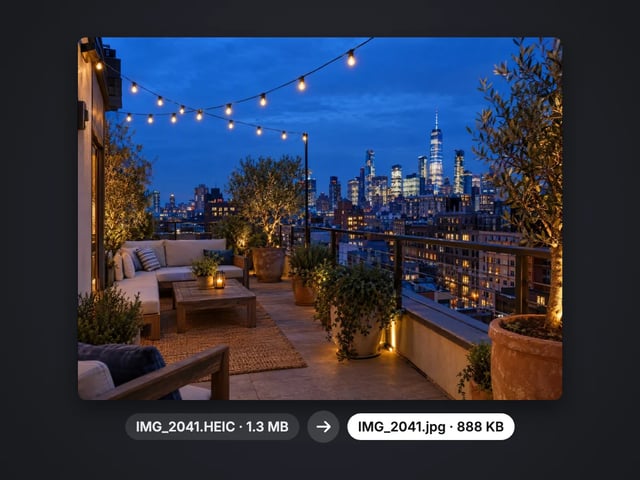
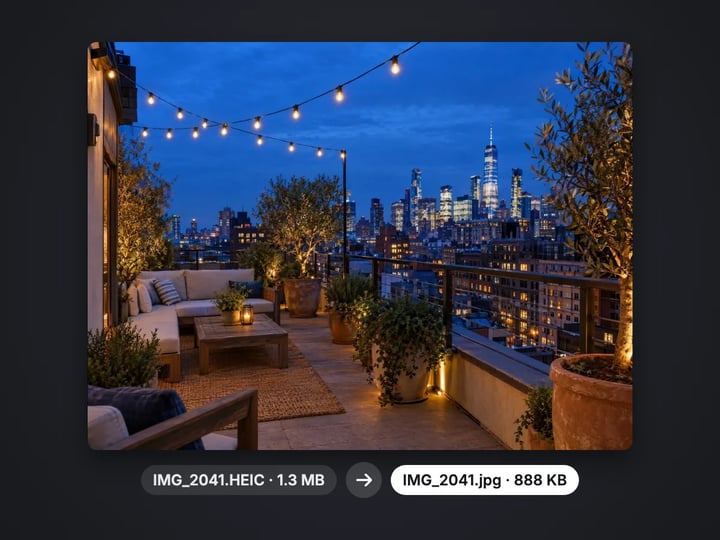
Turn iPhone photos into JPG, PNG or WebP
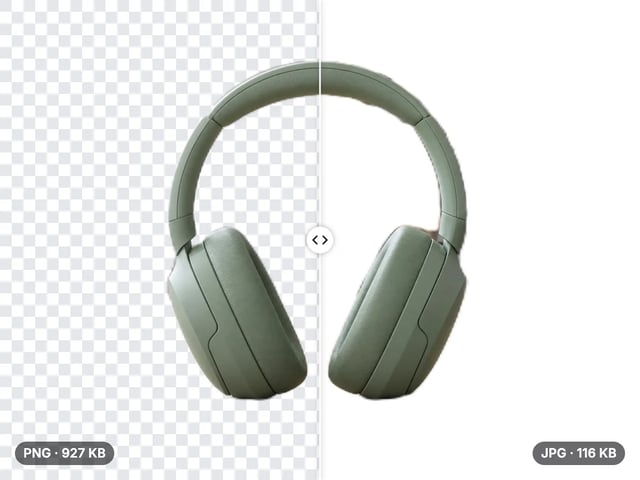
Smaller JPG files, white background
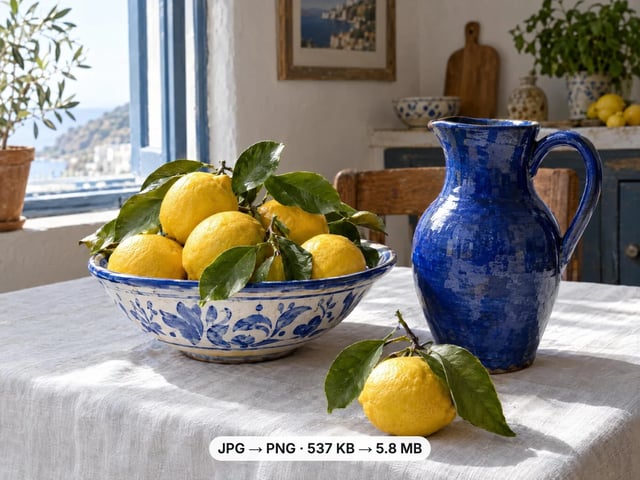
A lossless PNG copy of any photo
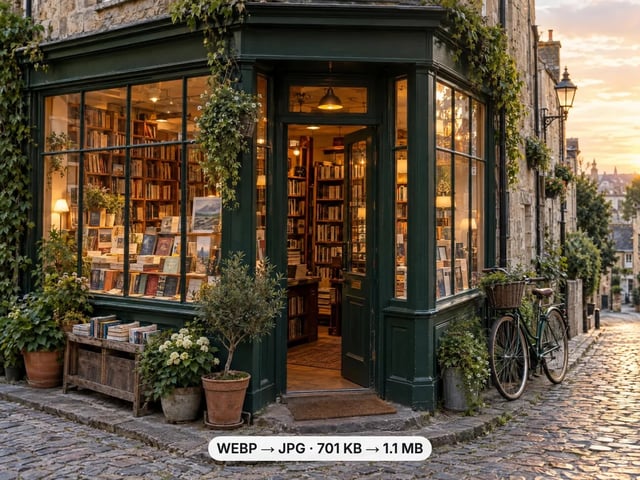
Open web images in any app
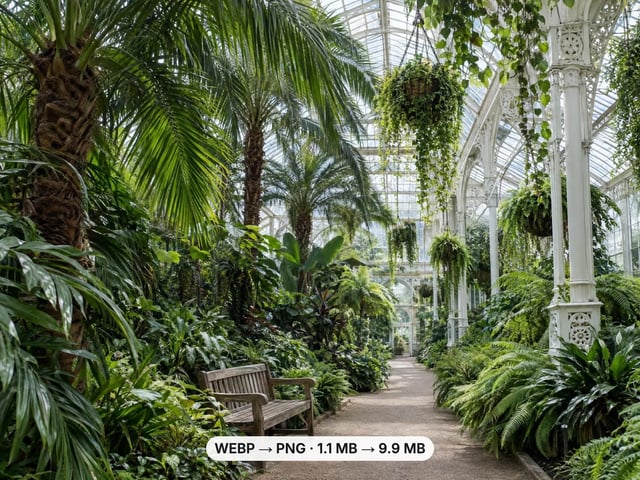
Keep transparency, open anywhere
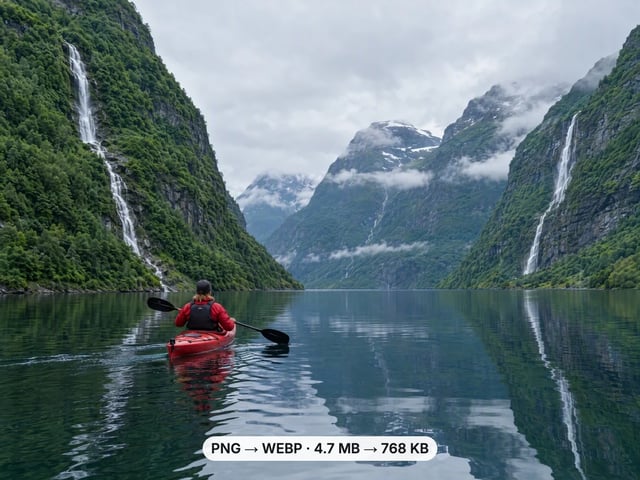
Smaller web images, transparency kept
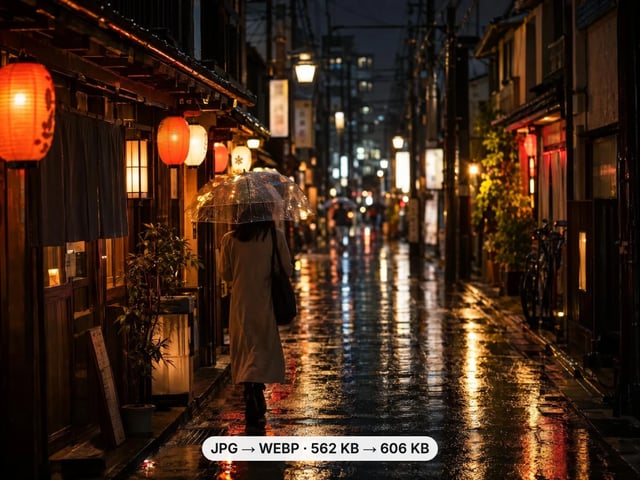
Lighter photos for faster pages
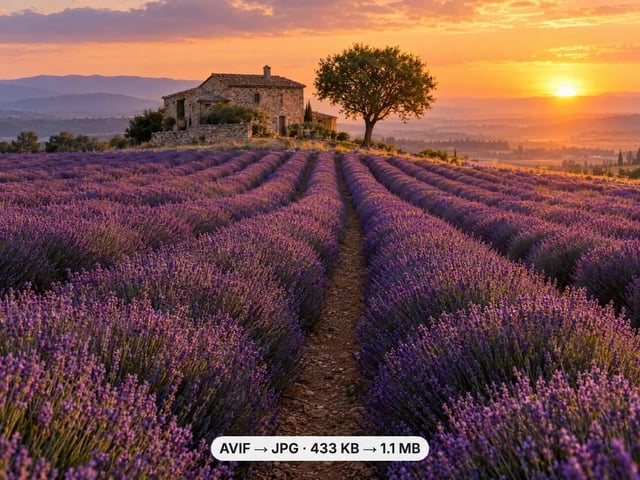
Open AVIF images in any app
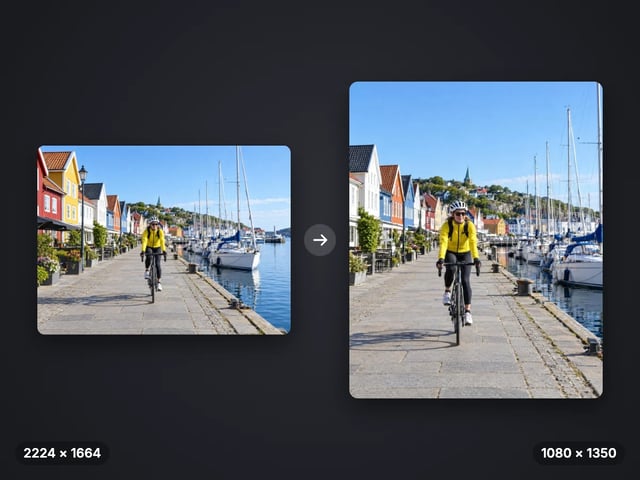
Exact pixel sizes and social presets
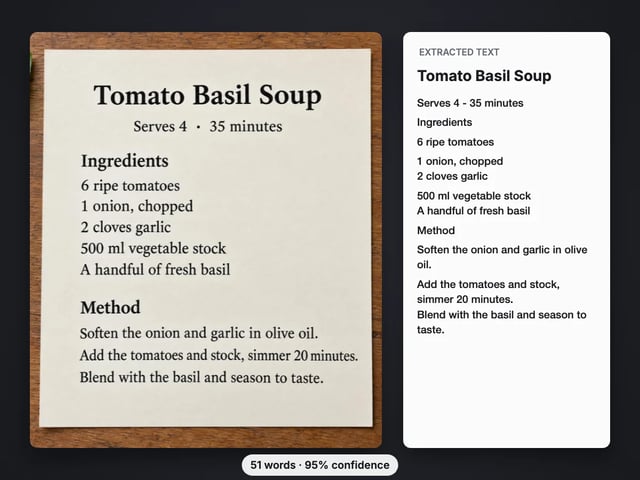
Copy the text out of a screenshot, photo or scan
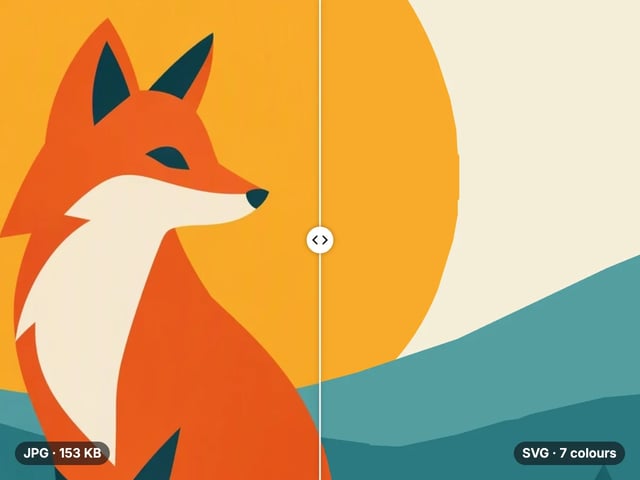
Trace a PNG or JPG into a scalable SVG
Complete your workflow
These pair with HD Photo Restorer. Every tile says what the tool actually does — without leaving this page.
Edit images with Imagera Edit. Inpaint, modify, and transform any part of your image.
Remove flyaway hair and fix fine imperfections with surgical AI precision.
Change the words, color or font of text baked into a photo, poster or screenshot.
Free passport, visa & ID photos — auto-cropped to any country's exact size, background and file size, right on your device.
Imagera AI Team
Unified AI creation platform