Four tracing styles
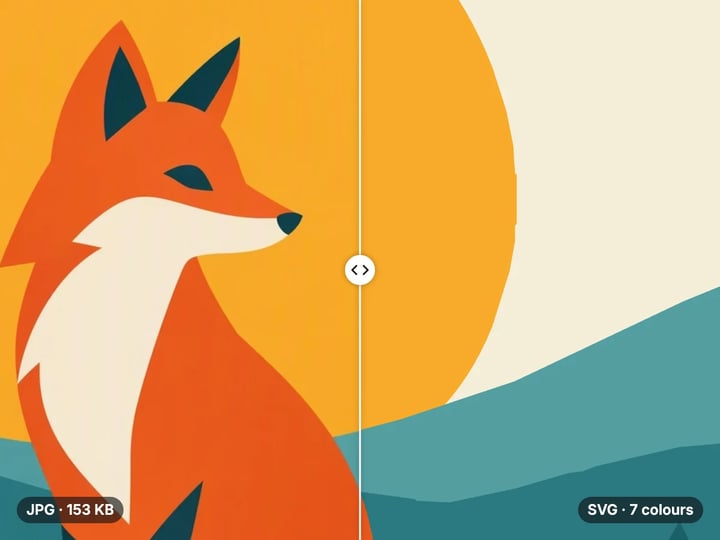
Flat-color logos, detailed images, black-and-white line art, or bold posterized shapes.
Imagera AI - AI content creation platform for generating images, cloning voices, creating avatars, and enhancing videos. Privacy Policy | Terms
Convert & compress · free · private
Turn a PNG or JPG into an SVG made of smooth, filled shapes that stay sharp at any size. Pick a style for logos, detailed images, line art or posters. It runs in your browser, so your image is never uploaded.
Tracing runs in your browser on your own device. Your image is never uploaded or saved on our servers.
 Real result
Quick answer
To convert an image to SVG for free, open Imagera's Image to SVG converter, add a PNG or JPG and choose a style: Logo, Detailed, Line art or Posterized. Set the number of colors, press Convert to SVG, compare before and after, and download the .svg file. The image is traced into smooth filled shapes in your browser, so it is never uploaded. Clean, sharp images trace best.
Your image never leaves your device — nothing is uploaded or saved on our servers.
How it works
Choose a PNG, JPG, WebP or HEIC image. It stays on your device.
Logo for flat artwork, Detailed for photos, Line art for drawings, Posterized for bold shapes.
Press Convert to SVG and compare before and after. Adjust Colors or Detail if needed.
Save the .svg file and open it in any design app or browser.
Why this one
Flat-color logos, detailed images, black-and-white line art, or bold posterized shapes.
Trace with 2 to 32 colors, picked from your image. Tiny in-between edge colors are dropped from logos so shapes stay clean.
Transparent backgrounds stay transparent, and line art is saved as black shapes only, ready for cutting machines.
The SVG keeps your image's width and height, so it drops into a layout exactly where the original was.
Continue in Imagera
Image to SVG edits the pixels you have. These studios use AI to create what is not in the picture yet — they run on credits.
 Next step
Too small to print? Enlarge a photo to 4K, 8K or 16K (15,360 px on the long edge).
Open studio Next step
For advanced users — bring your own LoRA for a consistent style or character.
Open studio Imagera
Edit images with Imagera Edit. Inpaint, modify, and transform any part of your image.
Open studio Imagera
Replace any photo background with AI-generated luxury scenes.
Open studioWho it is for
Turn the only copy of your logo, a small PNG, into an SVG for signs, shirts and your website.
Make cut files for vinyl cutters, laser engravers and stencils from a drawing or clip art.
Get editable shapes from a sketch or reference image to refine in your design app.
Guide
A PNG or JPG is a grid of colored pixels. Enlarge it and the edges turn blocky. An SVG describes shapes instead: outlines and curves filled with color, which stay sharp at any size, from a favicon to a billboard.
This tool traces your image into those shapes. It picks the main colors, finds the regions of each color, and follows their edges with straight lines and smooth curves. The result is a real vector file you can open, recolor and edit in design software.
Four styles cover the common jobs:
- Logo / flat colors for logos, icons and flat artwork. - Detailed for photos and illustrations, with tighter curves and more small shapes. - Black & white line art for drawings, signatures and stencils. - Posterized for bold, simplified shapes with a screen-print look.
The SVG keeps your image's original width and height.
1. Add your image. PNG, JPG, WebP and HEIC all work. Use the largest, sharpest copy you have. 2. Choose a style. Start with Logo / flat colors for anything with a few solid colors, and Detailed for photos. 3. Set the colors. For a logo, count its real colors, including the background, and use that number or one more. For photos, 16 to 32 colors keep more of the shading. 4. Press Convert to SVG. Drag the before/after divider to compare. 5. Adjust Detail in Advanced if needed. Raise it when small parts such as thin lines or small text disappear. Lower it when edges look jagged or the file is too large. 6. Download the .svg file.
Large images are traced at up to 1,000 pixels on the long side for speed, and the shapes are scaled back up to your image's full size.
Logo / flat colors lightly smooths the image first, which melts compression speckles into the color they belong to. It also drops tiny in-between colors that appear along anti-aliased edges, so you do not get thin halos around every shape. A logo on a transparent background keeps a transparent background.
Detailed keeps small shapes and follows edges tightly. It suits photos and textured illustrations, but files grow quickly: a photo at 24 colors can make thousands of shapes and a file of a few megabytes.
Black & white line art ignores color. It finds the level that best separates ink from paper automatically and saves only the ink, as black shapes on a transparent background. That is what cutting machines, laser engravers and stamp makers want.
Posterized smooths inside each color region before tracing, giving bold blobs with a graphic, screen-printed feel. Try 4 to 6 colors.
The stats show how many colors and shapes were written and the file size.
Tracing follows the pixels it is given. It does not know what a letter or a face should look like, so the quality of the SVG depends on the quality of the image.
Traces well: logos, icons, clip art, flat illustrations, clean line drawings and bold graphics, especially from a sharp image at least a few hundred pixels across.
Traces roughly:
- Tiny or blurry logos. A 150-pixel logo from an email signature becomes lumpy shapes. Get a larger copy, or sharpen it first. - Small text. Letters a few pixels tall lose their shapes. Retype text in a design app if it must be crisp. - Photos, which have smooth shading that becomes flat color bands. That can look great as an effect, but it is not a photo in vector form. - Gradients and shadows, which turn into steps of color.
If the image is fully transparent or a single flat tone, the tool tells you there is nothing to trace instead of returning an empty file.
Logos, product artwork and unreleased designs are exactly the files people are careful about sharing. Many online converters upload them to a server to trace.
This converter traces in your browser, on your own device. Your image is not uploaded and nothing is saved on our servers. Once the page has loaded, the work is done by your own phone or computer, and the SVG is created right there.
It also works with iPhone photos: HEIC images are read on your device, so a photo of a sketch goes straight from your camera roll to an SVG.
The SVG itself is clean. It contains your shapes and colors, with no hidden generator comments, tracking or watermark.
Converting is unlimited. Your first few downloads need no account; after that, a free sign-in keeps them going. Converting many images at once is part of the paid plans.
The free converter turns the image you have into vector shapes. When the image is good, that is all you need.
Often it is not. The only copy of a logo is a small, blurry PNG from an old website, and tracing it faithfully reproduces the blur as wobbly edges. Imagera's paid AI image upscaler rebuilds a small image at a higher resolution with sharper edges. Upscale first, then trace the crisp version here, and the shapes come out far cleaner.
Sometimes there is no logo yet at all. The paid AI image generator creates a logo, icon or illustration from a short description, such as "a flat, two-color fox logo on a white background". Flat, simple prompts give images that trace cleanly.
Both run in the cloud and use credits. The tracing step stays free and private.
Free vs studio
Questions people ask
Add the PNG, keep the style on Logo / flat colors and set Colors to the number of colors in the logo. Press Convert to SVG, check the edges with the before/after divider and download.
Choose Black & white line art. Only the dark shapes are saved, on a transparent background, so the SVG imports as a clean cut layer. Start from a high-contrast drawing or clip art.
Yes, with the Detailed or Posterized style. The photo becomes flat color regions, which looks illustrated rather than photographic. Use 16 to 32 colors for more shading.
The source is probably small, blurry or heavily compressed. Use a larger copy, raise Detail in Advanced, or sharpen the image with an AI upscaler before tracing.
Detailed images with many colors produce thousands of shapes. Lower the Colors setting, lower Detail, or use the Logo or Posterized style for a much smaller file.
Yes. If your PNG has a transparent background, the SVG leaves those areas empty. Line art is always saved as ink on a transparent background.
No. Letters are traced as shapes, not as editable text. If the wording needs changing, retype it in a design app using the same font.
The SVG has the same width and height as your image. Because it is made of shapes, it can then be scaled to any size without losing sharpness.
Sharpen it first. The paid AI image upscaler rebuilds a small logo at a higher resolution with cleaner edges; tracing that version here gives much smoother shapes.
More free tools
Compress, convert & resize to any size
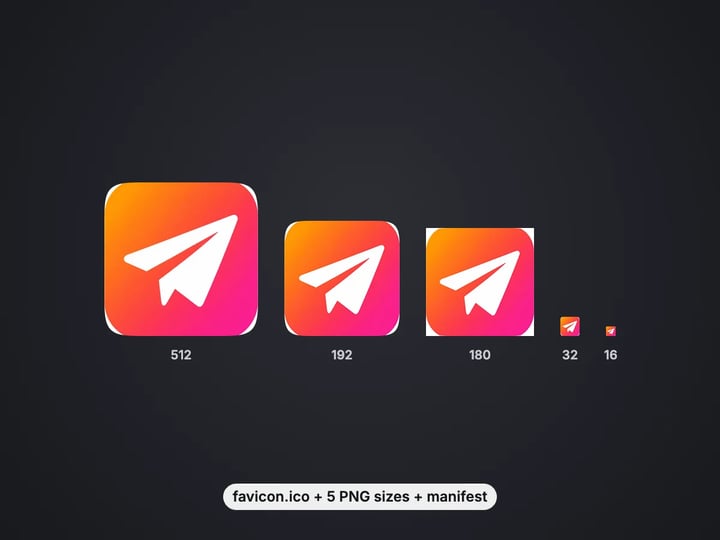
favicon.ico, PNG icons and site.webmanifest from one image
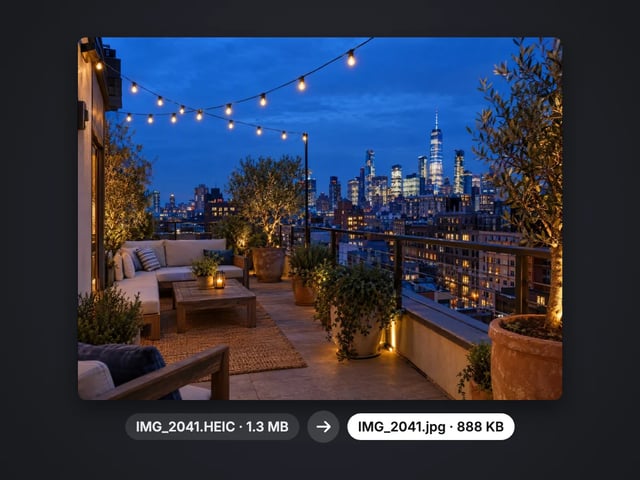
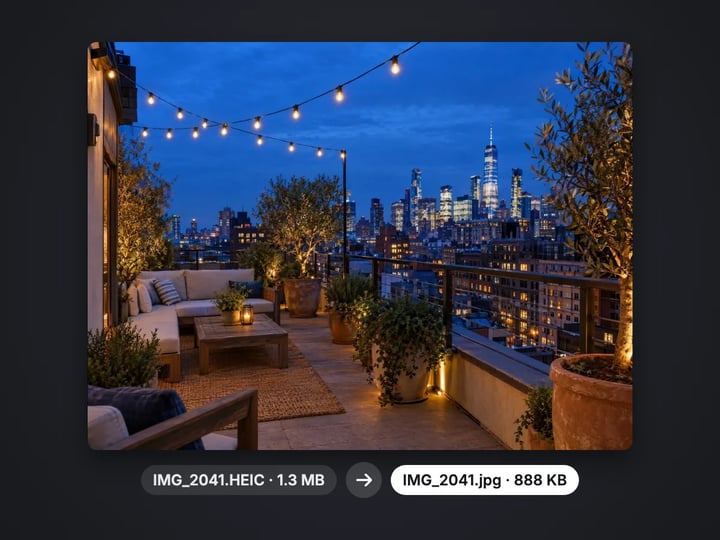
Turn iPhone photos into JPG, PNG or WebP
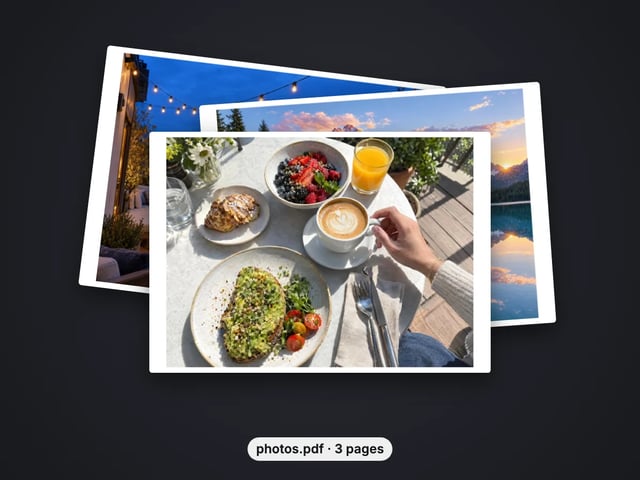
Combine images into one PDF
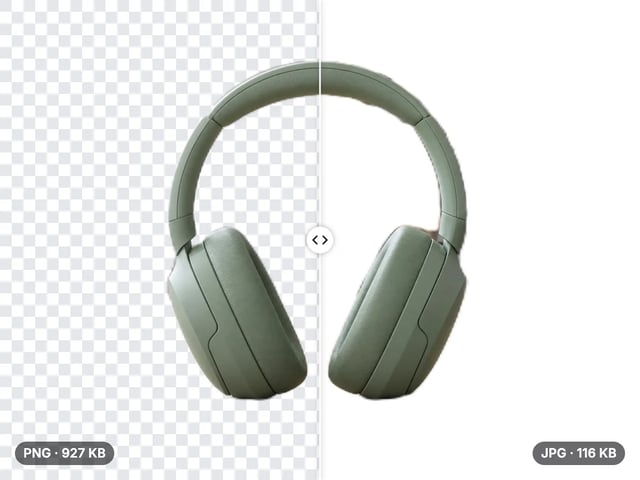
Smaller JPG files, white background
A lossless PNG copy of any photo
Open web images in any app
Keep transparency, open anywhere
Smaller web images, transparency kept
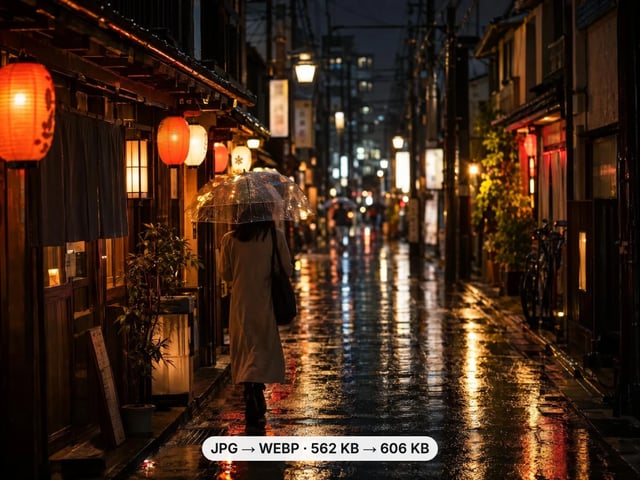
Lighter photos for faster pages
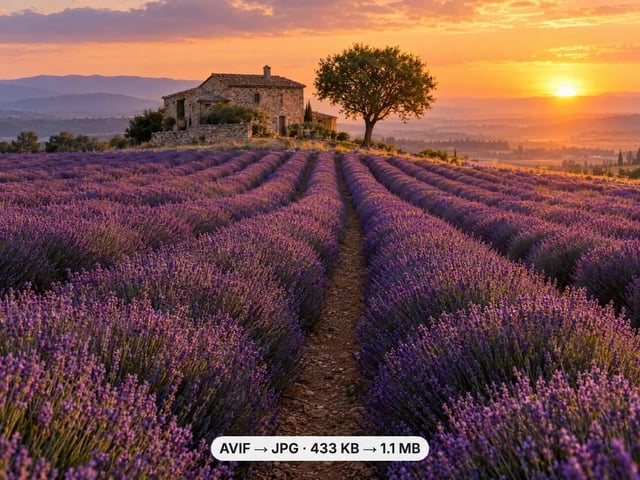
Open AVIF images in any app
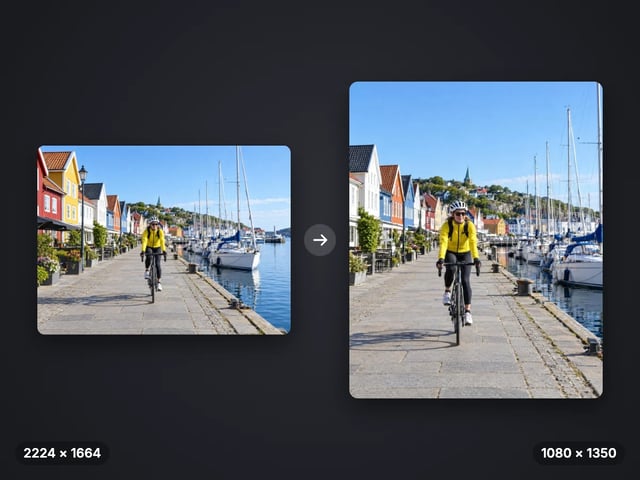
Exact pixel sizes and social presets
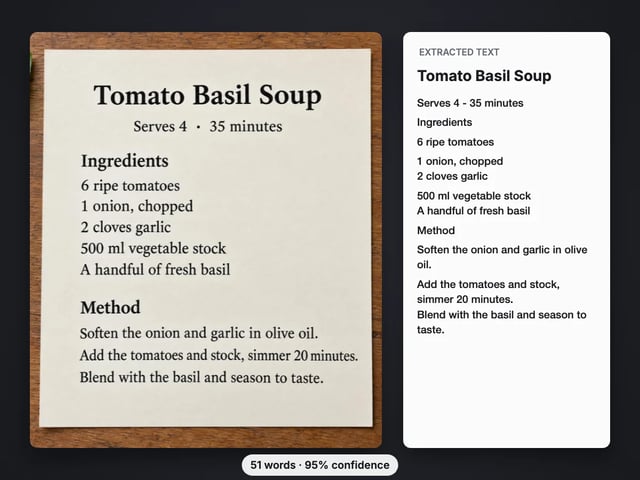
Copy the text out of a screenshot, photo or scan
Complete your workflow
These pair with Print-Ready 16K Upscaler. Every tile says what the tool actually does — without leaving this page.
Repair scratches, tears and fading, then upscale for printing
Browser-based AI upscaling for 2K, 4K & 8K without a desktop license
Upscale videos to 4K with the same AI enhancement technology
Make AI images look like real camera photos before upscaling
Generate talking videos from your upscaled portraits
Add freckles, pores, scars, tattoos. Remove blemishes. Fix plastic AI skin instantly.
Edit images with Imagera Edit. Inpaint, modify, and transform any part of your image.
Remove flyaway hair and fix fine imperfections with surgical AI precision.
Change the words, color or font of text baked into a photo, poster or screenshot.
Imagera AI Team
Unified AI creation platform