Only the skin changes
Eyes, brows, lips, nostrils, hair and beards are left sharp. The tool smooths the face and neck skin only.
Imagera AI - AI content creation platform for generating images, cloning voices, creating avatars, and enhancing videos. Privacy Policy | Terms
Faces · free · private
Soften blemishes, redness and uneven tone in portraits while keeping pores and fine texture, so skin still looks like skin. Faces are found automatically, right in your browser.
Faces are found by a model that runs in your browser. Your portrait is never uploaded or saved on our servers.
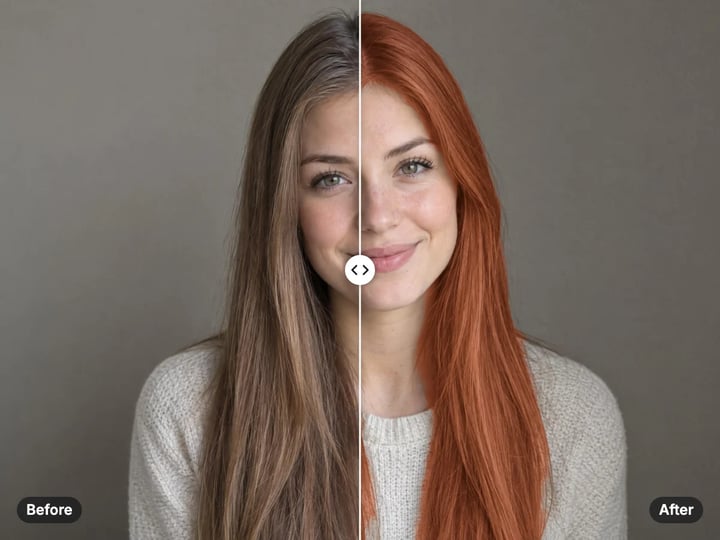
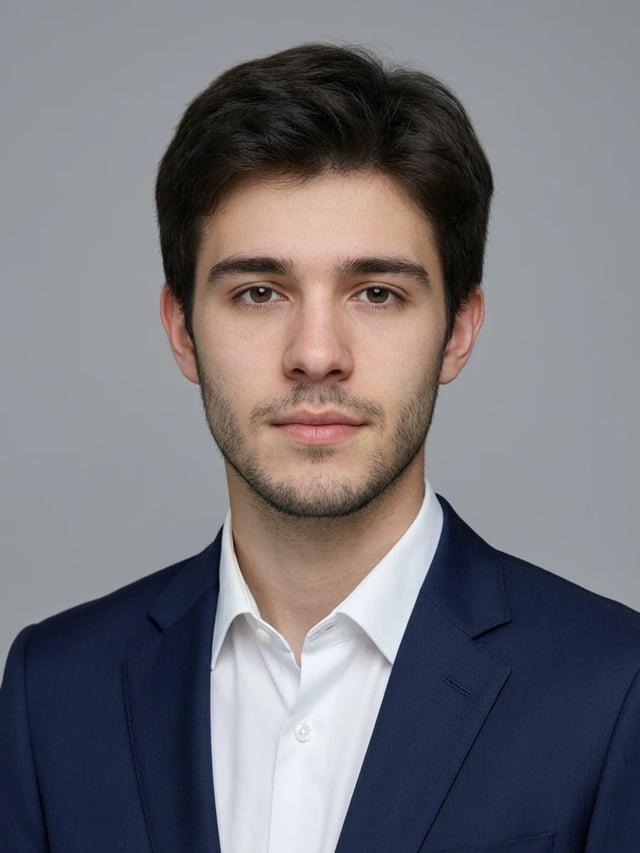
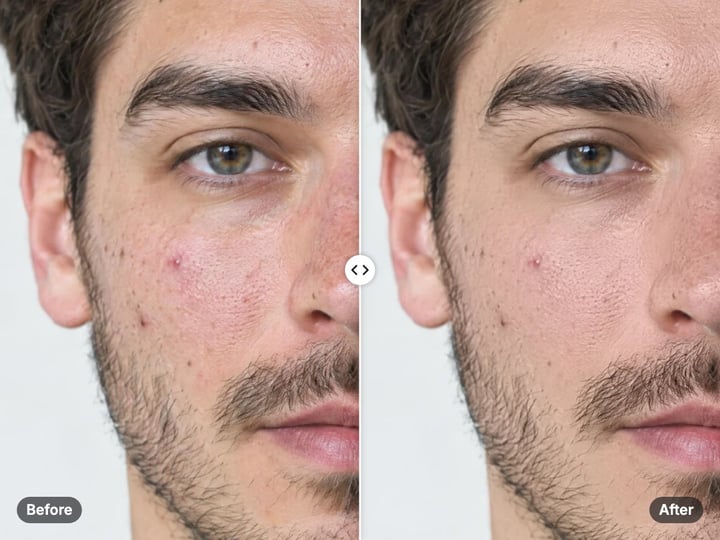 Real result
Quick answer
To smooth skin in a photo for free, open Imagera’s Skin Smoothing tool, add a portrait and press Smooth skin. Faces are found automatically; blemishes, redness and uneven tone are softened while pores and fine texture are kept, so the result does not look plastic. Eyes, lips, brows, hair and beards stay sharp. Adjust Strength and Keep texture to taste. It runs in your browser, so your photo is never uploaded.
Your portrait never leaves your device — nothing is uploaded or saved on our servers.
How it works
Choose a photo with a clearly visible face. JPG, PNG, WebP and HEIC work.
Start at the default, then raise it for more smoothing or lower it for a lighter touch.
Press Smooth skin and drag the slider to compare before and after.
Save the retouched portrait to your device.
Why this one
Eyes, brows, lips, nostrils, hair and beards are left sharp. The tool smooths the face and neck skin only.
Blemishes and blotches are softened while pore-scale detail is kept. A texture control sets how much.
Evens out redness and patchy color while keeping the light and shadow that shape the face.
Finds and retouches each clearly visible face, on every skin tone, and tells you how many it smoothed.
Continue in Imagera
Skin Smoother edits the pixels you have. These studios use AI to create what is not in the picture yet — they run on credits.
 Next step
Turn a few selfies into a studio-quality professional headshot for LinkedIn, work or your CV.
Open studio Next step
Fix closed eyes, add a natural smile — rescue any photo
Open studio Imagera
Too small to print? Enlarge a photo to 4K, 8K or 16K (15,360 px on the long edge).
Open studio Imagera
Edit images with Imagera Edit. Inpaint, modify, and transform any part of your image.
Open studioWho it is for
Tidy a LinkedIn, dating or social profile picture without the airbrushed look.
Give quick proofs a light, natural clean-up before the full edit.
Soften a breakout or flash redness on a photo you want to share or print.
Guide
The tool finds each face, decides which pixels are skin, and softens only those.
Finding the skin. An on-device face model maps each face. The face and neck are marked, and the eyes, lashes, brows, lips and nostrils are cut out so they stay sharp. The tool then measures the color of that face’s cheeks and keeps only pixels that match it, which leaves beards, stubble, fringes, glasses and collars untouched, on any skin tone.
Smoothing without the plastic look. The skin is split into three layers: the overall shape and light, the fine texture of pores, and the middle layer where blemishes, redness and blotches live. The middle layer is softened; the shape and most of the fine texture are kept. That is the approach professional retouchers use, and it is why the result still looks like skin.
1. Choose a portrait. A face that is clearly visible and reasonably large in the frame gives the best result. 2. Press Smooth skin with the default settings first. They are tuned for a natural, light retouch. 3. Compare by dragging the slider across the face at full size. 4. Adjust Strength. For a barely-there clean-up, try 30–40. For a smoother, editorial look, try 70–85. 5. Adjust Keep texture in the advanced settings. Raise it if the skin looks too soft; lower it for a polished finish. 6. Leave Even tone on to calm redness and patches. Turn it off if you want to keep natural color variation, such as blush or freckles, fully intact. 7. Download the result.
For group photos, each face is found and smoothed separately.
Start lighter than you think. Skin that looks perfect at thumbnail size can look waxy at full size. Always check the result zoomed in.
Texture is what sells it. Real skin has pores, fine lines and tiny color changes. Keep texture at 50 or higher for portraits that will be seen large, such as prints or profile headers.
Let character stay. Deep lines and freckles are strong features, and the tool keeps strong edges on purpose. Smile lines and expression wrinkles are part of a face; they soften a little, but they are not erased.
Match the light. Harsh flash and direct sun create shiny spots and hard shadows. Smoothing softens color patches, but it does not remove shine or relight a face.
One pass is usually enough. Running the result through again adds more smoothing each time and quickly looks artificial.
It can soften spots, small blemishes, redness, blotchy patches and uneven color, on every face it finds and on any skin tone, while keeping eyes, lips, brows, hair and beards sharp.
It does not reshape faces, slim anything, whiten teeth, change eye color or remove large features like moles or scars. It retouches the skin surface only, which keeps the person recognisable.
It does not change lighting or background. If the photo is dark or has a color cast, run the free Photo Enhancer first.
Faces need to be visible. Very small faces in a wide shot, faces turned fully sideways or covered by masks or hands may not be found. If no face is found, the tool tells you instead of changing the photo.
Neck and chest skin just below the face is included when its color matches the face.
Portraits are personal, and many online retouch apps upload them to a server for processing. This one does not.
The face model is downloaded to your browser once and runs on your own phone or computer. Your photo is read from your device, retouched in memory and handed back as a download. Nothing is uploaded or saved on our servers.
That makes it suitable for photos you would rather keep private: family pictures, photos of children, or a draft profile picture you are not ready to share. The model is cached after the first run, so later photos start faster. iPhone HEIC photos work directly.
Smoothing is unlimited. Your first few downloads need no account; after that, a free sign-in keeps them going. There is no watermark on the result.
The free Skin Smoother is a retouch. It keeps your photo as it is, including the pose, lighting, background and expression, and cleans up the skin. It is quick, private and right for a photo you already like.
Imagera’s paid Studio Headshot Maker creates a new photo. From a selfie, AI produces a professionally lit headshot with the outfit, backdrop and framing you choose, ready for LinkedIn, a CV or a company page. It runs in the cloud and is paid with credits.
If a great photo just needs a clean-up, use the free tool. If the photo itself is the problem — bad light, a messy background, a casual shirt — a studio headshot is the faster fix. And if someone blinked or did not smile, the Eye & Smile Fixer can open eyes and add a natural smile with AI.
Free vs studio
Questions people ask
Keep the strength moderate and the Keep texture setting at 50 or higher. The tool softens blemishes and color patches but keeps pore texture and sharp features, which is what keeps skin looking real.
Yes, the tool softens spots, breakouts and the redness around them. Raise the strength for more visible blemishes. Very large or raised spots may soften rather than disappear completely.
It softens fine lines a little but keeps deeper lines, because strong edges are preserved on purpose. That keeps faces natural and recognisable rather than erasing age or expression.
No. Eyes with their lashes, brows, lips and nostrils are cut out of the smoothing area, and hair or beards are left out because their color does not match the skin.
Yes. Every clearly visible face is found and smoothed on its own, and the tool tells you how many faces it retouched.
Yes. The tool measures the color of each face it finds and only smooths pixels that match, so deep, medium and light skin tones are all handled the same way.
It calms redness and patchy color by moving each skin pixel’s color, not its brightness, toward the surrounding skin. The light and shadow that give the face its shape stay as they were.
Not with this tool, which retouches the photo you have. Imagera’s paid Studio Headshot Maker uses AI to create a new, professionally lit headshot from a selfie, with the outfit and backdrop you choose.
Yes. Open the page in your phone’s browser and choose a portrait. HEIC photos from an iPhone work directly, and the photo stays on your phone.
More free tools
Complete your workflow
These pair with Studio Headshot Maker. Every tile says what the tool actually does — without leaving this page.
Create standards-ready passport and ID photos
Adjust pose and styling while keeping the same face
Prepare finished portraits for high-resolution delivery
AI upscaling to 1080p/2K/4K. Ultra-high resolution. Batch process up to 5 images.
Add freckles, pores, scars, tattoos. Remove blemishes. Fix plastic AI skin instantly.
Edit images with Imagera Edit. Inpaint, modify, and transform any part of your image.
Remove flyaway hair and fix fine imperfections with surgical AI precision.
Imagera AI Team
Unified AI creation platform