Opens everywhere
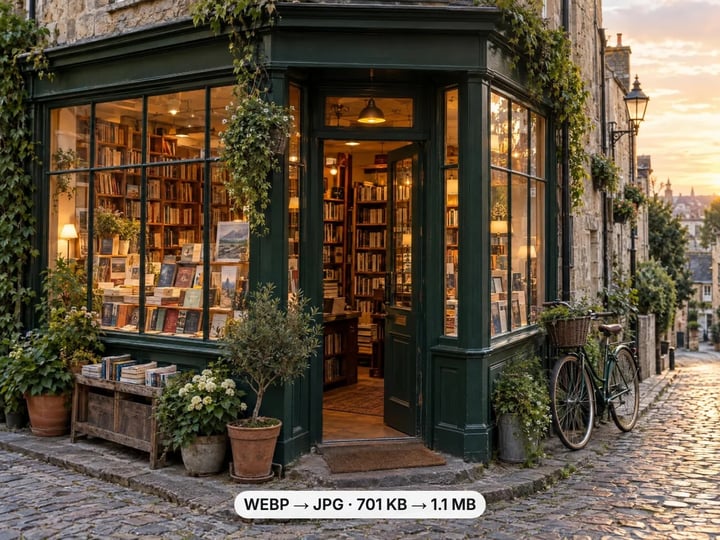
JPG works in older photo editors, office apps, upload forms and print services that still reject WebP.
Imagera AI - AI content creation platform for generating images, cloning voices, creating avatars, and enhancing videos. Privacy Policy | Terms
Convert & compress · free · private
Saved an image from a website and got a .webp file? Turn it into a JPG that opens in every app, form and photo viewer. It all runs in your browser.
Your WebP image is converted in your browser on your own device. It is never uploaded or saved on our servers.
 Real result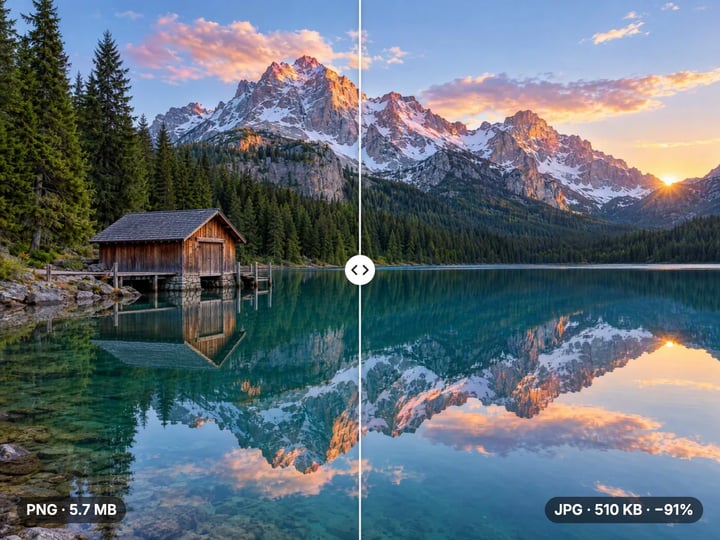
Quick answer
To convert WebP to JPG for free, open Imagera’s WebP to JPG Converter, add the .webp file, keep the default 92% quality or adjust it, and press Convert to JPG. The image is decoded and saved as a JPG in your browser, with the same width and height. Transparent areas become white. Nothing is uploaded or saved on our servers, and it works in Chrome, Edge, Firefox and Safari.
Your image never leaves your device — nothing is uploaded or saved on our servers.
How it works
Drop in the .webp file you saved. It stays on your device.
Keep 92% or lower it for a smaller JPG.
Press Convert to JPG and save the JPG to your device.
Why this one
JPG works in older photo editors, office apps, upload forms and print services that still reject WebP.
Set JPG quality from 50 to 100%. The default of 92% keeps the image looking the same.
WebP can be transparent; JPG cannot. Clear areas are filled with white rather than black.
The converter runs in your browser. Your image is not sent to or stored on a server.
Continue in Imagera
WebP to JPG Converter edits the pixels you have. These studios use AI to create what is not in the picture yet — they run on credits.
 Next step
Too small to print? Enlarge a photo to 4K, 8K or 16K (15,360 px on the long edge).
Open studio Imagera
Edit images with Imagera Edit. Inpaint, modify, and transform any part of your image.
Open studio Imagera
Replace any photo background with AI-generated luxury scenes.
Open studioWho it is for
Turn .webp downloads into JPGs that your photo viewer and editor open.
Insert images into documents and slides in the format every version accepts.
Upload product images to marketplaces and forms that only take JPG or PNG.
Guide
WebP is an image format built for the web. It stores photos and graphics in smaller files than JPG or PNG at similar visual quality, and it supports transparency and animation. Every current major browser displays it, so websites use it widely to load pages faster.
The trouble starts once a WebP file leaves the browser. Older photo editors, some office software, print services, marketplaces and many upload forms still expect JPG or PNG. A file that looked fine on a web page can refuse to open in the app you actually want to use, or be rejected with an “unsupported format” message.
Converting the WebP to JPG solves that in one step. JPG is the most widely supported image format there is: every phone, computer, editor and form that takes images takes JPG. The trade-off is a slightly larger file, which rarely matters for a single image.
1. Save or locate the WebP file. It usually ends in .webp and sits in your Downloads folder.
2. Open the converter in Chrome, Edge, Firefox or Safari. Nothing needs to be installed.
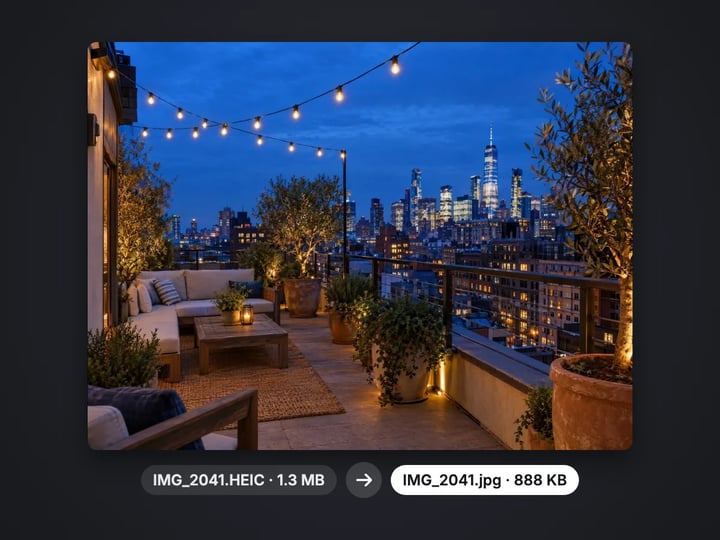
3. Add the file. Drop it onto the page or tap to choose it. It stays on your device. PNG, JPG, HEIC and AVIF files are accepted too.
4. Set the quality. The default of 92% keeps the image looking the same. Lower values make smaller files.
5. Press Convert to JPG and download the result.
The JPG has the same pixel width and height as the WebP. If you have a paid plan or credits, you can select many WebP files at once and convert them together. Processing is unlimited. Your first few downloads need no account; after that, a free sign-in keeps them going.
You right-click an image, choose “Save image as”, and the file ends in .webp even though the page never mentioned the format. That is because many websites and content networks check whether your browser can display WebP and, if it can, send WebP instead of JPG or PNG to save bandwidth.
So the file you saved is exactly what the site delivered. Renaming it from .webp to .jpg does not convert it; the data inside is still WebP, and apps that check the contents will still refuse it or show an error. The image has to be decoded and re-saved as a real JPG, which is what this converter does.
A reminder that applies to any saved image: downloading a picture from a website does not give you the right to reuse it. Convert images you took yourself, images you have permission to use, or images published under a license that allows it.
WebP supports two things JPG does not: transparency and animation.
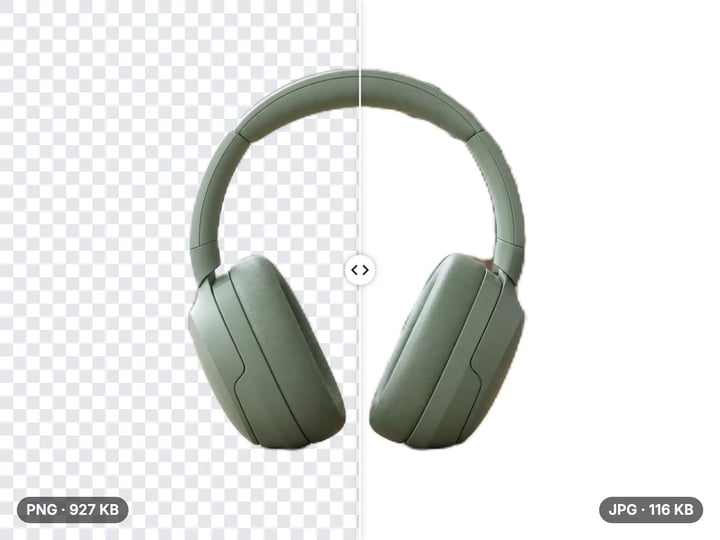
Transparent WebP. Logos, icons and product cutouts are often saved as WebP with a clear background. JPG has no transparency, so this converter fills those areas with white before saving. Semi-transparent edges blend smoothly onto white instead of turning dark. If the background must stay clear, convert to PNG with the free WebP to PNG Converter instead.
Animated WebP. Some sites use WebP in place of GIFs for short animations. A JPG is a single still image, so an animated WebP is converted as one still frame. If you need the whole animation, keep the original file.
Most WebP images are neither: they are ordinary photos or graphics, and they convert to JPG with no visible change at the default quality.
Most WebP images on the web are already lossy-compressed. Converting to JPG compresses them a second time, so it is worth keeping the quality high. The default of 92% keeps the JPG visually the same as the WebP for almost every image.
Do not be surprised if the JPG is larger than the WebP. WebP compresses more efficiently than JPG, so matching its look usually takes more bytes. That is the price of compatibility, and for one image it is usually a matter of kilobytes.
Lower the slider only if a size limit forces it. Around 80–85% is a sensible floor for photos; below that, edges and smooth gradients start to show blocky artifacts, which stack on top of any the WebP already had.
If you need a specific file size, convert here first, then use the free Image Compressor, which works toward a target such as 100 KB or 500 KB.
Many WebP converters upload the file to a server, convert it there and send it back. This one runs entirely in your browser. The image is decoded and re-saved on your own device, and it is never uploaded or saved on our servers.
Converting creates a fresh file from the image’s pixels, so embedded metadata in the WebP is not carried into the JPG.
Images saved from websites are often small, because sites resize them to fit the page. Converting keeps the exact pixel size, so a 600-pixel thumbnail stays 600 pixels wide. If you need it larger, for print or a full-screen slide, Imagera’s paid AI Image Upscaler enlarges images to 4K and higher and adds detail rather than just stretching pixels. It runs in the cloud and is paid with credits.
The free Image Enlarger is a quick on-device option when a modest enlargement is enough.
Free vs studio
Questions people ask
Open this converter in Chrome, Edge or Firefox, add the .webp file and press Convert to JPG. Nothing needs to be installed, and the image is never uploaded.
Many sites send WebP to browsers that support it because it loads faster. Saving the image gives you that WebP file, whatever format you expected.
No. Renaming changes the name, not the data inside. Apps that check the contents will still see WebP. Convert it to get a real JPG.
Very little at the default 92% quality. The WebP was usually already compressed, so keep the quality high to avoid adding visible artifacts.
WebP compresses more efficiently than JPG, so matching its look takes more bytes. That is normal and is the cost of wider compatibility.
JPG cannot store transparency, so clear areas are filled with white. Use the free WebP to PNG Converter if the background must stay transparent.
A JPG is a single still image, so an animated WebP converts as one still frame. Keep the original file if you need the animation.
Open this page in Safari or Chrome, add the WebP and press Convert to JPG. Preview can also export it as JPEG through File → Export.
Yes, if you have a paid plan or credits: select many WebP files together. Otherwise convert them one at a time; processing is unlimited.
No. The conversion runs in your browser on your own device. The image is never uploaded or saved on our servers.
More free tools
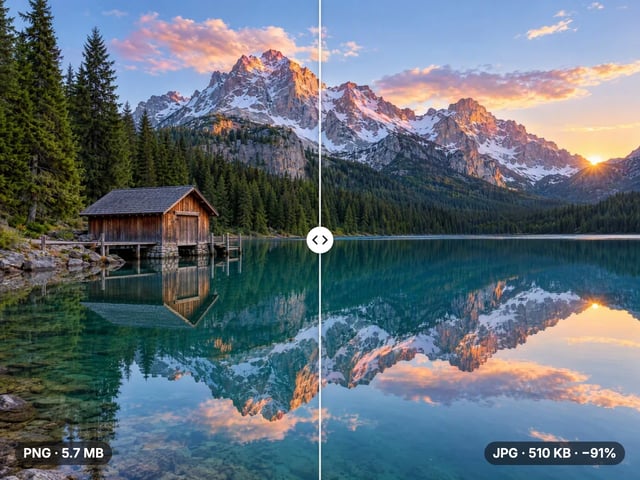
Compress, convert & resize to any size
favicon.ico, PNG icons and site.webmanifest from one image
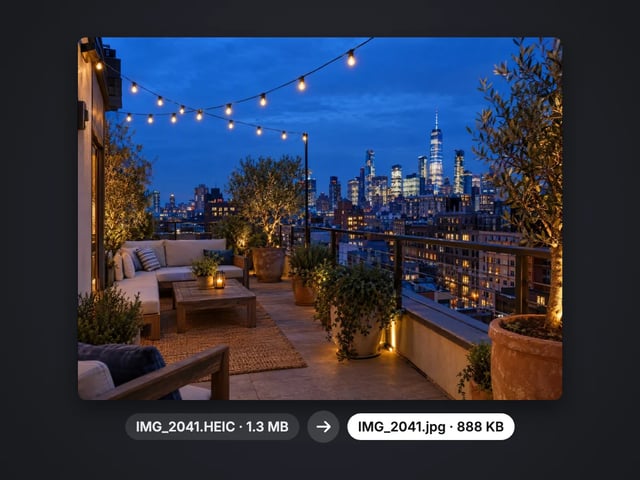
Turn iPhone photos into JPG, PNG or WebP
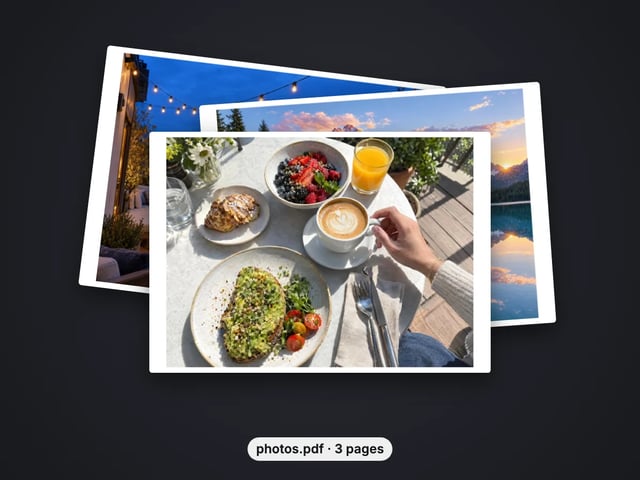
Combine images into one PDF
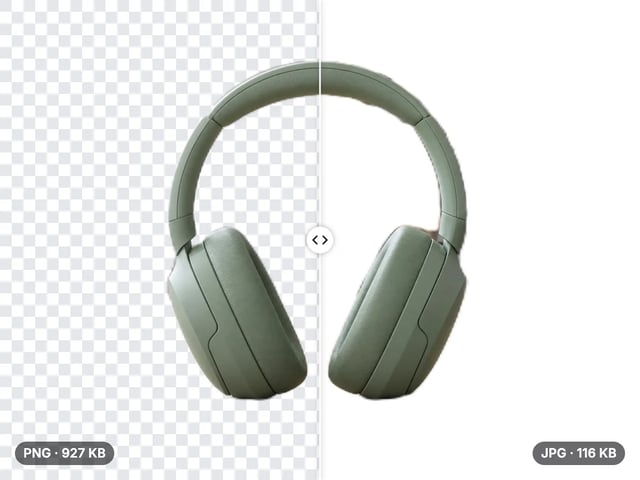
Smaller JPG files, white background
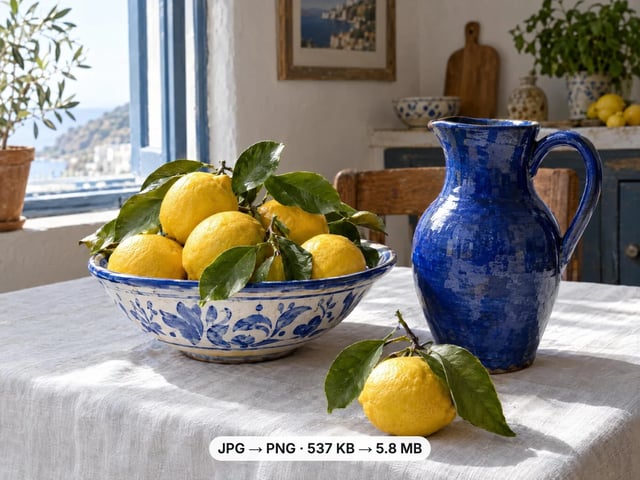
A lossless PNG copy of any photo
Keep transparency, open anywhere
Smaller web images, transparency kept
Lighter photos for faster pages
Open AVIF images in any app
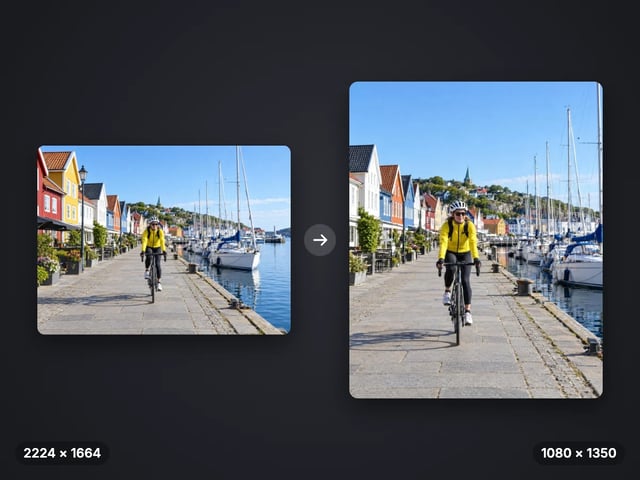
Exact pixel sizes and social presets
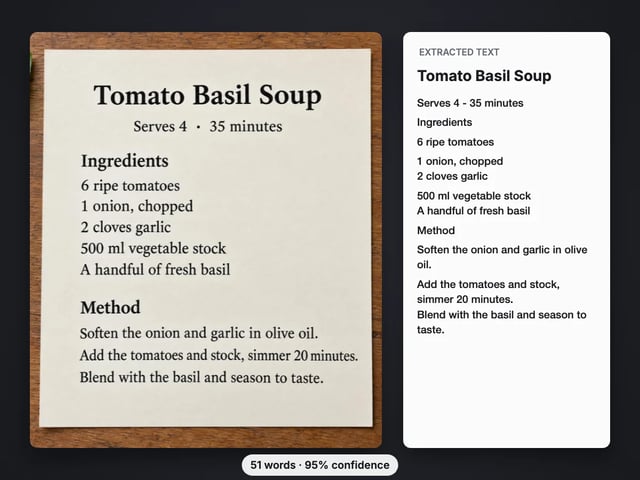
Copy the text out of a screenshot, photo or scan
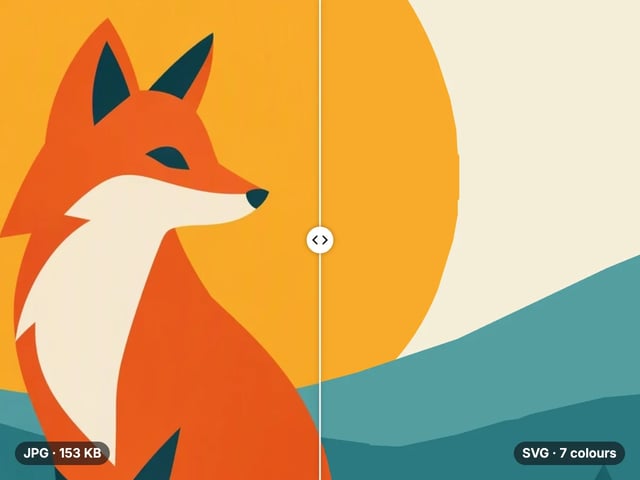
Trace a PNG or JPG into a scalable SVG
Complete your workflow
These pair with Print-Ready 16K Upscaler. Every tile says what the tool actually does — without leaving this page.
Repair scratches, tears and fading, then upscale for printing
Browser-based AI upscaling for 2K, 4K & 8K without a desktop license
Upscale videos to 4K with the same AI enhancement technology
Make AI images look like real camera photos before upscaling
Generate talking videos from your upscaled portraits
Add freckles, pores, scars, tattoos. Remove blemishes. Fix plastic AI skin instantly.
Edit images with Imagera Edit. Inpaint, modify, and transform any part of your image.
Remove flyaway hair and fix fine imperfections with surgical AI precision.
Change the words, color or font of text baked into a photo, poster or screenshot.
Imagera AI Team
Unified AI creation platform