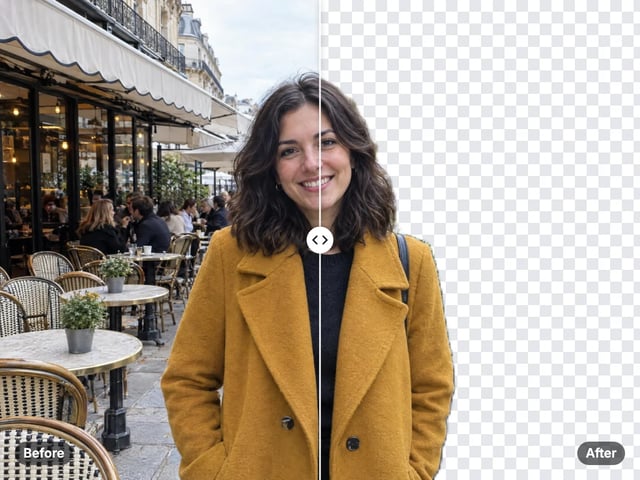
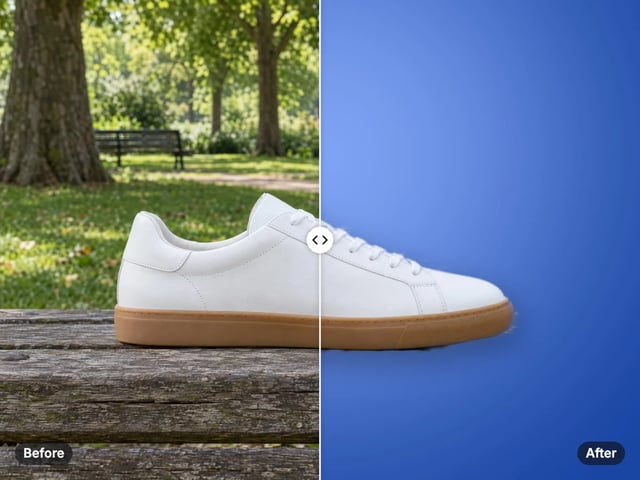
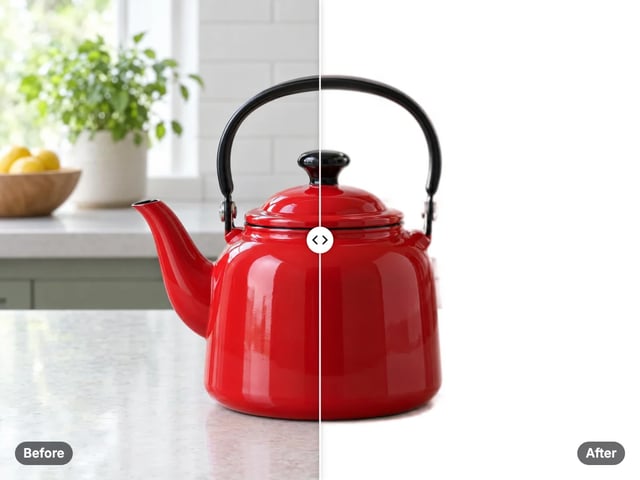
Finds the subject for you
No brushing or masking. The tool separates the main subject — a person, pet or product — from the background automatically.
Imagera AI - AI content creation platform for generating images, cloning voices, creating avatars, and enhancing videos. Privacy Policy | Terms
Cutout & background · free · private
Keep your subject sharp and soften everything behind it, like a phone’s portrait mode. The subject is found automatically in your browser, and your photo is never uploaded.
The subject is found by a model that runs in your browser. Your photo is never uploaded or saved on our servers.
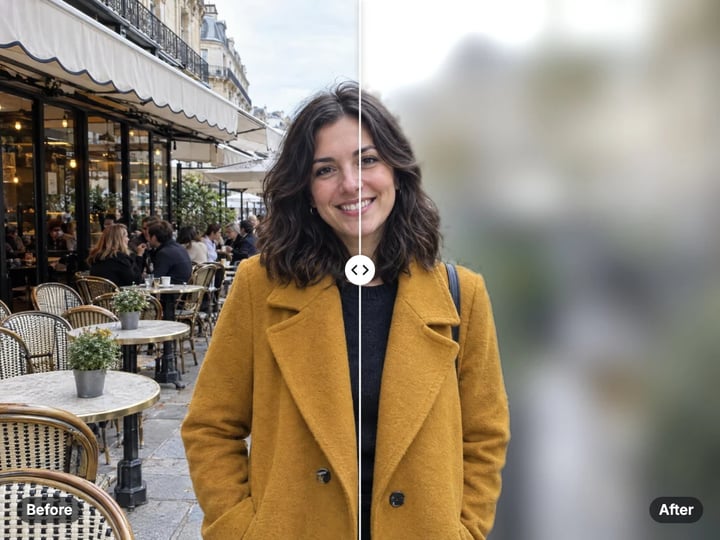 Real result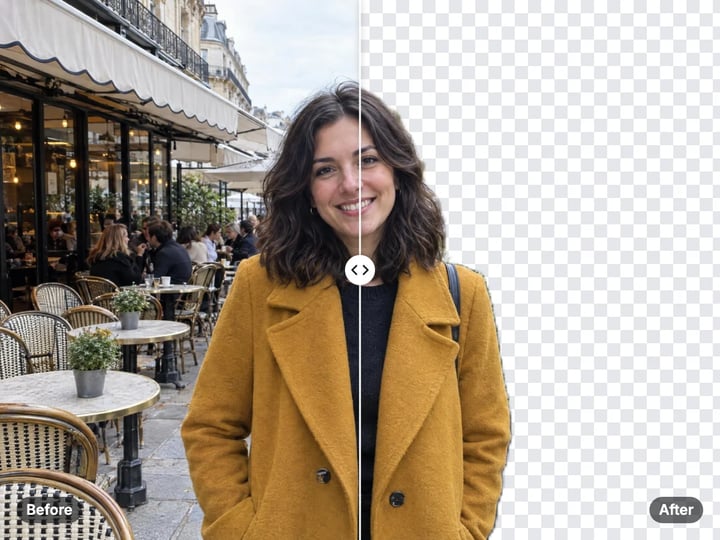
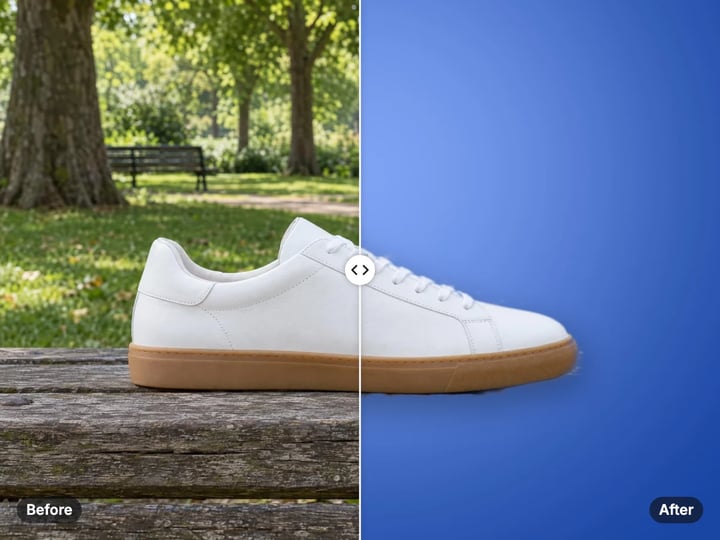
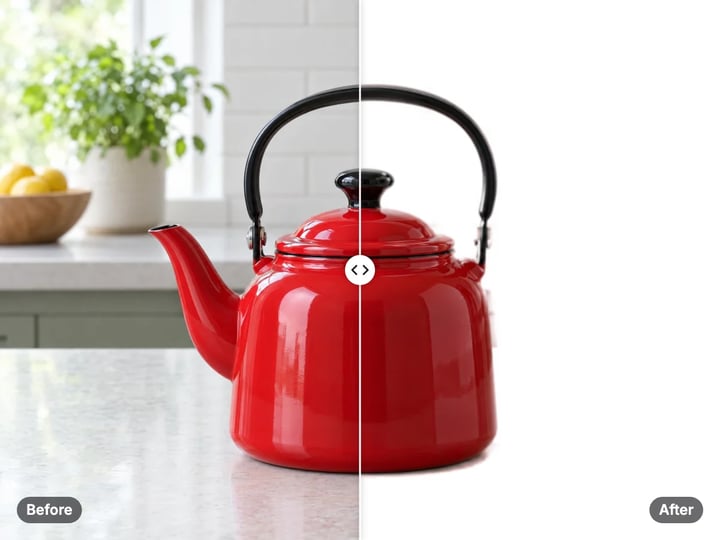
Quick answer
To blur the background of a photo for free, open Imagera’s Background Blur, add your photo and press Blur background. An on-device model finds the main subject, keeps it sharp and blurs everything behind it, with softly blended edges. A single slider sets how strong the blur is. It runs in your browser, so your photo is never uploaded or saved on our servers.
Your photo never leaves your device — nothing is uploaded or saved on our servers.
How it works
Drop in a JPG, PNG, WebP or HEIC photo. It stays on your device.
Leave the blur at 55 or move the slider for a softer or stronger effect.
Press Blur background. The subject is found and kept sharp automatically.
Compare before and after, then save the photo to your device.
Why this one
No brushing or masking. The tool separates the main subject — a person, pet or product — from the background automatically.
Go from a gentle softening to a strong blur. The amount scales with your photo’s size, so it looks similar on small and large images.
The edge between subject and background is feathered, so the subject does not look cut out and pasted on.
Subject detection runs on your device. Your photo is never uploaded or saved on our servers.
Continue in Imagera
Background Blur edits the pixels you have. These studios use AI to create what is not in the picture yet — they run on credits.
 Next step
Replace any photo background with AI-generated luxury scenes.
Open studio Imagera
Too small to print? Enlarge a photo to 4K, 8K or 16K (15,360 px on the long edge).
Open studio Imagera
Edit images with Imagera Edit. Inpaint, modify, and transform any part of your image.
Open studioWho it is for
Soften a messy room or busy street so the focus stays on you.
Make a product stand out from a cluttered table or shelf.
Give phone snapshots a portrait-mode look after the fact.
Guide
A blurred background pulls attention to your subject. Photographers get this effect with wide-aperture lenses, and phones imitate it with portrait mode. Either way, the result is the same idea: the subject is crisp, and the distracting detail behind it fades away.
That is useful whenever the background is busy or unflattering: a cluttered room behind a profile photo, a crowded street behind a portrait, a messy desk behind a product. Blurring it keeps the context, you can still tell it is a room or a street, while removing the distraction.
This tool adds the effect after the photo is taken. That helps when you forgot portrait mode, used a camera or phone that does not have it, or are working with an older photo.
The tool works in three steps inside your browser.
1. Find the subject. An on-device model looks at the photo and estimates which pixels belong to the main subject and which belong to the background. It produces a soft mask rather than a hard outline.
2. Blur the background. A blurred copy of the whole photo is made. The Blur slider sets how strong it is, and the strength scales with the photo’s size so a 12-megapixel photo and a small one look similarly blurred at the same setting.
3. Blend. The sharp subject is placed over the blurred copy using the soft mask. Edges are feathered, so hair and clothing edges fade gently into the background instead of showing a hard cut line.
The blur is even across the whole background. It does not measure distance, so near and far objects behind the subject are blurred by the same amount.
One clear subject. A single person, pet or product that stands out from the background gives the cleanest result.
Contrast between subject and background. A dark jacket against a light wall is easy to separate. A green shirt in front of green leaves is harder.
The subject in the foreground. The tool keeps the main subject sharp. People or objects standing further back are treated as background and blurred.
Simple edges. Smooth outlines like shoulders and products separate cleanly. Flyaway hair, fur, glasses and see-through objects are harder and may show a slight halo.
Group photos. Several people standing close together often work. People spread far apart, or partly behind each other, may not all be kept sharp.
If the edges look rough, try a lower blur setting. A softer blur hides small edge mistakes much better than a strong one.
The Blur slider runs from 10 to 100. The default of 55 gives a clear portrait-style look on most photos.
10–35: subtle. The background is softened but still readable. Good for profile photos and work headshots where you want a cleaner look without an obvious effect.
35–70: portrait. The background becomes smooth and soft, similar to a phone’s portrait mode. Good for social posts, pet photos and product shots.
70–100: strong. The background turns into soft shapes and color. Good for making a subject pop against a busy scene, but edge imperfections show more.
Drag the before/after divider after each run. Look closely at hair and the outline of the subject; if something looks cut out, lower the blur a little and run it again.
Most online background blur tools upload your photo to a server to find the subject. Imagera’s Background Blur runs the subject model in your browser instead.
The model is loaded once when you use the tool, then everything happens on your own phone or computer. Your photo is never uploaded and nothing is saved on our servers. That matters for profile photos, pictures of your home and photos of children, where the background often shows more than you meant to share.
The model does real work, so it runs fastest on a recent phone or a computer. On older devices it may take longer.
Processing is unlimited. Your first few downloads need no account; after that, a free sign-in keeps them going. There is no watermark on the result.
Blurring and replacing solve different problems.
Blur keeps your real background but softens it. It is honest about where the photo was taken, looks natural and is the right choice for profile photos, portraits and most social posts. This free tool does it on your device with nothing uploaded.
Replace swaps the background for something else. For a plain color or white, use the free Background Color Changer. For a whole new scene, such as a studio, a beach or a city street with matching light, Imagera’s paid AI Background Studio uses AI to replace the background. It runs in the cloud and is paid with credits.
If you only need the subject cut out with a transparent background, the free Background Remover does that.
Free vs studio
Questions people ask
Open Background Blur, add the photo and press Blur background. The subject is found automatically and the background is blurred, all in your browser.
Yes. Open this page in your iPhone’s browser and choose the photo. The tool adds a portrait-style blur, and HEIC photos work without converting them first.
Add your photo, set the blur to around 30–50 for a clean, natural look, and press Blur background. Then crop it to your profile shape.
Fine, flyaway hair is hard to separate from the background. Lower the blur setting, which makes small edge mistakes much less visible.
Yes. Products with clear edges separate well. For a plain white or colored background instead, use the free Background Color Changer.
Usually, yes, when the pet is the main subject and stands out from the background. Long fur edges may look slightly soft.
No. The tool keeps the main subject sharp automatically. People or objects further back are treated as background and blurred.
The subject is kept as it was. Only the background is blurred. Very large photos may be scaled down on some phones to fit browser memory.
More free tools
Complete your workflow
These pair with Luxury Background Changer. Every tile says what the tool actually does — without leaving this page.
Create professional product scenes from a single image
Transform photos into Ghibli, oil paintings, and more
General-purpose AI image editing with Imagera Edit
Add freckles, pores, scars, tattoos. Remove blemishes. Fix plastic AI skin instantly.
Remove flyaway hair and fix fine imperfections with surgical AI precision.
Change the words, color or font of text baked into a photo, poster or screenshot.
Free passport, visa & ID photos — auto-cropped to any country's exact size, background and file size, right on your device.
Imagera AI Team
Unified AI creation platform