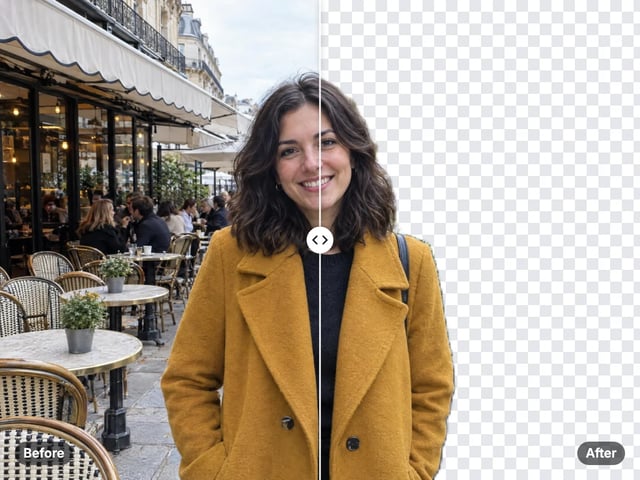
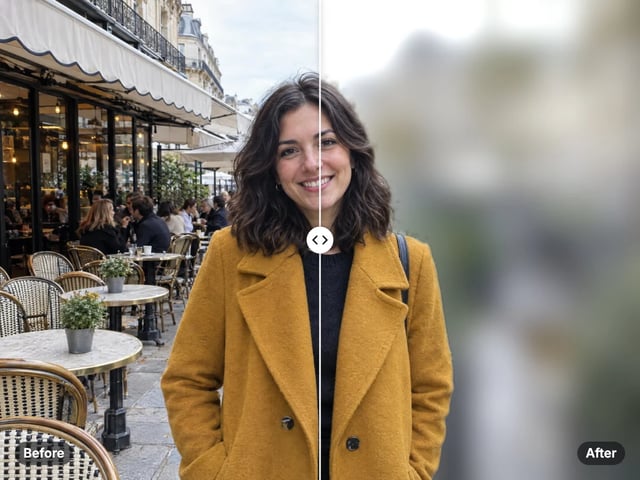
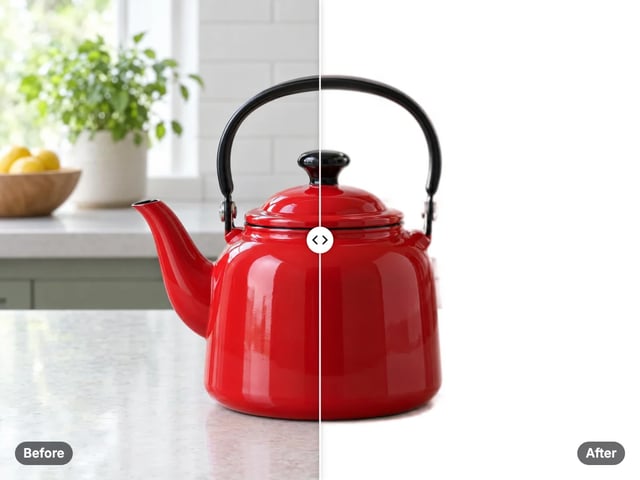
White, black, color or gradient
Choose pure white for listings, black for a bold look, any color from the picker, or a soft gradient built from your color.
Imagera AI - AI content creation platform for generating images, cloning voices, creating avatars, and enhancing videos. Privacy Policy | Terms
Cutout & background · free · private
Place your subject on clean white, black, any color or a soft gradient, with an optional shadow. The subject is found automatically in your browser, and your photo is never uploaded.
The subject is found by a model that runs in your browser. Your photo is never uploaded or saved on our servers.
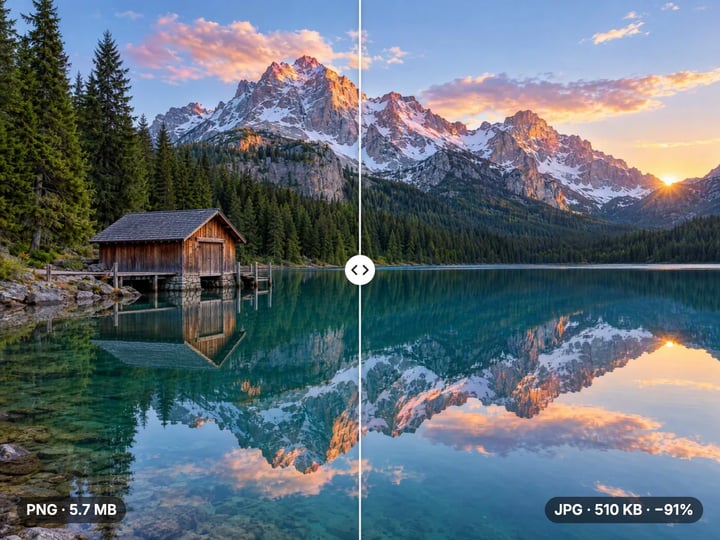
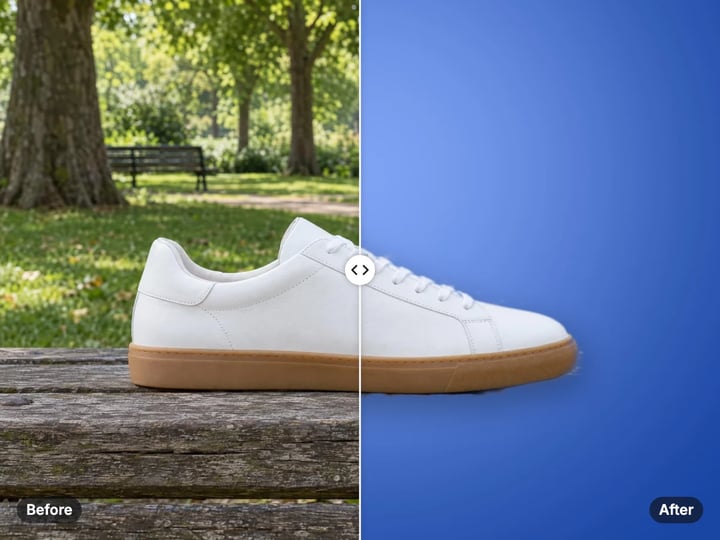 Real result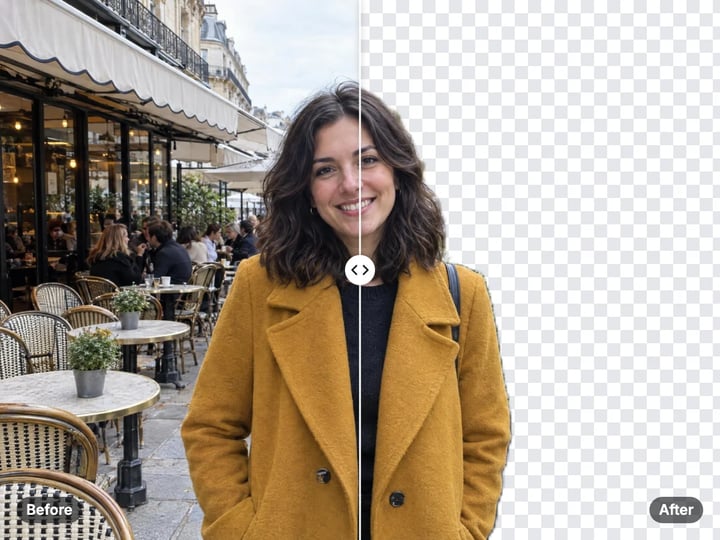
Quick answer
To change the background color of a photo for free, open Imagera’s Background Color Changer, add your photo, choose White, Black, a custom color or a gradient, and press Change background. An on-device model separates your subject from the old background and places it on the new one, with an optional soft shadow. It runs in your browser, so your photo is never uploaded.
Your photo never leaves your device — nothing is uploaded or saved on our servers.
How it works
Drop in a JPG, PNG, WebP or HEIC photo. It stays on your device.
Choose White, Black, Custom color or Gradient, and a color if needed.
Press Change background. The subject is found and placed on the new background.
Compare before and after, then save the JPG to your device.
Why this one
Choose pure white for listings, black for a bold look, any color from the picker, or a soft gradient built from your color.
The tool separates your product, person or pet from the old background automatically. No brushing or tracing.
Add a soft shadow under the subject so it sits on the new background instead of floating.
The result has a solid background, so it downloads as a JPG that marketplaces, forms and social apps accept.
Continue in Imagera
Background Color Changer edits the pixels you have. These studios use AI to create what is not in the picture yet — they run on credits.
 Next step
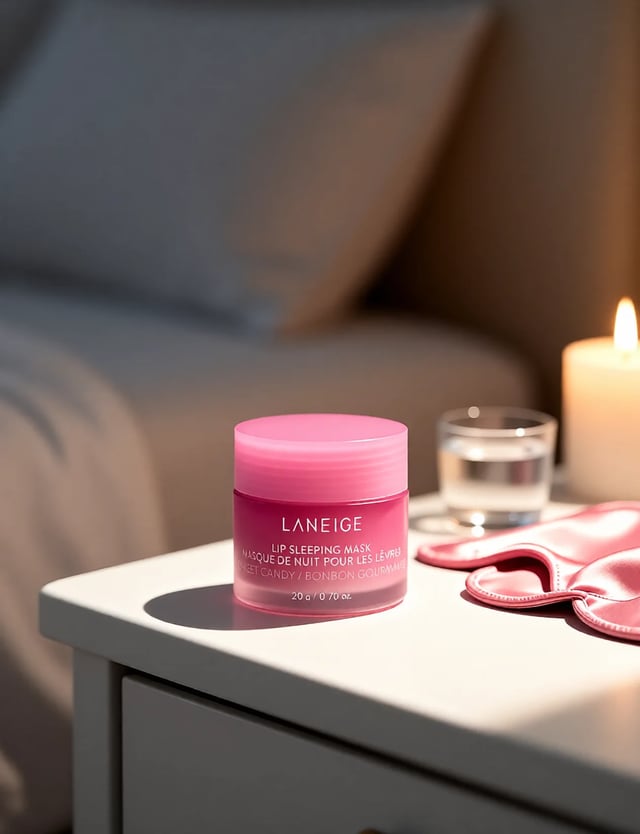
Create professional product photography scenes from a single image.
Open studio Imagera
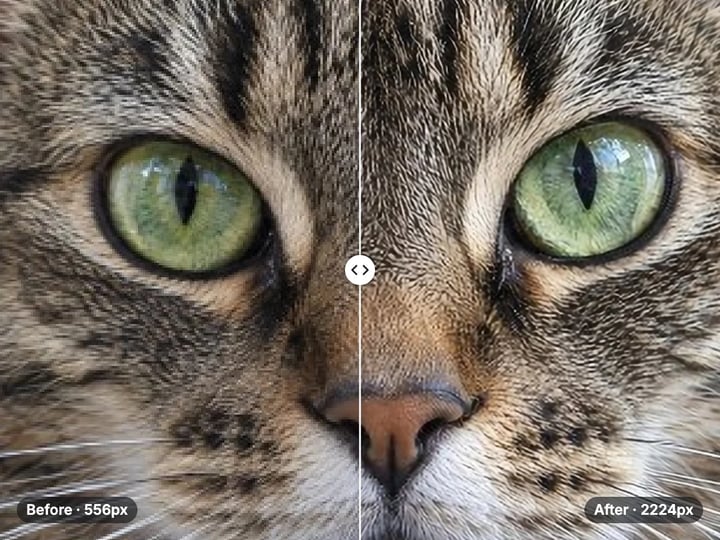
Too small to print? Enlarge a photo to 4K, 8K or 16K (15,360 px on the long edge).
Open studio Imagera
Edit images with Imagera Edit. Inpaint, modify, and transform any part of your image.
Open studio Imagera
Replace any photo background with AI-generated luxury scenes.
Open studioWho it is for
Get clean white-background product images for listings without a light box.
Put a portrait on a plain white or light background, privately on your device.
Place products or people on your brand color for a consistent feed.
Guide
A plain background puts all the attention on the subject. That is why online shops, marketplaces and application forms so often ask for one.
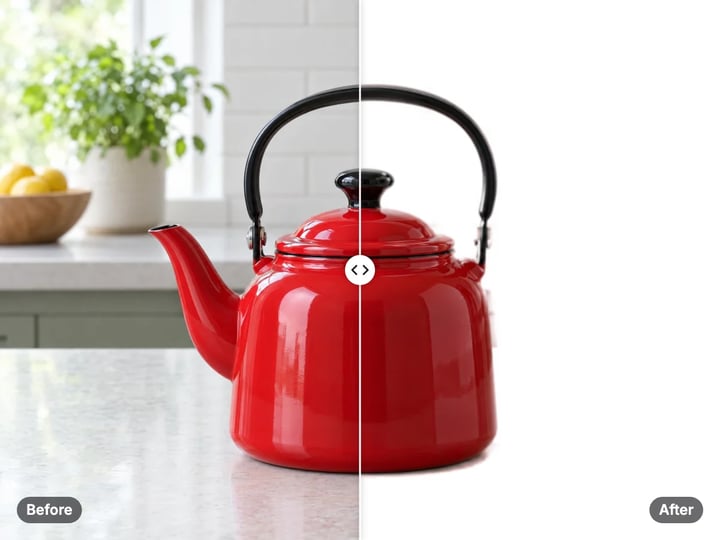
For product listings, a white background makes items look consistent across a catalog and lets the product’s own colors show accurately. Many marketplaces, including Amazon, ask for a pure white background on the main product image.
For portraits, a plain background looks tidy on profile pages, team pages and printed badges.
For brand content, putting products or people on your brand color makes a feed or a set of slides look planned.
Getting a clean background in camera takes a backdrop, careful lighting and space. This tool gets you there from an ordinary photo taken on a kitchen table or against a wall.
The tool works in three steps inside your browser.
1. Separate the subject. An on-device model estimates which pixels belong to your subject and which belong to the background. It creates a soft mask, so edges blend rather than looking cut with scissors.
2. Build the new background. Depending on your choice, the tool fills the frame with pure white, pure black, the exact color you picked, or a soft gradient built from that color.
3. Place the subject. Your subject is placed on the new background using the soft mask. If Soft shadow is on, a gentle shadow is added under the subject so it looks grounded rather than floating.
The result has a solid background, so it downloads as a JPG. If you need a transparent PNG instead, use the free Background Remover.
White is the standard for marketplaces, catalogs and many official forms. It is the safest choice when a platform has background rules.
Black makes light-colored products, jewelry and dramatic portraits stand out. It suits premium-looking social posts and portfolio pieces.
Custom color lets you match a brand palette or a campaign. The quick swatches cover common choices: white, off-white, black, blue, red, green, amber and purple. You can also pick any color with the color picker.
Gradient creates a soft blend based on your chosen color, giving a studio-backdrop feel that is less flat than a single color.
For a set of photos that will appear together, use the same background and color on every image. Consistency matters more than the exact color you choose.
Shoot against a plain wall. The cutout is more accurate when the original background is simple and contrasts with the subject.
Avoid matching colors. A white mug on a white table is harder to separate than a white mug on a wooden one.
Keep the whole subject in frame. Products cut off at the edge of the photo will stay cut off on the new background.
Watch fine detail. Hair, fur, lace and see-through objects are the hardest parts. Small halos are normal there; check them in the before/after view.
Use the shadow for products. A product on a plain background with no shadow can look pasted on. Turn on Soft shadow to ground it.
One main subject. The tool keeps the main subject. Small items further back may be treated as background and removed.
Background changers usually upload your photo to find the subject. For product sellers that can mean unreleased items; for everyone else it can mean photos of their home, family or ID documents.
Imagera’s Background Color Changer runs the subject model in your browser. The model is loaded once when you use the tool, and then your photo is processed on your own phone or computer. It is never uploaded and nothing is saved on our servers.
The model does real work, so it runs fastest on a recent phone or computer. Older devices may take longer.
Processing is unlimited. Your first few downloads need no account; after that, a free sign-in keeps them going. There is no watermark on the result.
A solid background is the fastest way to a clean, compliant product image. It is also the right look for catalogs, forms and anywhere consistency matters. The free Background Color Changer handles that on your device.
Some listings and ads need more than a color: a product on a marble counter, beside matching props, with light falling in a believable way. Imagera’s paid AI Product Photography tool creates styled studio product shots like that from your photo, using AI. It runs in the cloud and is paid with credits.
A practical workflow is to use a white background for the main listing image, where rules are strict, and AI product shots for the extra gallery images and ads, where style sells.
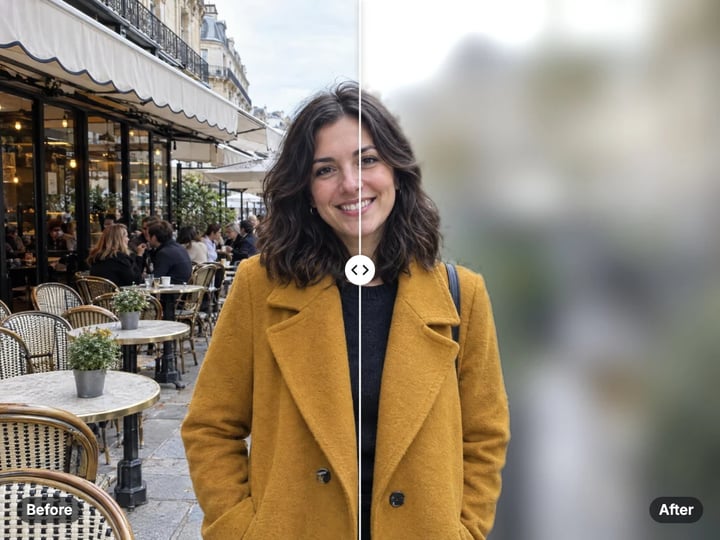
For a transparent cutout, use the free Background Remover; for a softened real background, use the free Background Blur.
Free vs studio
Questions people ask
Open the Background Color Changer, add your photo, keep White selected and press Change background. Turn on Soft shadow if the product looks like it is floating.
Open this page in your phone’s browser, choose the photo, pick a background and press Change background. The photo is processed on your phone and never uploaded.
You can put a portrait on a plain white background. Official photos also have rules on size, framing and lighting, so check the requirements before you submit.
Yes. Choose Custom color and enter your brand color in the color picker, or use Gradient for a softer look built from that color.
This tool always fills the background with a color. For a transparent PNG, use the free Background Remover.
The old background may be close in color to the subject, or the edges may be fine, like hair. Try a photo against a plainer, more contrasting background.
A JPG. The new background is solid, so a JPG keeps the file small and works on marketplaces, forms and social apps.
Yes, but it is most useful for products and objects that sit on a surface. For head-and-shoulders portraits you usually do not need it.
More free tools
Complete your workflow
These pair with Pro Product Shot Maker. Every tile says what the tool actually does — without leaving this page.
Replace product backgrounds with custom scenes
Create color variations for product catalogs
Upscale product photos to print-ready resolution
Remove flyaway hair and fix fine imperfections with surgical AI precision.
Change the words, color or font of text baked into a photo, poster or screenshot.
Free passport, visa & ID photos — auto-cropped to any country's exact size, background and file size, right on your device.
AI upscaling to 1080p/2K/4K. Ultra-high resolution. Batch process up to 5 images.
Imagera AI Team
Unified AI creation platform