Three looks
Comic for flat color and bold ink, Painted for oil-paint strokes, Soft toon for pastel color and thin lines.
Imagera AI - AI content creation platform for generating images, cloning voices, creating avatars, and enhancing videos. Privacy Policy | Terms
Social & creative · free · private
Give any photo a comic-book look with bold ink lines, a brushy painted finish or a soft pastel toon. Set the detail, compare before and after, and download. Your photo stays on your device.
The cartoon effect runs in your browser on your own device. Your photo is never uploaded or stored on any server.
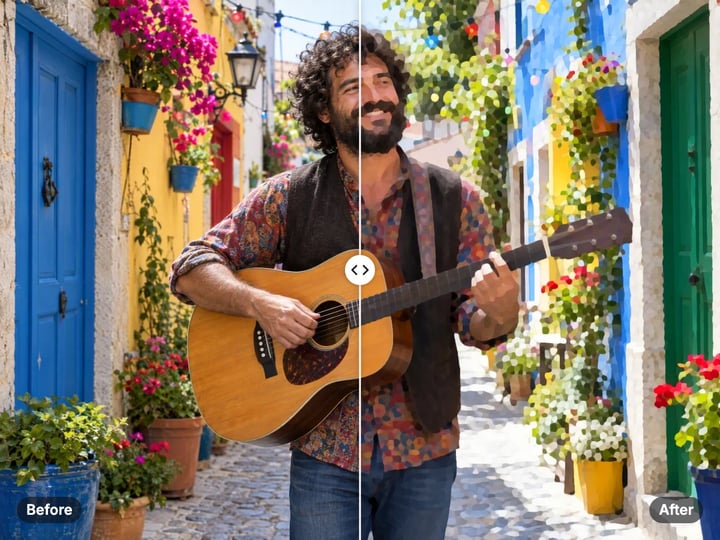 Real result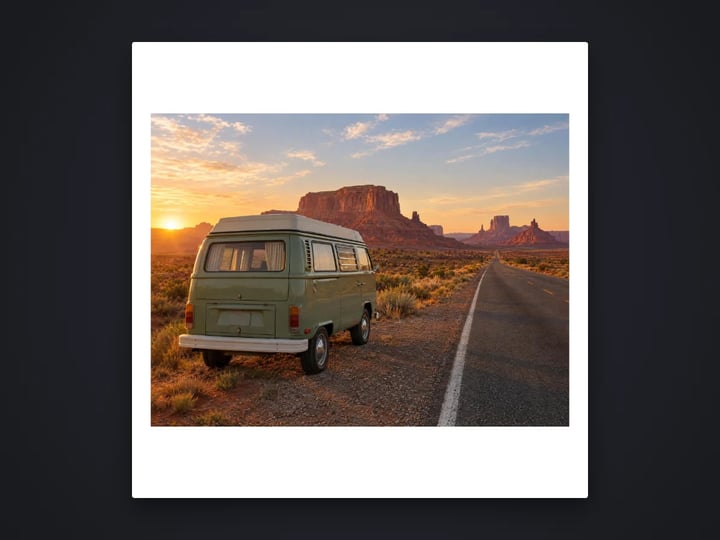
Quick answer
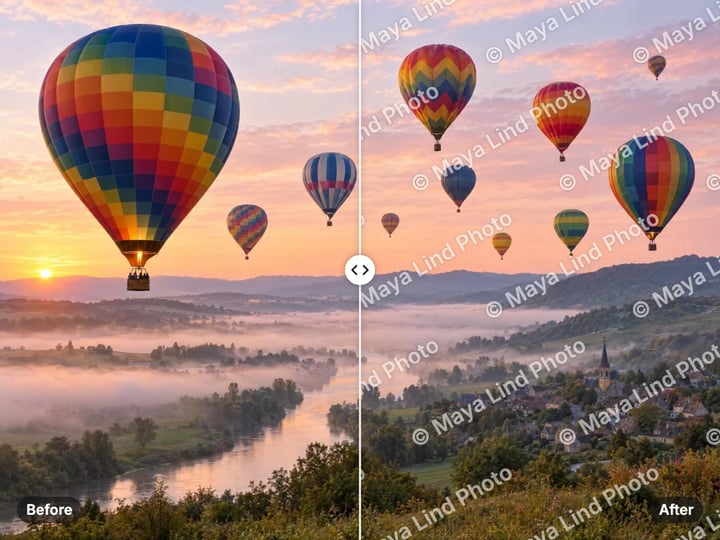
To turn a photo into a cartoon for free, open Imagera’s Cartoon Effect, choose your photo and pick a look: Comic for flat color and bold ink lines, Painted for an oil-paint finish, or Soft toon for pastel color with thin lines. Set the detail and press Cartoonize, then compare with the slider. It uses classic image filters rather than AI and runs in your browser, so your photo is never uploaded.
Your photo never leaves your device — nothing is uploaded or saved on our servers.
How it works
Pick a JPG, PNG, WebP or HEIC photo. It stays on your device.
Choose Comic, Painted or Soft toon.
Lower it for bold, simple shapes; raise it for more lines.
Press Cartoonize, compare with the slider and download.
Why this one
Comic for flat color and bold ink, Painted for oil-paint strokes, Soft toon for pastel color and thin lines.
Ink follows the shapes in the photo, while skin texture and blurred backgrounds stay clean.
Faces keep their features and skin tones; scenery turns into flat, graphic color.
Everything runs on your device in a few seconds. Nothing is uploaded and there is no watermark.
Continue in Imagera
Cartoon Effect edits the pixels you have. These studios use AI to create what is not in the picture yet — they run on credits.
 Next step
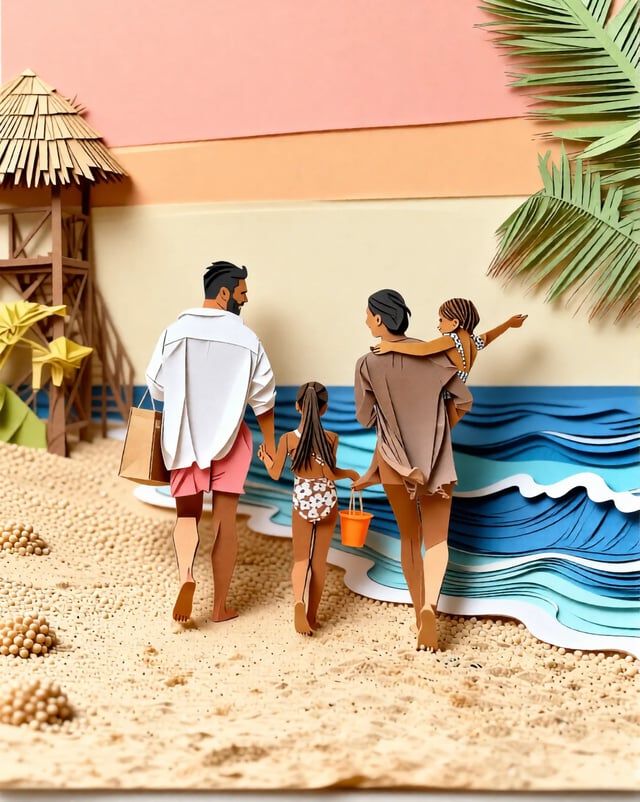
Transform photos into Ghibli anime, oil paintings, watercolor, and more.
Open studio Imagera
Too small to print? Enlarge a photo to 4K, 8K or 16K (15,360 px on the long edge).
Open studio Imagera
Edit images with Imagera Edit. Inpaint, modify, and transform any part of your image.
Open studio Imagera
Replace any photo background with AI-generated luxury scenes.
Open studioWho it is for
Turn a selfie into a comic-style avatar for social media, gaming or chat.
Make a pet, couple or family photo into a playful cartoon print or card.
Give travel shots and product photos a bold graphic look that stands out in a feed.
Guide
The tool turns a photo into a cartoon-style picture with three classic techniques, all running in your browser.
Flattening. An edge-aware smoothing filter removes fine texture such as skin pores, fabric weave and leaf detail, while keeping the outlines of shapes sharp. This is what gives cartoons their clean, flat areas.
Tone bands. Brightness is grouped into a few bands, like the cel shading in animation. Only brightness is banded, so skin tones and colors keep their hue instead of breaking into blotches.
Ink lines. Lines are drawn where the flattened photo has clear edges: eyes, mouths, jawlines, rooflines. Soft, out-of-focus backgrounds are left without lines, so they do not fill with scribbles.
The Painted look uses a different filter that builds the picture from flat, brush-like strokes that stop at edges, similar to an oil painting.
1. Choose a photo. A well-lit portrait, pet, street scene or landscape works well. 2. Pick a look. Start with Comic for the classic cartoon style. 3. Set the detail. The default is 50. Lower values give bold, simple shapes and fewer lines, which suits busy scenes. Higher values add lines and finer strokes, which suits close-up portraits. 4. Press Cartoonize. It takes a few seconds. 5. Compare by dragging the slider across the picture. 6. Try the other looks. The same photo can feel very different as Painted or Soft toon. 7. Download your cartoon.
Large photos are drawn at up to 2048 pixels on the long side, which is plenty for profile pictures, posts and prints up to about 17 cm (7 in).
Comic has flat color, stepped shading and bold black ink. It is the most graphic look and suits portraits with strong expressions, pets, city streets and anything you want to pop in a feed or as an avatar.
Painted has no ink lines. The picture is rebuilt from flat, brush-like strokes, like a quick oil sketch. It flatters landscapes, flowers, food and softly lit portraits, and it hides noise from phone photos taken in low light.
Soft toon has gentler shading, lighter pastel color and thin lines tinted by the color beneath them instead of black. It suits children’s photos, couples, cards and anything where Comic feels too harsh.
Not sure? Run all three on the same photo. Each takes a few seconds, and nothing leaves your device.
Good light matters most. Clear light gives clean shapes and confident lines. Dark photos give muddy color bands.
Simple backgrounds help. A busy background becomes a busy cartoon. Blurred backgrounds stay calm, and you can blur or remove a background first with the free tools.
Use detail to control lines. If a landscape fills with too many lines, lower the detail. If a portrait looks too plain, raise it.
Close-ups cartoon better than wide shots. A face that fills the frame keeps its features; a tiny face in a crowd turns into a few flat shapes. Crop to the subject before you start.
Skin tones are kept. Because only brightness is banded, faces keep their natural color on every skin tone, with no strange tints.
Cartoon apps often upload your photo to a server to process it, even for a simple filter. This one does not.
The cartoon effect runs with your browser’s own processing. Your photo is read from your device, turned into a cartoon in memory and handed back as a download. Nothing is uploaded or saved on our servers, and there is no model to download either, so it starts right away.
That matters for the photos people cartoonize most: selfies, children, partners and pets. They stay on your phone or computer. iPhone HEIC photos are read on your device too.
Processing is unlimited. Your first few downloads need no account; after that, a free sign-in keeps them going. Signing in never sends your photo anywhere, and there is no watermark on the result.
The free Cartoon Effect is a filter. It keeps your photo’s exact shapes, features and composition, and restyles the surface with flat color, paint strokes and ink lines. It is fast, private and unlimited.
Imagera’s paid Magic Style Transfer studio is a redraw. AI repaints your photo in the style you choose, such as anime, storybook illustration, watercolor, comic art or 3D animation. It can simplify faces, exaggerate expressions and reinterpret a scene the way an illustrator would, which a filter cannot do. It runs in the cloud and uses credits.
If you want your own photo with a cartoon finish, the free tool is the right fit. If you want the photo to look genuinely drawn by an anime or illustration artist, try style transfer.
Free vs studio
Questions people ask
Choose your photo, pick Comic, Painted or Soft toon and press Cartoonize. It takes a few seconds in your browser and you can download the result straight away.
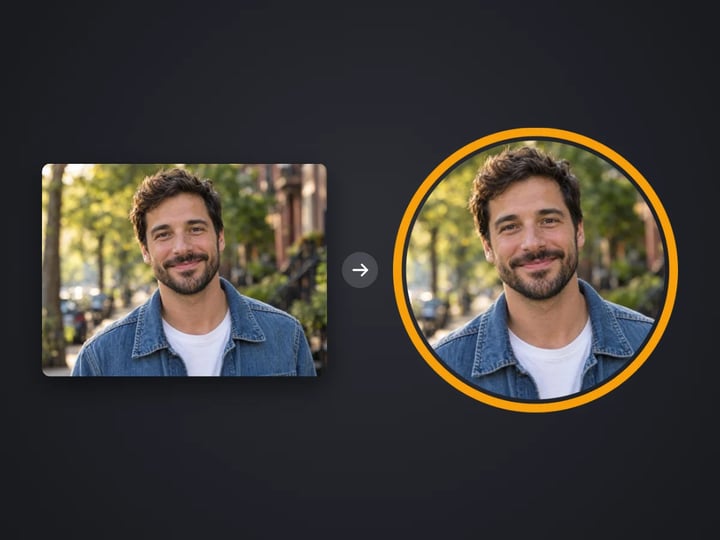
Yes. Use a well-lit, close-up selfie and the Comic or Soft toon look. Then use the free Profile Picture Maker to crop it into a round avatar.
Not with this filter, which keeps your photo’s real shapes. Imagera’s paid Magic Style Transfer studio uses AI to redraw photos in anime and other illustration styles.
Yes. Landscapes turn into flat, graphic color with ink on the main shapes. For very detailed scenes, lower the detail for a cleaner result, or try the Painted look.
Busy textures such as foliage, rocks or patterned clothes create many edges. Lower the detail slider, or try Painted, which has no ink lines.
Photos up to 2048 pixels on the long side keep their size. Larger photos are drawn at 2048 pixels, which suits profile pictures, social posts and small prints.
Yes. Pets with clear outlines and good light look great in Comic or Soft toon. Long fur gives more lines, so a lower detail setting often looks cleaner.
Yes, for cards and small prints. The result is drawn at up to 2048 pixels, enough for about 17 cm (7 in) at print quality. There is no watermark.
More free tools
Add a border or fit a photo to 4:5 without cropping
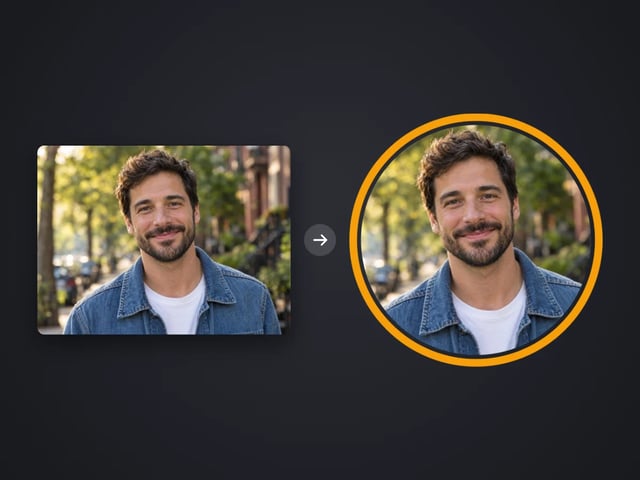
Round profile photo with a colored ring
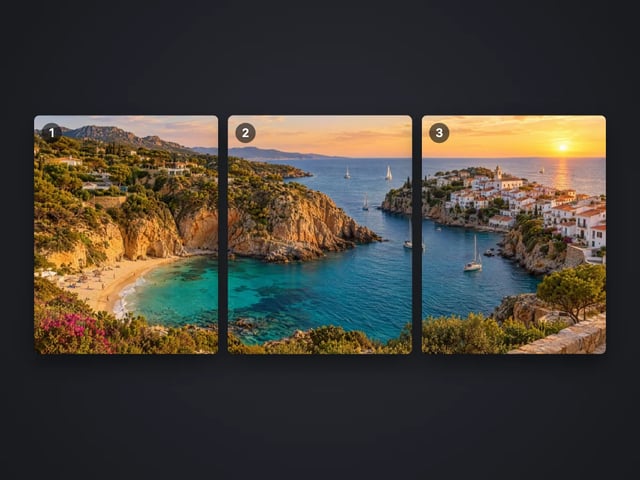
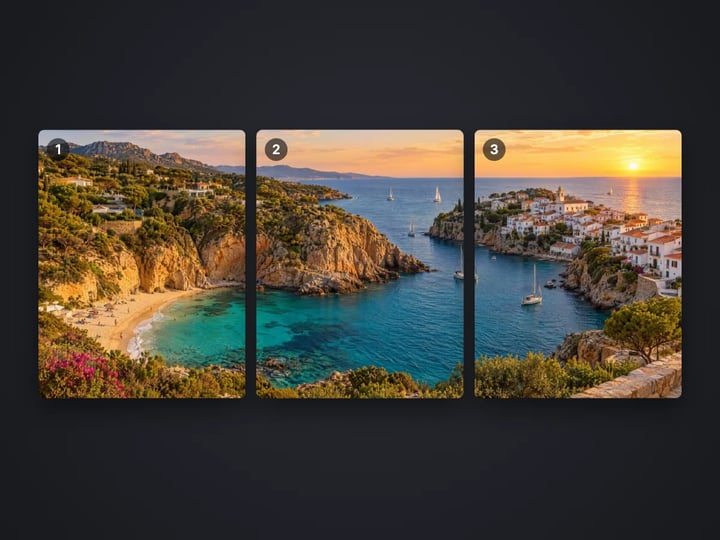
Split a photo into a carousel or a 3×3 grid
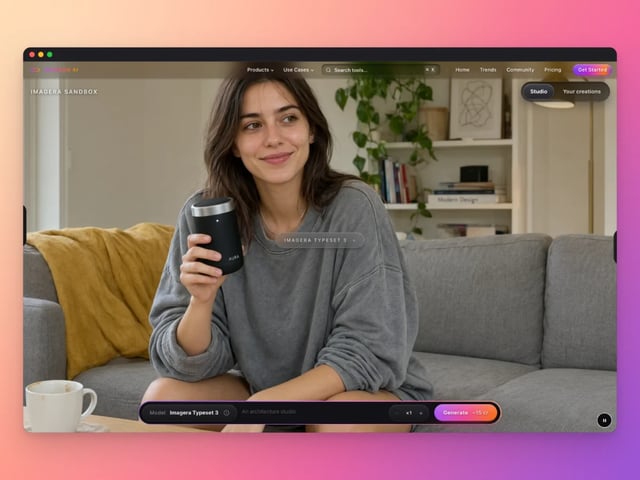
Frame a screenshot on a gradient with a shadow
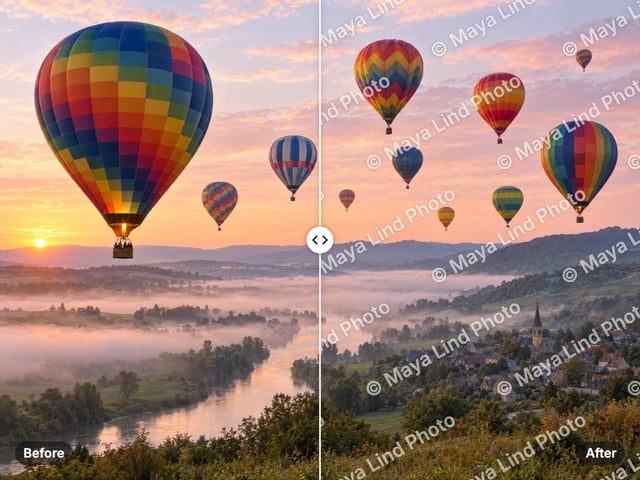
Add your name or © to a photo
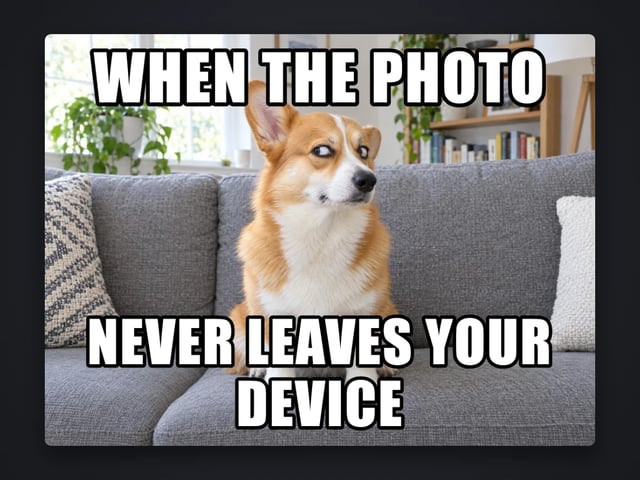
Top and bottom text on your own image
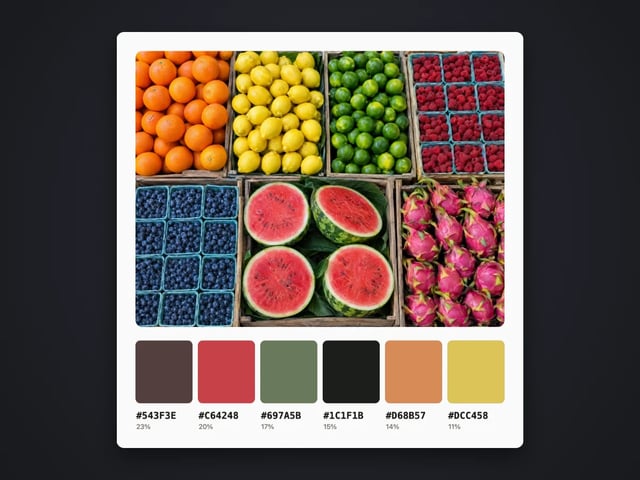
Pull the main colors and HEX codes from a photo
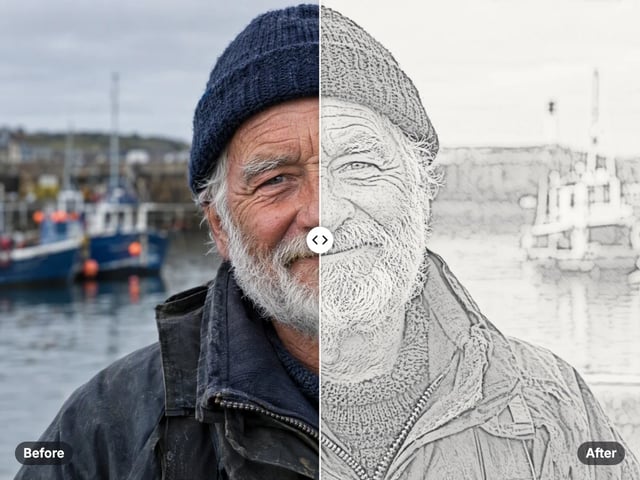
Turn a photo into a pencil or charcoal drawing
Put your logo on a photo, in a corner or tiled
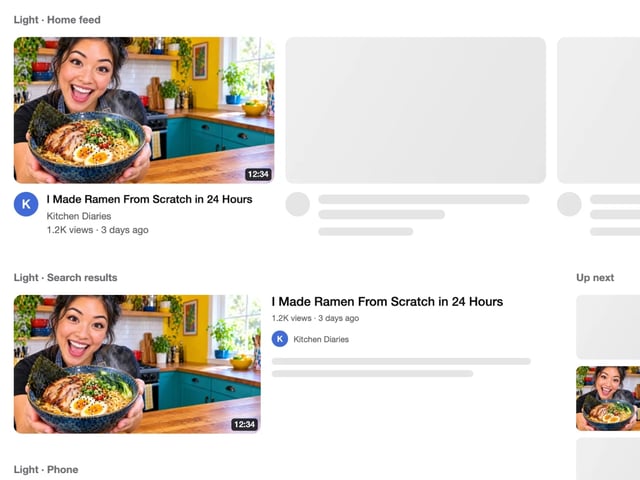
See your thumbnail in feed, search and phone layouts
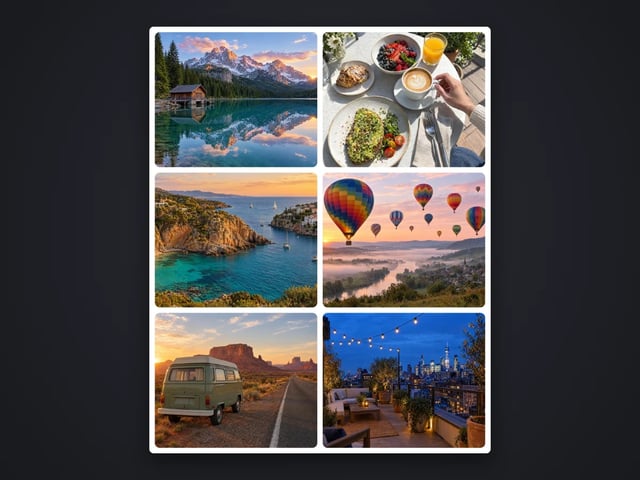
Put 2 to 9 photos in one grid
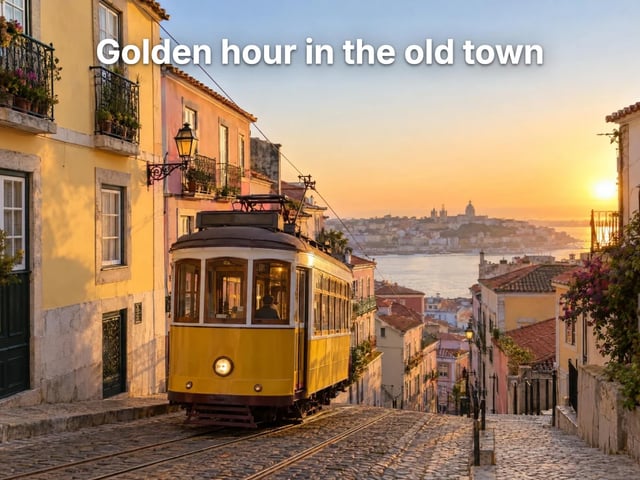
Captions in five styles, auto-fitted
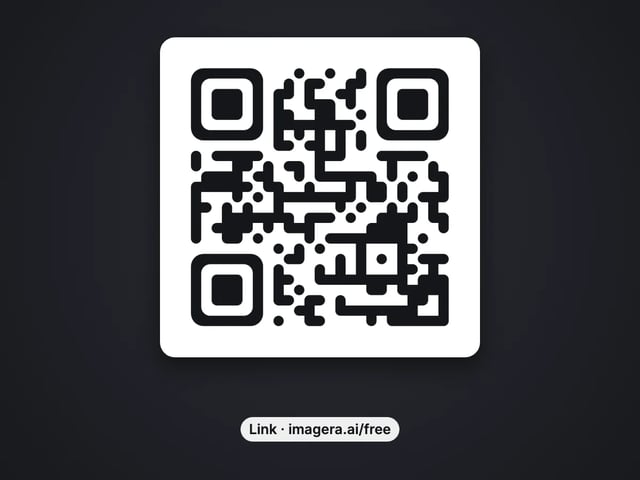
Make a QR code for a link or text
Complete your workflow
These pair with Magic Style Transfer. Every tile says what the tool actually does — without leaving this page.
Replace backgrounds before applying art styles
Generate AI images to transform into art styles
General-purpose AI image editing with Imagera Edit
Add freckles, pores, scars, tattoos. Remove blemishes. Fix plastic AI skin instantly.
Remove flyaway hair and fix fine imperfections with surgical AI precision.
Change the words, color or font of text baked into a photo, poster or screenshot.
Free passport, visa & ID photos — auto-cropped to any country's exact size, background and file size, right on your device.
Imagera AI Team
Unified AI creation platform