Six backgrounds
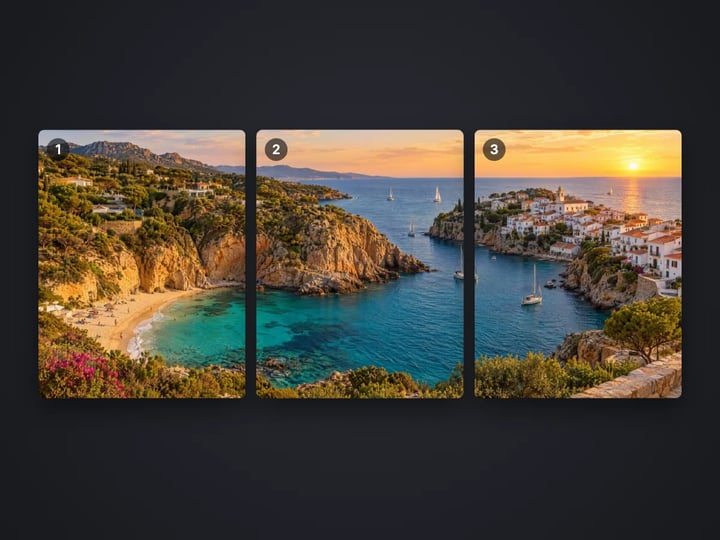
Sunset, Ocean, Mint and Grape gradients, plus plain Dark and Light for a quieter look.
Imagera AI - AI content creation platform for generating images, cloning voices, creating avatars, and enhancing videos. Privacy Policy | Terms
Social & creative · free · private
Place a screenshot on a gradient backdrop with padding, rounded corners, a soft shadow and an optional window bar — ready for a post, a doc or a slide. Your screenshot never leaves your device.
The screenshot is framed in your browser on your own device. It is never uploaded or stored on any server.
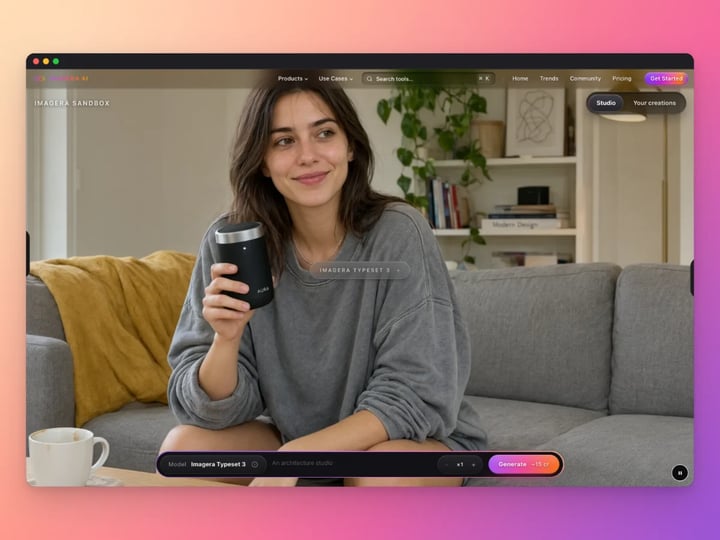 Real result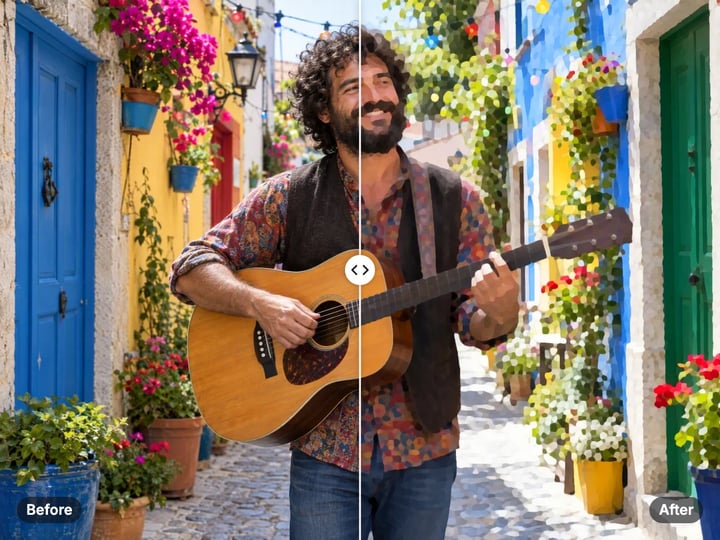
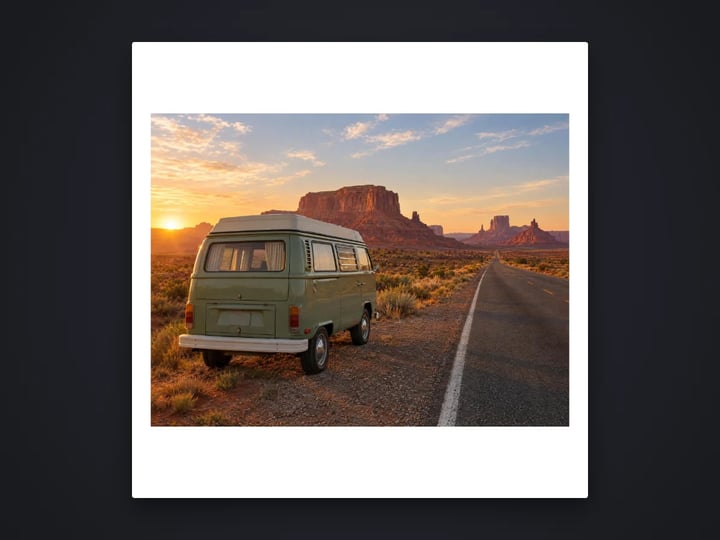
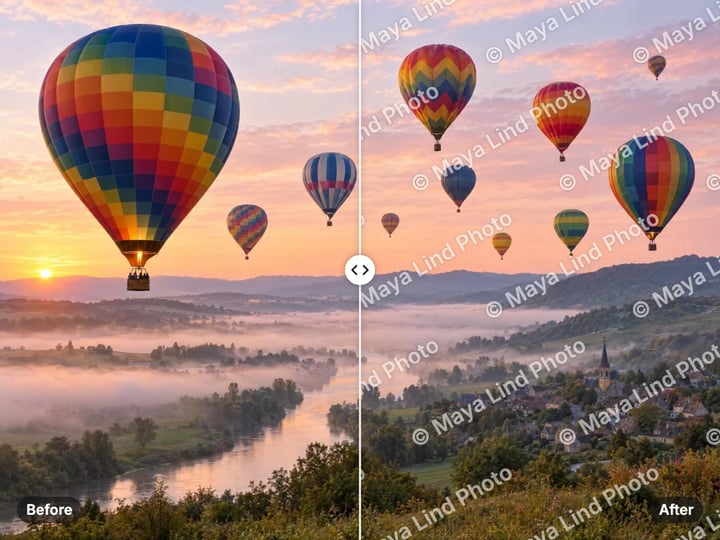
Quick answer
To make a screenshot look better, open Imagera's free screenshot beautifier, choose your screenshot and pick a background such as Sunset or Ocean. The tool adds padding, rounded corners, a soft drop shadow and an optional window bar with three dots, then saves a crisp PNG. It is a quick way to present app screens, code and charts in posts, docs and slides. It runs in your browser, so your screenshot is never uploaded.
Your screenshot never leaves your device — nothing is uploaded or saved on our servers.
How it works
Pick a PNG, JPG, WebP or HEIC screenshot. It stays on your device.
Choose a gradient or a plain dark or light backdrop and set the padding.
Turn the window bar on or off. In Advanced, set the corner radius and shadow.
Press Beautify and download the PNG.
Why this one
Sunset, Ocean, Mint and Grape gradients, plus plain Dark and Light for a quieter look.
Adds a simple app window top bar with three dots, so a bare screenshot reads as a real window.
Round the corners, set the space around the screenshot and choose how strong the drop shadow is.
Dashboards, inboxes and unreleased features stay on your device. Nothing is uploaded.
Continue in Imagera
Screenshot Beautifier edits the pixels you have. These studios use AI to create what is not in the picture yet — they run on credits.
 Next step
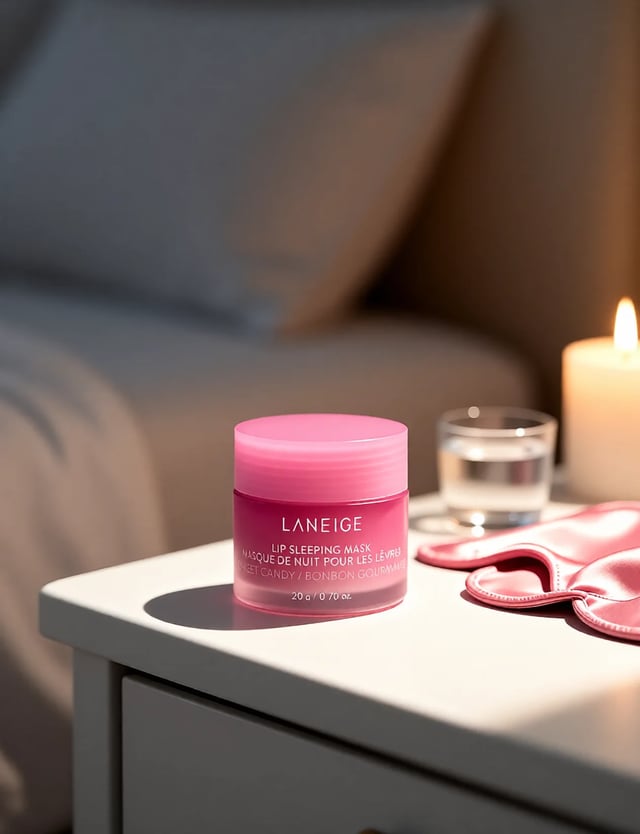
Create professional product photography scenes from a single image.
Open studio Imagera
Too small to print? Enlarge a photo to 4K, 8K or 16K (15,360 px on the long edge).
Open studio Imagera
Edit images with Imagera Edit. Inpaint, modify, and transform any part of your image.
Open studio Imagera
Replace any photo background with AI-generated luxury scenes.
Open studioWho it is for
Show a new feature on social media as a tidy window on a colored backdrop instead of a raw screen grab.
Give every screenshot in a help article or a deck the same padding, corners and shadow.
Make code, charts and settings screens easier to read and nicer to share.
Guide
A raw screenshot has hard edges and no context. This tool gives it a frame.
It places your screenshot on a background: four gradients called Sunset, Ocean, Mint and Grape, or plain Dark and Light. Padding sets how much background shows around it, from 0 to 20%.
It can add a window bar along the top with three dots, like an app window. That makes a cropped screen read as a window, not a fragment.
In Advanced, Corner radius rounds the screenshot's corners from 0 to 40 pixels, and Shadow sets how strong the drop shadow under it is, from none to a deep, soft shadow.
The result is a PNG, so small text and thin lines stay sharp. Everything is drawn in your browser. Your screenshot never leaves your device.
1. Take a clean screenshot. Close notifications, hide personal details and zoom the page so text is readable. 2. Crop to what matters. A screenshot of one panel reads better than a whole screen. Crop before you capture, or use the free image cropper. 3. Choose a background. A gradient suits social posts and launch pages. Light or Dark suit docs and help articles, where color would distract. 4. Set the padding. 6–10% gives room to breathe. Use less for a doc where space is tight. 5. Decide on the window bar. Keep it on for app and web screens. Turn it off for phone screenshots, charts and code snippets that are not windows. 6. Adjust the shadow. A medium shadow lifts the window off the background. Turn it down on a Light background for a flatter look. 7. Press Beautify and download.
The background sets the mood. Pick one that suits where the image will appear.
Sunset is warm and bright. It stands out in a busy social feed.
Ocean is cool and calm. It pairs well with blue interfaces and dashboards.
Mint is fresh and light. It works for finance, health and productivity screens.
Grape is rich and bold. It suits dark-mode screenshots and creative tools.
Dark is a plain deep backdrop. Use it for code, terminals and dark-mode apps, where a gradient would compete.
Light is a plain pale backdrop. It fits documentation, help centers and slides with white pages.
If you share a series, such as a changelog or a thread, keep the same background, padding and shadow on every image. Readers then see a set, not a jumble.
Social posts. A framed screenshot is easier to read at a glance in a feed. For a square or 4:5 post, run the result through the free image cropper afterward, or choose padding that brings it close to the shape you need.
Launch pages and changelogs. Use one style for every feature image. Consistent corners and shadows make a page look designed.
Documentation and help articles. Plain Light with modest padding and a light shadow keeps attention on the instructions. Turn off the window bar if your screenshots are small parts of a page.
Slides. A gradient behind a screenshot fills a slide nicely. For a widescreen slide, crop the result to 16:9.
Code snippets. Take a screenshot of the code, turn the window bar on, and choose Dark or Grape. It looks like an editor window and reads well on any feed.
Your screenshot never leaves your device. The background, padding, corners, shadow and window bar are all drawn with your browser's own canvas. The screenshot is read from your device, framed in memory and handed back as a download. Nothing is uploaded or saved on our servers.
Screenshots often hold more than you mean to share: an inbox in the sidebar, a customer name in a table, an unreleased feature, a private dashboard. Many screenshot tools upload the image to render the frame. This one does not.
Even so, check your screenshot for personal details before you post it. The beautifier frames what is there; it does not hide anything. For faces, use the free face blur tool; to hide text, crop it out first. A free sign-in, which you need after the first few downloads, never sends your screenshot anywhere.
The free screenshot beautifier is for screens: app windows, websites, code, charts and phone screenshots. It frames them on your device. Processing is unlimited. The first few downloads need no account, and then a free sign-in keeps them coming.
The paid Imagera product photography studio is for physical products. Upload a photo of a bottle, a shoe or a gadget, and it creates studio and lifestyle shots with new backgrounds, props and lighting. It runs in the cloud, uses credits and can work through several products in one go.
If you are showing software, the free tool is all you need. If you are selling something people can hold, the product studio turns a phone snap into a listing photo.
Free vs studio
Questions people ask
Choose a gradient background, keep padding around 8%, leave the window bar on and press Beautify. The PNG is ready to post; crop it to 4:5 or square afterward if you need to.
Choose your screenshot and pick one of six backgrounds. Padding controls how much of it shows around the edges.
Keep Window bar switched on. It adds a simple window top bar with three dots above your screenshot.
Yes. Screenshot the code, keep the window bar on and choose Dark or Grape. It reads like an editor window on any feed.
Open Advanced and set Corner radius. 12–20 pixels looks like a modern app window; 0 keeps square corners.
Yes. The result is saved as a PNG and the screenshot is drawn at its original size, so small text stays crisp.
Yes. Turn the window bar off for phone screens, pick a background and set the padding. A tall screenshot on a gradient suits stories and posts.
No. Processing is unlimited without an account. The first few downloads need no sign-in; after that, a free sign-in keeps downloads going. Your screenshot still stays on your device.
The screenshot is never uploaded or saved on our servers. Still, check it for names, emails and numbers before you share it, because the tool frames what is there.
More free tools
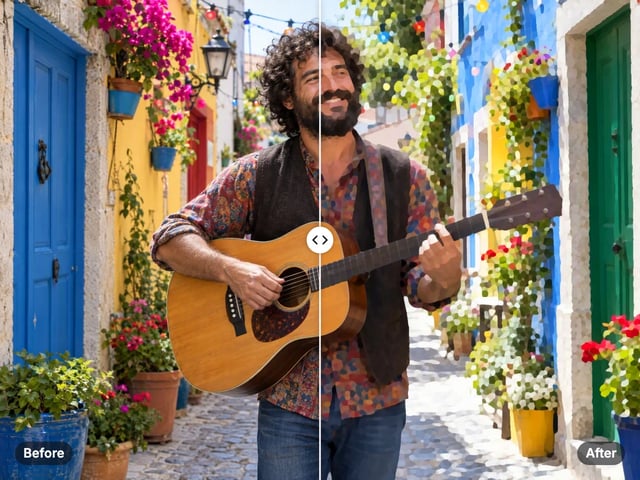
Turn a photo into a comic, painted or soft toon picture
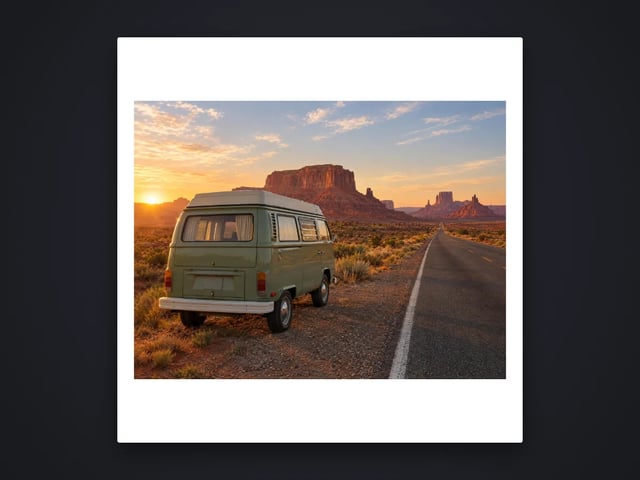
Add a border or fit a photo to 4:5 without cropping
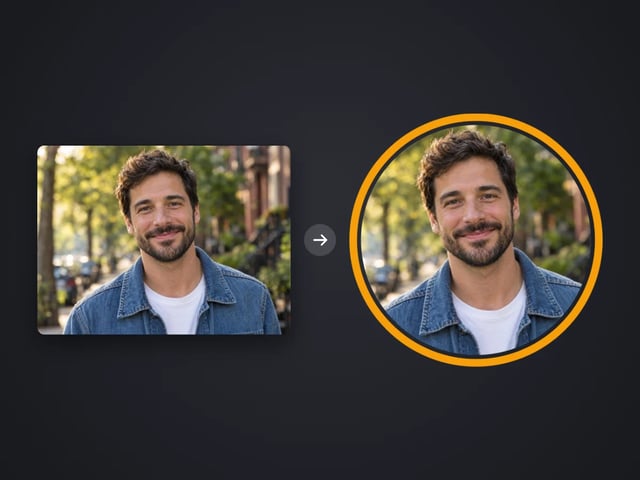
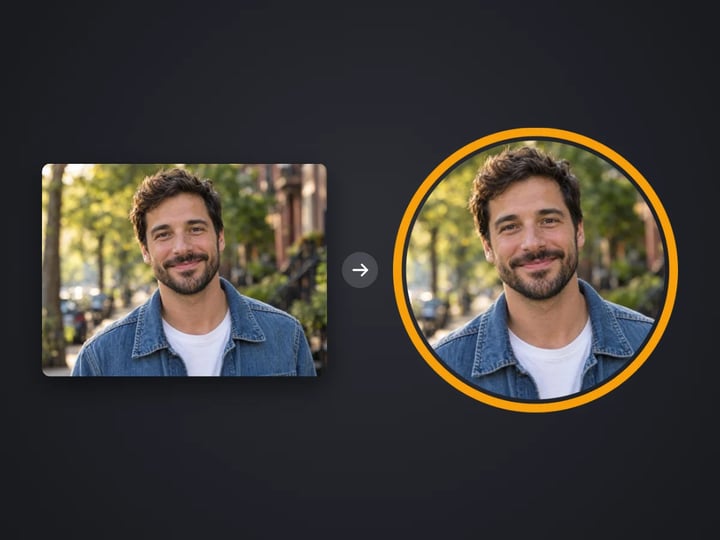
Round profile photo with a colored ring
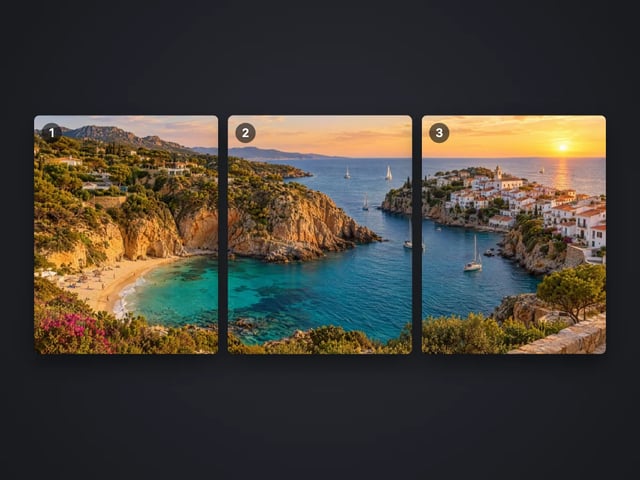
Split a photo into a carousel or a 3×3 grid
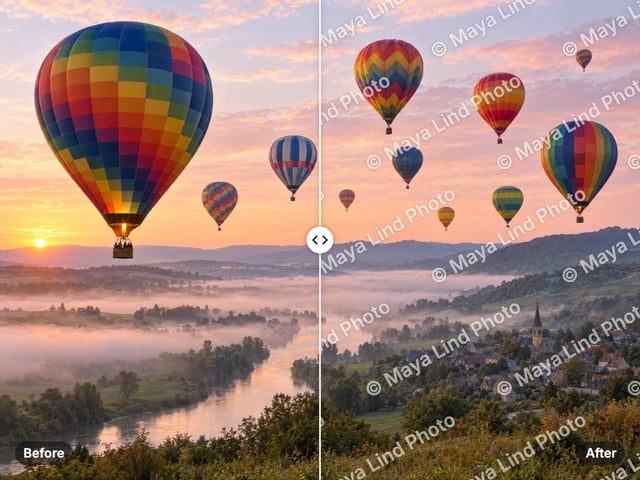
Add your name or © to a photo
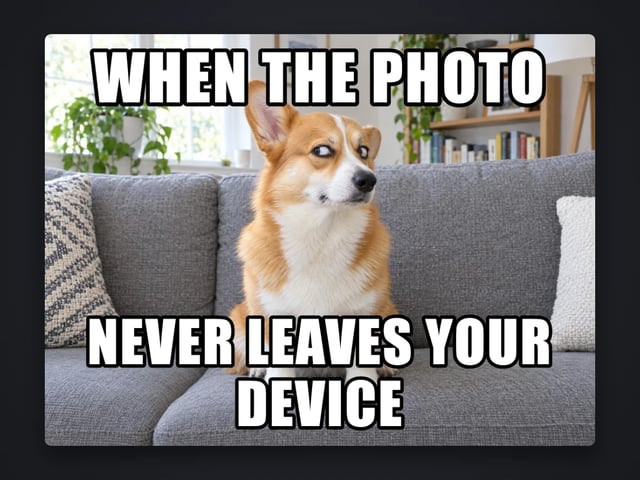
Top and bottom text on your own image
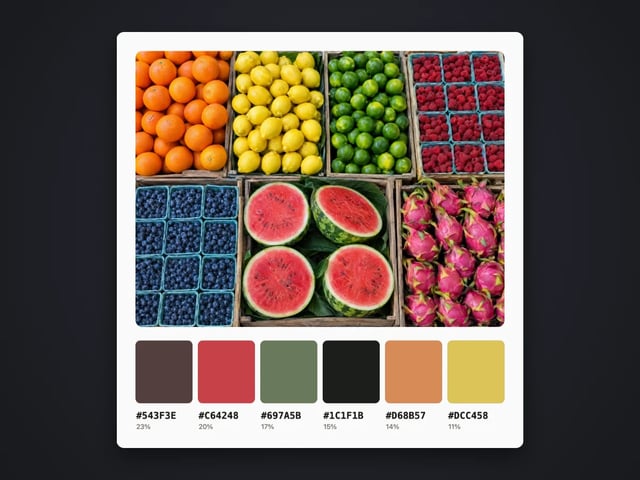
Pull the main colors and HEX codes from a photo
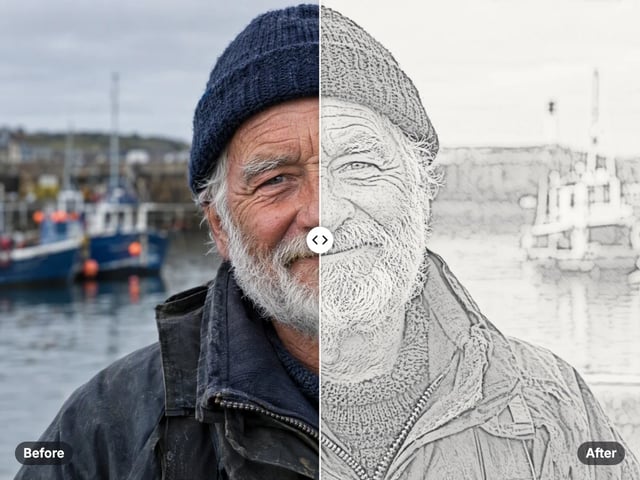
Turn a photo into a pencil or charcoal drawing
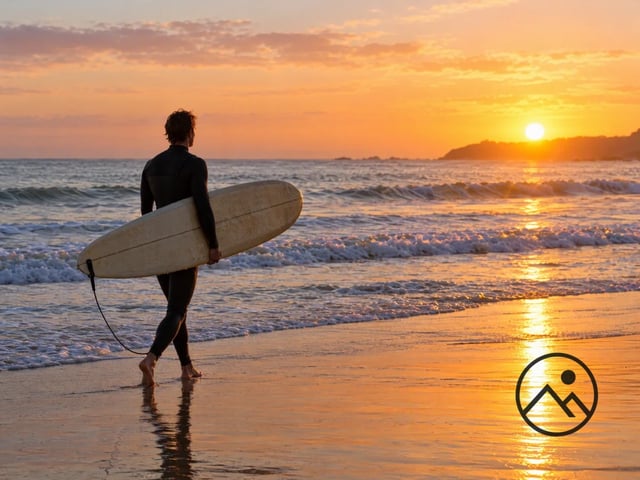
Put your logo on a photo, in a corner or tiled
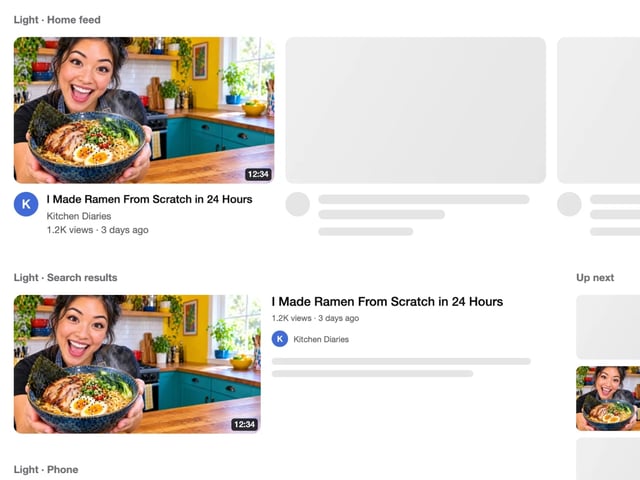
See your thumbnail in feed, search and phone layouts
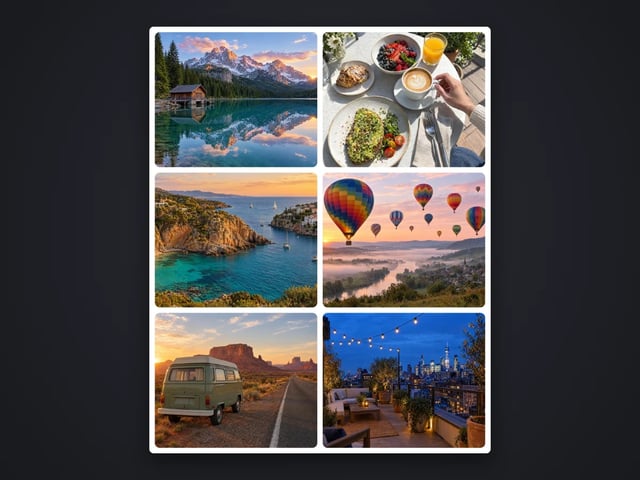
Put 2 to 9 photos in one grid
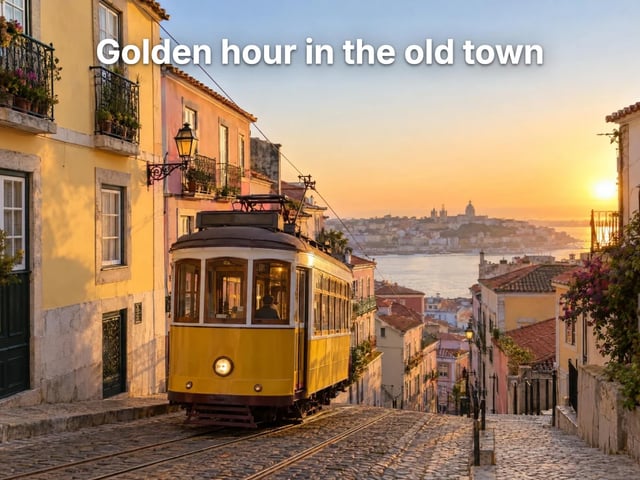
Captions in five styles, auto-fitted
Make a QR code for a link or text
Complete your workflow
These pair with Pro Product Shot Maker. Every tile says what the tool actually does — without leaving this page.
Replace product backgrounds with custom scenes
Create color variations for product catalogs
Upscale product photos to print-ready resolution
Remove flyaway hair and fix fine imperfections with surgical AI precision.
Change the words, color or font of text baked into a photo, poster or screenshot.
Free passport, visa & ID photos — auto-cropped to any country's exact size, background and file size, right on your device.
AI upscaling to 1080p/2K/4K. Ultra-high resolution. Batch process up to 5 images.
Imagera AI Team
Unified AI creation platform