Clean circle crop
A smooth-edged circle cut from the center of your photo, ready for any app that shows round avatars.
Imagera AI - AI content creation platform for generating images, cloning voices, creating avatars, and enhancing videos. Privacy Policy | Terms
Social & creative · free · private
Cut your photo into a clean circle, add a colored ring and download a transparent PNG at the size you need. Your photo never leaves your device.
The circle crop and ring are drawn in your browser on your own device. Your photo is never uploaded or stored on any server.
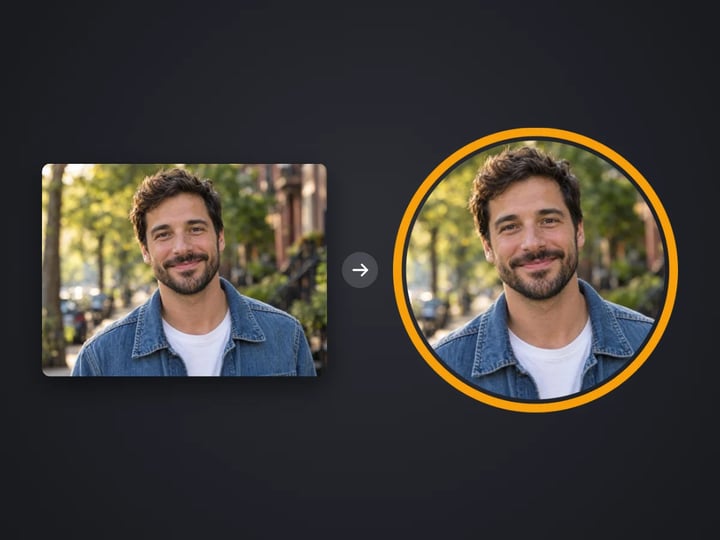 Real result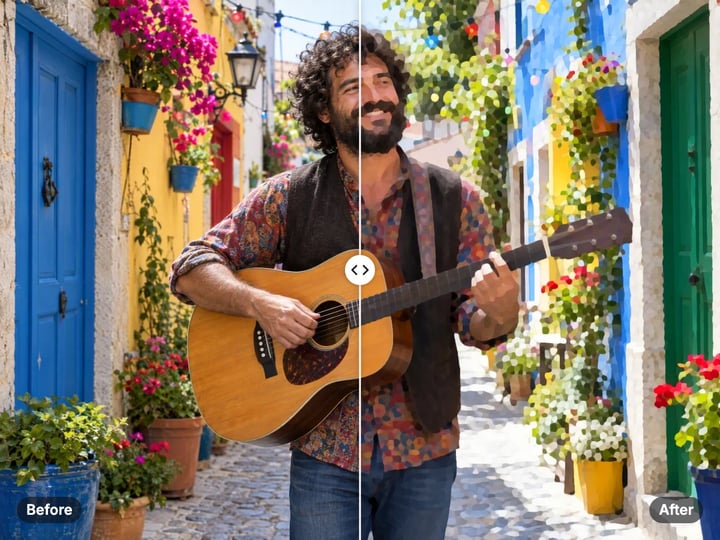
Quick answer
To make a circle profile picture, open Imagera's free profile picture maker, choose a photo with your face near the center, and pick a size and ring color. The tool cuts a clean circle, adds the ring and saves a PNG with transparent corners, so it sits neatly on any page. Sizes run from 400 to 2048 pixels. It runs in your browser, so your photo is never uploaded or saved on a server.
Your photo never leaves your device — nothing is uploaded or saved on our servers.
How it works
Pick a JPG, PNG, WebP or HEIC photo with your face near the center. It stays on your device.
Choose an output size and a ring color. In Advanced, set the ring width or turn it off with 0.
Keep the corners transparent, or switch them to white for sites that do not support transparency.
Press Make profile picture and download the round PNG.
Why this one
A smooth-edged circle cut from the center of your photo, ready for any app that shows round avatars.
Add a ring in any color, from a thin line to a bold band, or turn it off.
The corners outside the circle are transparent, so the picture sits cleanly on light or dark pages. White corners are an option.
Pick a small file for chat apps or a large one for sites that ask for a high-resolution avatar.
Continue in Imagera
Profile Picture Maker edits the pixels you have. These studios use AI to create what is not in the picture yet — they run on credits.
 Next step
Turn a few selfies into a studio-quality professional headshot for LinkedIn, work or your CV.
Open studio Imagera
Too small to print? Enlarge a photo to 4K, 8K or 16K (15,360 px on the long edge).
Open studio Imagera
Edit images with Imagera Edit. Inpaint, modify, and transform any part of your image.
Open studio Imagera
Replace any photo background with AI-generated luxury scenes.
Open studioWho it is for
A tidy round photo with a subtle ring for professional networks, email signatures and team pages.
A bold colored ring that matches your channel and stands out in comments and chat.
A transparent PNG at the exact size an app asks for, with no square corners showing.
Guide
This tool turns a photo into a round avatar in one step.
It cuts a circle from the center of your photo, as large as the photo allows. It then draws a ring around the edge in the color you choose. The ring width runs from 0 to 10% of the picture, so you can go from no ring at all to a bold band.
The result is a square PNG at the size you pick: 400, 800, 1024 or 2048 pixels. The area outside the circle is transparent by default, so the avatar looks clean on white pages, dark mode and colored headers alike. If a site does not handle transparency well, switch the corners to white.
One honest note. The tool does not look for your face. It uses the center of the photo. If you are off to one side, square-crop the photo first so your face sits in the middle.
1. Choose a photo. Head-and-shoulders photos work well. Face near the center, a little space above the head. 2. Pick a size. 1024 px is the default and suits most sites. Use 400 or 800 for a smaller file, or 2048 when a site asks for high resolution. 3. Pick a ring color. Amber is the default. White or black look classic. A brand color ties your avatar to your channel or company. 4. Adjust the ring width in Advanced. Around 2–4% is a clear but quiet ring. Set 0 for no ring. 5. Choose the corners. Keep transparent unless a site shows a black or gray square behind your avatar. In that case, use white. 6. Press Make profile picture and download.
The PNG is ready to upload wherever you need it.
Because the circle comes from the middle of the photo, framing matters.
If your photo is a square headshot with your face in the middle, you are ready. Use it as it is.
If your photo is tall, like most phone portraits, the circle takes the middle band. Your face may sit near the top edge or get cut off. Crop it first with the free image cropper. Choose 1:1 Square and keep the Top, then bring the square here.
If your photo is wide, or you are standing to one side, crop to a square and keep the Left or Right.
If you are small in the frame, raise the zoom in the cropper before you come back. A face that fills around two thirds of the circle reads well even at thumbnail size.
Apps show avatars small, often under 100 pixels across, but they store them larger and scale down. A bigger source keeps edges crisp on high-density phone screens.
400 px is enough for chat apps, forums and email signatures, and keeps the file small.
800 px is a solid all-round size for social profiles.
1024 px, the default, covers almost every site and leaves room for sharp display on large screens.
2048 px is for sites that ask for a high-resolution image, or for print use such as a badge or a name card.
If your original photo is smaller than the size you pick, the picture is enlarged to fit. That can look soft. For a sharp result, start with a photo that is at least as large as the size you choose.
Your photo never leaves your device. The circle crop, the ring and the transparent corners are all drawn with your browser's own canvas. Your photo is read from your device, shaped in memory and handed back as a PNG. Nothing is uploaded or saved on our servers.
A profile photo is a picture of your face. Many avatar makers upload it to a server to do something your browser can do on its own. Here, the page loads once and the rest happens locally.
That also means you can try several ring colors and sizes without anything piling up on a server. A free sign-in, which you need after the first few downloads, does not change this. Signing in never sends your photo anywhere.
The free profile picture maker shapes the photo you already have. It cuts a circle, adds a ring and saves a transparent PNG on your device. Processing is unlimited. The first few downloads need no account, and then a free sign-in keeps them coming.
The paid Imagera AI headshot solves a different problem: not having a good photo in the first place. You provide a few selfies, and it creates professional-looking portraits with studio lighting, clean backgrounds and different outfits. It runs in the cloud and uses credits.
If you like your photo and just need it round, stay with the free tool. If your only photos are blurry, badly lit or years old, a headshot may save you a photo shoot. You can bring the result back here to add a ring.
Free vs studio
Questions people ask
Choose your photo, pick a ring color and a size, and press Make profile picture. Adjust the ring width in Advanced. The result is a round PNG with transparent corners.
Keep Corners set to Transparent, the default. The area outside the circle is saved as transparent in a PNG, so no square shows behind your avatar.
Most sites are happy with 800 or 1024 pixels square. Use 400 for chat apps and email signatures, and 2048 when a site asks for high resolution.
Yes. Open Advanced and set Ring width to 0. You get a plain circle crop with transparent corners.
The circle is cut from the center of the photo. Crop to a square with the free image cropper first, keeping the top, left or right, then make the profile picture.
Some sites do not display transparency. Switch Corners to White in Advanced and download again.
No. It is a straight circle crop from the center with a ring. That keeps it quick and predictable, and it works on any photo, logo or pet picture.
No. Processing is unlimited without an account. The first few downloads need no sign-in; after that, a free sign-in keeps downloads going. Your photo still stays on your device.
Yes. It works on any image. Center the logo or the pet, pick a ring color, and download a round PNG.
More free tools
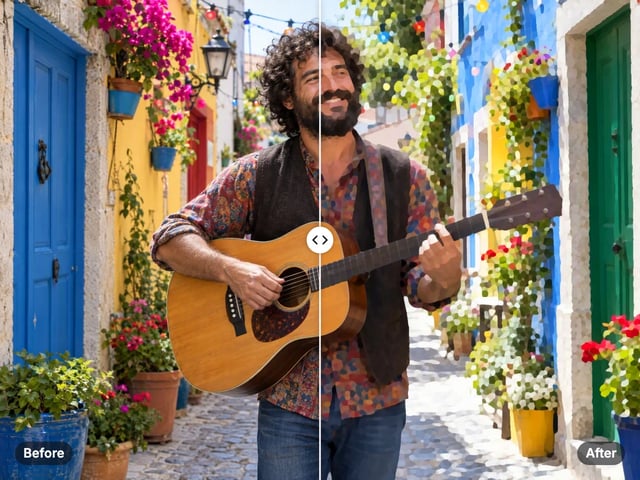
Turn a photo into a comic, painted or soft toon picture
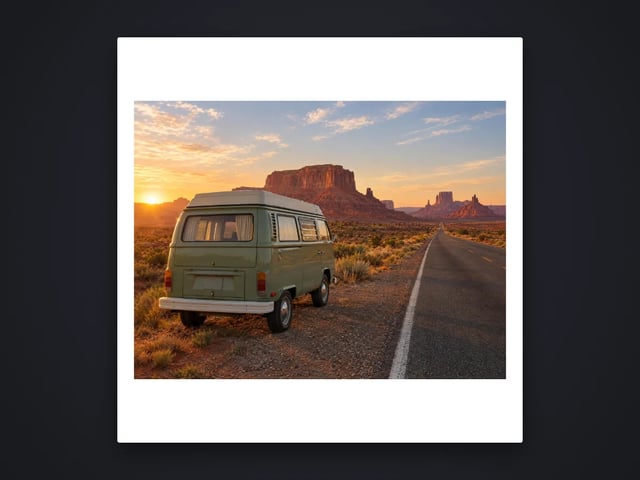
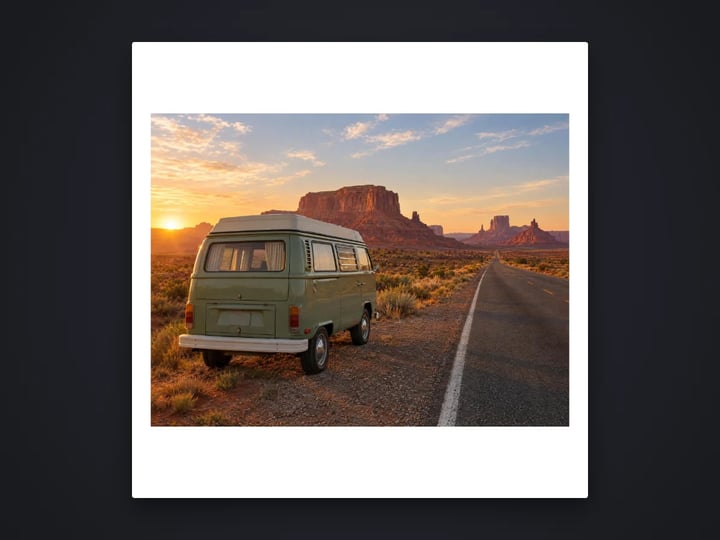
Add a border or fit a photo to 4:5 without cropping
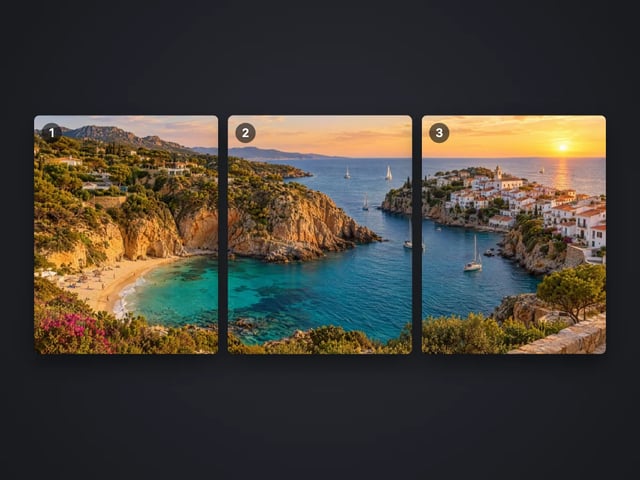
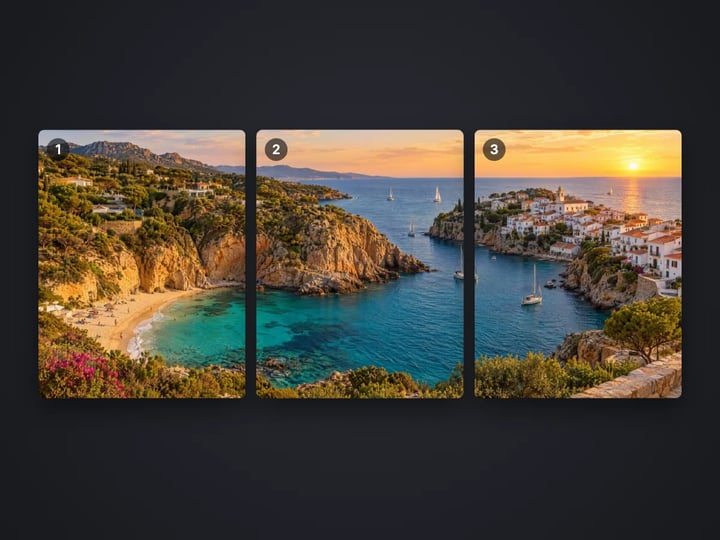
Split a photo into a carousel or a 3×3 grid
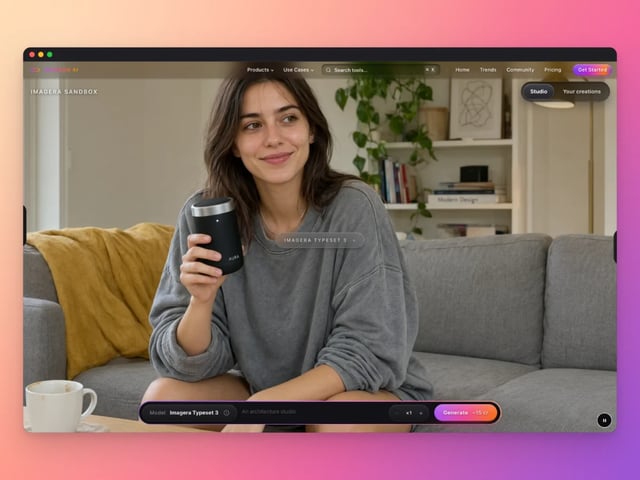
Frame a screenshot on a gradient with a shadow
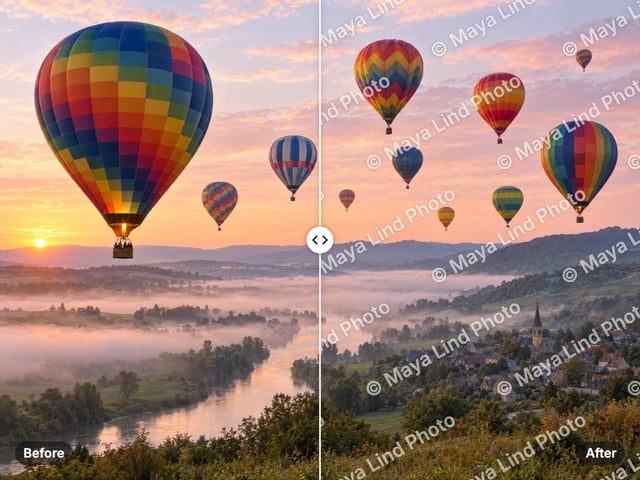
Add your name or © to a photo
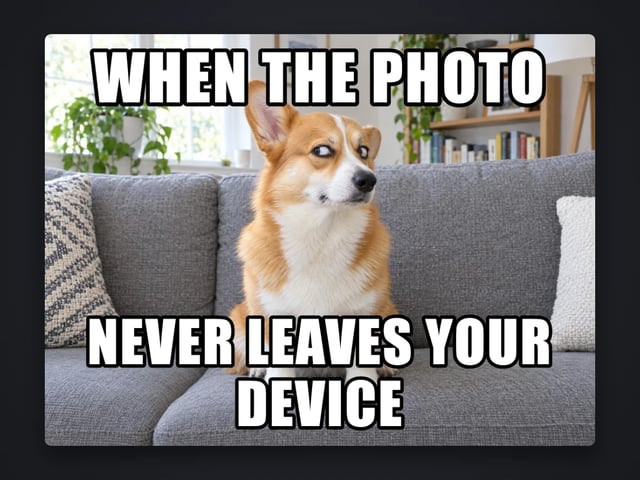
Top and bottom text on your own image
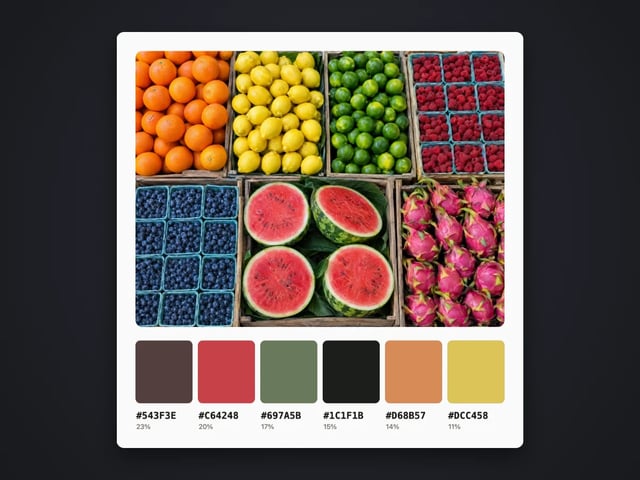
Pull the main colors and HEX codes from a photo
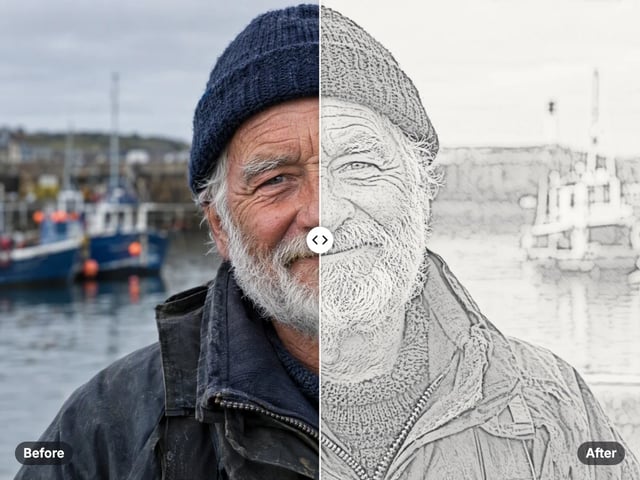
Turn a photo into a pencil or charcoal drawing
Put your logo on a photo, in a corner or tiled
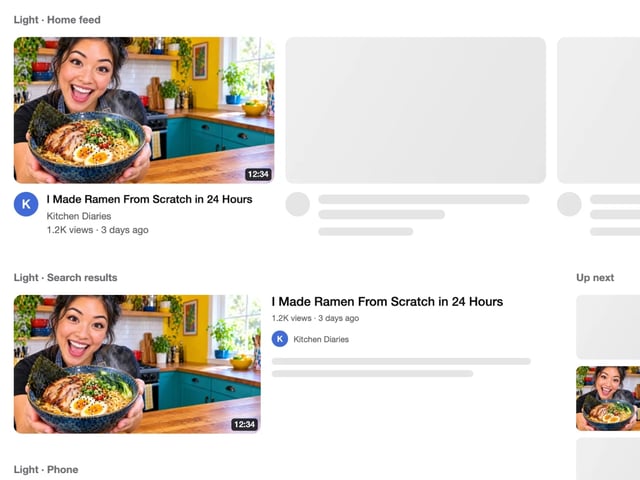
See your thumbnail in feed, search and phone layouts
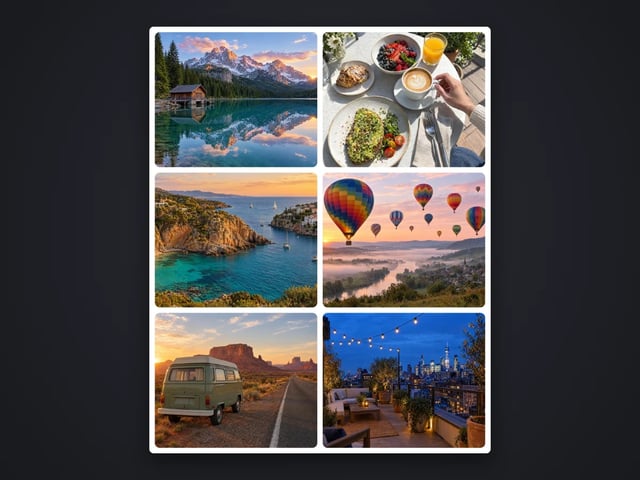
Put 2 to 9 photos in one grid
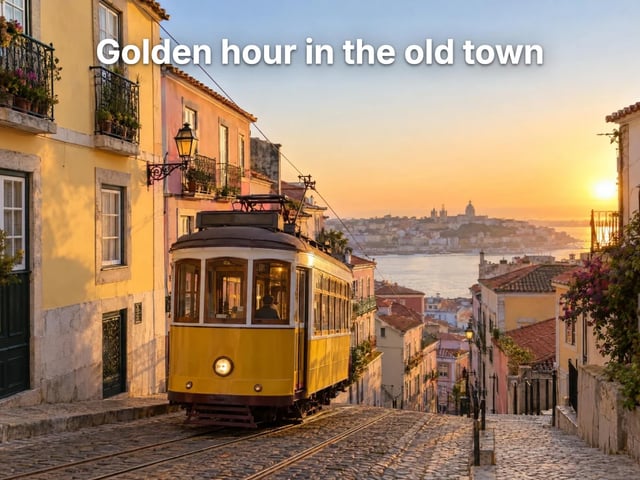
Captions in five styles, auto-fitted
Make a QR code for a link or text
Complete your workflow
These pair with Studio Headshot Maker. Every tile says what the tool actually does — without leaving this page.
Create standards-ready passport and ID photos
Adjust pose and styling while keeping the same face
Prepare finished portraits for high-resolution delivery
AI upscaling to 1080p/2K/4K. Ultra-high resolution. Batch process up to 5 images.
Add freckles, pores, scars, tattoos. Remove blemishes. Fix plastic AI skin instantly.
Edit images with Imagera Edit. Inpaint, modify, and transform any part of your image.
Remove flyaway hair and fix fine imperfections with surgical AI precision.
Imagera AI Team
Unified AI creation platform