Auto layout
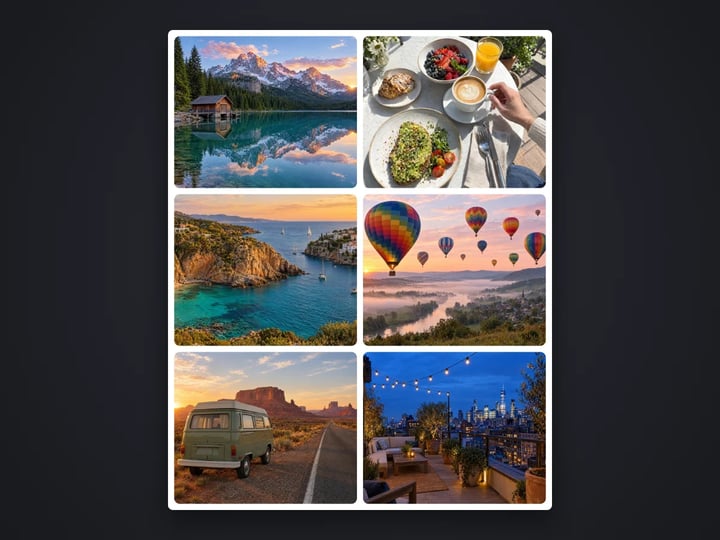
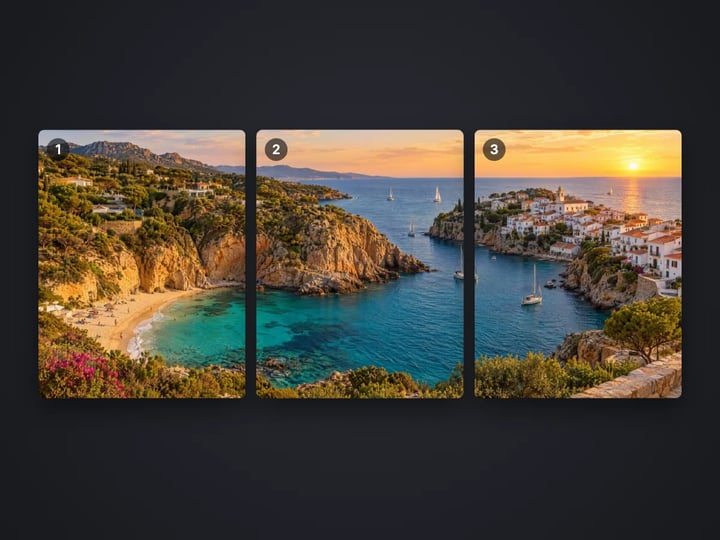
Auto arranges any number of photos from 2 to 9 into rows that keep every photo a similar size and shape.
Imagera AI - AI content creation platform for generating images, cloning voices, creating avatars, and enhancing videos. Privacy Policy | Terms
Social & creative · free · private
Choose 2 to 9 photos and get one clean grid for a post, a Story or a slide. Each photo is cropped to fit its space, and nothing is uploaded.
The collage is built in your browser on your own device. Your photos are never uploaded or saved on our servers.
 Real result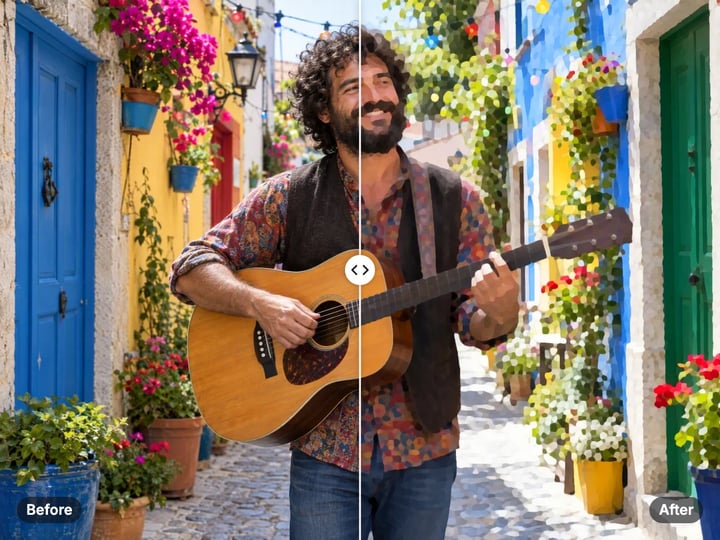
Quick answer
To make a photo collage for free, open Imagera’s Photo Collage Maker, choose 2 to 9 photos, keep the Auto layout or pick a grid, and choose a square, portrait, Story or wide shape. Set the spacing, press Make collage and download a JPG that is 2160 pixels on its long side. Everything happens in your browser, so your photos are never uploaded.
Your photo never leaves your device — nothing is uploaded or saved on our servers.
How it works
Select 2 to 9 photos. They stay on your device, and their order sets their places.
Keep Auto or choose a fixed grid, then pick square, portrait, Story or wide.
Adjust the gap, and in Advanced its color and the corner rounding.
Press Make collage and download the JPG.
Why this one
Auto arranges any number of photos from 2 to 9 into rows that keep every photo a similar size and shape.
Two side by side, two stacked, three with one large, and 4, 6 and 9 grids when you want a set pattern.
Square, 4:5 portrait, 9:16 Story and 16:9 wide, saved 2160 pixels on the long side.
Set the gap, its color and rounded corners. The gap is even between photos and around the edge.
Continue in Imagera
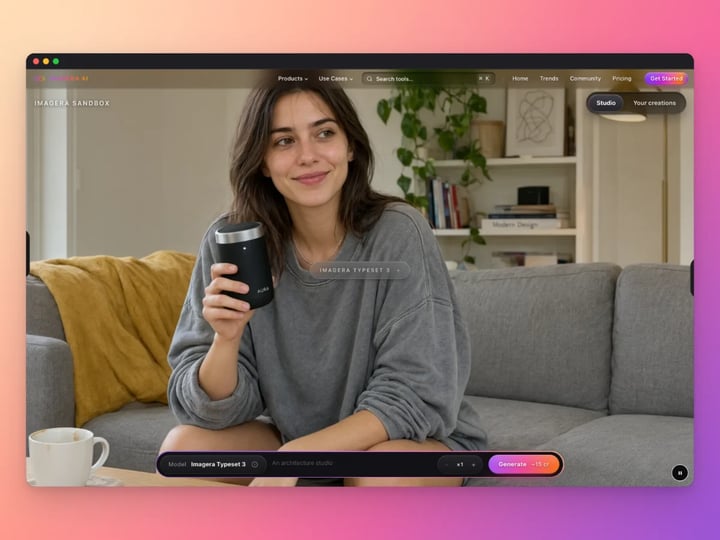
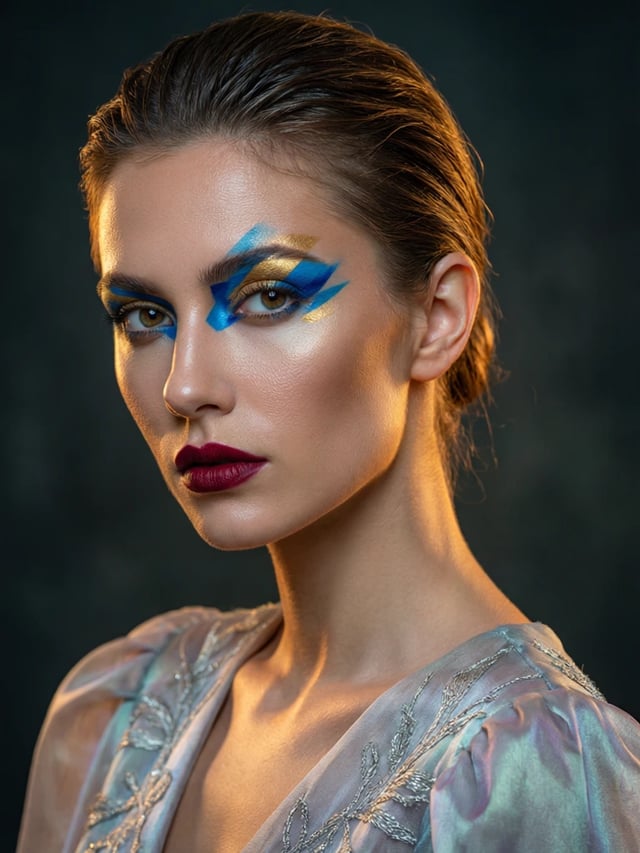
Photo Collage Maker edits the pixels you have. These studios use AI to create what is not in the picture yet — they run on credits.
 Next step
For advanced users — bring your own LoRA for a consistent style or character.
Open studio Imagera
Too small to print? Enlarge a photo to 4K, 8K or 16K (15,360 px on the long edge).
Open studio Imagera
Edit images with Imagera Edit. Inpaint, modify, and transform any part of your image.
Open studio Imagera
Replace any photo background with AI-generated luxury scenes.
Open studioWho it is for
Put the best shots of a weekend, a wedding or a game into one post instead of a long carousel.
Show a product from several angles, or a range of colors, in a single tidy image.
Place two photos side by side for a renovation, a haircut or a fitness update.
Guide
The collage maker places several photos into one image, each in its own space, with an even gap around them.
You choose 2 to 9 photos. The order you add them is the order they fill the grid, left to right and top to bottom. Each photo is cropped to fill its space, so there are no empty bars inside the grid.
The finished collage is a JPG, 2160 pixels on its long side. That is sharp on phones and high-resolution screens and still a reasonable file to post or send.
You control the layout, the shape of the whole collage, the spacing and, in Advanced, the background color of the gaps and the rounded corners on each photo.
There is no watermark, and the photos are handled entirely by your browser.
1. Choose your photos. Select 2 to 9 photos at once. You can add more or remove one before you start. 2. Pick a layout. Auto works for any number. The fixed grids are listed by how many photos they hold. 3. Pick a shape. 1:1 for a feed post, 4:5 for a taller feed post, 9:16 for a Story, 16:9 for slides and wide screens. 4. Set the spacing. Zero gives a seamless mosaic; a larger gap looks airier. 5. Make and download. Press Make collage. If you do not like a crop, change the order, the layout or the shape and make it again.
If you choose a fixed grid with more spaces than photos, the tool tells you how many to add. With more photos than spaces, it uses them in order and says how many it used.
Auto arranges any number of photos into rows so every space stays close to square. Five photos on a square collage become two on top and three below; seven become two, two and three. On a tall 9:16 Story, Auto uses more rows.
2 side by side and 2 stacked are the classic before-and-after and comparison layouts.
3 with one large gives one photo half of the collage and splits the other half between two. On a wide or square collage the large photo sits on the left; on a tall one it goes on top. Put your strongest photo first.
4, 6 and 9 grids give every photo an equal space. The 6 grid is three across on wide shapes and two across on tall ones. A 9 grid works well for a travel recap or a product range.
If a layout does not suit your photos, try another one. It takes a second.
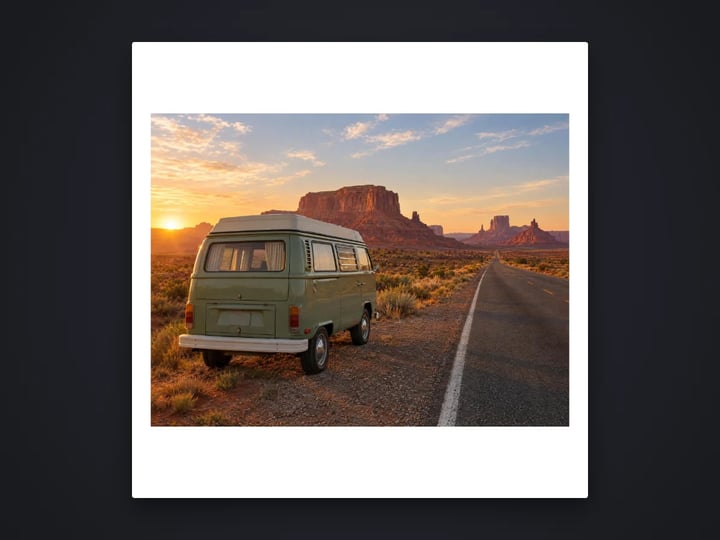
Photos rarely match the exact shape of their space. A landscape photo in a tall space must lose some of its sides. The collage maker fills each space completely and trims the rest.
The crop keeps the center of each photo. When a photo is trimmed at the top and bottom, it keeps a little more of the top, because in most photos of people the faces are in the upper part of the frame.
To control a crop yourself:
- Crop first. Use the free image cropper to frame a photo before adding it. - Match shapes. Portrait photos suit tall spaces and landscape photos suit wide ones. Reordering the photos often fixes an awkward crop. - Try a different shape. A square collage crops less than a Story when your photos are landscape.
Each photo is resampled with a high-quality filter, so small spaces still look sharp.
Small design choices make a collage look finished.
Spacing. The gap is the same between photos and around the outside edge, so the grid looks even. A gap of about 8 to 16 suits most posts. Zero makes one seamless image, which works for a 9 grid of related shots.
Background. The gap shows the background color. White is clean and bright. Black makes colors look richer and suits evening photos. A soft off-white or a color from your photos looks designed.
Rounded corners. Gentle rounding softens the grid and looks at home in apps; square corners feel more like a printed contact sheet.
Spacing and rounding scale with the collage, so the same settings look the same whether you choose square or Story.
For a series of posts, keep the same shape, spacing and color every time so your feed looks consistent.
Collage apps usually upload every photo you add, and some keep them. Imagera’s collage maker reads your photos in your own browser, arranges them there and hands you the finished image. Nothing is uploaded or saved on our servers, which matters for family photos and pictures of other people.
Making collages is unlimited and there is no watermark. Your first few downloads need no account; after that, a free sign-in keeps them going.
A collage can only use the photos you took. When the set is missing something, such as a clean flat-lay of your product, a title card in your brand colors or a matching scene, the paid AI image generator creates it from a short description. It runs in the cloud and uses credits. Add the new image to your collage like any other photo.
Free vs studio
Questions people ask
Choose your photos, keep Auto or pick a grid, and set Shape to 1:1 Square or 4:5 Portrait. Press Make collage and post the JPG.
Add the two photos and choose 2 side by side. For a before-and-after, add the before photo first so it lands on the left.
Yes. Set Shape to 9:16 Story. Auto uses more rows on this tall shape, and 3 with one large puts the large photo on top.
Photos fill the spaces in the order you added them, left to right and top to bottom. Remove and re-add a photo to move it later in the order.
Yes. Set Spacing to 0 and the photos meet edge to edge. You can also change the gap color to black or any color.
The long side is 2160 pixels: 2160 × 2160 for square, 1728 × 2160 for 4:5, 1215 × 2160 for Story and 2160 × 1215 for wide.
Yes. Open the page in your phone’s browser, select up to 9 photos from your camera roll and make the collage. The photos stay on your phone.
No. The collage downloads as a clean JPG with nothing added.
Not in this tool. Download the collage, then open it in the free Add Text to Photo tool to put a caption on it.
More free tools
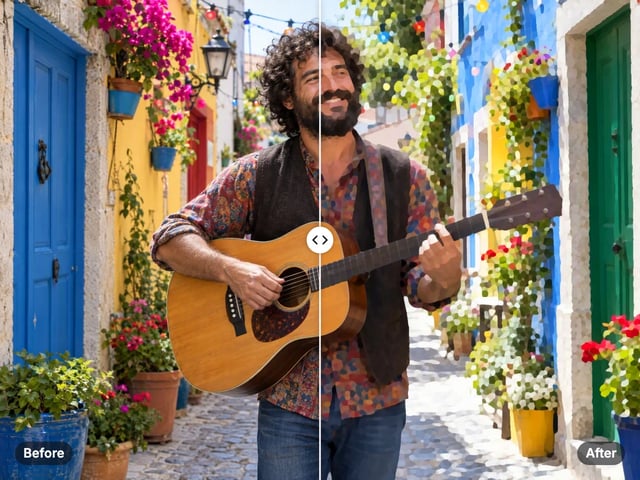
Turn a photo into a comic, painted or soft toon picture
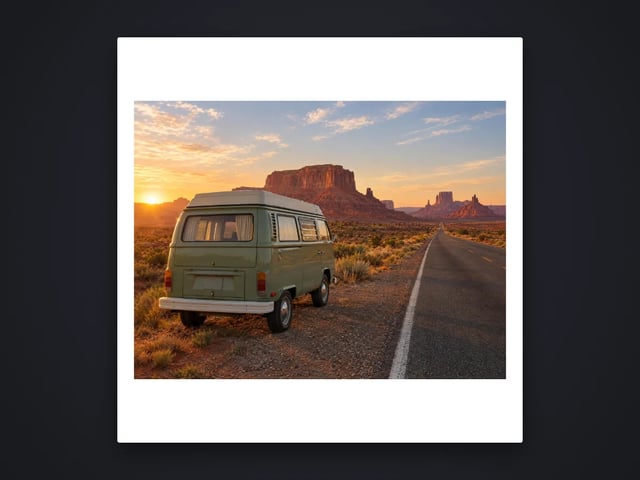
Add a border or fit a photo to 4:5 without cropping
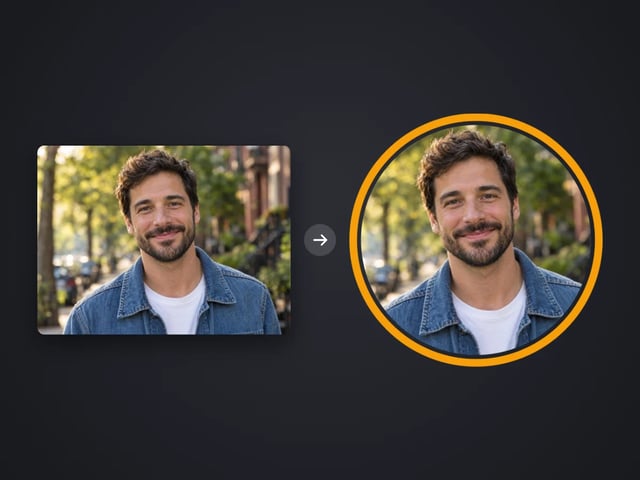
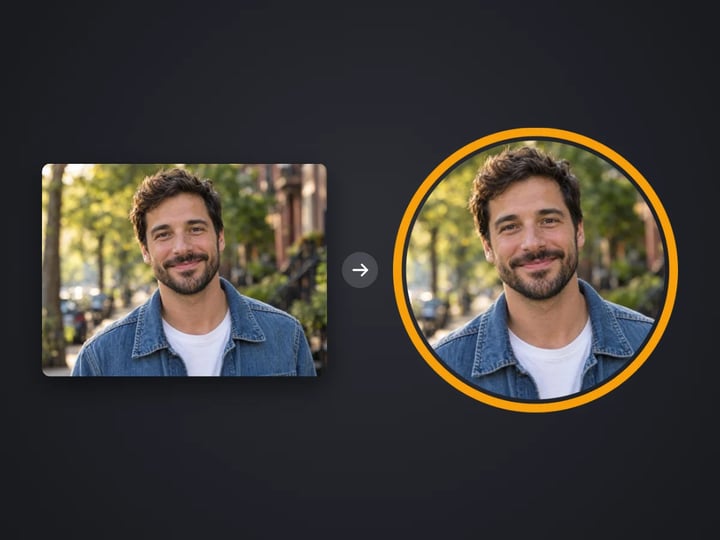
Round profile photo with a colored ring
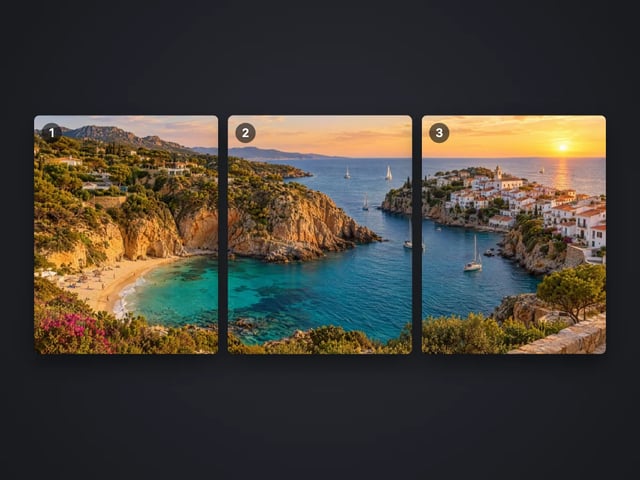
Split a photo into a carousel or a 3×3 grid
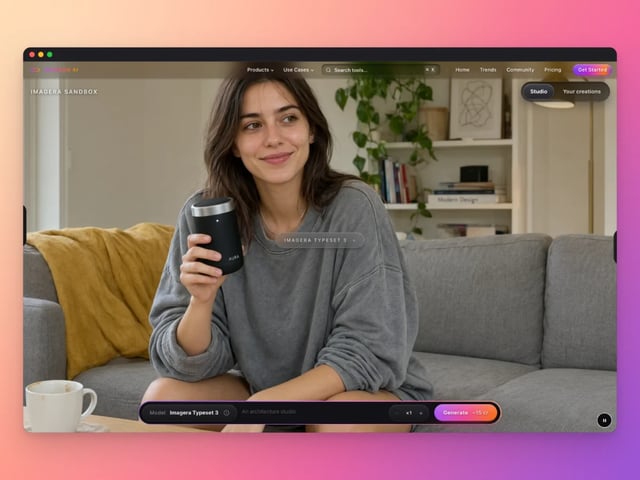
Frame a screenshot on a gradient with a shadow
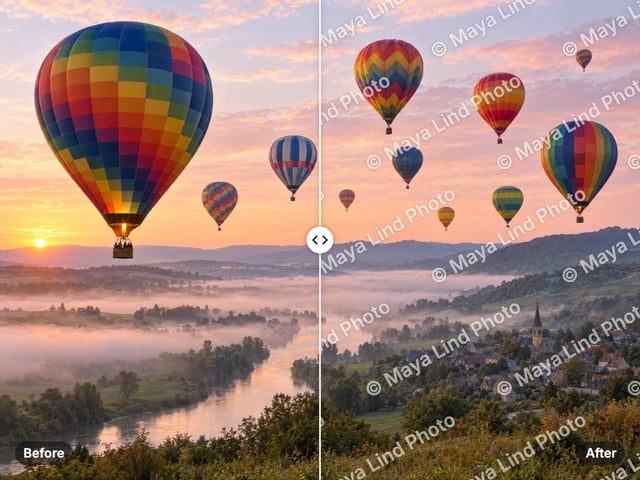
Add your name or © to a photo
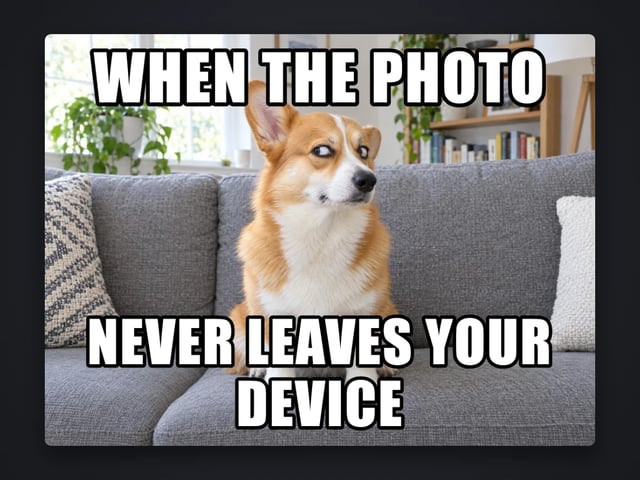
Top and bottom text on your own image
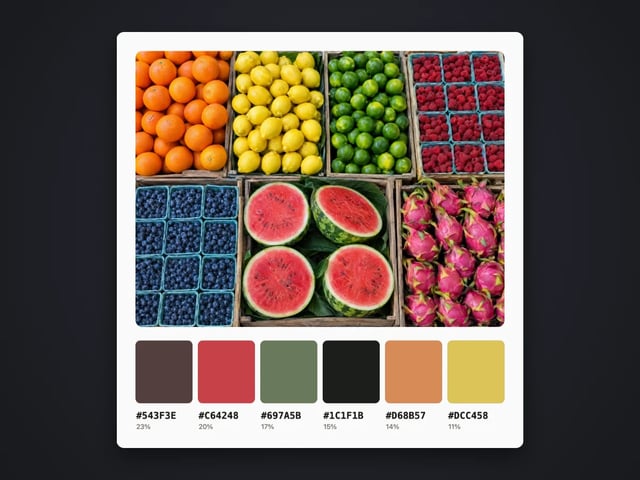
Pull the main colors and HEX codes from a photo
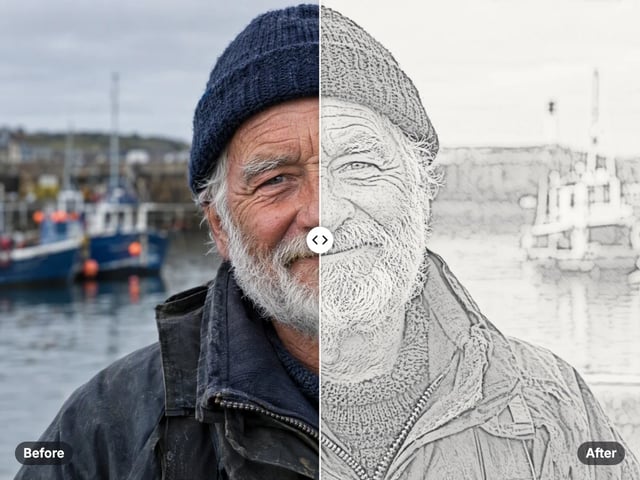
Turn a photo into a pencil or charcoal drawing
Put your logo on a photo, in a corner or tiled
See your thumbnail in feed, search and phone layouts
Captions in five styles, auto-fitted

Make a QR code for a link or text
Complete your workflow
These pair with Pro LoRA Generator. Every tile says what the tool actually does — without leaving this page.
Enhance and upscale your generated images to 16K
Transform images into cinematic AI videos
Make a generated portrait speak your script
Ask 10 AIs the same question. Steal the best answer.
Add freckles, pores, scars, tattoos. Remove blemishes. Fix plastic AI skin instantly.
Edit images with Imagera Edit. Inpaint, modify, and transform any part of your image.
Remove flyaway hair and fix fine imperfections with surgical AI precision.
Change the words, color or font of text baked into a photo, poster or screenshot.
Imagera AI Team
Unified AI creation platform