3 to 10 colors
Ask for a small, bold palette or a wider set that includes secondary tones.
Imagera AI - AI content creation platform for generating images, cloning voices, creating avatars, and enhancing videos. Privacy Policy | Terms
Social & creative · free · private
Find the main colors in a photo, get their HEX codes and download a palette card — sorted by how much of the picture each color covers. Your image never leaves your device.
The colors are measured in your browser on your own device. Your image is never uploaded or stored on any server.
 Real result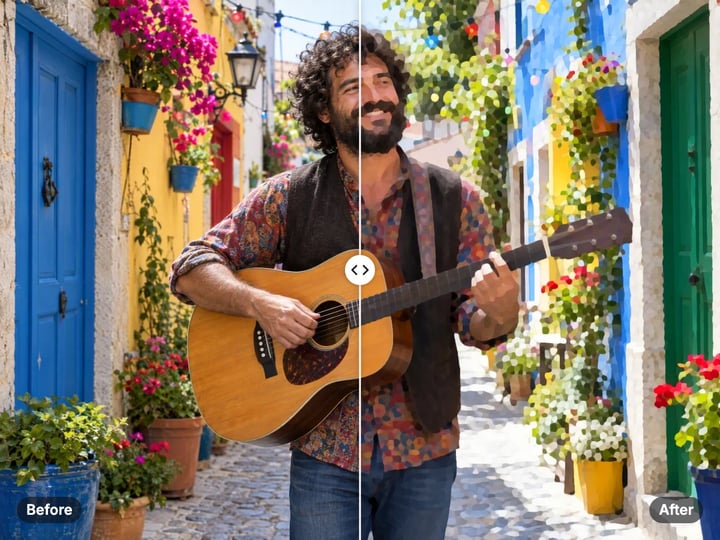
Quick answer
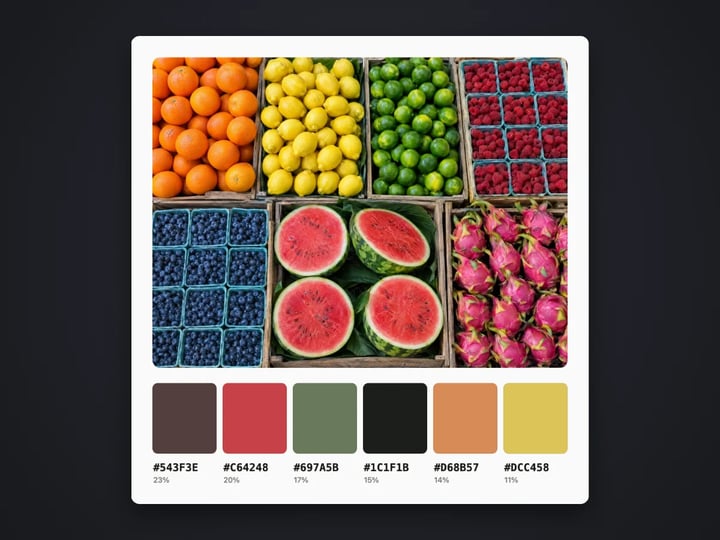
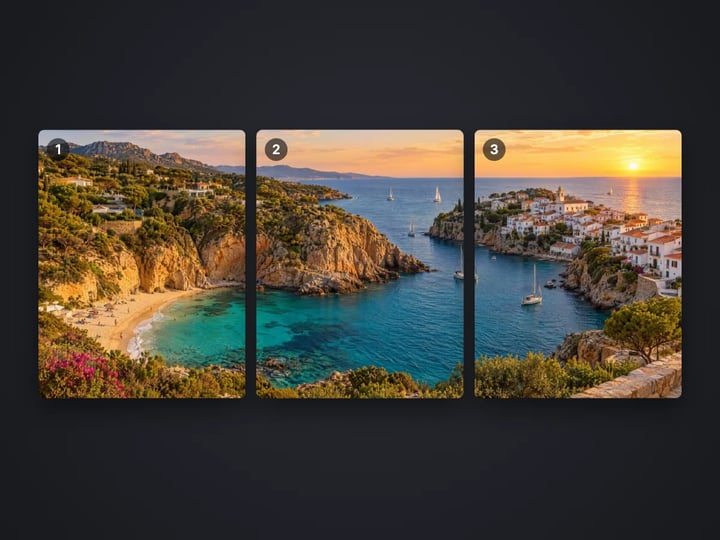
To extract a color palette from an image, open Imagera's free color palette extractor, choose your image and pick how many colors you want, from 3 to 10. The tool finds the main colors, sorts them by how much of the picture each covers and shows their HEX codes. You can copy the codes or download a palette card with your image and the swatches. It runs in your browser, so your image is never uploaded.
Your image never leaves your device — nothing is uploaded or saved on our servers.
How it works
Pick a photo, artwork or screenshot. It stays on your device.
Choose between 3 and 10 colors. Six is the default.
Press Extract colors to see the swatches and HEX codes.
Copy the HEX codes you need, or download the palette card.
Why this one
Ask for a small, bold palette or a wider set that includes secondary tones.
Colors are ordered by how much of the image they cover, so the dominant color comes first.
Every swatch comes with its HEX code, ready for design tools, CSS or a brand guide.
A 1200 px wide card with your image on top and the labelled swatches below, ready to share.
Continue in Imagera
Color Palette Extractor edits the pixels you have. These studios use AI to create what is not in the picture yet — they run on credits.
 Next step
For advanced users — bring your own LoRA for a consistent style or character.
Open studio Imagera
Too small to print? Enlarge a photo to 4K, 8K or 16K (15,360 px on the long edge).
Open studio Imagera
Edit images with Imagera Edit. Inpaint, modify, and transform any part of your image.
Open studio Imagera
Replace any photo background with AI-generated luxury scenes.
Open studioWho it is for
Pull a starting palette from a mood photo, a product shot or a client's existing artwork.
Match text, borders and backgrounds to the colors already in your photos.
Find paint, fabric or yarn colors that go with a room, an outfit or a favorite picture.
Guide
This tool finds the main colors in an image and gives you their codes.
You choose how many colors you want, from 3 to 10. The tool looks at a scaled-down copy of your image, groups similar pixels together and takes the average color of each group. Each group becomes one swatch.
The swatches are sorted by share: the color that covers the most of the image comes first. Each one shows its HEX code, such as #2563EB, ready to paste into a design app, a website stylesheet or a brand guide.
Transparent areas, such as the empty background of a cut-out PNG, are ignored, so they do not add a false color.
You can also download a palette card: a 1200 pixel wide image with your picture on top and the labelled swatches below. It is handy for mood boards and for sharing with a client or team.
Everything happens in your browser. Your image never leaves your device.
1. Choose an image. A photo, a painting, a screenshot of a website or a product shot all work. 2. Set the number of colors. Start with 6, the default. Use 3–4 for a bold, simple palette. Use 8–10 to catch secondary tones and accents. 3. Press Extract colors. The swatches appear with their HEX codes, largest share first. 4. Copy the codes you want, or download the palette card to keep the set together with its source.
If a color you can see in the image is missing, raise the count and extract again. If two swatches look almost the same, lower it.
To match an exact brand color from a logo, crop the image tightly around the logo first with the free image cropper. With less background in the picture, the logo colors take a bigger share and come out more precisely.
It helps to know what the numbers mean, because they are not a pixel picker.
The tool uses a standard clustering method. It places a number of starting colors, assigns every pixel to the nearest one, moves each starting color to the average of its pixels, and repeats until the groups settle. The final averages are your swatches.
That has two practical effects.
A swatch is an average. It represents a whole area, such as a sky that shifts from pale to deep blue. The exact HEX may not appear as a single pixel in your image, but it is the color your eye reads for that area.
Small areas can merge. A small red detail in a mostly green photo may join a nearby group rather than get its own swatch. Raising the count gives small colors more room to appear.
For a single exact pixel, use a color picker in your design app. For the overall palette of an image, this is the right tool.
Brand and design work. Pull a palette from a mood photo to start a brand, a presentation or a website theme. Use the first swatch as a background and the smaller, more saturated ones as accents.
Consistent feeds. Extract colors from your most-liked posts and reuse them in text, borders and backgrounds. The free border tool accepts any HEX code.
Matching an existing look. Extract colors from a client's artwork or packaging to keep new material in step.
Home, fashion and crafts. Photograph a room, an outfit or a landscape you love, and take the codes to a paint, fabric or yarn shop. Screens and printed colors never match exactly, so compare samples in real light before you buy.
Accessibility. When you pair colors for text and backgrounds, check the contrast. Two colors from the same photo can look great together yet be hard to read as text on background.
Your image never leaves your device. The color grouping and the palette card are both done in your browser. The image is read from your device, measured in memory and the results are shown on the page. Nothing is uploaded or saved on our servers.
That matters when the image is not yours to share yet: an unreleased product, a client's brand draft, a design under wraps. Many palette tools upload the picture to work out the colors. This one does not.
The page needs a connection to load. After that, the analysis is local. A free sign-in, which you need after the first few downloads, does not change this. Signing in never sends your image anywhere. You can extract palettes from as many images as you like, and none of them leave your device.
The free color palette extractor reads the colors in an image you already have. It gives you 3 to 10 swatches, HEX codes sorted by share and a downloadable palette card, all on your device. Processing is unlimited. The first few downloads need no account, and then a free sign-in keeps them coming.
The paid Imagera image generator goes the other way. It creates new images, and you can name your palette in the description: backgrounds, patterns, product scenes or mood boards in exactly the colors you extracted. It runs in the cloud, uses credits and keeps a history of what you make.
A simple workflow is to extract a palette from a photo you love here, then use those colors to brief new artwork in the generator.
Free vs studio
Questions people ask
Choose your image, set the number of colors and press Extract colors. The swatches appear with HEX codes, sorted by how much of the image each covers.
Extract a palette and copy the HEX code under the swatch you want. For a single exact pixel, use the color picker in a design app instead.
Six is a good start. Three or four gives a bold, simple palette. Eight to ten picks up secondary tones and small accents.
Each swatch is the average color of a group of similar pixels. It represents the area as a whole, so the exact value may not appear as one pixel.
Yes. Mostly transparent pixels are skipped, so the empty area around a cut-out PNG does not add a false color.
Yes. Crop tightly around the logo first so the background takes up less of the image, then extract. The logo colors come out more precisely.
Your image on top and the swatches below, each labelled with its HEX code, in one 1200 pixel wide image.
No. Processing is unlimited without an account. The first few downloads need no sign-in; after that, a free sign-in keeps downloads going. Your image still stays on your device.
No. The colors are measured in your browser and nothing is uploaded or saved on our servers.
More free tools
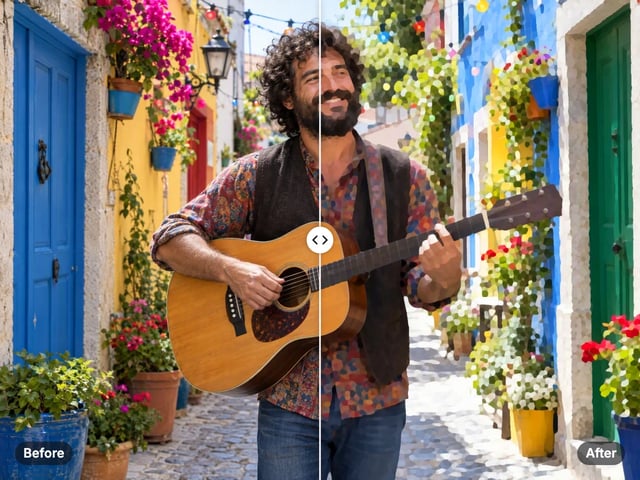
Turn a photo into a comic, painted or soft toon picture
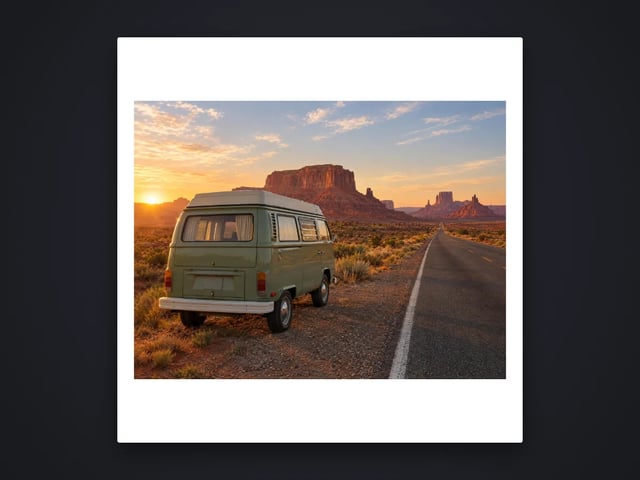
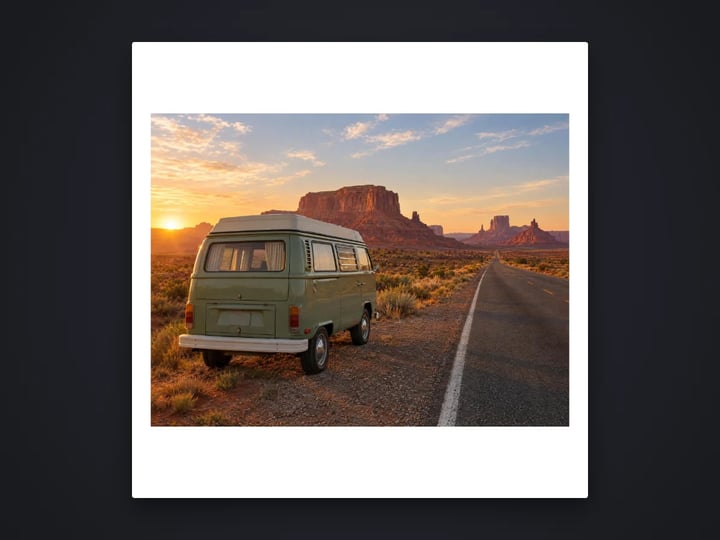
Add a border or fit a photo to 4:5 without cropping
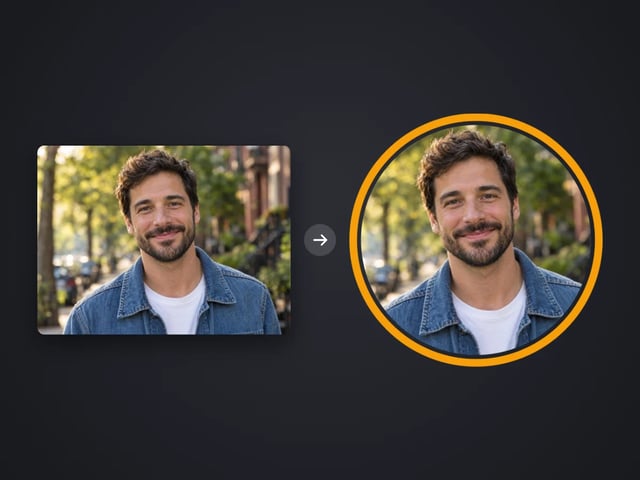
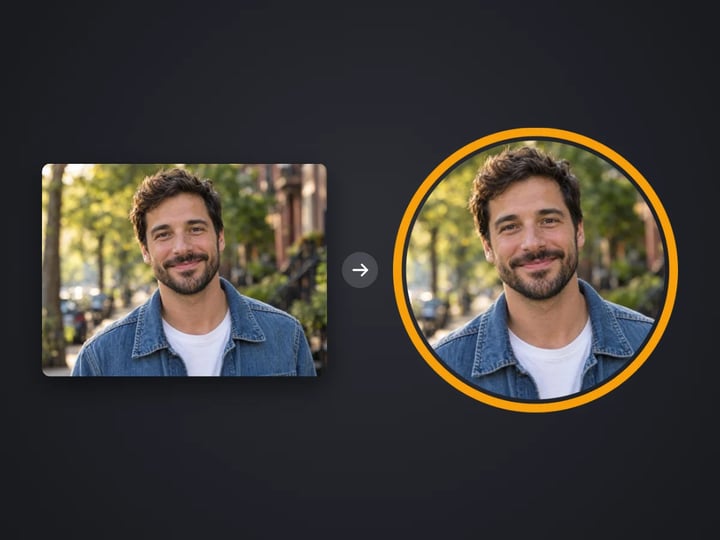
Round profile photo with a colored ring
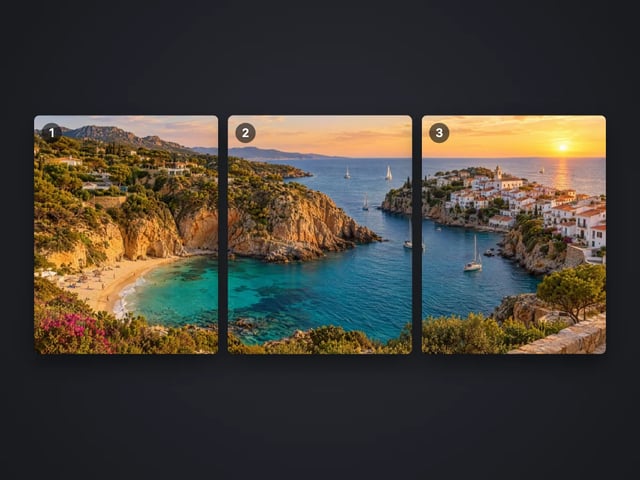
Split a photo into a carousel or a 3×3 grid
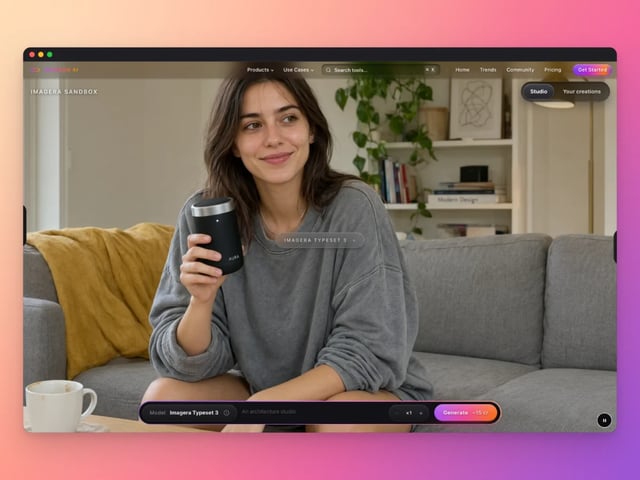
Frame a screenshot on a gradient with a shadow
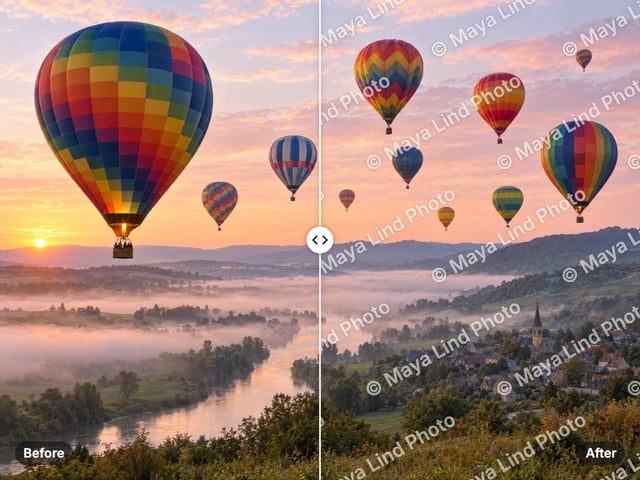
Add your name or © to a photo
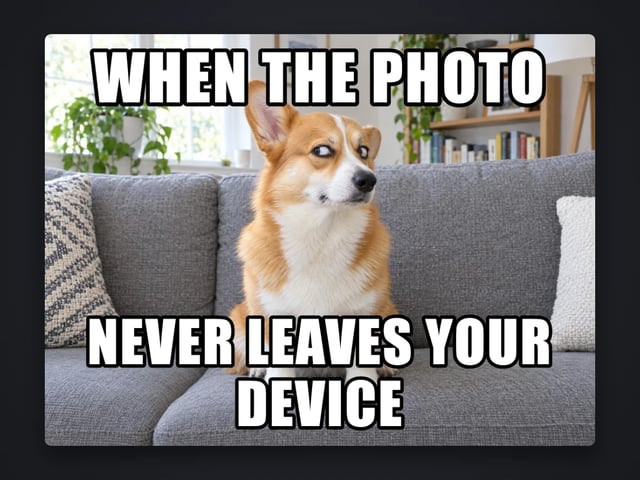
Top and bottom text on your own image
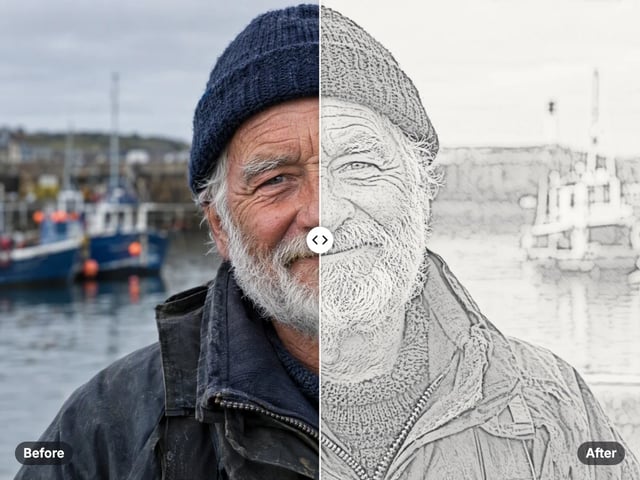
Turn a photo into a pencil or charcoal drawing
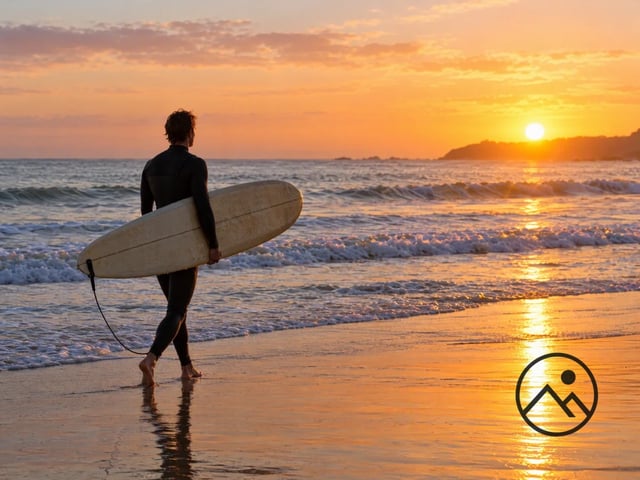
Put your logo on a photo, in a corner or tiled
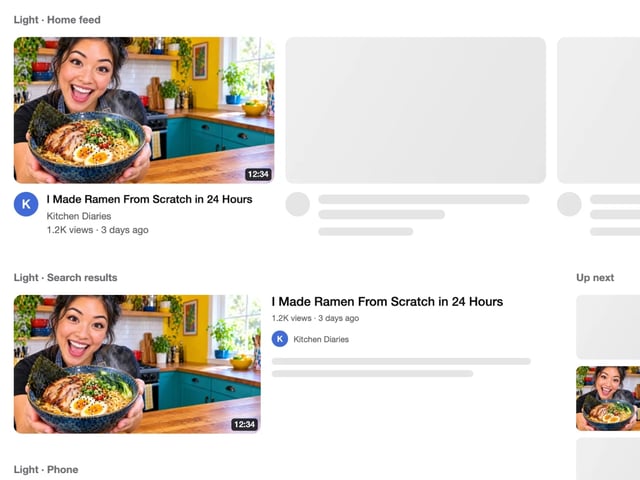
See your thumbnail in feed, search and phone layouts
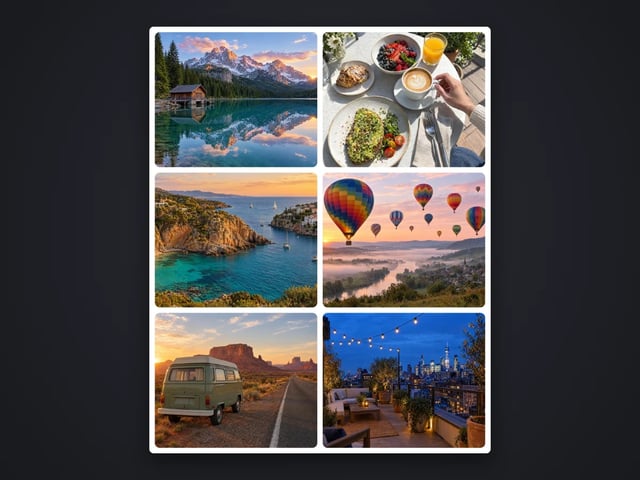
Put 2 to 9 photos in one grid
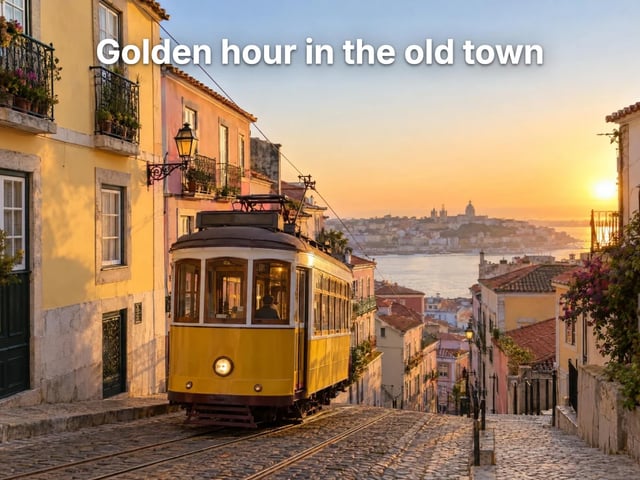
Captions in five styles, auto-fitted
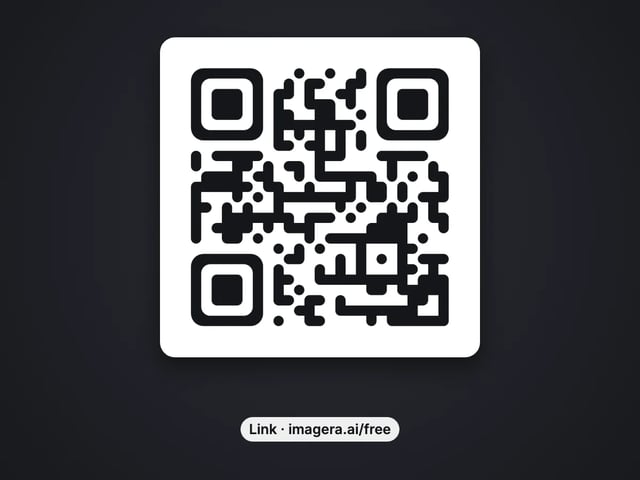
Make a QR code for a link or text
Complete your workflow
These pair with Pro LoRA Generator. Every tile says what the tool actually does — without leaving this page.
Enhance and upscale your generated images to 16K
Transform images into cinematic AI videos
Make a generated portrait speak your script
Ask 10 AIs the same question. Steal the best answer.
Add freckles, pores, scars, tattoos. Remove blemishes. Fix plastic AI skin instantly.
Edit images with Imagera Edit. Inpaint, modify, and transform any part of your image.
Remove flyaway hair and fix fine imperfections with surgical AI precision.
Change the words, color or font of text baked into a photo, poster or screenshot.
Imagera AI Team
Unified AI creation platform