Lighter photos
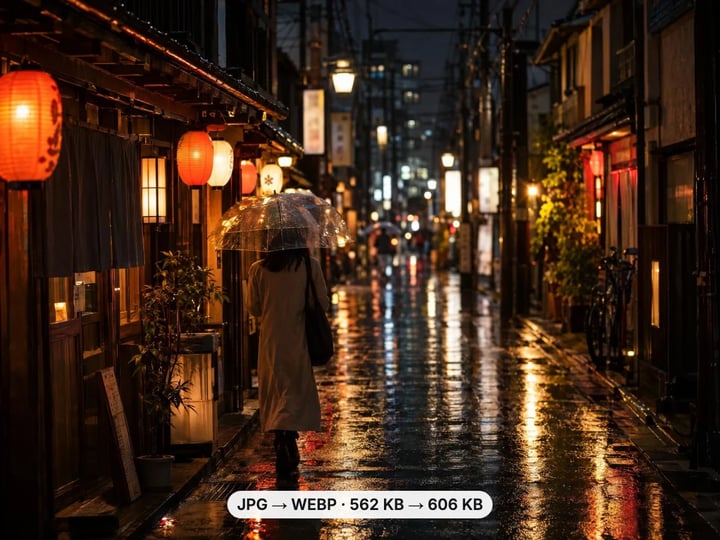
WebP usually stores a photo in fewer bytes than JPG at a similar look, so pages load faster.
Imagera AI - AI content creation platform for generating images, cloning voices, creating avatars, and enhancing videos. Privacy Policy | Terms
Convert & compress · free · private
Turn JPG photos into lighter WebP files for your website or online store. Set the quality, convert in your browser and download. Your photos are never uploaded.
Your JPG is converted in your browser on your own device. It is never uploaded or saved on our servers.
 Real result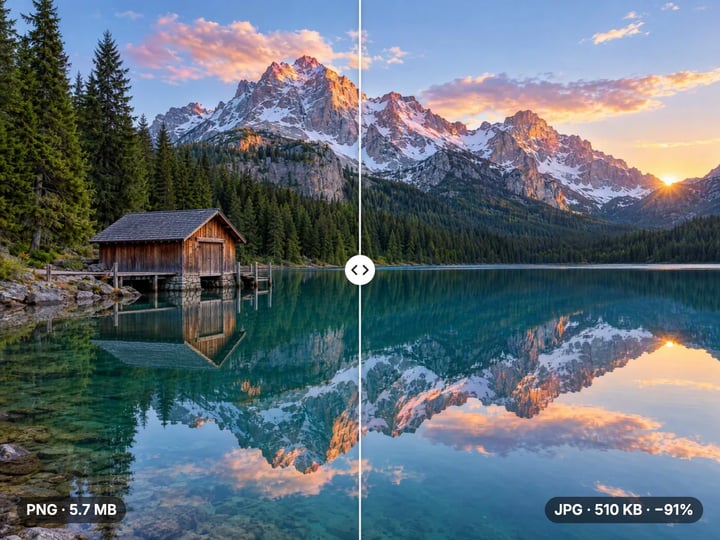
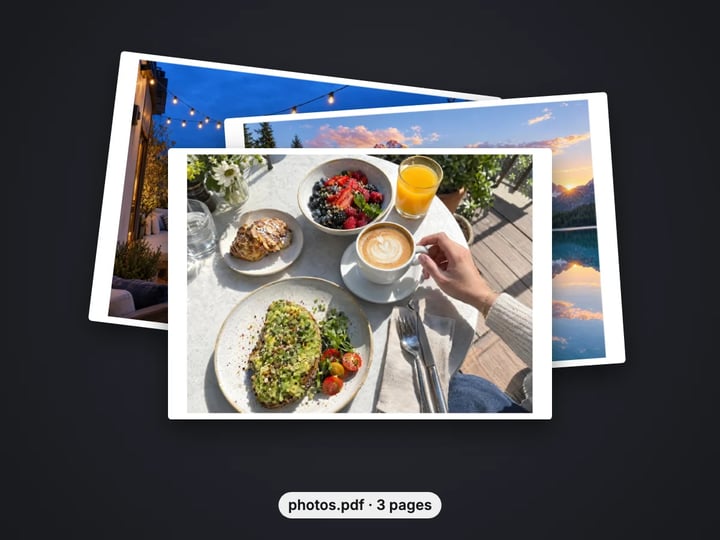
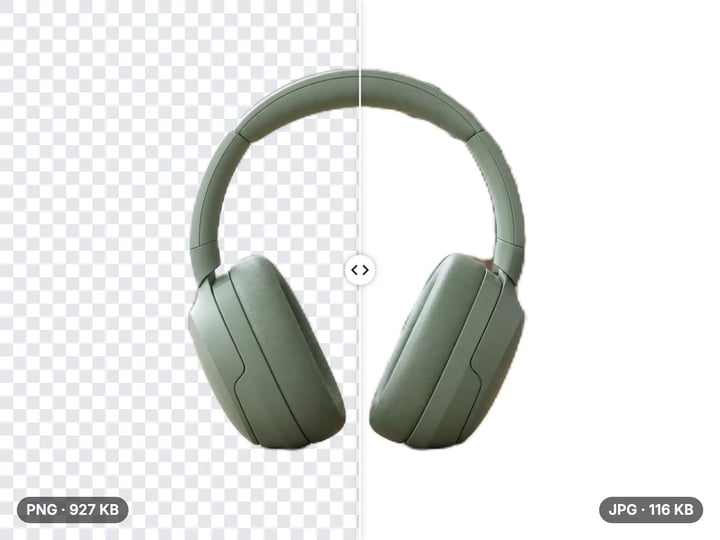
Quick answer
To convert JPG to WebP for free, open Imagera’s JPG to WebP Converter, add your photo, set the quality (92% by default, 80–88% suits most websites) and press Convert to WebP. The photo is re-saved as WebP in your browser at the same width and height. WebP usually needs fewer bytes than JPG for a similar look, which helps pages load faster. Your photos are never uploaded or saved on our servers.
Your photo never leaves your device — nothing is uploaded or saved on our servers.
How it works
Drop in a JPG photo. It stays on your device.
Keep 92%, or try 80–88% for website photos.
Press Convert to WebP and save the WebP to your device.
Why this one
WebP usually stores a photo in fewer bytes than JPG at a similar look, so pages load faster.
Set WebP quality from 50 to 100%. Lower values give lighter files for large photos.
The WebP keeps the exact pixel dimensions of your JPG. Nothing is cropped or resized.
The converter runs in your browser. Client photos and unreleased products stay on your device.
Continue in Imagera
JPG to WebP Converter edits the pixels you have. These studios use AI to create what is not in the picture yet — they run on credits.
 Next step
For advanced users — bring your own LoRA for a consistent style or character.
Open studio Imagera
Too small to print? Enlarge a photo to 4K, 8K or 16K (15,360 px on the long edge).
Open studio Imagera
Edit images with Imagera Edit. Inpaint, modify, and transform any part of your image.
Open studio Imagera
Replace any photo background with AI-generated luxury scenes.
Open studioWho it is for
Publish lighter photos so articles and galleries load faster.
Shrink product photos for store pages without resizing them.
Make web copies of portfolio shots while keeping the JPG masters.
Guide
JPG has been the standard photo format for decades, and it still works everywhere. WebP is a newer format built for the web that usually stores the same photo in fewer bytes at a similar visual quality. On a page with many photos, such as a blog, gallery or product listing, those savings add up to faster loading, especially on mobile connections.
Page-speed tools often flag large JPGs and suggest serving images in a modern format. Converting to WebP is one of the simplest ways to act on that advice without changing how the page looks.
The savings vary from photo to photo. Busy, detailed images and ones that were saved at very high JPG quality tend to shrink the most. Photos that were already compressed hard may shrink only a little. Compare each downloaded WebP with its JPG to decide whether the switch is worth it for that image.
1. Start from the original. Use the original JPG, not one that has already been compressed for email or social media.
2. Open the converter in Chrome, Edge or Firefox. Nothing needs to be installed.
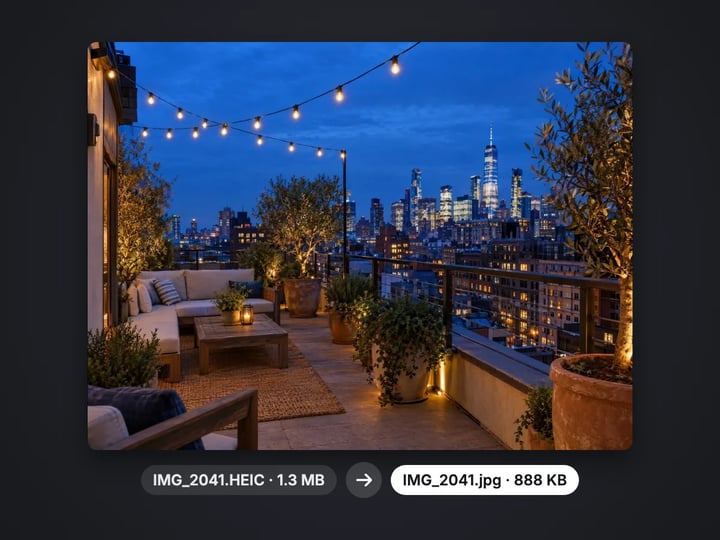
3. Add the photo. Drop it onto the page or tap to choose it. It stays on your device. PNG, WebP, HEIC and AVIF images are accepted too, so iPhone photos can go straight to WebP.
4. Set the quality. Keep 92% for a visually identical copy, or try 80–88% for website photos.
5. Press Convert to WebP and download the result. Compare its file size with the original JPG.
If you have a paid plan or credits, you can select many photos at once and convert them together. Processing is unlimited. Your first few downloads need no account; after that, a free sign-in keeps them going.
JPG and WebP are both lossy formats, so converting one to the other compresses the photo a second time. The quality slider decides how hard.
92% (default): the safest choice. The WebP looks the same as the JPG, and it is still often smaller.
80–88%: the sweet spot for most website photos. The file shrinks further, and at normal viewing size the change is very hard to see.
65–75%: for large hero backgrounds and thumbnails where speed matters most. Look closely at skies, skin and smooth gradients, where compression shows first.
The reliable way to choose is to compare. Convert at two settings, view both at the size they will appear on your page, and keep the smaller one that still looks right. Avoid converting a WebP back to JPG and then to WebP again; each lossy round removes a little more detail.
Format is only half of image weight. The other half is pixel size. A photo straight from a phone or camera can be 4000 pixels wide, while most page layouts display it at 1200 to 2000 pixels. Converting keeps the original dimensions, so for large photos, resize first and then convert. The free Image Compressor can resize as well as compress.
Keep your original JPGs as masters. If you later need a different size or a print copy, work from the JPG rather than the WebP.
Most current website builders and content systems accept WebP uploads; WordPress has since version 5.8. Every current major browser displays WebP, so for ordinary web pages you no longer need a JPG fallback.
Finally, give each image a meaningful file name and alt text. A lighter photo helps speed; a descriptive name and alt text help people using screen readers and search engines understand it.
WebP is a web format first. Outside the browser, JPG is still the safer choice in several situations.
Sharing with people. Friends and colleagues may open photos in older apps or on older computers that do not handle WebP. JPG opens everywhere.
Upload forms and marketplaces. Many government, job, school and marketplace forms accept only JPG or PNG. Check before converting.
Printing. Photo labs and print services commonly expect JPG, PNG or TIFF files.
Email. Support for WebP inside email apps is uneven, so JPG is more reliable in newsletters and attachments.
Archives. For long-term storage of your own photos, the original JPG, or the camera’s original file, is the version to keep.
In short: WebP for pages people view in a browser, JPG for files people download, send, print or upload elsewhere.
Many online converters upload your photos to a server, convert them there and send them back. This one does the whole job in your browser. The JPG is decoded and re-saved as WebP on your own device, and it is never uploaded or saved on our servers. That suits client work, unreleased product photos and personal pictures.
Converting creates a fresh file from the photo’s pixels, so camera details and location stored in the JPG are not carried into the WebP. That is often welcome on a public website, where location data in a photo can reveal more than intended.
If your pages need more imagery than you have, Imagera’s paid AI Image Generator creates product scenes, banners and illustrations from a text prompt. It runs in the cloud and is paid with credits.
For the opposite direction, the free WebP to JPG Converter works the same way, on your device.
Free vs studio
Questions people ask
For images on web pages, WebP usually gives a smaller file at a similar look. For sharing, printing and upload forms, JPG is more widely accepted.
It varies by photo and quality setting. Detailed photos saved at high JPG quality shrink the most. Compare the downloaded WebP with the original.
A little, because both formats are lossy. At the default 92% the WebP looks the same; at 80–88% the change is very hard to see at normal size.
Yes. Safari on iPhone, iPad and Mac displays WebP, as do current versions of Chrome, Edge and Firefox.
Convert the photo here, then upload the WebP to the media library like any image. WordPress has accepted WebP uploads since version 5.8.
Photos and large graphics usually benefit. Keep the original JPGs as masters, and resize oversized photos too, since pixel size matters as much as format.
Yes. The WebP is created from the photo’s pixels, so camera details and GPS location stored in the JPG are not carried over.
Yes, if you have a paid plan or credits: select many photos together. Otherwise convert them one at a time; processing is unlimited.
No. The conversion runs in your browser on your own device. Your photos are never uploaded or saved on our servers.
More free tools
Compress, convert & resize to any size
favicon.ico, PNG icons and site.webmanifest from one image
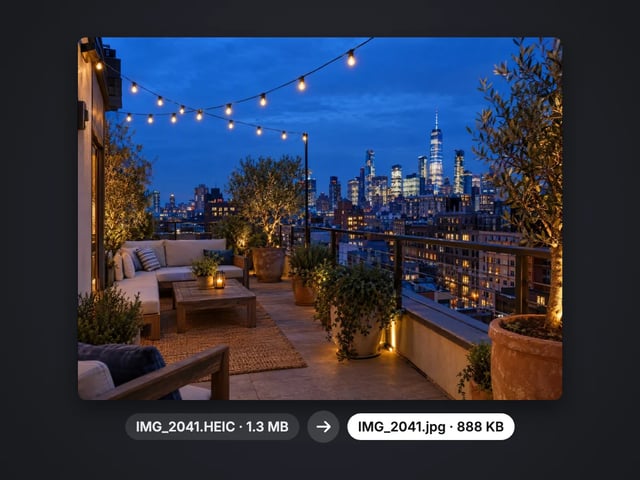
Turn iPhone photos into JPG, PNG or WebP
Combine images into one PDF
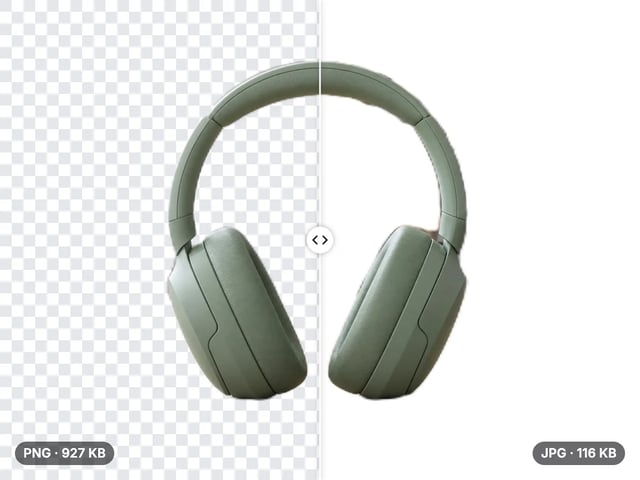
Smaller JPG files, white background
A lossless PNG copy of any photo
Open web images in any app
Keep transparency, open anywhere
Smaller web images, transparency kept
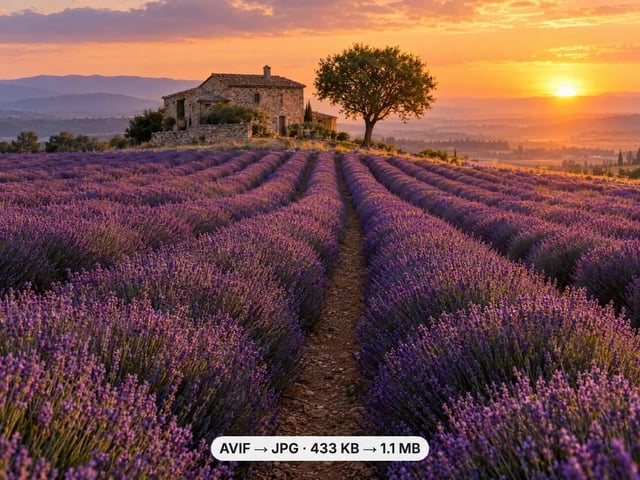
Open AVIF images in any app
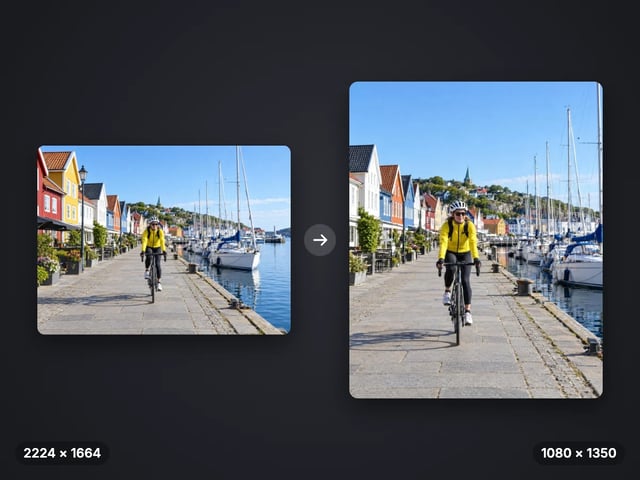
Exact pixel sizes and social presets
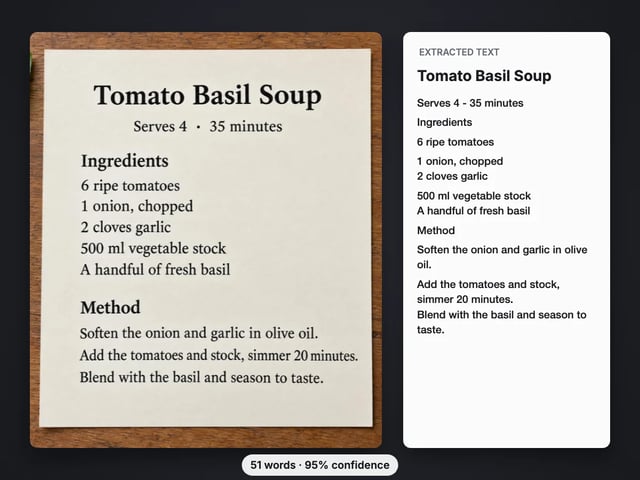
Copy the text out of a screenshot, photo or scan
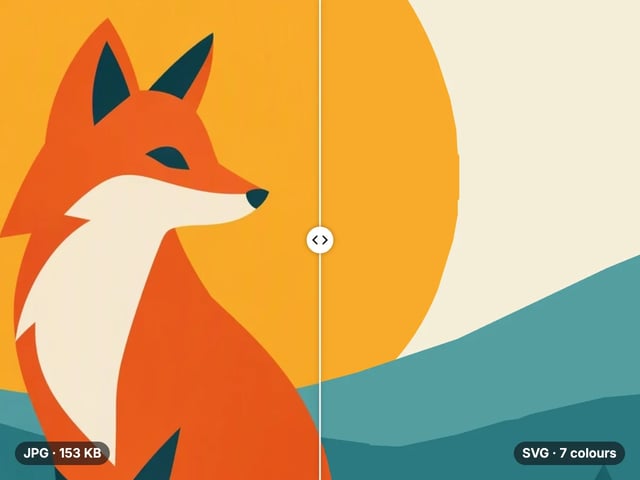
Trace a PNG or JPG into a scalable SVG
Complete your workflow
These pair with Pro LoRA Generator. Every tile says what the tool actually does — without leaving this page.
Enhance and upscale your generated images to 16K
Transform images into cinematic AI videos
Make a generated portrait speak your script
Ask 10 AIs the same question. Steal the best answer.
Add freckles, pores, scars, tattoos. Remove blemishes. Fix plastic AI skin instantly.
Edit images with Imagera Edit. Inpaint, modify, and transform any part of your image.
Remove flyaway hair and fix fine imperfections with surgical AI precision.
Change the words, color or font of text baked into a photo, poster or screenshot.
Imagera AI Team
Unified AI creation platform