Every place it appears
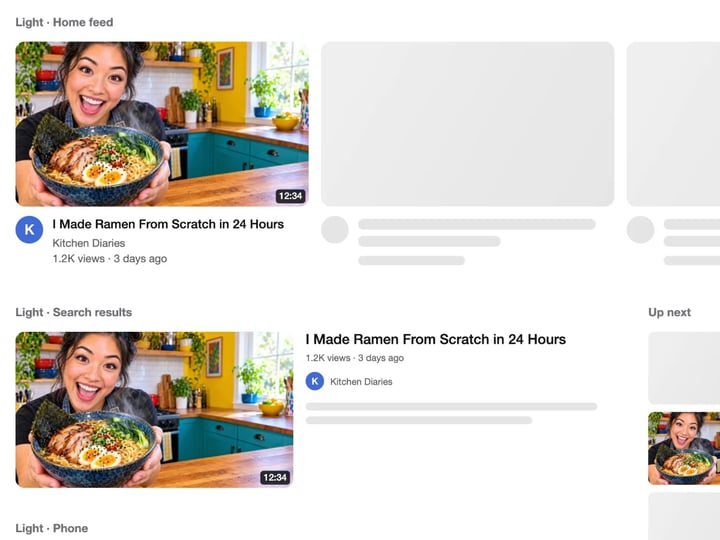
Home feed, search results, the up-next list and a phone feed, drawn at their on-screen sizes.
Imagera AI - AI content creation platform for generating images, cloning voices, creating avatars, and enhancing videos. Privacy Policy | Terms
Social & creative · free · private
See your thumbnail and title where viewers will: the home feed, search, the up-next list and a phone, in light and dark. Check it still reads when it is small. Your image never leaves your device.
The preview is drawn in your browser on your own device. Your thumbnail is never uploaded or stored on any server.
 Real result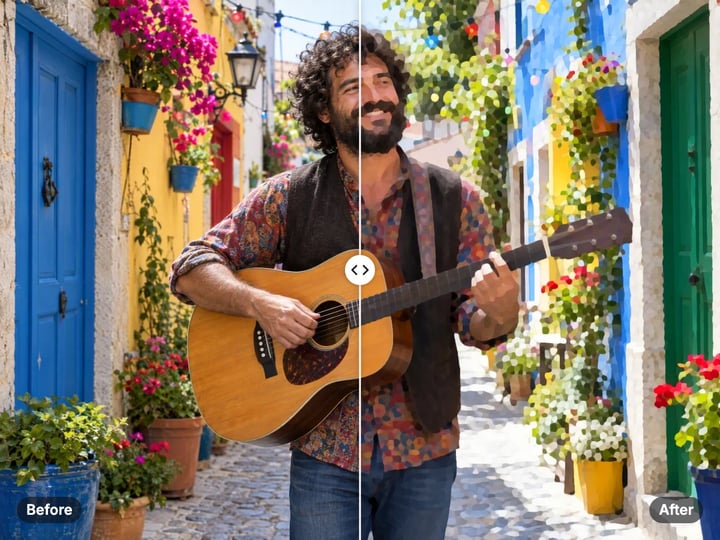
Quick answer
To preview a YouTube thumbnail before you upload, open Imagera's free thumbnail preview, choose your 16:9 image, type your video title and press Preview thumbnail. You get one sheet showing it in the home feed, search results, the up-next list and a phone feed, in light and dark, at their on-screen sizes, including 168 and 120 pixels wide. It is drawn in your browser, so the thumbnail is never uploaded.
Your thumbnail never leaves your device — nothing is uploaded or saved on our servers.
How it works
Pick the image you plan to upload, ideally 1280 × 720.
Enter the video title and duration; add a channel name in Advanced.
Press Preview thumbnail to see it in every layout, light and dark.
Look at the 168 px and 120 px versions. If the text or face is lost there, simplify and try again.
Why this one
Home feed, search results, the up-next list and a phone feed, drawn at their on-screen sizes.
See both themes at once, since viewers use both.
Type your title to check the two lines viewers see before it is cut off.
Your unreleased thumbnail stays on your device. Nothing is uploaded.
Continue in Imagera
YouTube Thumbnail Preview edits the pixels you have. These studios use AI to create what is not in the picture yet — they run on credits.
 Next step
For advanced users — bring your own LoRA for a consistent style or character.
Open studio Imagera
Too small to print? Enlarge a photo to 4K, 8K or 16K (15,360 px on the long edge).
Open studio Imagera
Edit images with Imagera Edit. Inpaint, modify, and transform any part of your image.
Open studio Imagera
Replace any photo background with AI-generated luxury scenes.
Open studioWho it is for
Check a thumbnail and title together before the video goes live.
Show clients how a thumbnail looks in the feed, not just full screen.
Compare thumbnail options side by side by previewing each one.
Guide
The tool draws one preview sheet with your thumbnail and title in four mock layouts.
Home feed. A three-across grid card with your thumbnail, a channel avatar, a two-line title and the channel line. Two gray placeholder cards sit beside it.
Search results. A large thumbnail with the title to its right, as in a search results row.
Up next. The small list beside a playing video, where thumbnails are 168 pixels wide. This is where most thumbnails fail.
Phone. An edge-to-edge card on a 390-pixel-wide phone screen, plus your thumbnail at 168 and 120 pixels on its own.
With Light and dark chosen, the sheet shows every layout twice. The sheet is drawn at twice the size, like a high-resolution screen, so it looks sharp when you zoom in.
The mockups are drawn with plain shapes and text. They are not screenshots and use no logos.
You design a thumbnail at 1280 × 720, full screen. Viewers mostly see it much smaller: around 360 pixels wide in the home feed, and 168 pixels in the up-next list, which is smaller than a postage stamp on many screens.
At that size, four things usually go wrong.
Text disappears. More than three or four words become unreadable. Thin fonts vanish.
Faces shrink to dots. A face that fills a quarter of the frame is still readable; one in the background is not.
Busy scenes turn to mush. Lots of small detail blends into noise. One clear subject on a simple background holds up.
The duration badge covers something. The time sits in the bottom-right corner, so keep text and faces out of it.
The preview puts your thumbnail at those sizes next to your title, so you can catch these before the video goes live, not after it underperforms.
1. Choose your thumbnail image. It should be 16:9, ideally 1280 × 720. 2. Type your video title exactly as you will publish it. 3. Set the duration, such as 8:15 or 1:02:30. 4. In Advanced, add your channel name. 5. Press Preview thumbnail. 6. Zoom into the 168 px and 120 px versions first. Can you still tell what the video is about?
If your image is not 16:9, the preview crops it from the center and the result notes the shape. Fix it at the source: resize or crop to 1280 × 720 so nothing important is cut off. The free image resizer and cropper both have a 16:9 option.
Testing two options? Preview each one and compare the sheets side by side. Pick the one whose idea you get fastest at the smallest size.
The title sits right beside or under the thumbnail, and viewers read them as one message. The preview shows both so you can judge the pair.
Do not repeat yourself. If the title says "I Tried Every Coffee Machine", the thumbnail does not need those words too. Use the image for the reaction or the result, and the title for the context.
Watch the cut-off. Long titles are cut to two lines with an ellipsis in the feed. The preview does the same, so you can see whether the important words land before the cut.
Check both themes. A thumbnail with a white border or a very dark edge can look framed in one theme and borderless in the other. The light and dark panels show both.
The view count and date in the mockup are fixed placeholders so the layout looks complete; they are not predictions.
Your thumbnail never leaves your device. The mock layouts are drawn by your browser's own canvas, with your image and your text placed in them. Nothing is uploaded or saved on our servers.
That matters for creators. Thumbnails for unreleased videos, sponsored content or announcements are often confidential until the video goes live, and many online preview tools upload the image to render the mockup.
The preview takes about a second, so you can try many versions of a thumbnail or title in a row. Each run starts from your original image.
A free sign-in, which you need after the first few downloads, does not change any of this. Signing in never sends your image anywhere.
This is an independent tool and is not made or endorsed by any video platform.
The free thumbnail preview tells you whether a thumbnail works. It is quick, private and unlimited. The first few downloads need no account, and then a free sign-in keeps them coming.
What it cannot do is fix a thumbnail that does not work. If the preview shows your idea is lost at small sizes, the answer is usually a simpler, bolder image: one subject, a strong background, big clear shapes.
The paid Imagera AI image generator creates that kind of artwork from a short description: a dramatic scene, a character, a bold background in 16:9. Generate a few options, bring the favorite back here and test it at 168 pixels before you publish. The generator runs in the cloud, uses credits and keeps your results.
Have a thumbnail? Test it free. Need a stronger one? Try the generator.
Free vs studio
Questions people ask
Choose your thumbnail, type your title and press Preview thumbnail. You get feed, search, up-next and phone layouts in light and dark.
Upload 1280 × 720 pixels in a 16:9 shape. The preview crops other shapes to 16:9 from the center and tells you it did.
Around 360 pixels wide in the home feed and 168 pixels in the up-next list, smaller still in some phone lists. The preview shows all of these.
Three or four bold words at most. Check the 168 px version: if you cannot read the words there, cut or enlarge them.
Yes, in the bottom-right corner. The preview draws it with your duration, so you can keep faces and text out of that corner.
Yes. Theme is set to Light and dark by default, so every layout appears in both.
Long titles are cut to two lines with an ellipsis in the feed. The preview does the same, so you can see where the cut lands.
No. It is an independent mockup in your browser. It never connects to any account and never uploads your thumbnail.
No. Processing is unlimited without an account. The first few downloads need no sign-in; after that, a free sign-in keeps downloads going.
More free tools
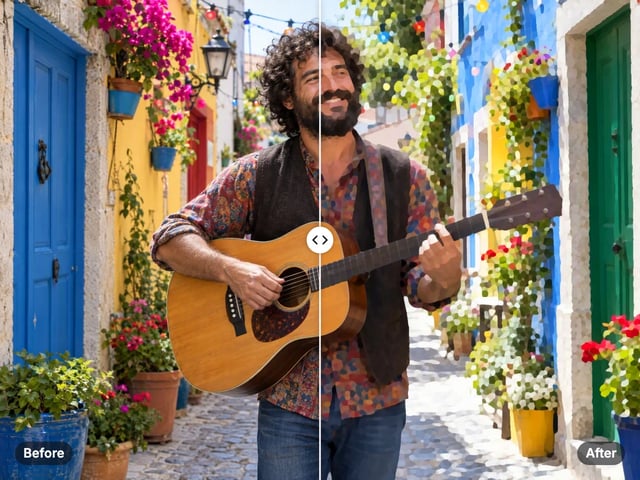
Turn a photo into a comic, painted or soft toon picture
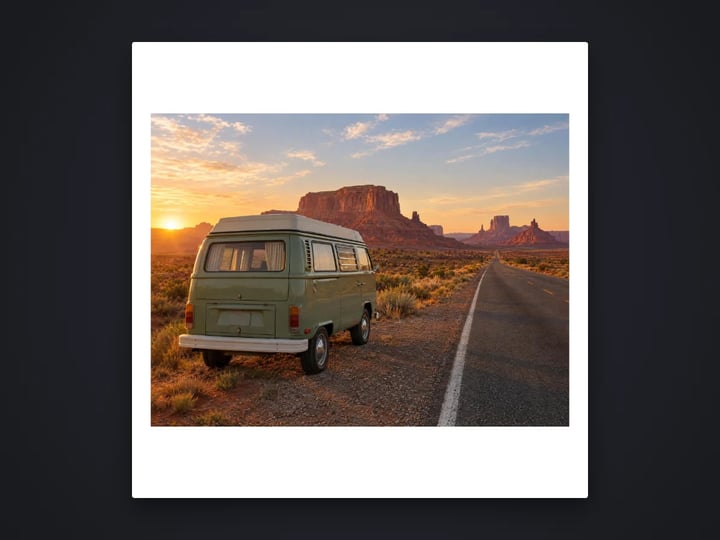
Add a border or fit a photo to 4:5 without cropping
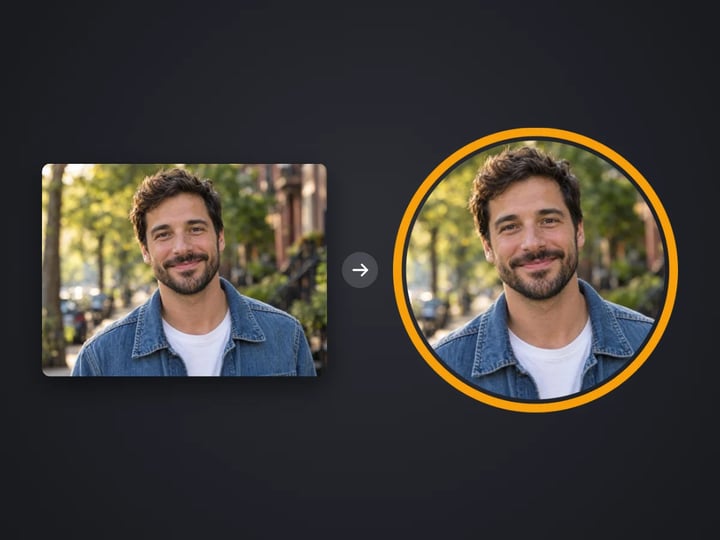
Round profile photo with a colored ring
Split a photo into a carousel or a 3×3 grid
Frame a screenshot on a gradient with a shadow
Add your name or © to a photo
Top and bottom text on your own image
Pull the main colors and HEX codes from a photo
Turn a photo into a pencil or charcoal drawing
Put your logo on a photo, in a corner or tiled
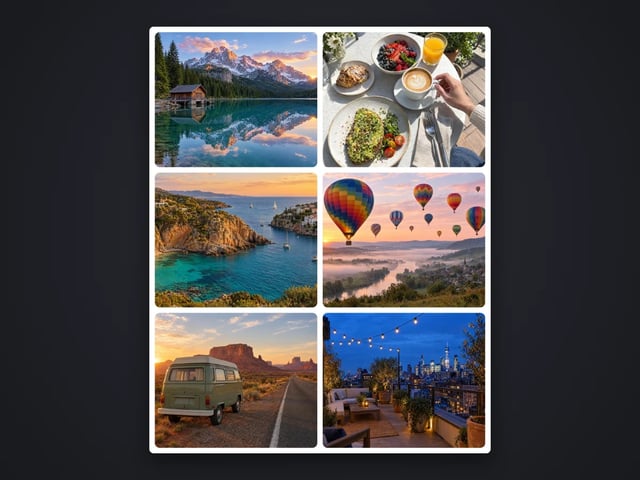
Put 2 to 9 photos in one grid
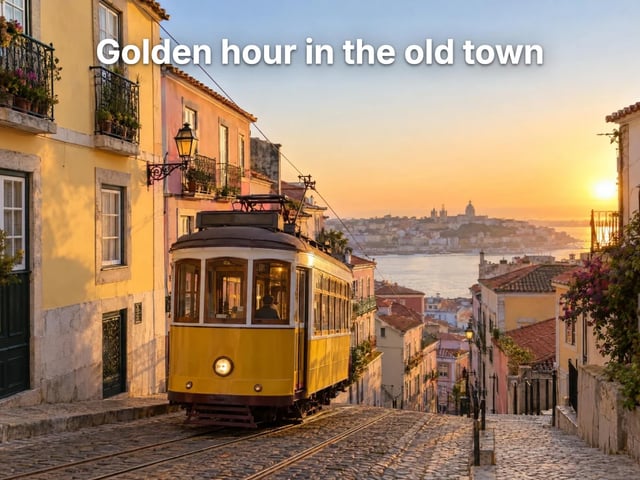
Captions in five styles, auto-fitted
Make a QR code for a link or text
Complete your workflow
These pair with Pro LoRA Generator. Every tile says what the tool actually does — without leaving this page.
Enhance and upscale your generated images to 16K
Transform images into cinematic AI videos
Make a generated portrait speak your script
Ask 10 AIs the same question. Steal the best answer.
Add freckles, pores, scars, tattoos. Remove blemishes. Fix plastic AI skin instantly.
Edit images with Imagera Edit. Inpaint, modify, and transform any part of your image.
Remove flyaway hair and fix fine imperfections with surgical AI precision.
Change the words, color or font of text baked into a photo, poster or screenshot.
Imagera AI Team
Unified AI creation platform