Platform shapes, ready to pick
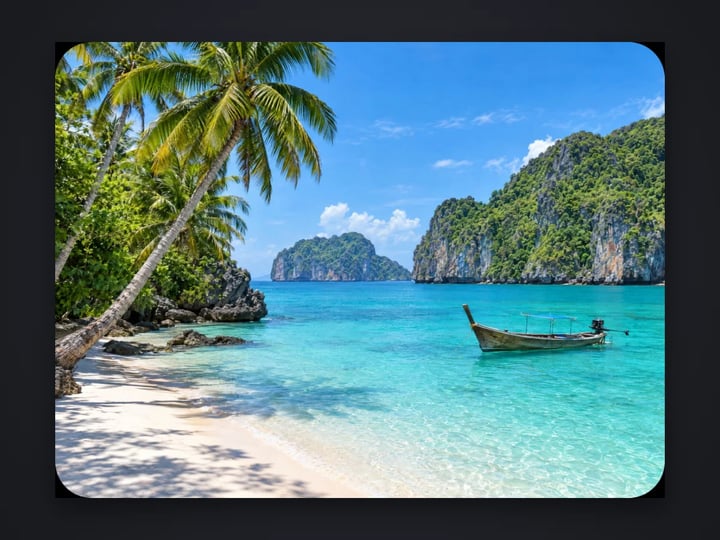
Square 1:1, 4:5 portrait, 9:16 story or reel, 16:9 widescreen, plus 3:2, 4:3 and 2:3 for prints and slides.
Imagera AI - AI content creation platform for generating images, cloning voices, creating avatars, and enhancing videos. Privacy Policy | Terms
Edit & retouch · free · private
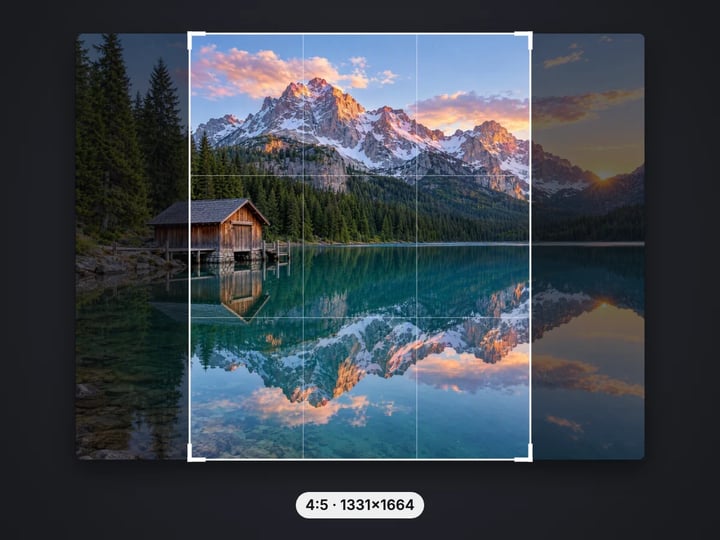
Crop a photo to the exact shape a platform wants — square, 4:5 portrait, 9:16 story or 16:9 widescreen. Choose which side to keep and download. Your photo never leaves your device.
The crop runs in your browser on your own device. Your photo is never uploaded or stored on any server.
 Real result
Quick answer
To crop an image to 4:5 for Instagram, 9:16 for stories or 1:1 for a square post, open Imagera's free image cropper, pick your photo and choose the shape. Then choose which part to keep — center, top, bottom, left or right — and zoom in if you want a closer crop. The cropped photo downloads straight to your device. It runs in your browser, so your photo is never uploaded.
Your photo never leaves your device — nothing is uploaded or saved on our servers.
How it works
Pick a JPG, PNG, WebP or HEIC photo. It stays on your device.
Choose 1:1, 4:5, 9:16, 16:9 or another ratio.
Keep the center, top, bottom, left or right. Add zoom for a closer crop.
Check the final size in pixels, then download the cropped photo.
Why this one
Square 1:1, 4:5 portrait, 9:16 story or reel, 16:9 widescreen, plus 3:2, 4:3 and 2:3 for prints and slides.
Keep the center, top, bottom, left or right of the photo. No fiddly drag handles on a small screen.
Push the zoom up to 300% to crop closer on your subject while keeping the same shape.
You see the final width and height in pixels before you download, so you know it fits.
Continue in Imagera
Image Cropper edits the pixels you have. These studios use AI to create what is not in the picture yet — they run on credits.
 Next step
Too small to print? Enlarge a photo to 4K, 8K or 16K (15,360 px on the long edge).
Open studio Imagera
Edit images with Imagera Edit. Inpaint, modify, and transform any part of your image.
Open studio Imagera
Replace any photo background with AI-generated luxury scenes.
Open studioWho it is for
Fit a photo to a 4:5 feed post, a 9:16 story or a square profile slot without the app cutting off heads.
Square up product photos so every tile in your shop or marketplace grid lines up.
Get a 16:9 frame for a video thumbnail, a slide or a blog header in one step.
Guide
This tool cuts a photo down to a fixed shape. You choose the aspect ratio, and the cropper takes the largest area of your photo that fits it. Then you decide which part of the photo that area comes from: the center, the top, the bottom, the left or the right.
A zoom setting, from 100% to 300%, crops tighter while keeping the same shape. At 100% you keep as much of the photo as the shape allows. At 200% the crop covers half the width and half the height, so your subject fills more of the frame.
Before you download, you see the final width and height in pixels. That matters when a site asks for a minimum size. There are no drag handles. That is a deliberate choice: on a phone, tapping a shape and a side is quicker and more precise than pinching a box.
Each preset matches a common place your photo ends up.
1:1 Square fits profile photos, marketplace tiles and square feed posts.
4:5 Instagram portrait is the tallest shape a feed post can be without being cut. Portrait photos cropped to 4:5 take up more of the screen than squares do.
9:16 Story / Reel fills a phone screen from top to bottom. Use it for stories, reels and short-video covers.
16:9 YouTube is the widescreen shape for video thumbnails, slides and most website headers.
3:2 matches most camera sensors and standard 4×6 inch prints. 4:3 matches many phone photos and tablets. 2:3 is 3:2 turned upright, handy for portrait prints and posters.
If you are not sure, crop to the shape of the place you are posting. The platform will then show your photo exactly as you framed it.
Instagram shows portrait feed posts at up to 4:5. Anything taller gets cut to fit, often at the top and bottom where heads and feet are. Cropping yourself first puts you in control.
1. Open the free image cropper and choose your photo. 2. Pick 4:5 Instagram portrait as the shape. 3. Choose what to keep. For a portrait, Top usually keeps faces in frame. For a full-length outfit shot, Center is safer. 4. If the subject looks small, raise the zoom a little. 5. Press Crop and check the size, then download.
The same steps work for a 9:16 story or a 1:1 square. If you want the whole photo with no crop at all, use the free border tool instead. It pads the photo out to 4:5 or 9:16 with a colored edge.
Your photo never leaves your device. The cropper runs in your browser using the same canvas drawing your browser uses to show web pages. When you pick a photo, it is read from your device, cropped in memory and handed back as a download. Nothing is uploaded or saved on our servers, before, during or after.
That matters more than it sounds. Many free online croppers send your photo to a server to do a job your own browser can already do. With a family photo, an ID scan or unreleased product shots, that is one more copy you did not choose to make.
Here, the page loads once and the work happens locally. Using a free account to keep downloading does not change that. Signing in does not send your photo anywhere.
Cropping never blurs your photo. It keeps the pixels inside the crop and drops the rest. What does change is the size. A 4000 × 3000 photo cropped to 1:1 becomes 3000 × 3000. At 200% zoom it becomes 1500 × 1500.
That is why the result shows the final width and height before you save. If a site asks for at least 1080 pixels wide, you can check it right there.
If you zoom in a long way on a small photo, the crop may end up smaller than you need. You have two honest options. Zoom out a little to keep more pixels. Or, if you need a large result from a tight crop, the paid Imagera upscaler enlarges it and adds detail with AI.
Photos from iPhones in HEIC format are supported, so you do not need to convert them first.
The free cropper does one job well. It cuts your photo to a precise shape on your own device. Cropping is unlimited. The first few downloads need no account, and after that a free sign-in keeps them coming.
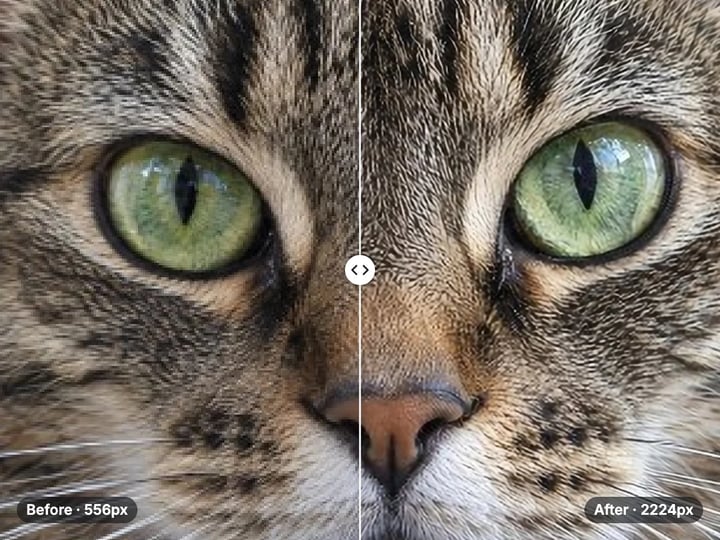
The paid Imagera upscaler solves the problem cropping creates. A tight crop leaves fewer pixels, and a small image looks soft when it is printed or stretched across a banner. The upscaler enlarges the crop and uses AI to add fine detail, up to very large sizes. It runs in the cloud and uses credits. It also keeps a history of your results and can process several images in one go.
Most people only need the free cropper. Reach for the upscaler when the cropped result is too small for where it is going.
Free vs studio
Questions people ask
Choose your photo, pick 4:5 Instagram portrait, then choose which part to keep. Top usually keeps faces in frame. Press Crop and download. The photo will show in the feed exactly as you framed it.
It depends on your photo. The cropper takes the largest 9:16 area your photo allows and shows the exact width and height before you save. For a sharp story, aim for at least 1080 pixels wide.
Pick 1:1 Square as the shape and choose which part to keep. The crop happens in your browser, so the photo is never uploaded or saved on a server.
Yes. Keep the center, top, bottom, left or right. For a closer crop on your subject, raise the zoom. The shape stays the same.
This tool uses shape, side and zoom instead of drag handles. On a phone that is quicker and lands on the same crop every time. If you need a crop in an odd spot, zoom in and pick the nearest side.
It does not blur anything. It removes the outer part of the photo, so the file has fewer pixels. The final size is shown before you download, so you can check it is large enough.
Yes. HEIC photos are opened in your browser and cropped like any JPG or PNG. You do not need to convert them first.
No. Cropping is unlimited and needs no account. The first few downloads need no sign-in either; after that, a free sign-in keeps downloads going. Your photo still stays on your device.
Zoom out a little to keep more pixels. If you still need it bigger, the paid Imagera upscaler enlarges it and adds detail with AI. It uses credits.
More free tools
Complete your workflow
These pair with Print-Ready 16K Upscaler. Every tile says what the tool actually does — without leaving this page.
Repair scratches, tears and fading, then upscale for printing
Browser-based AI upscaling for 2K, 4K & 8K without a desktop license
Upscale videos to 4K with the same AI enhancement technology
Make AI images look like real camera photos before upscaling
Generate talking videos from your upscaled portraits
Add freckles, pores, scars, tattoos. Remove blemishes. Fix plastic AI skin instantly.
Edit images with Imagera Edit. Inpaint, modify, and transform any part of your image.
Remove flyaway hair and fix fine imperfections with surgical AI precision.
Change the words, color or font of text baked into a photo, poster or screenshot.
Imagera AI Team
Unified AI creation platform