Automatic face detection
No drawing boxes. The tool finds the visible faces in your photo, up to 10, and hides each one.
Imagera AI - AI content creation platform for generating images, cloning voices, creating avatars, and enhancing videos. Privacy Policy | Terms
Privacy · free · private
Every visible face is found and hidden automatically, with blur, pixelation or a solid black oval. It runs in your browser, so the photo you are protecting is never uploaded.
Faces are found by a model that runs in your browser. The photo is never uploaded or saved on our servers — which matters most for the people you are hiding.
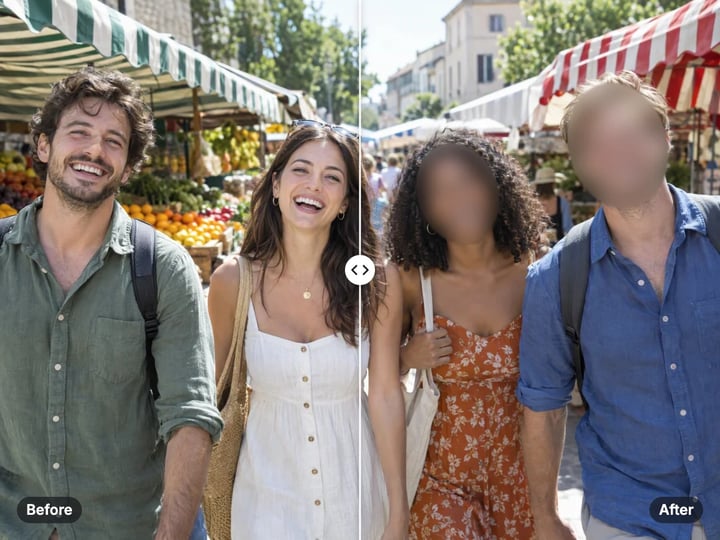 Real result
Quick answer
To blur faces in a photo for free, open Imagera’s Face Blur, add your photo and press Blur faces. The tool finds every clearly visible face, up to 10, and hides each one with a blur, a pixel mosaic or a solid black oval. It tells you how many faces it covered. It runs in your browser, so the photo is never uploaded or saved on our servers.
Your photo never leaves your device — nothing is uploaded or saved on our servers.
How it works
Drop in a JPG, PNG, WebP or HEIC photo. It stays on your device.
Pick Blur, Pixelate or Black oval, and set the strength.
Press Blur faces. Every visible face is found and hidden automatically.
Compare before and after, confirm the face count, then save the photo.
Why this one
No drawing boxes. The tool finds the visible faces in your photo, up to 10, and hides each one.
Pick a soft blur, a blocky mosaic or a solid black oval, and set how strong the effect is.
The result tells you how many faces were covered, so you can check the count against the people in the photo.
The photo stays on your device the whole time. You are protecting people’s identities, so their faces should not go to a server either.
Continue in Imagera
Face Blur edits the pixels you have. These studios use AI to create what is not in the picture yet — they run on credits.
 Next step
Edit images with Imagera Edit. Inpaint, modify, and transform any part of your image.
Open studio Imagera
Too small to print? Enlarge a photo to 4K, 8K or 16K (15,360 px on the long edge).
Open studio Imagera
Replace any photo background with AI-generated luxury scenes.
Open studioWho it is for
Share event photos while hiding the faces of children whose parents have not agreed.
Protect bystanders and sources before a photo is published.
Post street, protest or travel photos without identifying strangers.
Guide
Photos often include people who never agreed to be online: children at a school event, strangers in a street scene, bystanders at a protest, or other patients in a waiting room. Once a photo is posted, you cannot control where it goes.
Blurring faces lets you share the moment without identifying the people in it. Parents use it for class photos and birthday parties. Reporters, researchers and community groups use it to protect sources and bystanders. Landlords and sellers use it when a listing photo happens to include a person. Some workplaces also ask staff to hide faces before sharing site or event photos.
The goal is simple: keep the story of the photo, remove the identity of the people who did not sign up to be in it.
The tool works in two steps inside your browser.
1. Find the faces. An on-device face model scans the photo for faces and maps each one, up to 10 per photo. It checks a reduced-size copy for speed, then applies the result to your full photo.
2. Hide them. Each face gets an oval that covers the face with a margin of about 20%, so edges of the face and hairline are covered too. Inside that oval the tool applies the effect you chose.
Blur softens the face until features are no longer readable. Pixelate turns it into large blocks, a look many people recognize from news footage. Black oval covers the face completely with solid black.
The Strength control sets how heavy the blur or how large the blocks are. When it finishes, the tool shows how many faces it hid.
Blur looks the most natural. The photo still reads as a scene with people in it, and faces simply become soft shapes. It suits social posts and family photos. Use a strength of 60 or more so features are not recognizable.
Pixelate is clearer about its purpose. Viewers immediately see that a face was hidden on purpose. It suits news-style and documentary photos. Higher strength means bigger blocks and less detail.
Black oval gives the most protection. Nothing of the face remains, so there is no detail to recover. Use it for sensitive photos, such as images of vulnerable people, sources or anyone at risk.
Whatever you choose, remember that faces are only one part of identity. Name badges, school logos, tattoos, car plates and distinctive clothing can also identify someone. The tool hides faces only.
Automatic detection is fast, but no face detector finds every face in every photo. Always check the result.
Count the faces. The tool shows how many faces it hid. Compare that number with the people you can see.
Look for small or far-away faces. People in the background of a wide shot may be too small to detect.
Look for turned or covered faces. Profiles, faces looking down, and faces partly hidden by hats, masks or hands may be missed.
If a face was missed, try a version of the photo cropped closer to that person, or use the free Image Pixelator to cover the whole image.
If no faces are found at all, the tool tells you rather than returning an unchanged photo that looks finished. That way you never share a photo thinking it was blurred when it was not.
It would be odd to protect people’s identities by sending their faces to a server you do not control. Yet that is how many online face-blur tools work: they upload the full, unblurred photo first.
Imagera’s Face Blur works differently. The face model and the blurring run inside your browser, on your own phone or computer. The photo is never uploaded and nothing is saved on our servers. The unblurred original stays with you, and only the version you download leaves the page.
It works on iPhone and Android in the browser, and HEIC photos from an iPhone are read on your device without converting them first.
Processing is unlimited. Your first few downloads need no account; after that, a free sign-in keeps them going. There is no watermark on the result.
The free Face Blur tool does one job: it finds faces and hides them, privately, on your device.
Imagera’s paid AI image editor is for edits that go beyond hiding. You can select any part of a photo and change it with AI, for example removing a person entirely, replacing a sign or changing the background. It runs in the cloud, keeps your history and is paid with credits.
Use the free tool when the goal is privacy: the people should stay in the photo but not be recognizable. Use the AI editor when the goal is a different photo: someone or something should be gone or changed.
For quick privacy on a whole image, such as a screenshot with personal details everywhere, the free Image Pixelator covers the entire picture at once.
Free vs studio
Questions people ask
Open Face Blur, add your photo and press Blur faces. Faces are found and hidden inside your browser, so the photo never leaves your device.
Add the photo, choose Blur or Black oval and press Blur faces. Check that the face count matches the number of children in the photo before you post.
Yes. Choose Pixelate as the effect. Raise the strength for bigger blocks, which hide more detail.
Up to 10 clearly visible faces per photo. For very large crowds, split the photo into sections or use the Image Pixelator on the whole image.
The face may be too small, turned away, or partly covered by a hat, mask or hand. Try a version of the photo cropped closer to that person and run it again.
Yes. Open this page in your iPhone’s browser and choose the photo. HEIC photos work directly, and the photo stays on your phone.
Strong blur or a black oval hides the face. People can still be identified by name badges, uniforms, tattoos or their surroundings, so check the rest of the photo too.
Not in this tool; it hides every face it detects. To change only one part of a photo, use the AI image editor.
More free tools
Complete your workflow
These pair with Edit Image. Every tile says what the tool actually does — without leaving this page.
Replace or restyle outfits in a photo without a reshoot
Replace words and fix typos while AI matches the original font
Replace any photo background with AI-generated scenes
Transform photos into Ghibli, oil paintings, watercolor art
Create professional product photography from a single image
Ask 10 AIs the same question. Steal the best answer.
Add freckles, pores, scars, tattoos. Remove blemishes. Fix plastic AI skin instantly.
Remove flyaway hair and fix fine imperfections with surgical AI precision.
Change the words, color or font of text baked into a photo, poster or screenshot.
Free passport, visa & ID photos — auto-cropped to any country's exact size, background and file size, right on your device.
Imagera AI Team
Unified AI creation platform