Whole-image mosaic
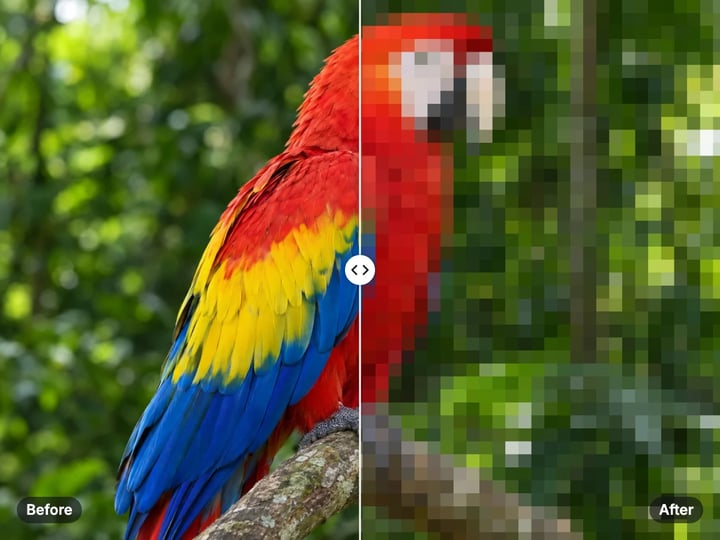
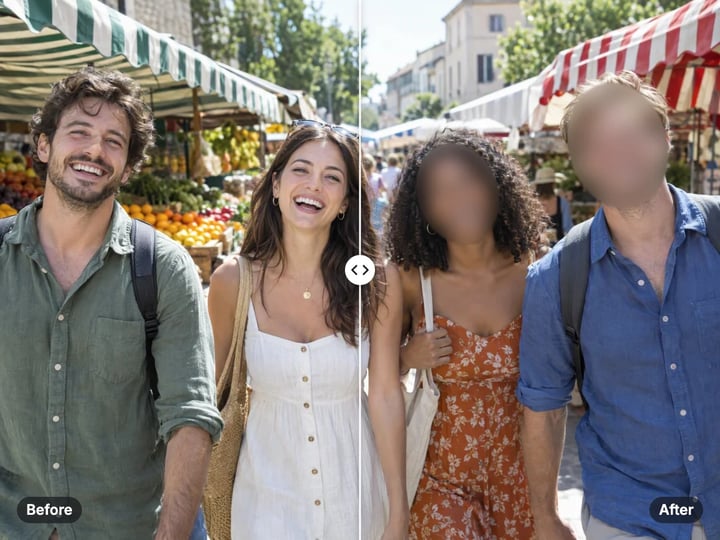
Every part of the image becomes square blocks of averaged color, so nothing in the picture is left sharp.
Imagera AI - AI content creation platform for generating images, cloning voices, creating avatars, and enhancing videos. Privacy Policy | Terms
Privacy · free · private
Turn a whole image into a mosaic of square blocks, from a light pixel-art look to completely unreadable. It runs in your browser, and your image is never uploaded.
Pixelation runs in your browser on your own device. Your image is never uploaded or saved on our servers.
 Real result
Quick answer
To pixelate an image for free, open Imagera’s Image Pixelator, add your image, choose a block size from 4 to 80 pixels and press Pixelate. The whole image becomes a mosaic of square blocks, each filled with the average color of that area. Small blocks give a retro pixel look; large blocks make everything unreadable. It runs in your browser, so your image is never uploaded.
Your image never leaves your device — nothing is uploaded or saved on our servers.
How it works
Drop in a JPG, PNG, WebP or HEIC image. It stays on your device.
Choose a block size from 4 to 80 pixels. Larger blocks hide more.
Press Pixelate, check the result, then save it to your device.
Why this one
Every part of the image becomes square blocks of averaged color, so nothing in the picture is left sharp.
Small blocks give a retro pixel look; large blocks make text and faces impossible to read.
Drag the before/after divider to check the result, then change the block size and run it again.
Pixelation runs on your device, so the unpixelated original never leaves it.
Continue in Imagera
Image Pixelator edits the pixels you have. These studios use AI to create what is not in the picture yet — they run on credits.
 Next step
Edit images with Imagera Edit. Inpaint, modify, and transform any part of your image.
Open studio Imagera
Too small to print? Enlarge a photo to 4K, 8K or 16K (15,360 px on the long edge).
Open studio Imagera
Replace any photo background with AI-generated luxury scenes.
Open studioWho it is for
Post a pixelated preview of a product, design or photo before the full reveal.
Give a photo a blocky, 8-bit style look for posters, avatars and posts.
Turn a photo into an unreadable texture for slides, headers and wallpapers.
Guide
Pixelating divides an image into a grid of squares and fills each square with a single color: the average of all the pixels inside it. Fine detail inside each square disappears, and the image turns into a mosaic.
The block size is the width of each square in pixels. With 4–8 px blocks the image is still easy to recognize and looks like retro pixel art. At 16–24 px shapes remain but small text and facial features are gone. At 40–80 px only broad areas of color are left.
This tool pixelates the whole image evenly. It does not look for faces or text and does not leave any part untouched. That makes it predictable: what you see in the preview is exactly what is covered.
If you want to hide faces while keeping the rest of the photo sharp, the free Face Blur tool is the better choice.
Teasers. Brands, artists and creators post a pixelated version of a product, cover or design before the reveal. Viewers can see the colors and shape but not the details.
Pixel-art style. A small block size turns a photo into an 8-bit style image for avatars, posters, game thumbnails and posts.
Backgrounds and textures. A heavily pixelated photo makes a colorful, unreadable background for slides, video thumbnails and website headers.
Hiding a whole screenshot. When a screenshot is full of names, messages or numbers and you only want to show its layout, pixelating it all is quicker than covering each detail.
Guessing games. Quiz posts that ask followers to guess a place, person or object from a pixelated picture are a simple way to start a conversation.
Think about the smallest thing that must become unreadable, then pick a block size larger than it.
For a pixel-art look: 4–12 px. The subject stays clear, and the blocks add a retro texture.
For a teaser: 16–30 px, depending on image size. The overall shape and colors show, while details stay hidden.
For hiding text: make blocks at least as tall as the letters. Small print needs less; large headings need more.
For hiding faces in a whole image: 30 px or more, and more for a large, high-resolution photo, since the same block size covers a smaller share of a bigger image.
After pixelating, look at the result at the size people will see it. If you can still read or recognize something you meant to hide, raise the block size and run it again.
Pixelation hides detail by throwing it away, but small block sizes can leave enough information for someone to make a good guess, especially with short text such as a number or a name in a known font.
For anything sensitive, follow three rules. First, use large blocks, well above the height of the text. Second, check the result at full size, not just in a small preview. Third, consider covering instead of pixelating. A solid shape leaves nothing to guess from.
For faces, the free Face Blur tool offers a black oval option that replaces each face completely. For documents, cropping out the sensitive part before sharing is often simplest.
This tool is best for creative and whole-image uses, and for privacy cases where a large block size is acceptable.
Pixelation is often used on images with something to hide. Uploading the original to a website to hide it defeats the purpose.
Imagera’s Image Pixelator runs in your browser. The image is read and pixelated on your own phone or computer, and it is never uploaded or saved on our servers. Only the pixelated version you download leaves the page.
It works in the browser on iPhone and Android, and HEIC photos from an iPhone are read on your device without converting them first.
Processing is unlimited, so you can try as many block sizes as you like. Your first few downloads need no account; after that, a free sign-in keeps them going. There is no watermark on the result.
Imagera has three ways to hide or change parts of an image, each suited to a different job.
The free Image Pixelator covers the whole image evenly. Use it for teasers, pixel-art looks, backgrounds and screenshots you want fully unreadable.
The free Face Blur tool finds faces automatically and hides only them, with blur, pixelation or a black oval. Use it when the scene should stay sharp but people should not be recognizable.
The paid AI image editor lets you choose any area and change it with AI, for example removing an object, replacing text or changing part of the scene. It runs in the cloud and is paid with credits.
Both free tools run in your browser with nothing uploaded. Start with them, and move to the AI editor when you need to change a specific area rather than hide it.
Free vs studio
Questions people ask
Open the Image Pixelator, add your picture, choose a block size and press Pixelate. It runs in your browser and nothing is uploaded.
Use a small block size of about 6–12 px. The subject stays recognizable, and the square blocks give it a retro, 8-bit style look.
With small blocks, short text can sometimes be guessed. Use a block size larger than the letters, or cover sensitive text completely instead of pixelating it.
Use the free Face Blur tool and choose Pixelate as the effect. It finds faces automatically and leaves the rest of the photo sharp.
Block size is measured in pixels. On a large, high-resolution photo, each block covers a smaller share of the image, so it hides less. Raise the block size for big photos.
Yes. PNG and JPG screenshots work well. Choose a block size larger than the text so names and numbers cannot be read.
No. The pixelated image keeps the same width and height as the original on most devices; only the detail inside each block is replaced.
No. Pixelation discards the detail inside each block, so it cannot be restored from the downloaded file. Your original image on your device is not changed.
More free tools
Complete your workflow
These pair with Edit Image. Every tile says what the tool actually does — without leaving this page.
Replace or restyle outfits in a photo without a reshoot
Replace words and fix typos while AI matches the original font
Replace any photo background with AI-generated scenes
Transform photos into Ghibli, oil paintings, watercolor art
Create professional product photography from a single image
Ask 10 AIs the same question. Steal the best answer.
Add freckles, pores, scars, tattoos. Remove blemishes. Fix plastic AI skin instantly.
Remove flyaway hair and fix fine imperfections with surgical AI precision.
Change the words, color or font of text baked into a photo, poster or screenshot.
Free passport, visa & ID photos — auto-cropped to any country's exact size, background and file size, right on your device.
Imagera AI Team
Unified AI creation platform