Five styles
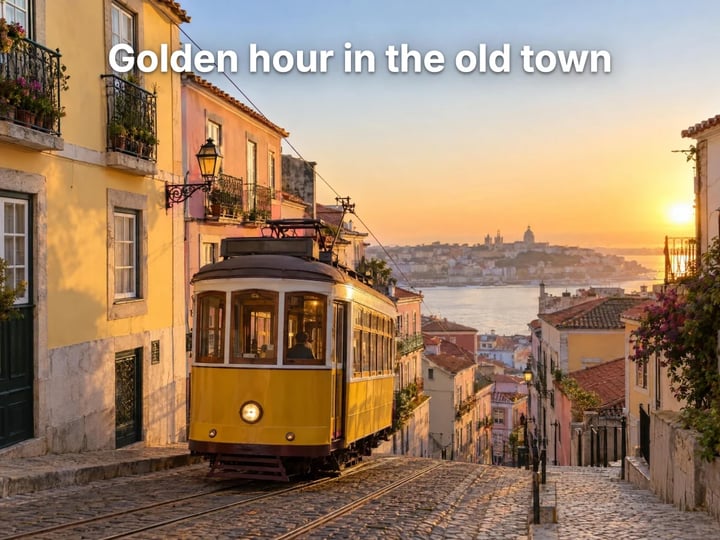
Clean white with a shadow, bold outline, caption box like short-video subtitles, neon glow and an elegant serif.
Imagera AI - AI content creation platform for generating images, cloning voices, creating avatars, and enhancing videos. Privacy Policy | Terms
Social & creative · free · private
Type a caption, pick a style and a position, and the text wraps and sizes itself to your photo. It is drawn in your browser, so your photo is never uploaded.
The text is drawn onto your photo in your browser on your own device. Your photo is never uploaded or saved on our servers.
 Real result
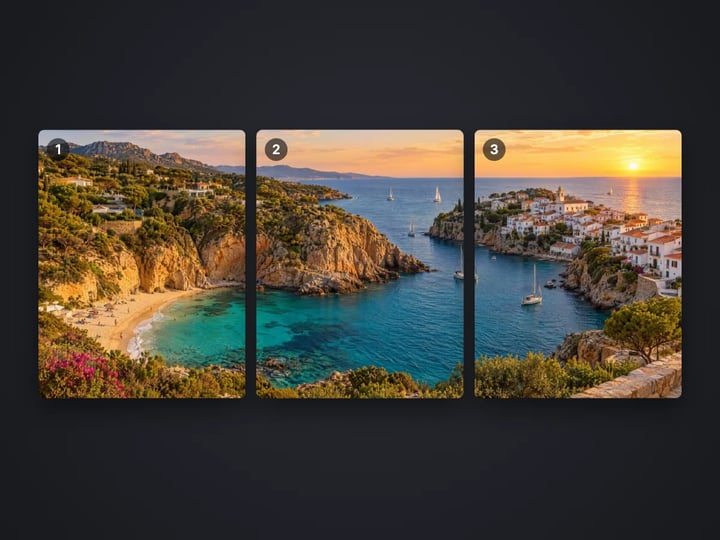
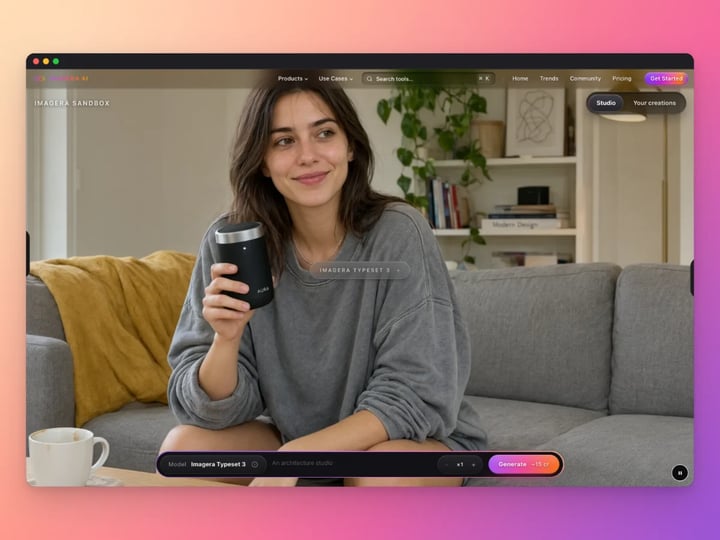
Quick answer
To add text to an image for free, open Imagera’s Add Text to Photo tool, add your photo, type your caption and pick a style: clean with shadow, bold outline, caption box, neon glow or elegant serif. Choose top, center or bottom and press Add text. The caption wraps and sizes itself to fit, and it is drawn in your browser, so your photo is never uploaded.
Your photo never leaves your device — nothing is uploaded or saved on our servers.
How it works
Drop in a JPG, PNG, WebP or HEIC photo. It stays on your device.
Write the text in the Text box. It keeps the capitals you type.
Choose one of the five styles and place it at the top, center or bottom.
Press Add text, check the result and download.
Why this one
Clean white with a shadow, bold outline, caption box like short-video subtitles, neon glow and an elegant serif.
Long captions wrap into balanced lines and shrink until they fit the photo, so nothing runs off the edge.
Place the caption where it does not cover the subject, with a margin from the edge.
Pick the text color, the box color or the glow color from quick swatches or the color picker.
Continue in Imagera
Add Text to Photo edits the pixels you have. These studios use AI to create what is not in the picture yet — they run on credits.
 Next step
Edit images with Imagera Edit. Inpaint, modify, and transform any part of your image.
Open studio Imagera
Too small to print? Enlarge a photo to 4K, 8K or 16K (15,360 px on the long edge).
Open studio Imagera
Replace any photo background with AI-generated luxury scenes.
Open studioWho it is for
Add a hook, a date or a punchline in the caption-box look people know from short videos.
Put a price, an opening time or an offer on a product photo in seconds.
Set a name, a date or a favorite line over a photo in an elegant serif.
Guide
Add Text to Photo draws a caption onto your picture and saves it as a new image.
You type up to 120 characters. The text keeps the capitals you type, so a sentence stays a sentence and a shout stays a shout.
The tool then fits the caption to your photo. It starts at the size you allow and shrinks until the text fits across about nine-tenths of the width, wrapping over up to five lines. Lines are balanced, so you get two even lines rather than a long line with one word left dangling below it.
You choose one of five styles, a position (top, center or bottom) and a color. In Advanced, Text size sets the largest size as a share of the photo’s short side.
The result is saved in your photo’s format, at its full resolution, with no watermark.
1. Add your photo. JPG, PNG, WebP and iPhone HEIC photos all work. 2. Type your caption in the Text box. Short captions are larger and easier to read. 3. Pick a style. See the next section for when each one works best. 4. Pick a position. Bottom suits most captions. Top suits a headline or a setup line. Center suits a single word or a quote over a calm area. 5. Pick a color in Advanced if you want something other than white. 6. Add text and download. Press Add text. To try another style, change it and press it again; your photo does not need to be added again.
Text is drawn with a margin from the edge. If it covers a face, move it to another position or shorten it so it takes fewer lines.
Clean with shadow is bold white text with a soft shadow. It reads on most photos without drawing attention to itself. Use it for everyday captions.
Bold outline gives each letter a thick contrasting edge. It stays readable on busy, bright or patterned backgrounds, and it has the familiar social-video look.
Caption box puts each line on a rounded box in the color you pick, with black or white text chosen to read on it. It is the subtitle look from short-video apps and the most readable style on any background.
Neon glow gives the text a lit-tube glow in your color. It stands out best on darker photos. White has no color to glow with, so white text glows pink; pick a color for a different glow.
Elegant serif sets the text in a classic serif with a soft shadow. Use it for invitations, quotes and calm, editorial photos.
A caption only works if people can read it at a glance, often on a small screen.
Keep it short. Six to ten words is plenty. Fewer words mean bigger letters.
Find the calm part of the photo. Text over sky, a wall or a dark floor reads easily. Text over leaves, crowds or patterns fights with them. Use the position setting to reach the calm area.
Add contrast when the background is busy. Switch from Clean to Bold outline or Caption box. The caption box works on anything.
Mind the edges on Stories and Reels. Apps place their own buttons and text near the top and bottom of vertical posts. For those, the center position or a shorter caption keeps your words clear.
Match the mood. Serif for weddings and quotes, neon for nights out, outline and caption box for fast, playful posts.
The sans-serif styles use Inter, the same clean typeface this site uses, so letters render sharply and consistently. The serif style uses a classic serif that is already on your device, such as Georgia.
Text is drawn at your photo’s full resolution. A 12-megapixel photo gets a 12-megapixel result with crisp edges, not a screenshot-sized copy.
The file keeps its format: a JPG stays a JPG and a PNG stays a PNG, so transparent areas of a PNG stay transparent around the text.
There is no font picker and no free positioning, by design: the five styles cover the common caption looks, and automatic fitting means there is nothing to drag or nudge. If you need exact placement or special fonts for a poster, a design app is the better tool.
Your photo never leaves your device. It is read by your browser, the caption is drawn in memory and the result is handed back as a download. Nothing is uploaded or saved on our servers. That matters for photos of family, friends and your home.
Adding text is unlimited and there is no watermark. Your first few downloads need no account; after that, a free sign-in keeps them going.
This tool adds new text on top of a photo. Changing text that is already in a photo is a different job: a wrong price on a shelf label, a typo on a banner, a sign in the wrong language. The paid Edit Image studio does that with AI. You describe the change, such as "change the sign to OPEN", and it rewrites the words with matching lettering, angle and lighting. It runs in the cloud and uses credits.
Free vs studio
Questions people ask
Add your photo, type the text, choose a style and a position, and press Add text. Download the result when you are happy with it.
Choose the Caption box style. Each line gets a rounded box in your chosen color with readable black or white text, like short-video subtitles.
Use Bold outline or Caption box, which add a contrasting edge or a solid box behind the letters. Moving the text to a calmer area also helps.
Yes. Open the page in Safari, choose a photo, including HEIC photos, type your caption and download. The photo stays on your phone.
Each style has its own font: a clean sans-serif for four styles and a classic serif for Elegant serif. There is no separate font picker.
Long captions shrink so they fit the photo within five lines. Use fewer words, or raise Text size in Advanced if the photo has room.
Not with this tool, which only adds text. Edit Image can change or remove existing text in a photo with AI, matching the original lettering.
No. Only your caption is added, and the photo keeps its full resolution.
Each run adds one caption. Add the first, download it, then add that image again and place a second caption elsewhere.
More free tools
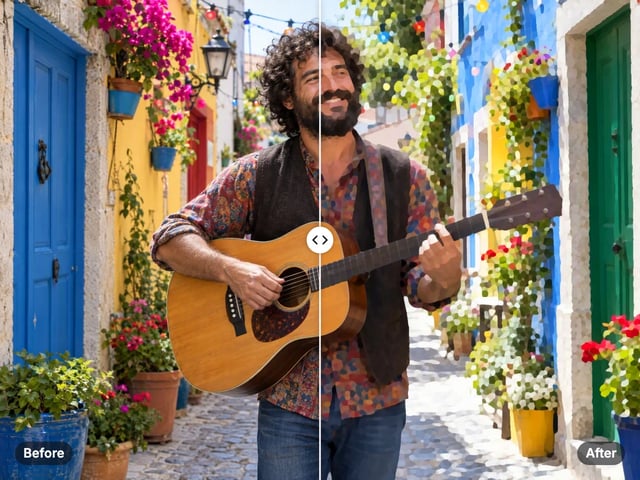
Turn a photo into a comic, painted or soft toon picture
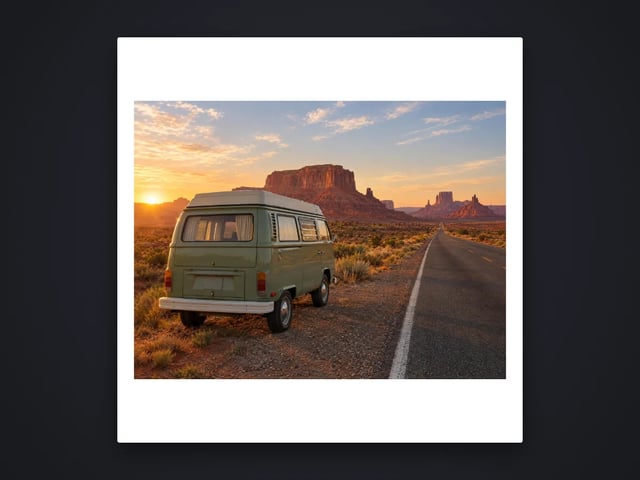
Add a border or fit a photo to 4:5 without cropping
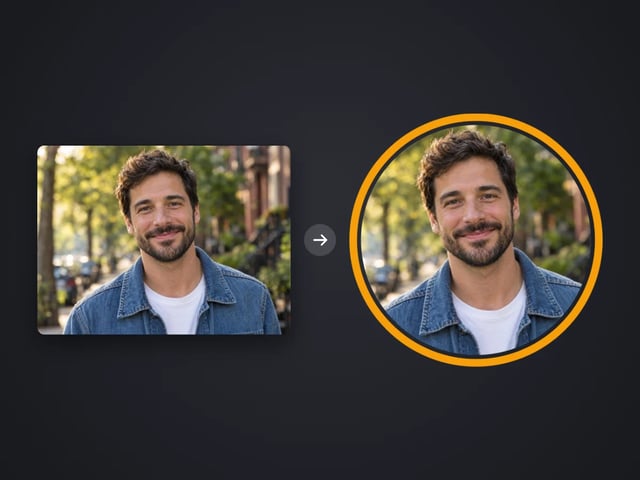
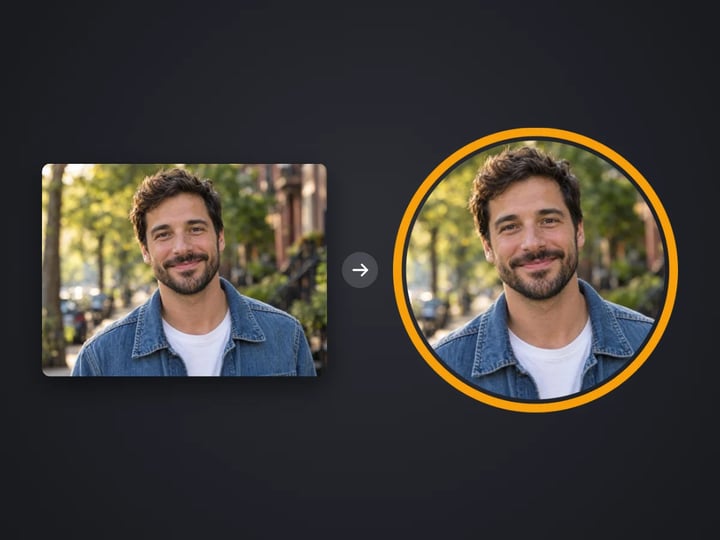
Round profile photo with a colored ring
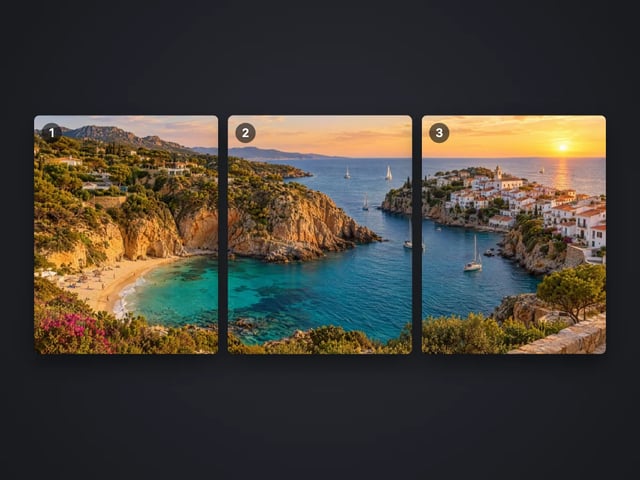
Split a photo into a carousel or a 3×3 grid
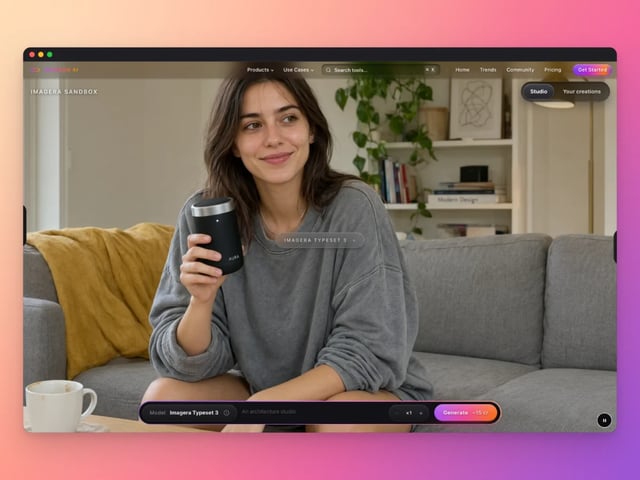
Frame a screenshot on a gradient with a shadow
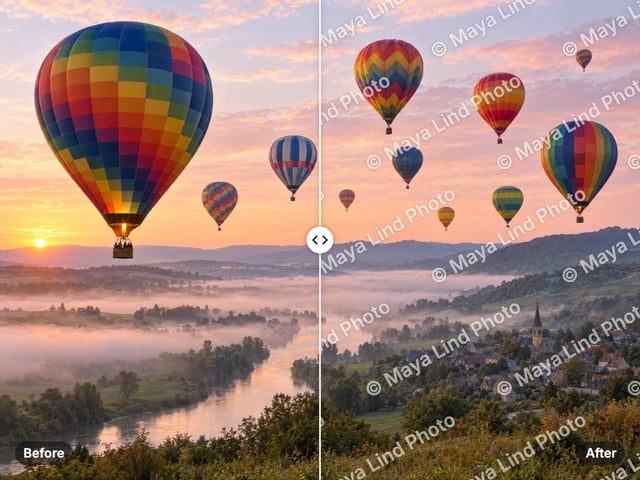
Add your name or © to a photo
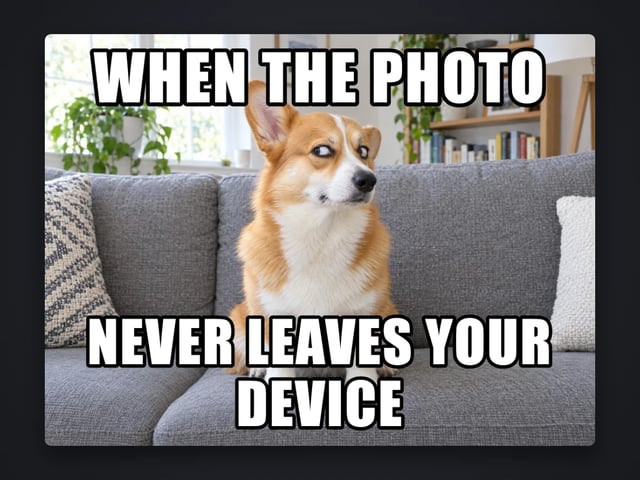
Top and bottom text on your own image
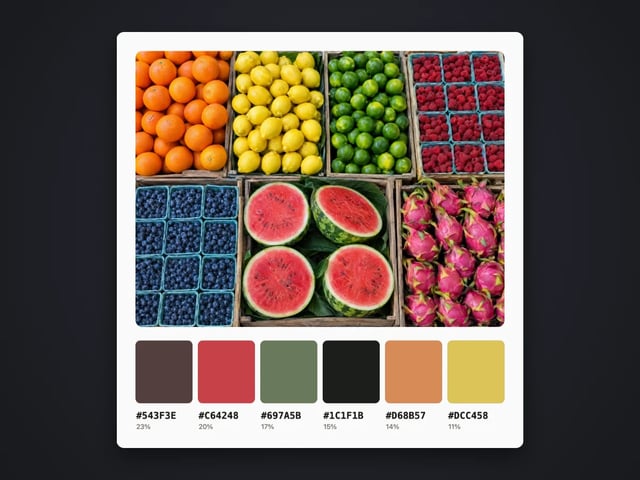
Pull the main colors and HEX codes from a photo
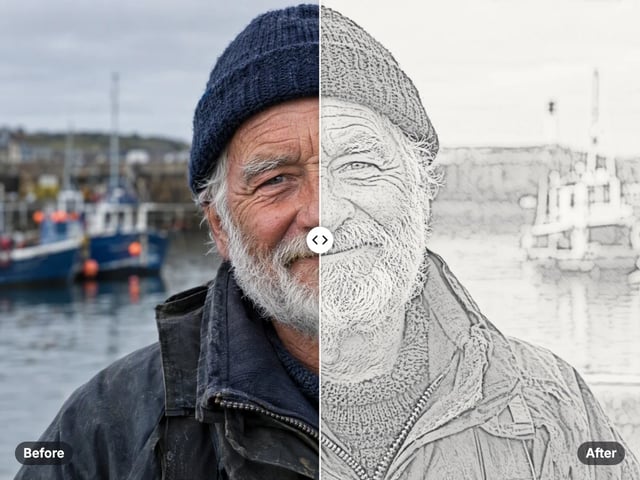
Turn a photo into a pencil or charcoal drawing
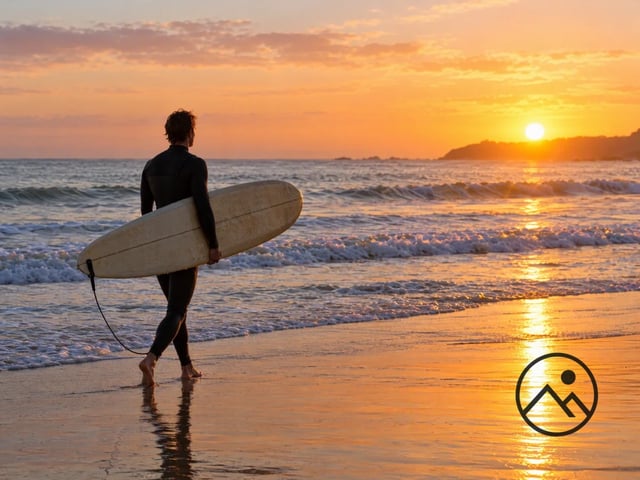
Put your logo on a photo, in a corner or tiled
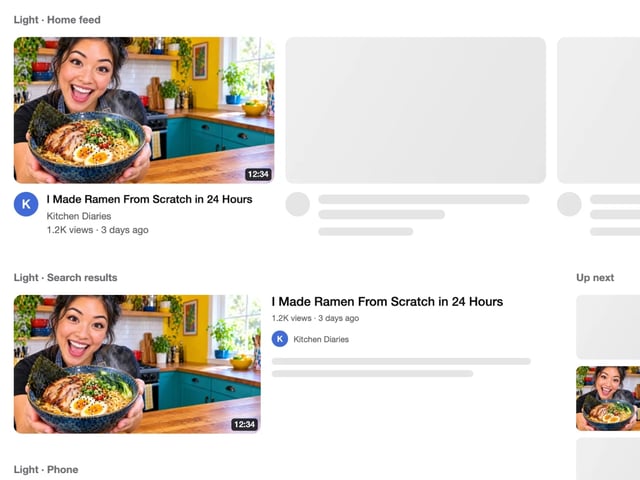
See your thumbnail in feed, search and phone layouts
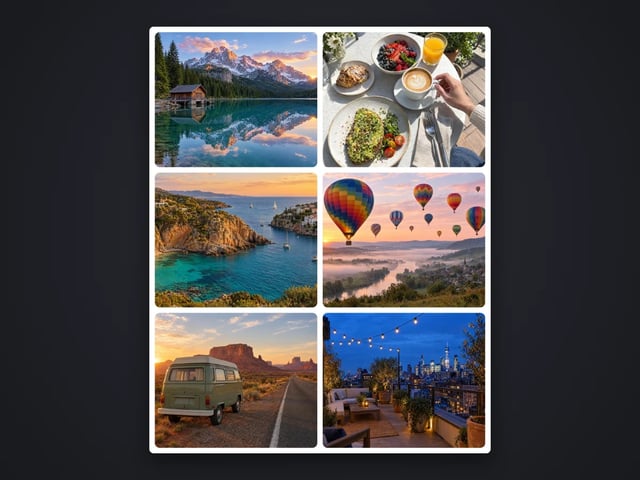
Put 2 to 9 photos in one grid
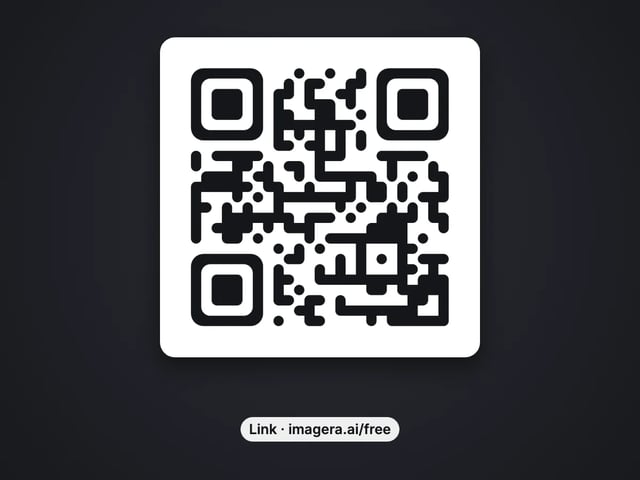
Make a QR code for a link or text
Complete your workflow
These pair with Edit Image. Every tile says what the tool actually does — without leaving this page.
Replace or restyle outfits in a photo without a reshoot
Replace words and fix typos while AI matches the original font
Replace any photo background with AI-generated scenes
Transform photos into Ghibli, oil paintings, watercolor art
Create professional product photography from a single image
Ask 10 AIs the same question. Steal the best answer.
Add freckles, pores, scars, tattoos. Remove blemishes. Fix plastic AI skin instantly.
Remove flyaway hair and fix fine imperfections with surgical AI precision.
Change the words, color or font of text baked into a photo, poster or screenshot.
Free passport, visa & ID photos — auto-cropped to any country's exact size, background and file size, right on your device.
Imagera AI Team
Unified AI creation platform